Qajeelfamni kun amma Afaan Ingiliffaan jira. Appiin mataan isaa afaan keessan dubbata.
Find your way in the app
The app has five parts. You find them at the bottom of the screen.
12345
1
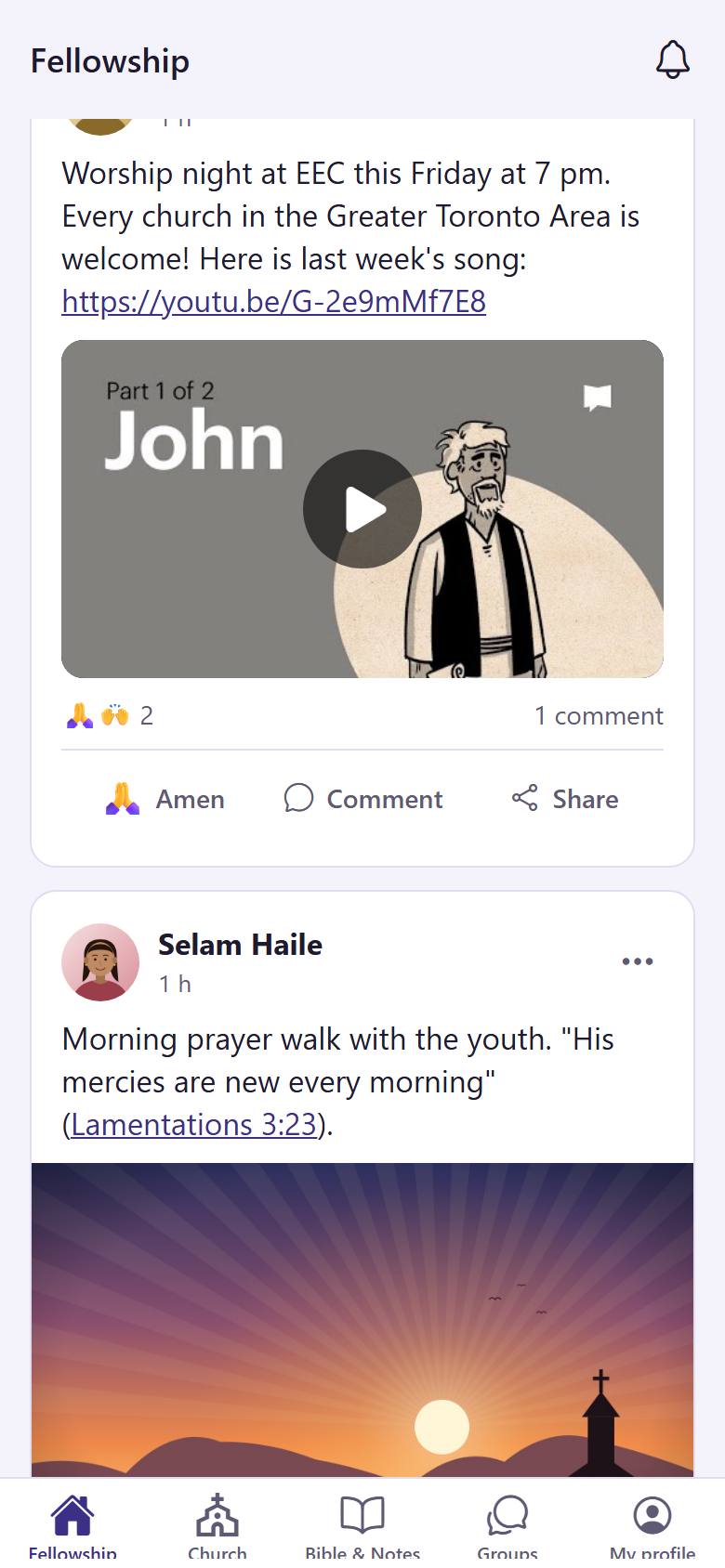
"Fellowship" 1 shows the posts, prayer requests and burdens of your church family. "Church" 2 has the news, events, sermons and more. "Bible & Notes" 3 is the Bible and your notes. "Groups" 4 are your groups and their chats. "My profile" 5 is your profile and your settings.
A red number on a tab tells you that something new is waiting there.
12
2
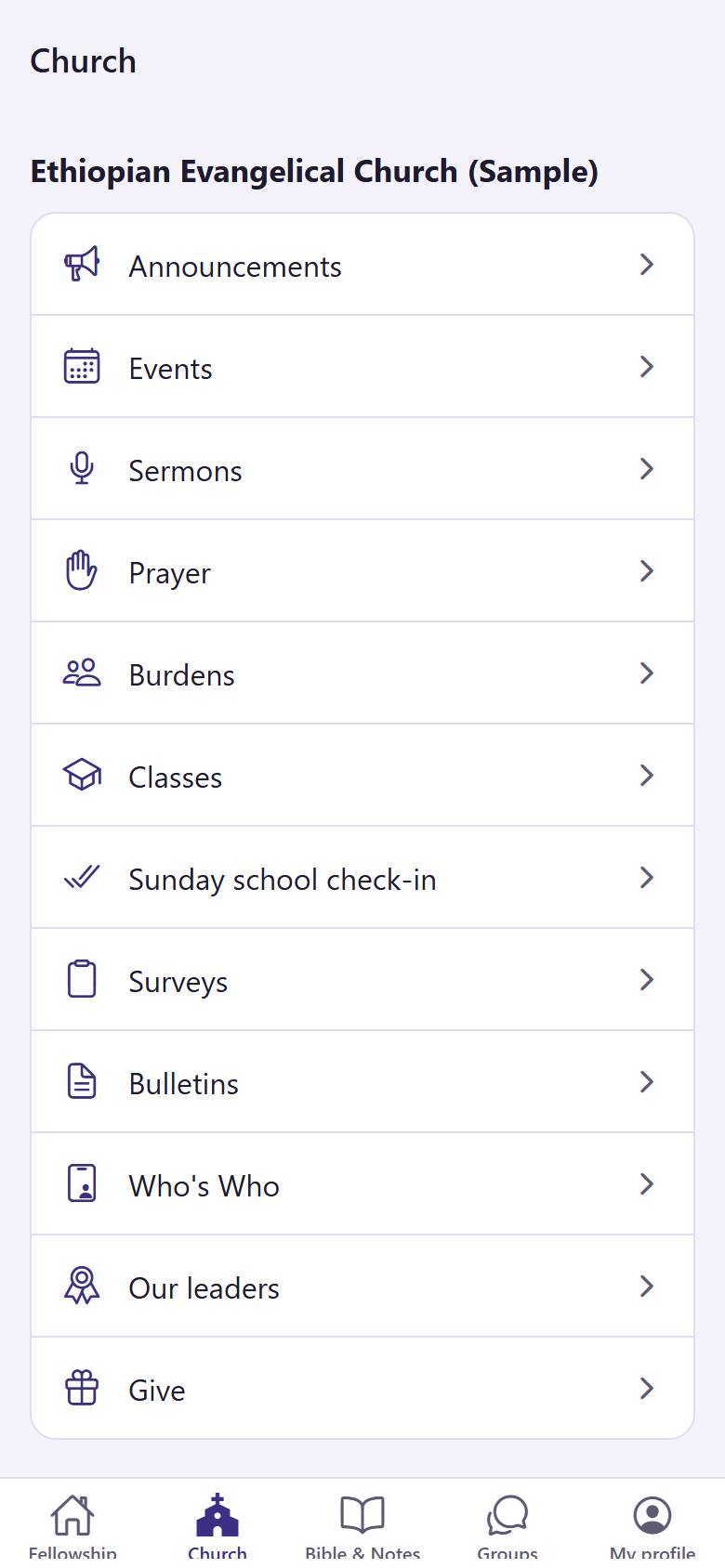
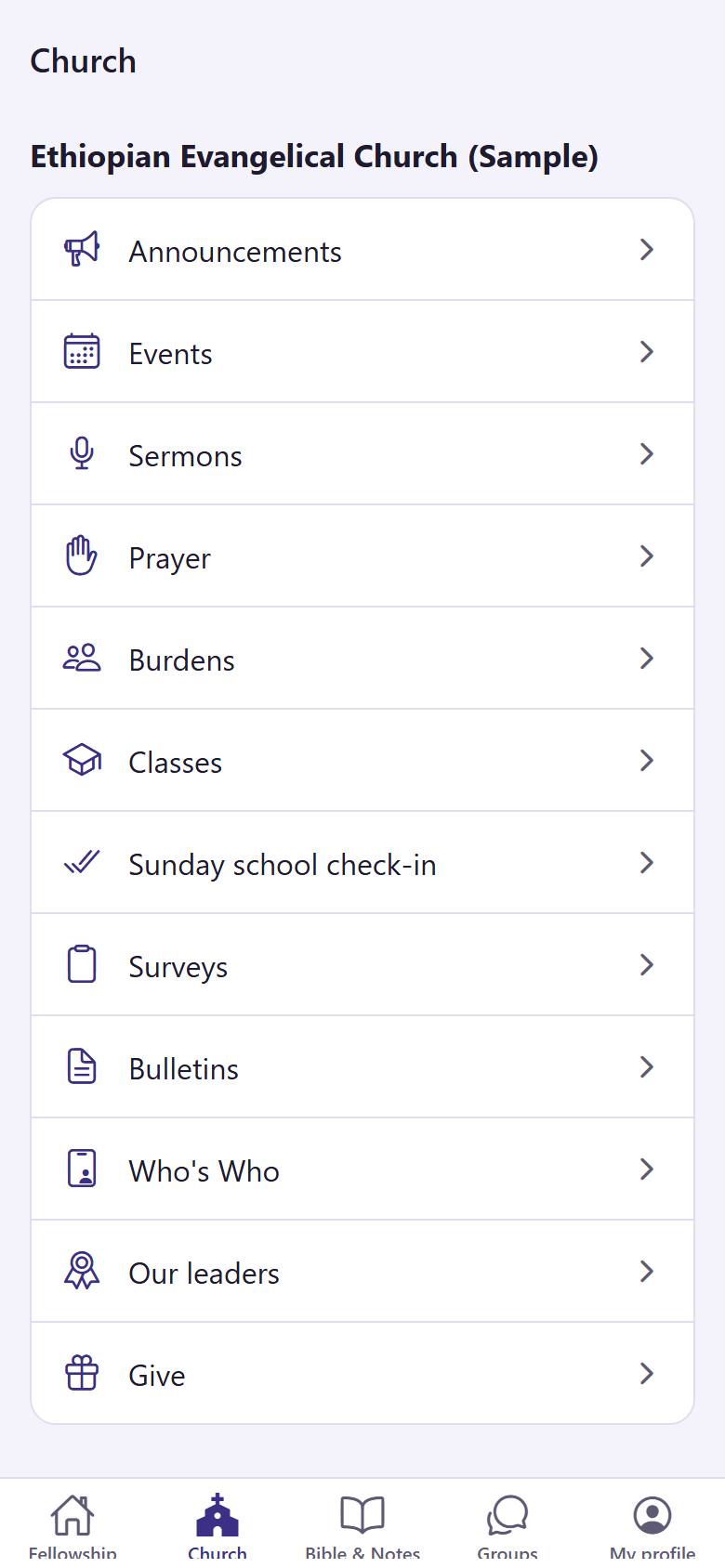
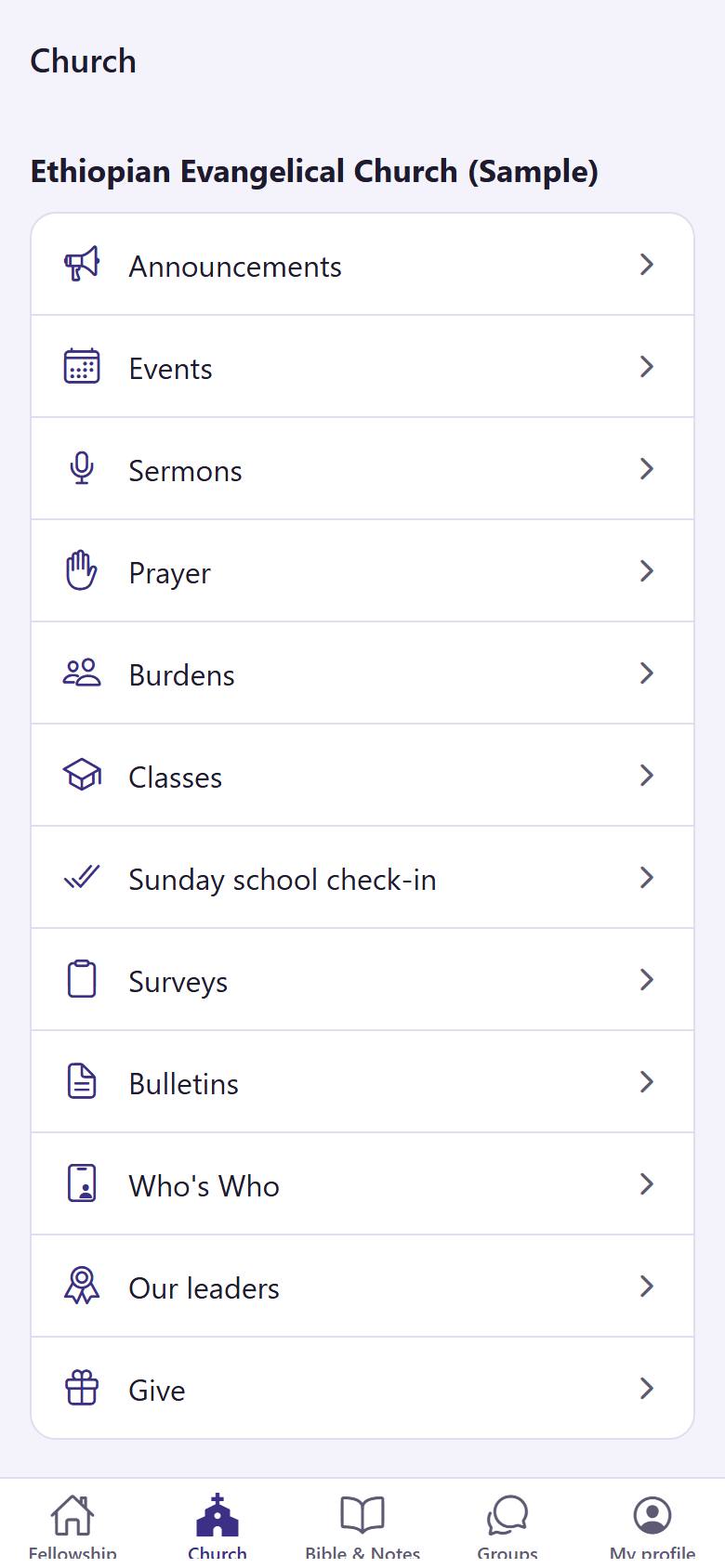
Tap "Church". You see every part of your church: tap one to open it, for example "Announcements" 1 or "Events" 2.
A tap on the tab you are already in brings you back to its first page.
See your notifications
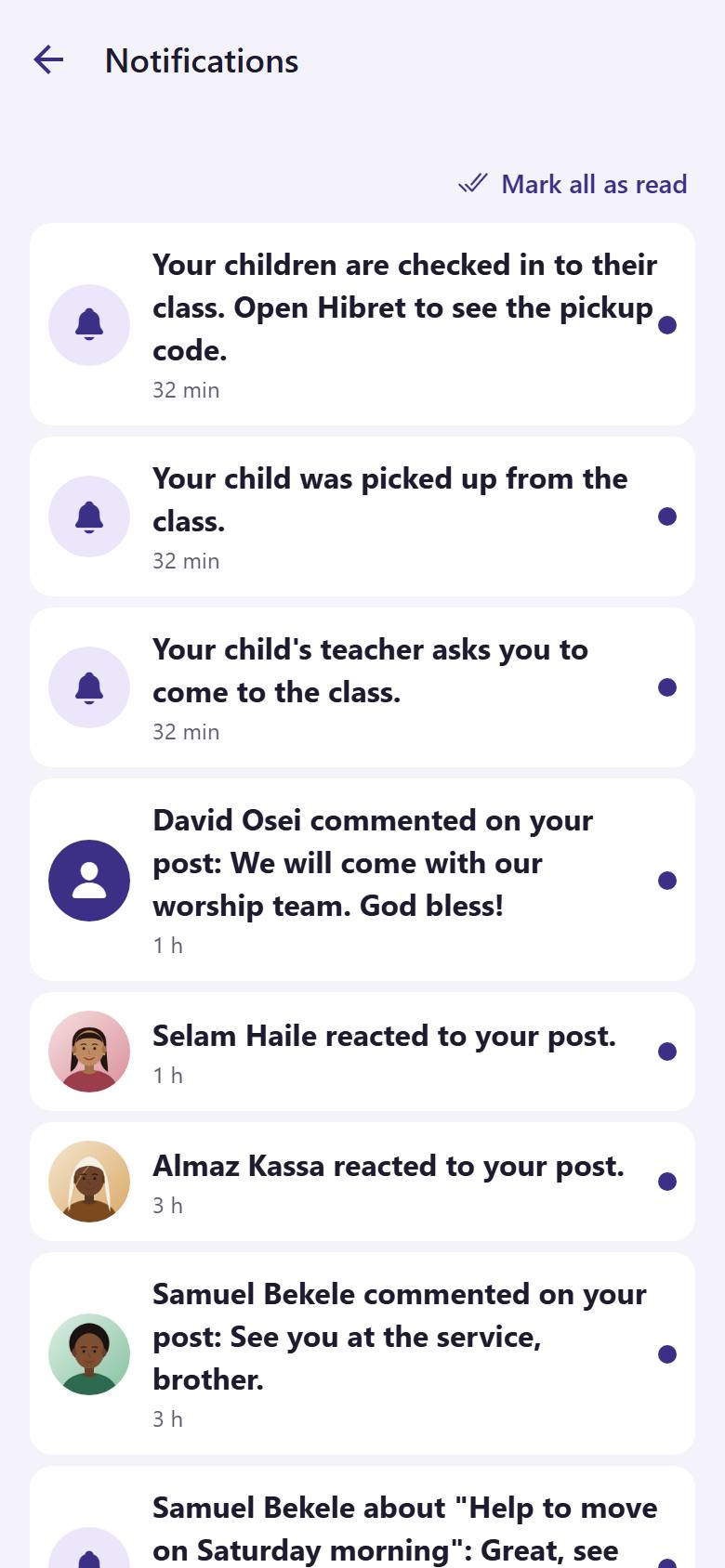
The bell tells you when someone comments, reacts, answers you or needs you.
1
1
On "Fellowship", tap the bell 1 at the top. The red number is how many you have not read yet.
12
2
Tap a notification 1 to open what it is about. Tap "Mark all as read" 2 when you have seen them all.
The red number on the bell goes away.
Share a post with your church
Share what God is doing, a photo from church life or a word of encouragement.
1
1
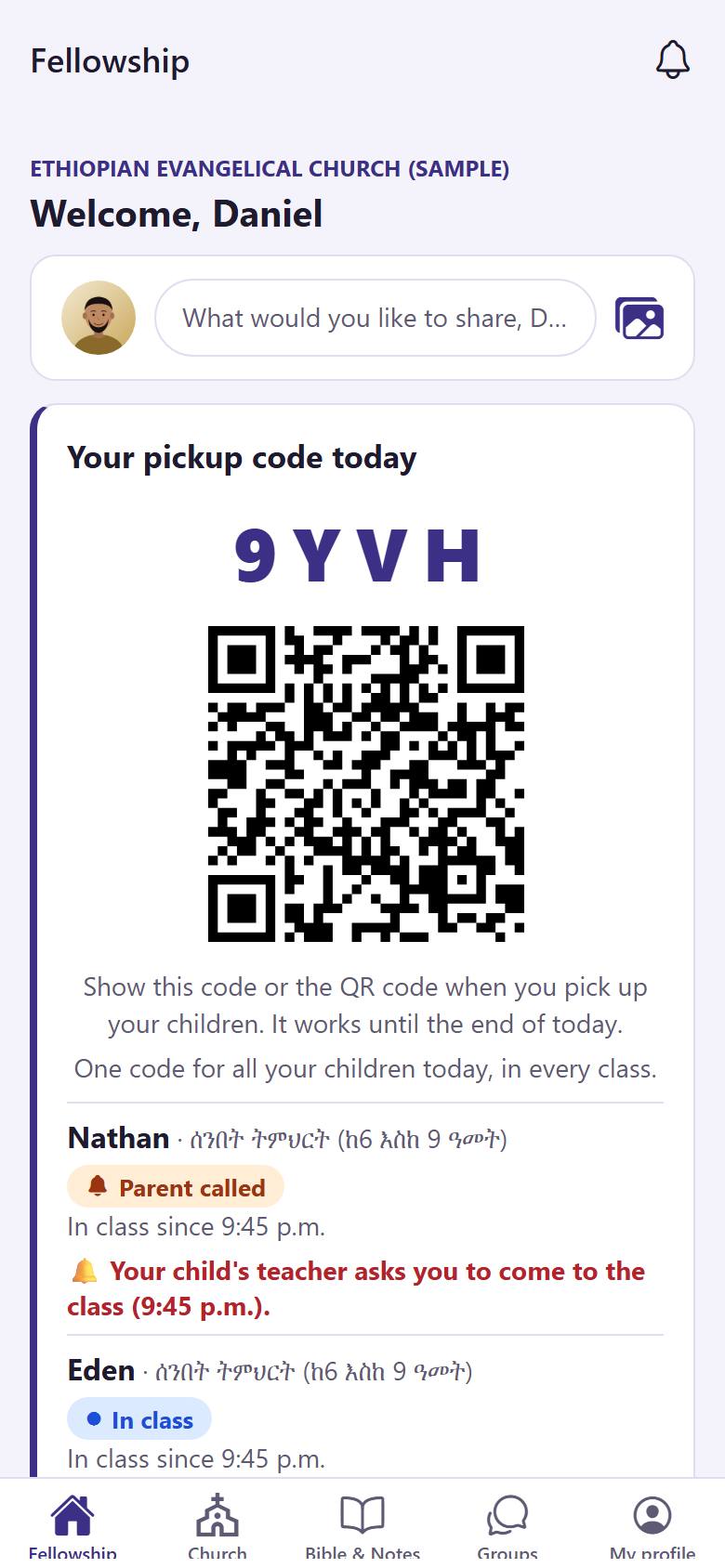
On "Fellowship", tap the box at the top 1.
12345
2
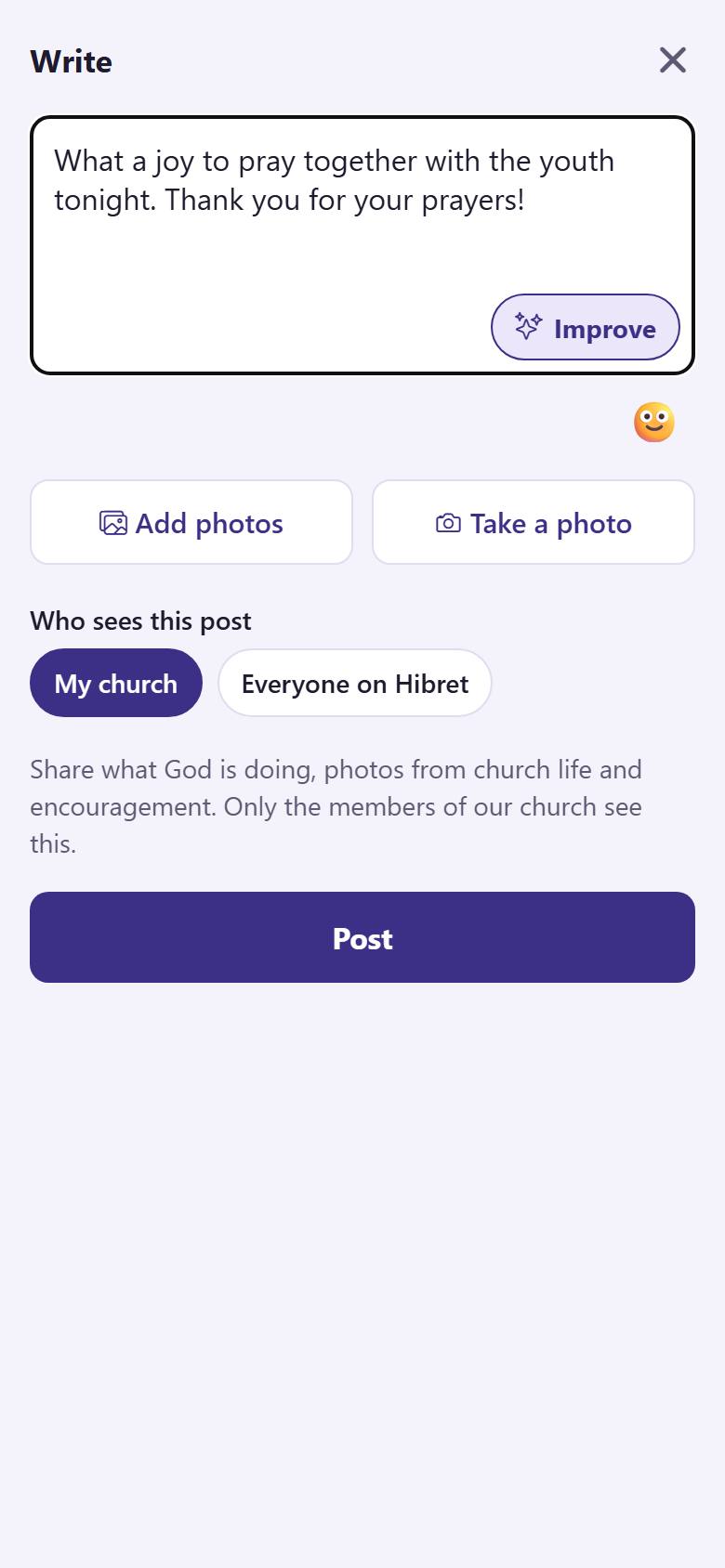
Write your words 1. Add photos 2 or take one 3. Choose who sees it 4: only your church, or everyone on Hibret. Tap "Post" 5.
Your post shows on Fellowship. Your church family can say Amen, love it or comment.
Say Amen and comment
Encourage your church family: react to a post or write a comment.
12
1
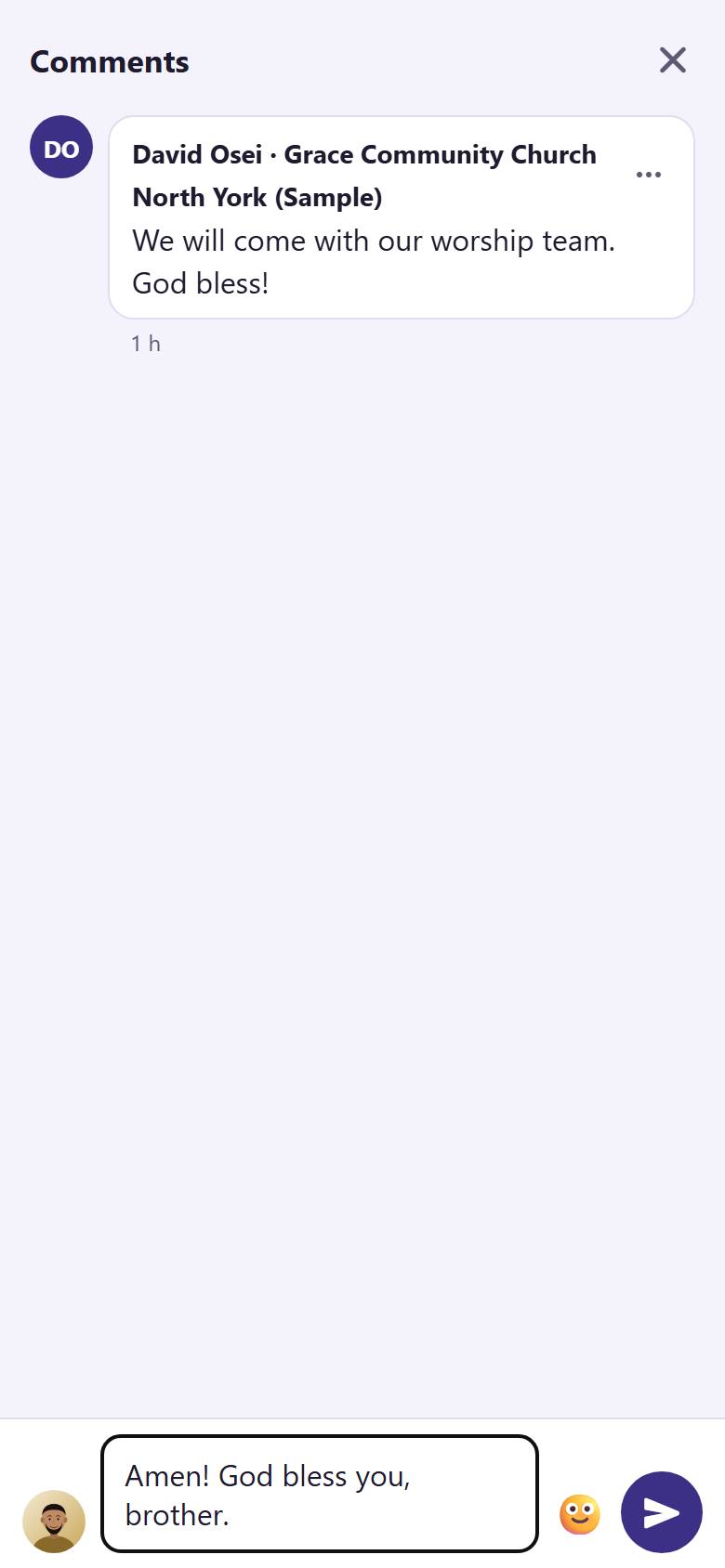
Under a post, tap "Amen" 1. Hold it down to choose another reaction. Tap "Comment" 2 to read and write comments.
Tap Amen again to take it back.
12
2
Write your comment 1 and tap "Send" 2.
Your comment shows under the post. The writer gets a notification.
Report a post or block a person
If something is not right, tell the church staff. If one person troubles you, you can stop seeing them.
1
1
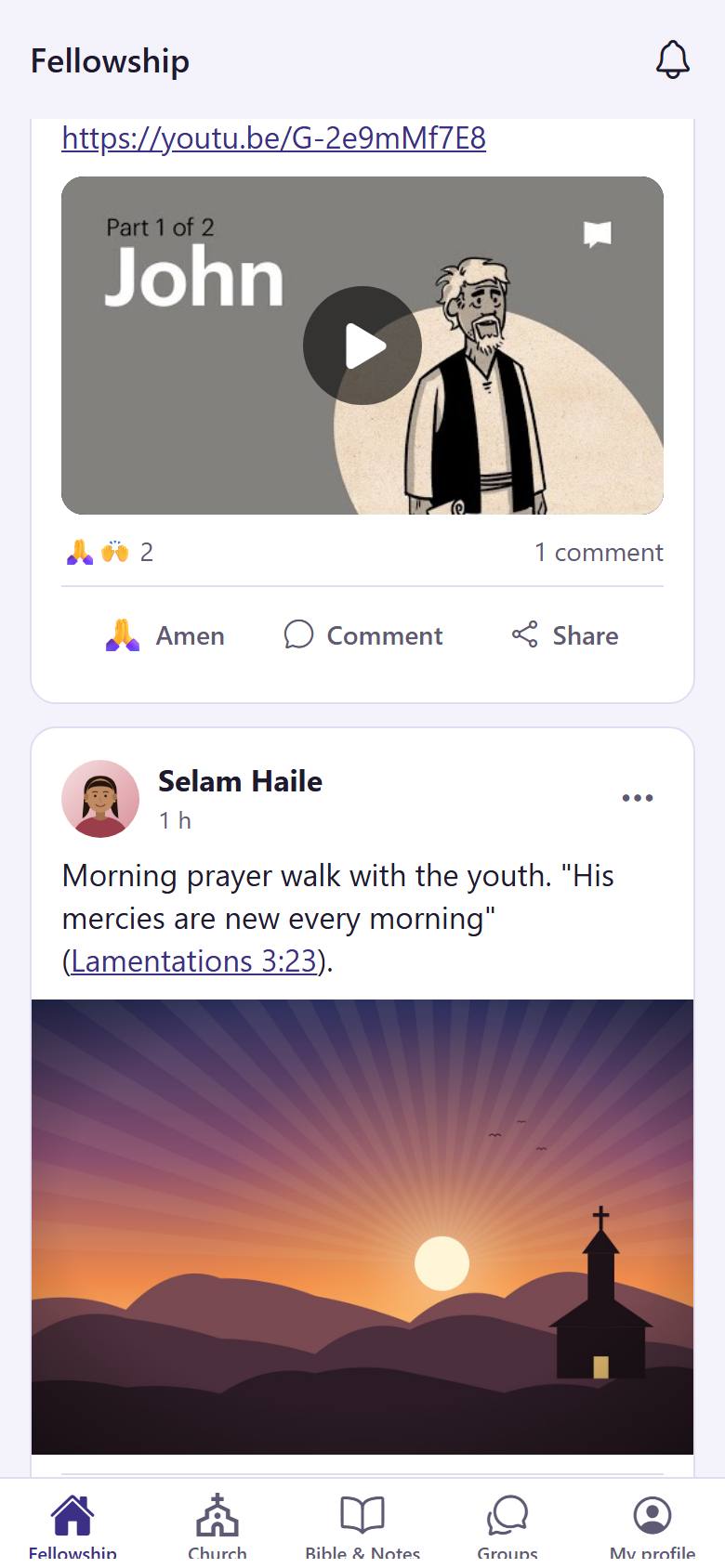
On a post by someone else, tap ⋯ 1.
123
2
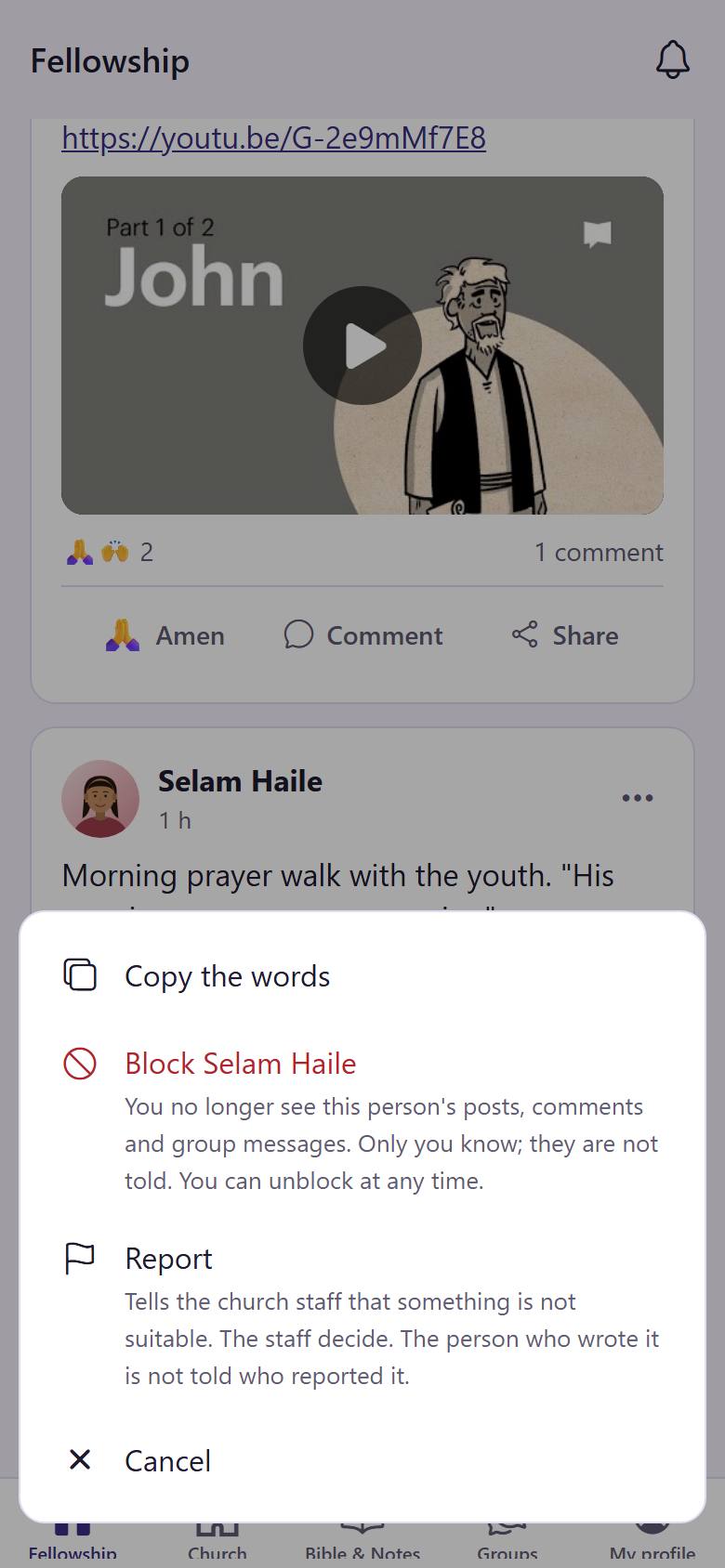
Each choice says what it does. "Report" 1 tells the church staff. Block 2 hides all that this person writes, only for you. Tap "Cancel" 3 to close.
The person is never told who reported or blocked them.
Ask for prayer
Your church family prays for you. You choose who sees your request.
1
1
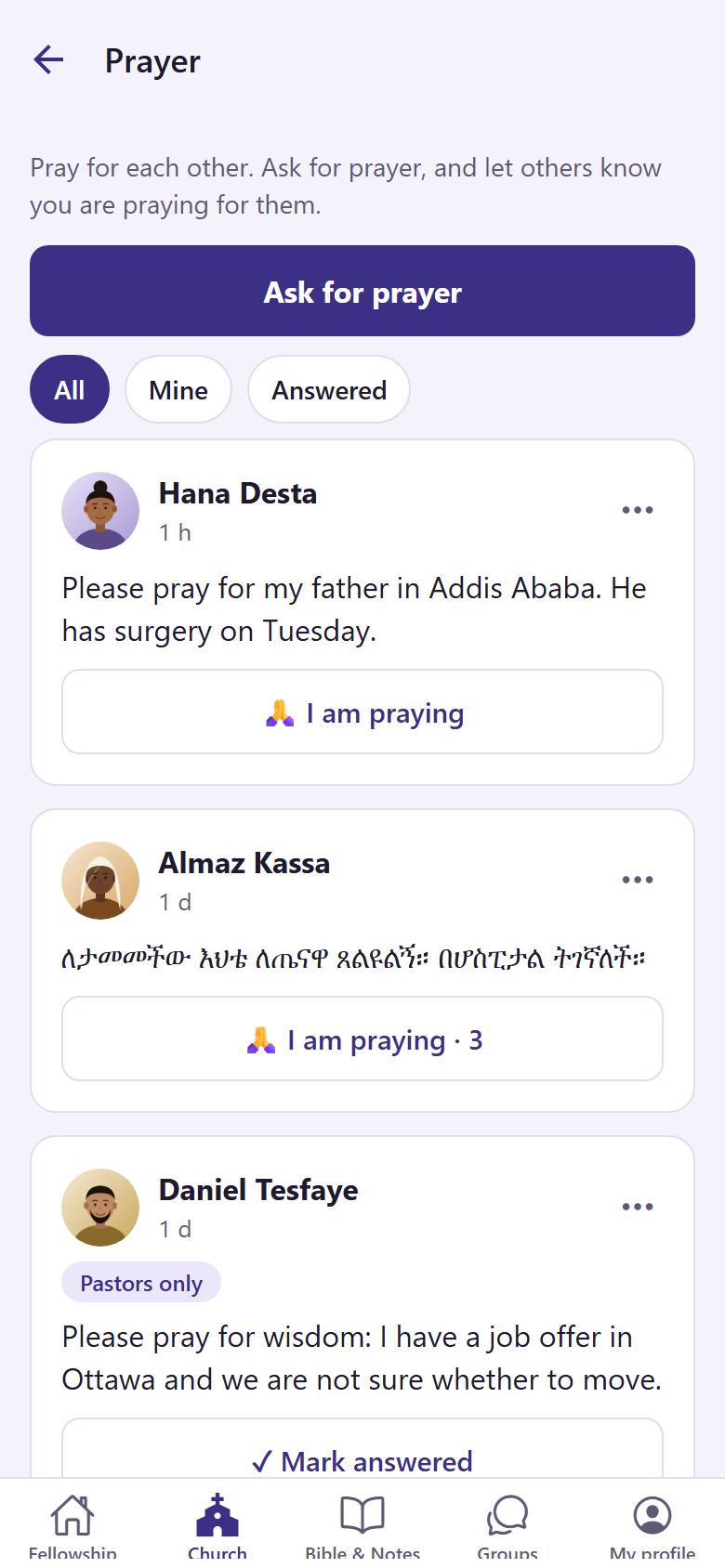
In "Church", open "Prayer". Tap "Ask for prayer" 1.
12345
2
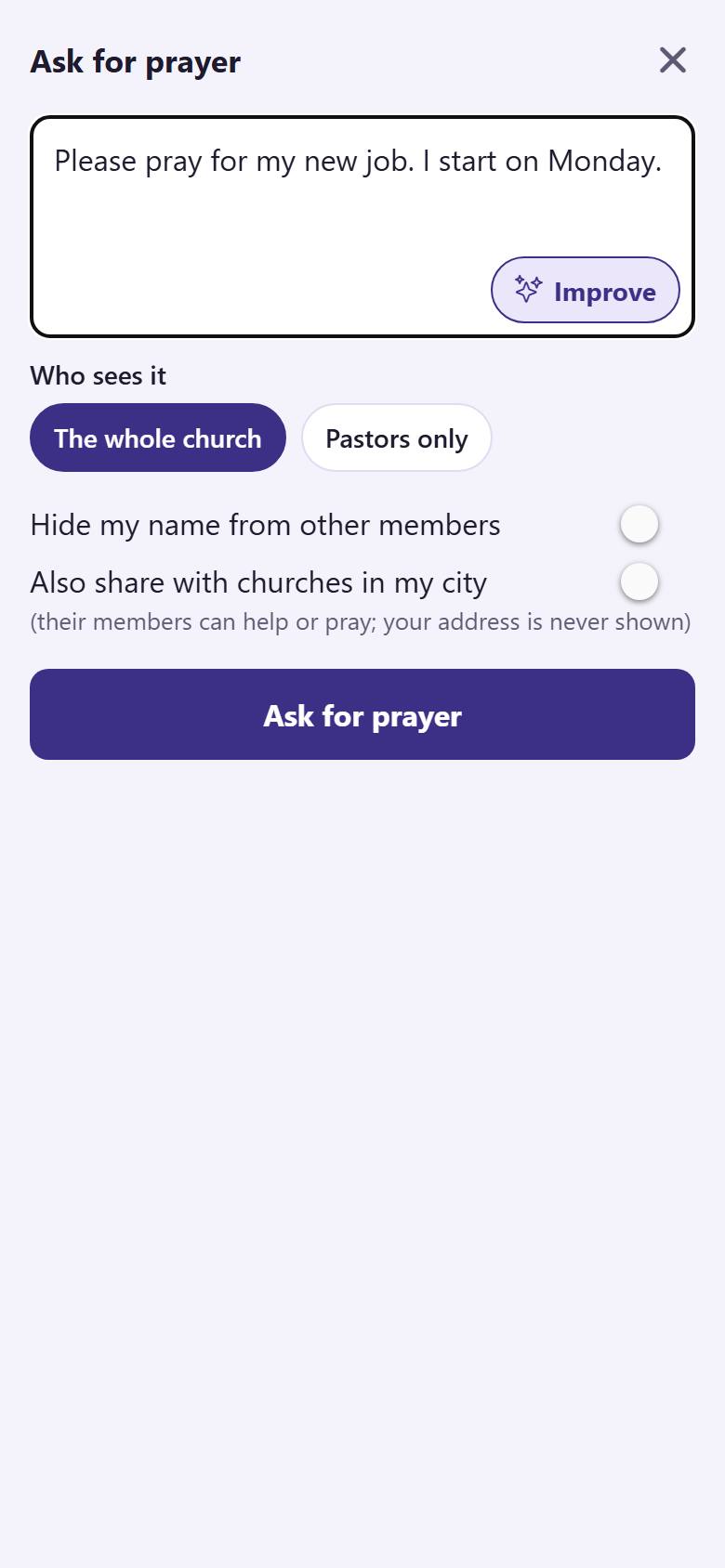
Write your request 1. Choose who sees it: "The whole church" 2 or "Pastors only" 3. You can hide your name 4. Tap "Ask for prayer" 5.
People tap "I am praying", and you see how many pray for you.
Pray for others
Let your brothers and sisters know that you pray for them.
12
1
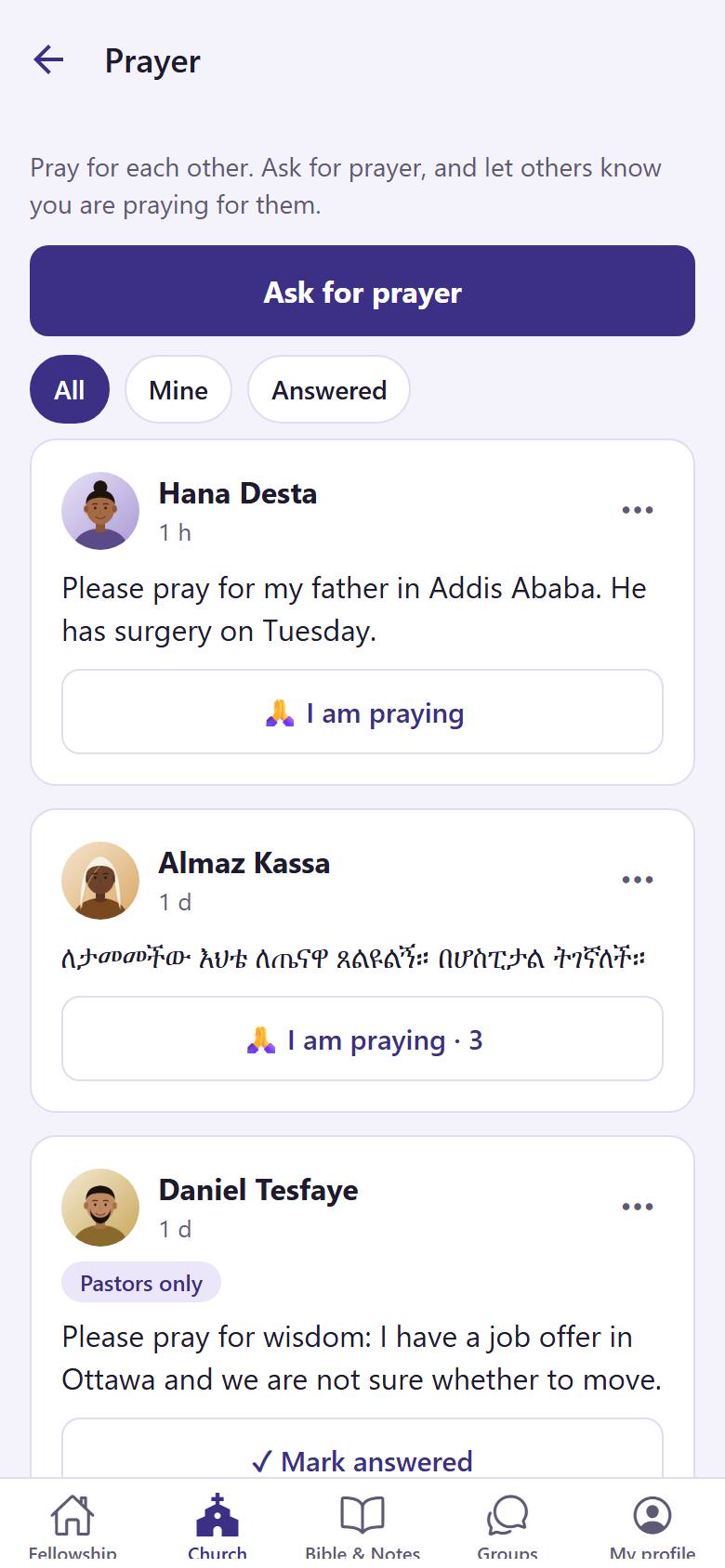
Read a request and pray. Then tap "I am praying" 1. With "Answered" 2 you see the prayers God has answered.
The person sees that one more person prays. Tap again if you tapped by mistake.
Ask for practical help
Moving, a ride, a meal: let your church family carry the burden with you (Galatians 6:2).
1
1
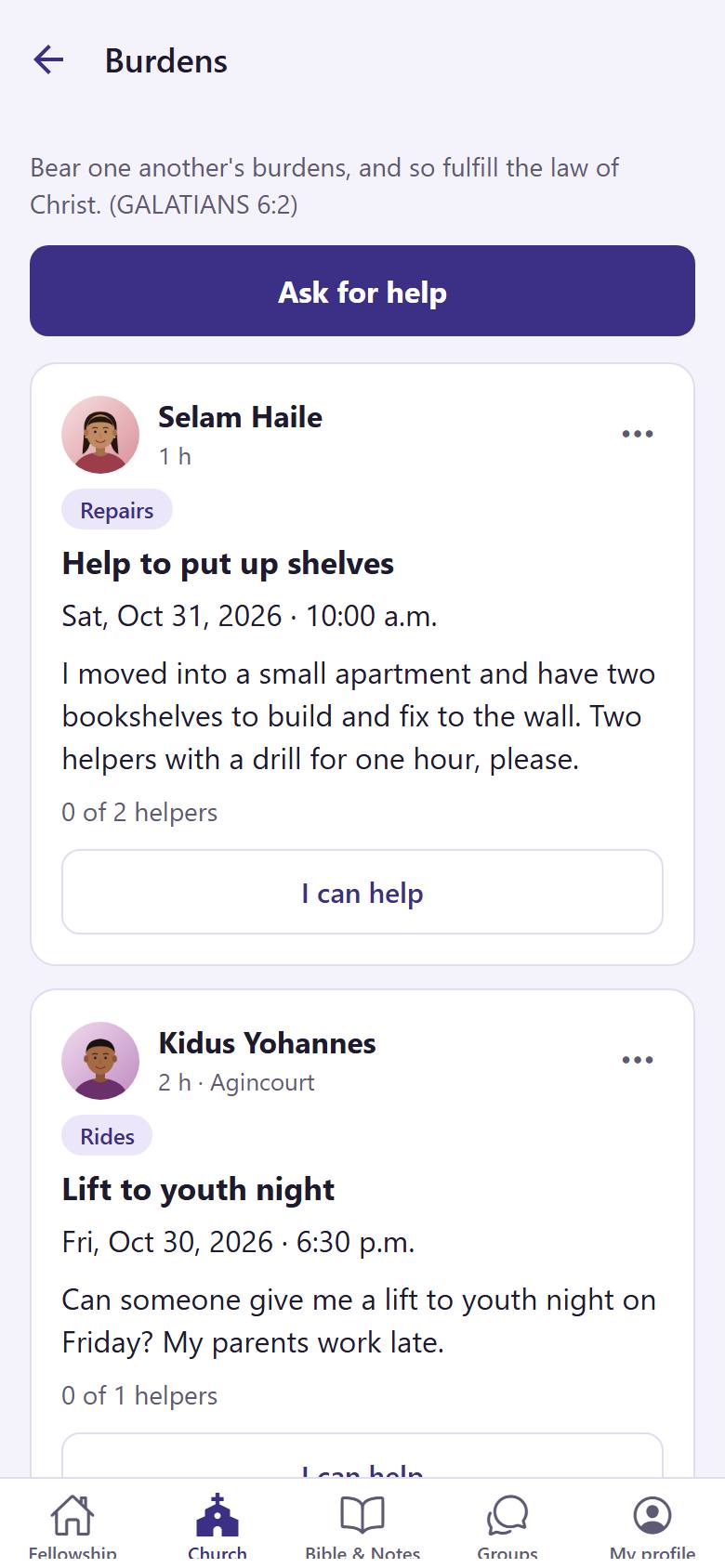
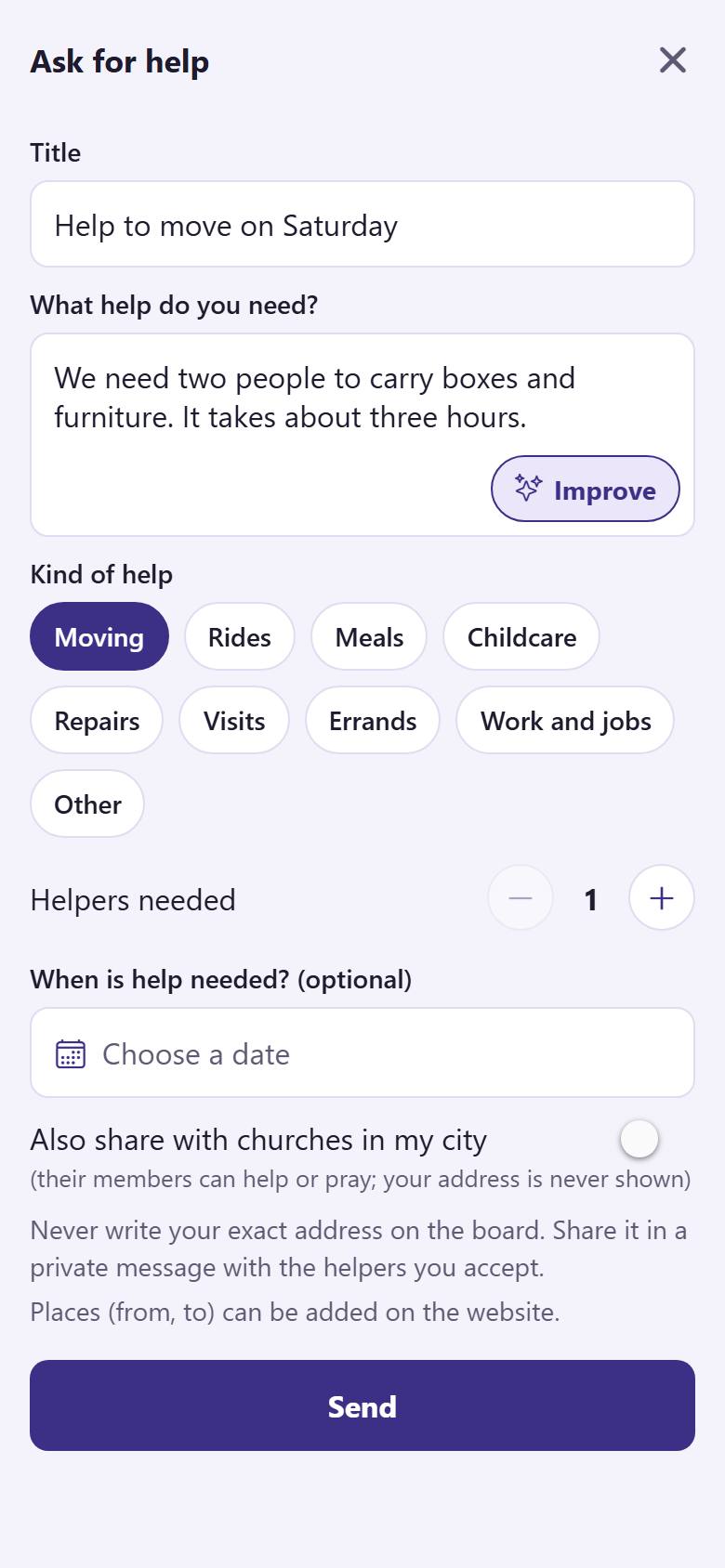
In "Church", open "Burdens". Tap "Ask for help" 1.
12345
2
Write a short title 1 and what you need 2. Choose the kind of help 3 and how many helpers you need 4. You can also choose the day. Tap "Send" 5.
Your burden shows in Burdens and on Fellowship. You choose your helpers from the people who offer. Never write your address here: send it only to the helpers you choose.
Offer your help
See who needs a hand and offer to help.
1
1
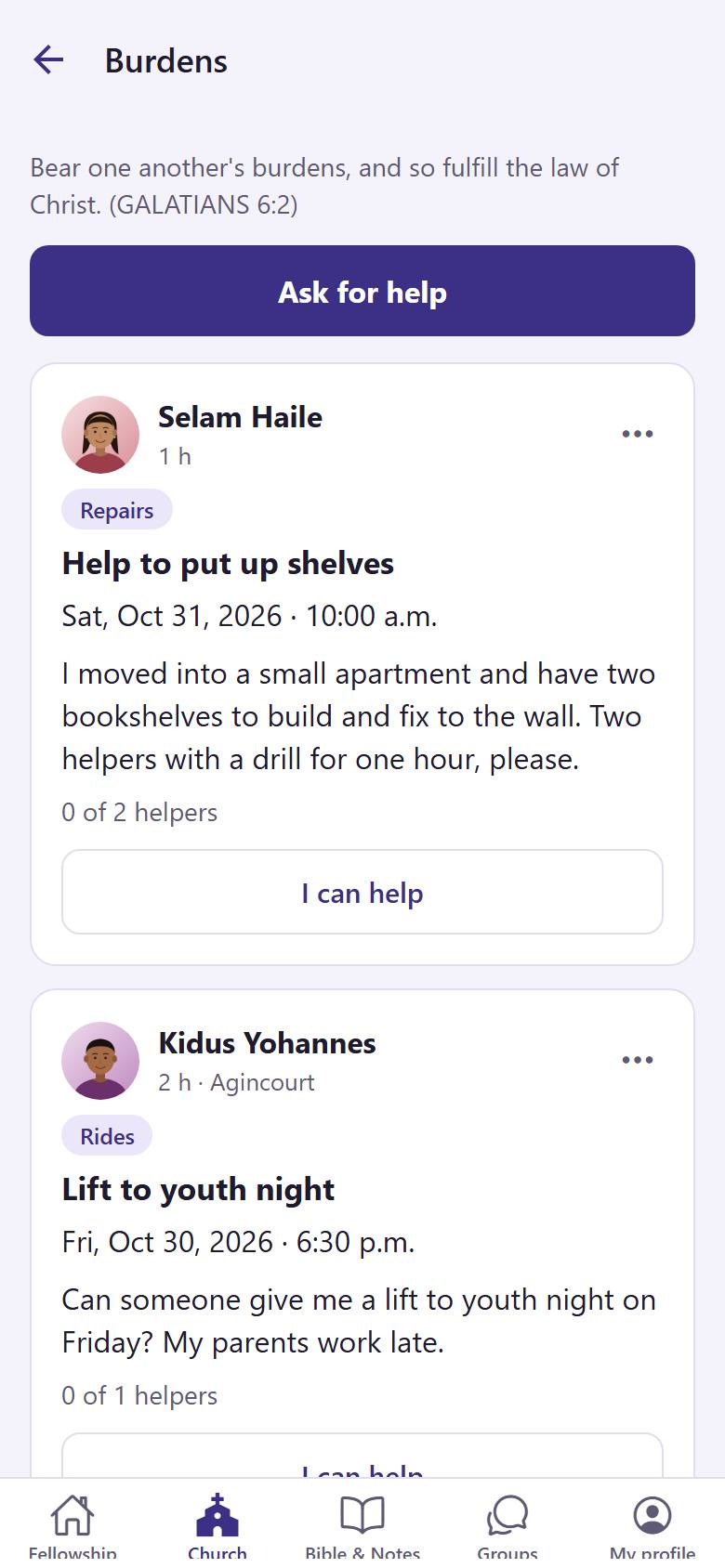
In "Burdens", read what people need. Tap "I can help" 1 under a burden you can carry.
12
2
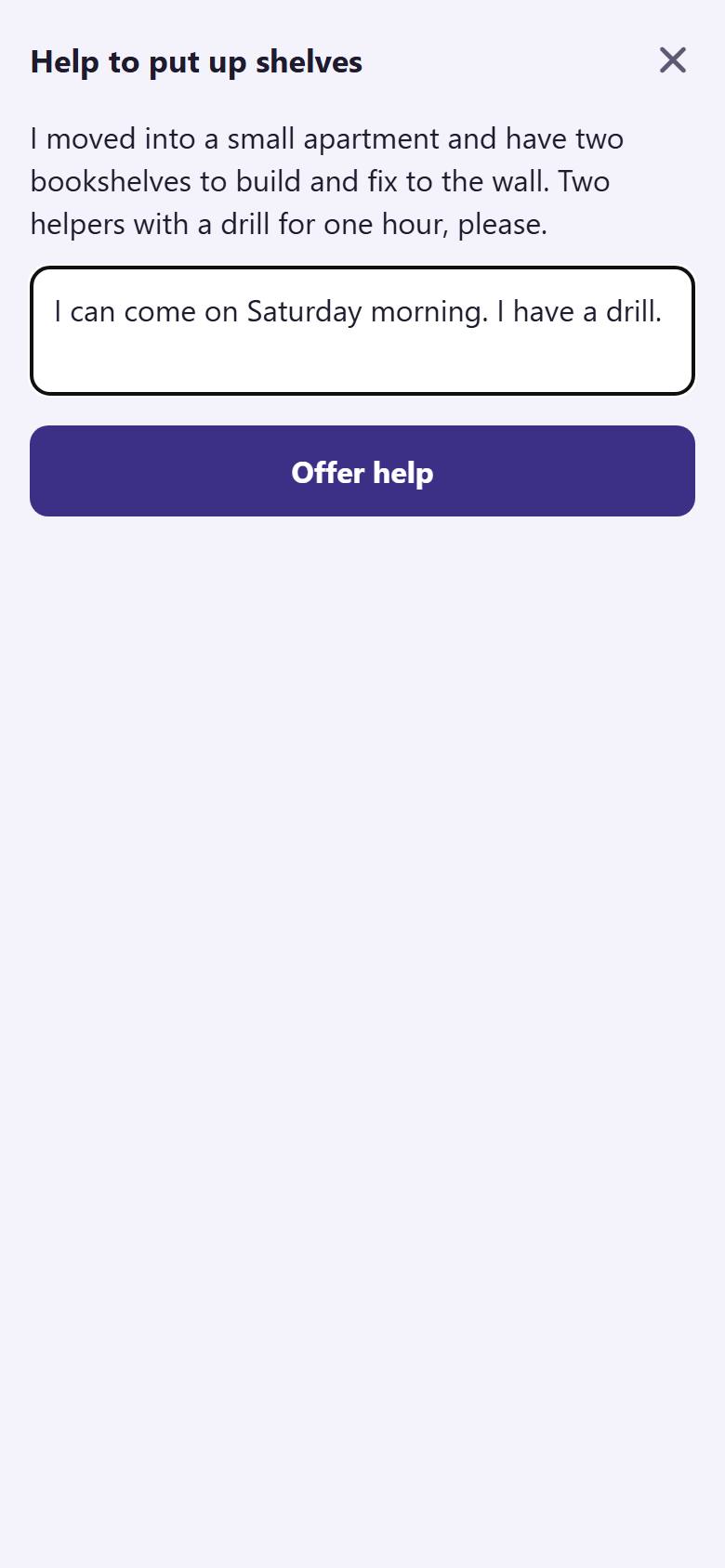
Write a short message 1 if you like. Tap "Offer help" 2.
The person sees your offer. When they choose you, you get a notification and you can write to each other.
Read the church news
The news from your church staff, with the most important on top.
1
1
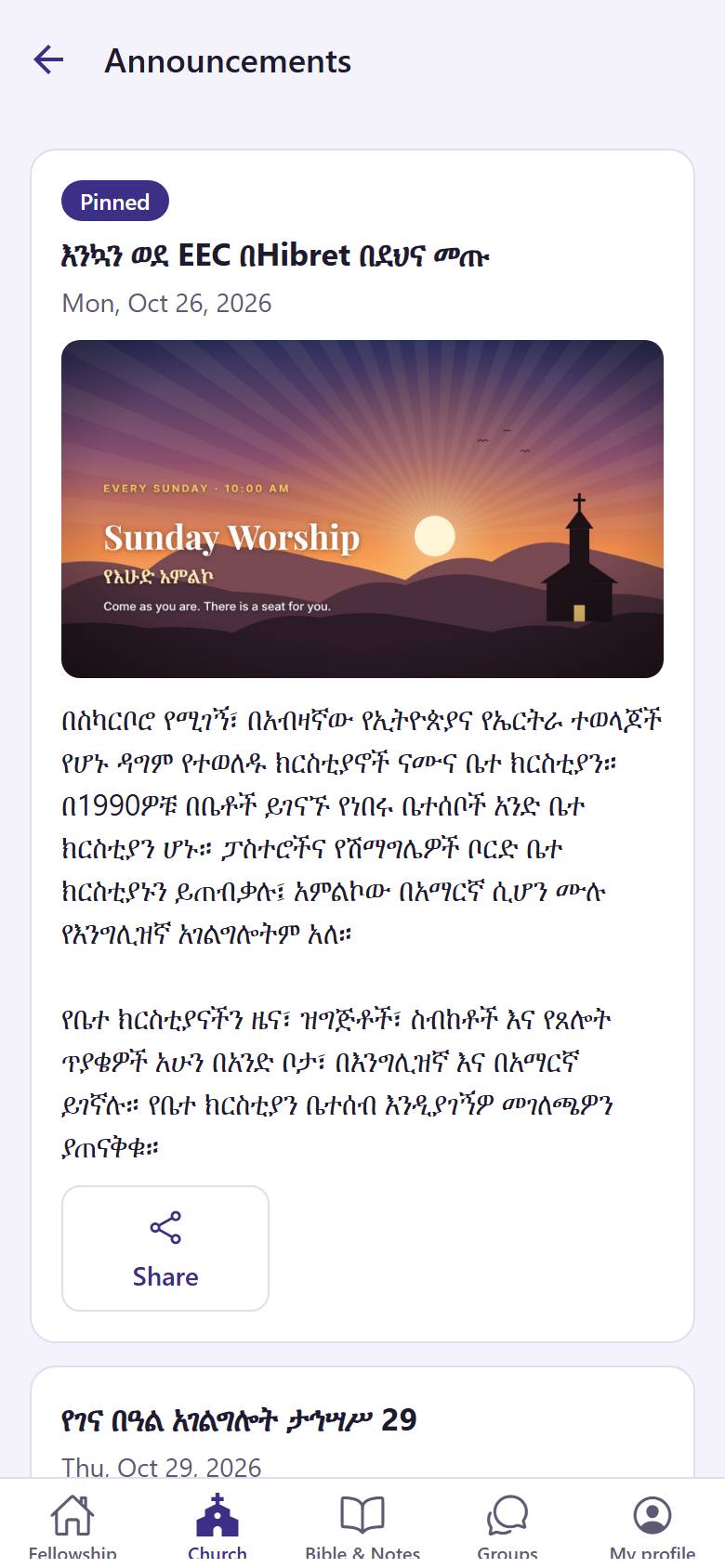
In "Church", tap "Announcements" 1. A red number shows news you have not read.
12
2
"Pinned" 1 news stays on top. Tap a news item to read all of it. Tap "Share" 2 to send it to a friend.
Events and "I am coming"
See what is coming at your church and tell the church if you come.
1234
1
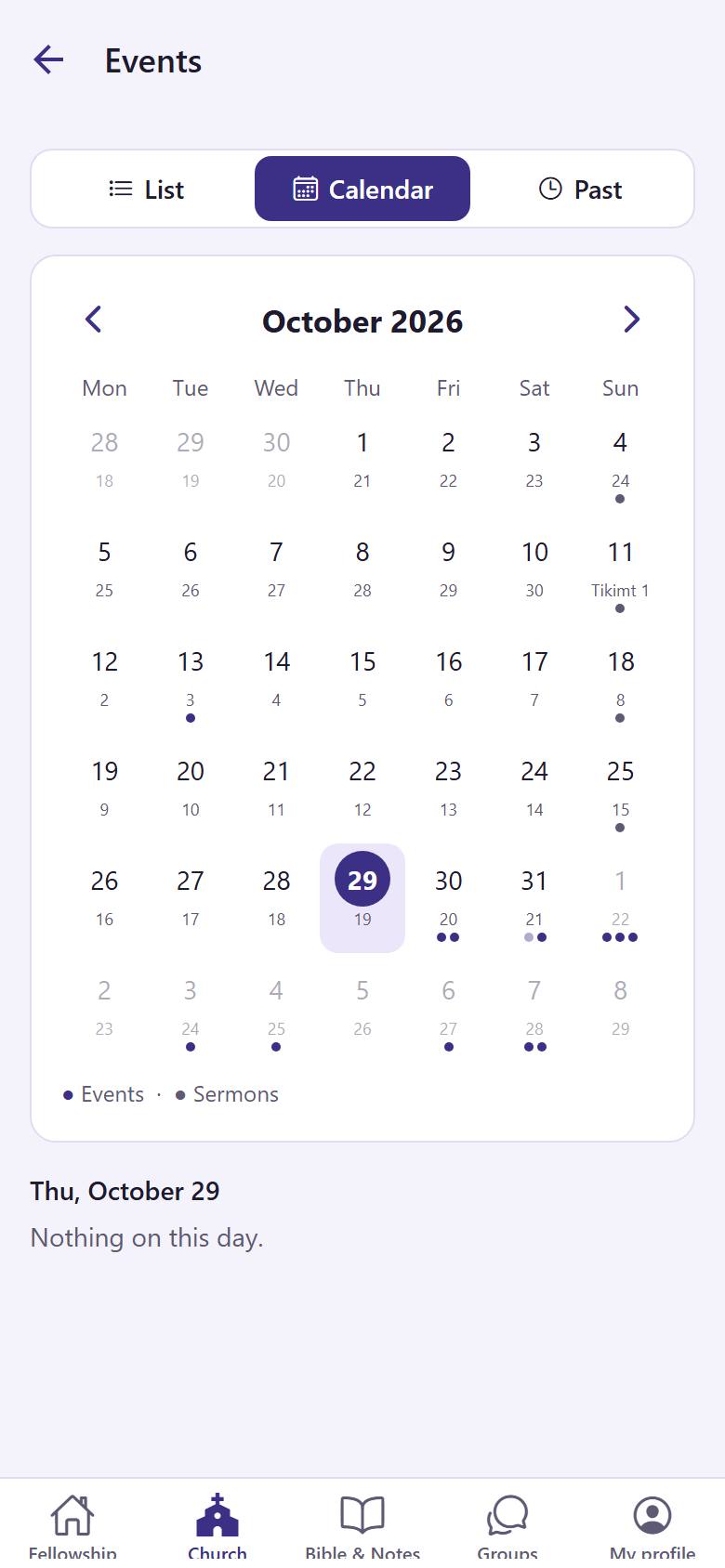
In "Church", tap "Events". See them as a "List" 1 or on the "Calendar" 2. "Past" 3 shows the events of the last months. Tap › 4 for the next month, and tap a day to see its events.
1234
2
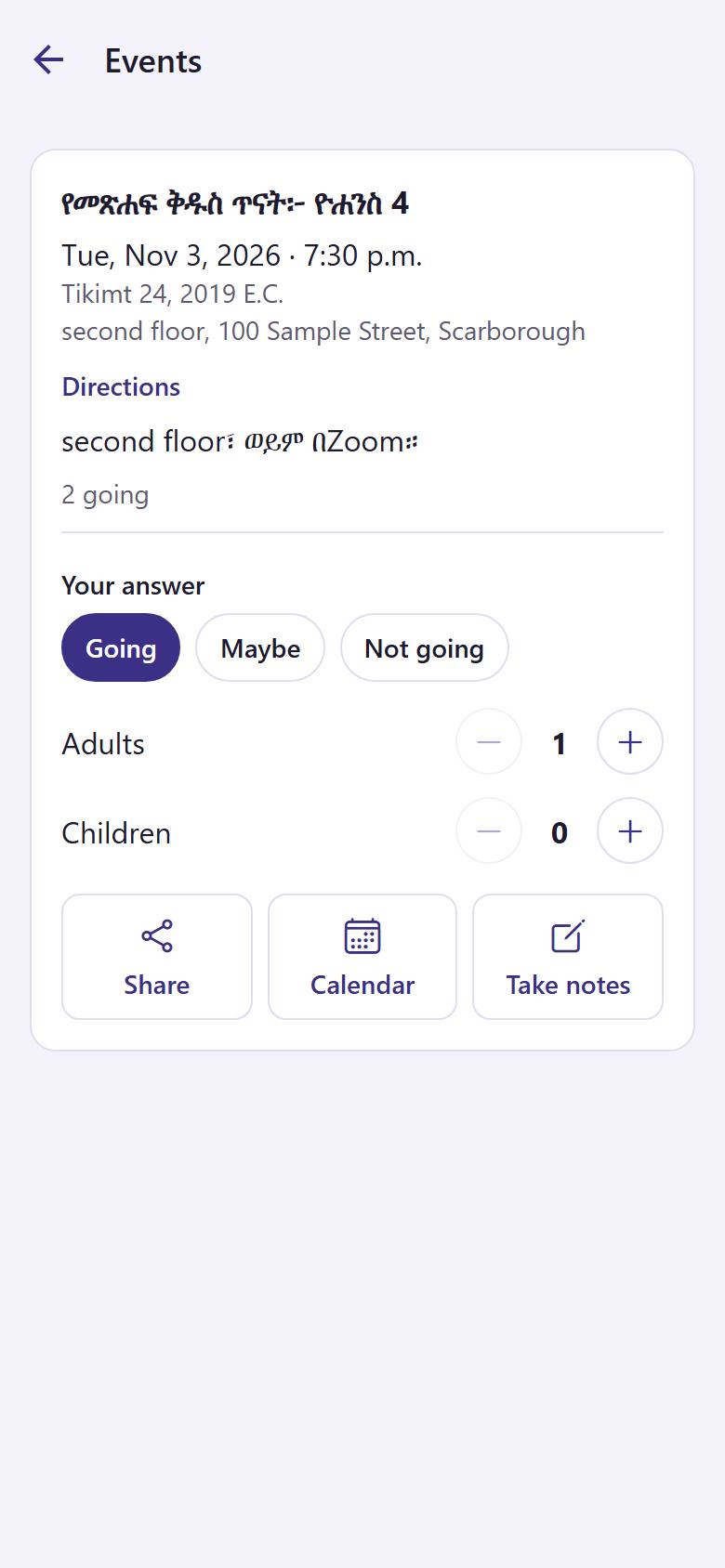
Tap an event to open it. Answer "Going" 1, and say how many adults and children come 2. Tap "Calendar" 3 to put it in your phone calendar, or "Take notes" 4 for your notes.
Your answer is saved at once. You can change it until the church closes the answers.
Watch or listen to a sermon
Every sermon of your church, with the Bible passages, the slides and your own notes.
1234
1
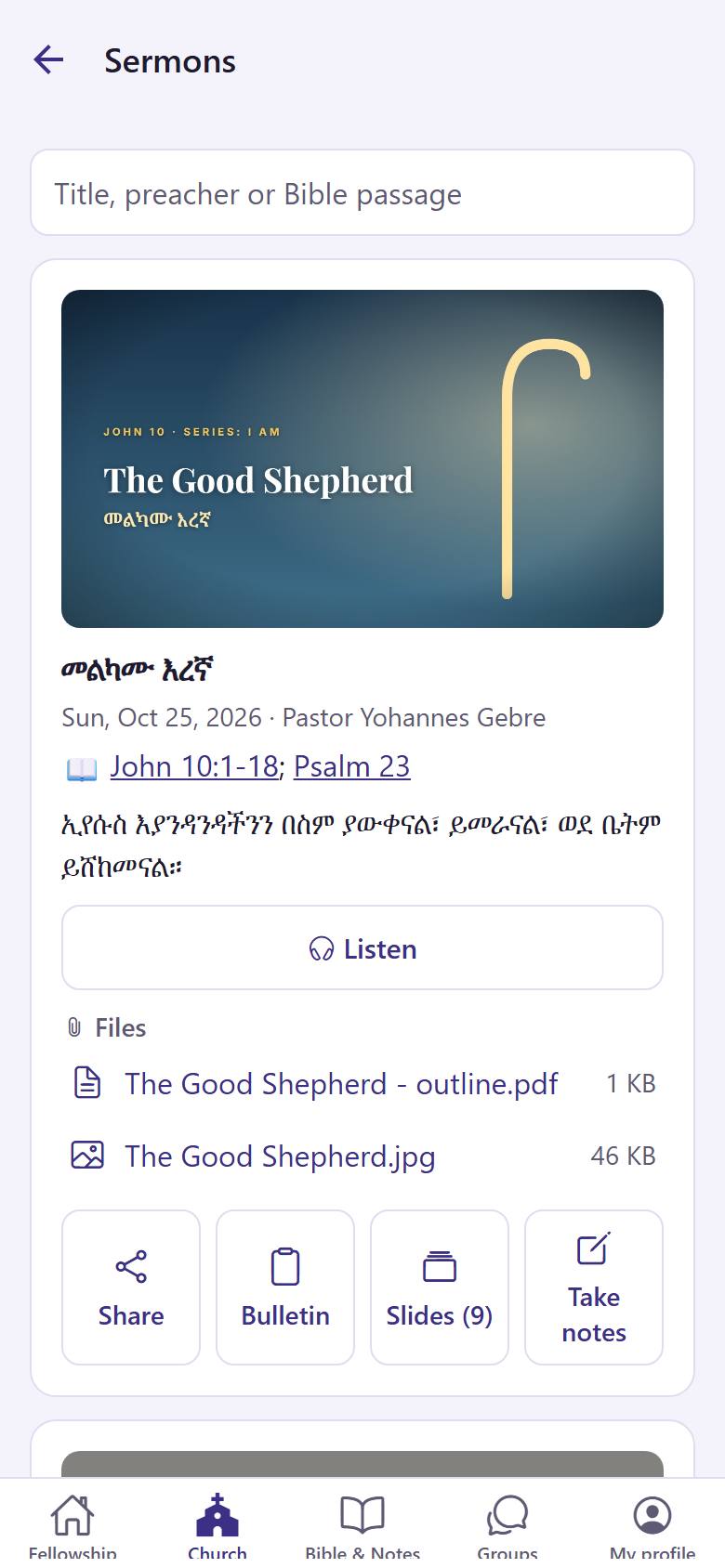
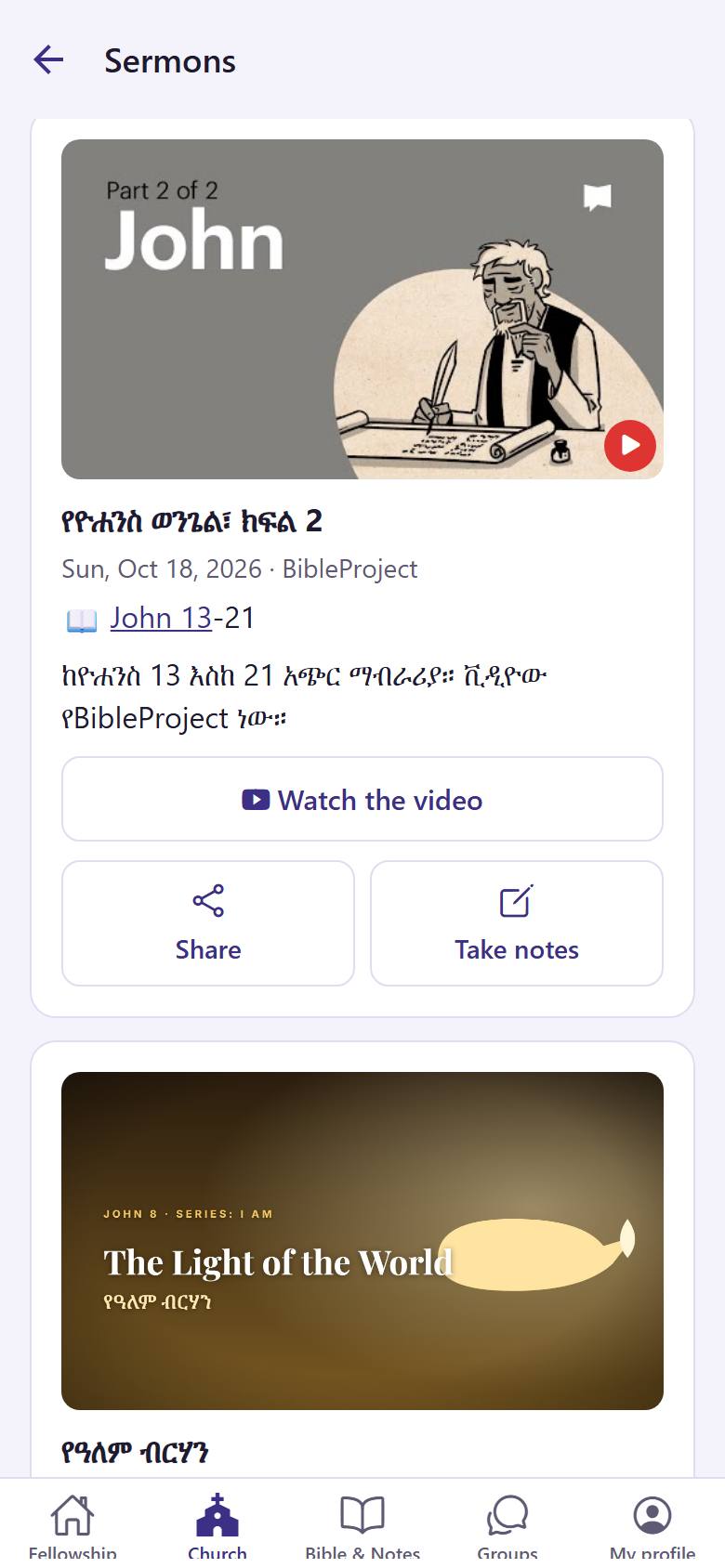
In "Church", open "Sermons". Tap "Listen" 1 to hear it. Open the "Bulletin" 2 of that Sunday or the slides 3. Tap "Take notes" 4 to write what you learn.
Your notes are saved in Bible & Notes, under My notes.
1
2
Some sermons have a video. Tap "Watch the video" 1.
Read the Sunday bulletin
The order of the service, the songs and the readings, on your phone.
1
1
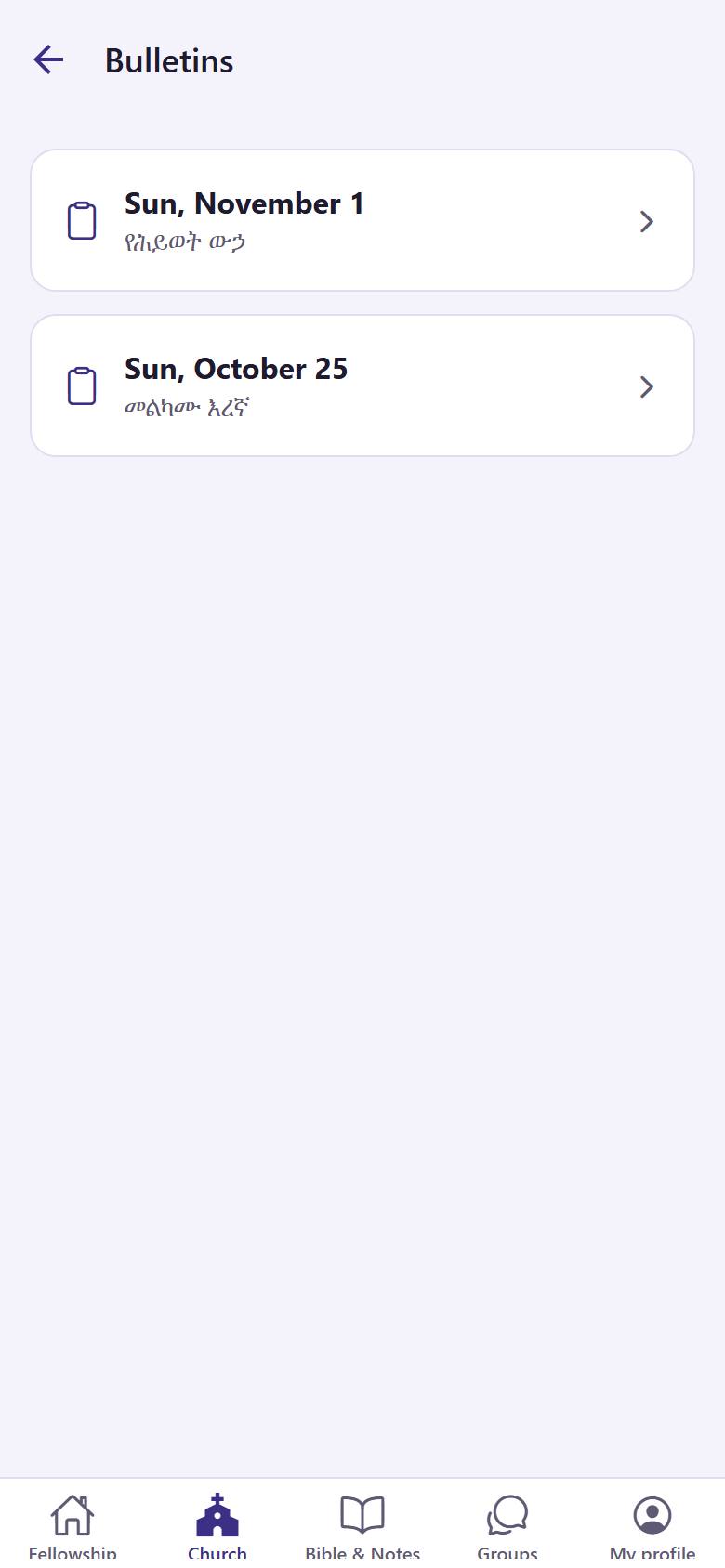
In "Church", open "Bulletins". Tap a Sunday 1.
1
2
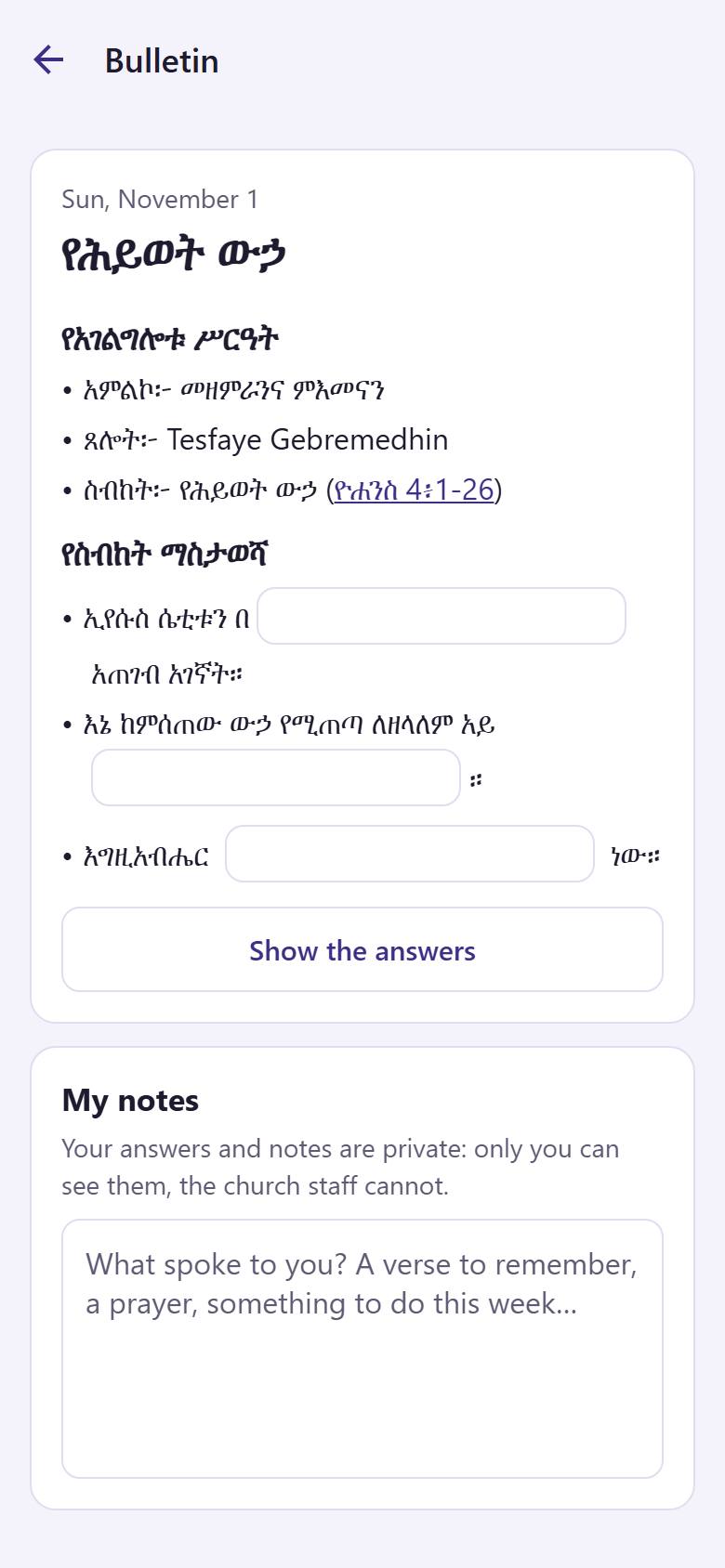
Follow the service here. Write your own notes at the bottom 1: only you see them.
Give to your church
See how to give to your church. The money goes straight to the church: Hibret never touches it.
1
1
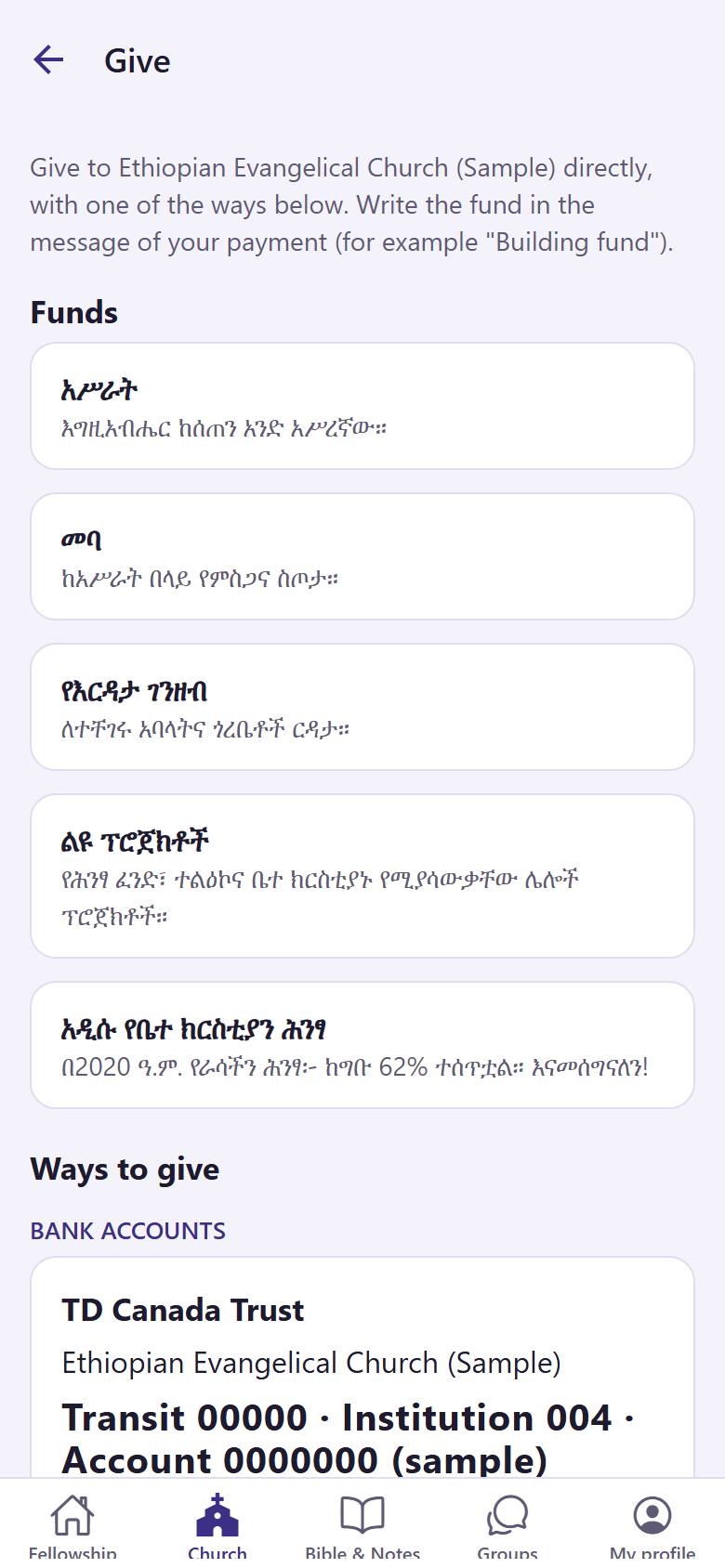
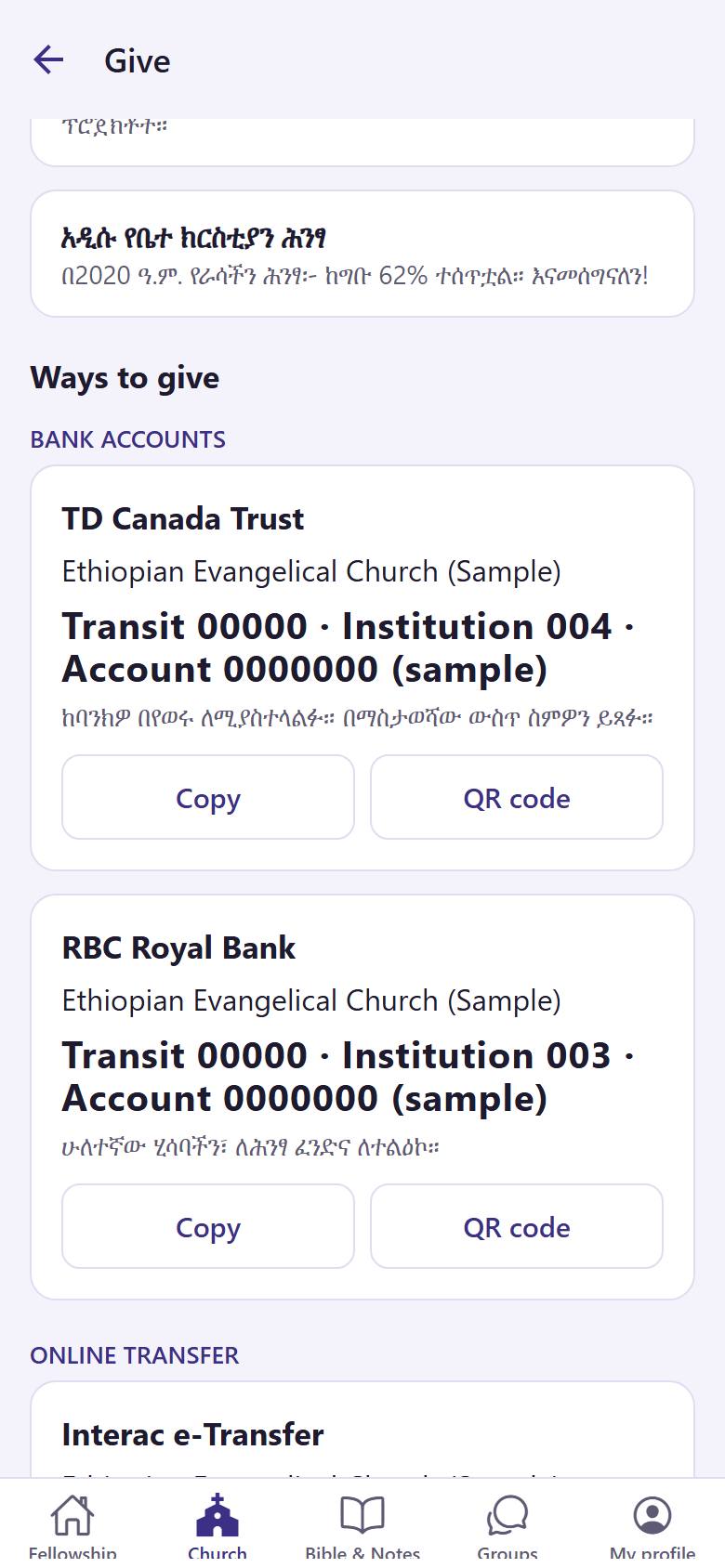
In "Church", open "Give". The "Funds" 1 tell you what each gift is for.
12
2
Under "Ways to give", tap "Copy" 1 to copy the details into your bank app. Or show the "QR code" 2 to your bank app.
Write the fund in the message of your payment, for example "Tithe".
Who's Who and our leaders
Find the members of your church and get to know your leaders.
12
1
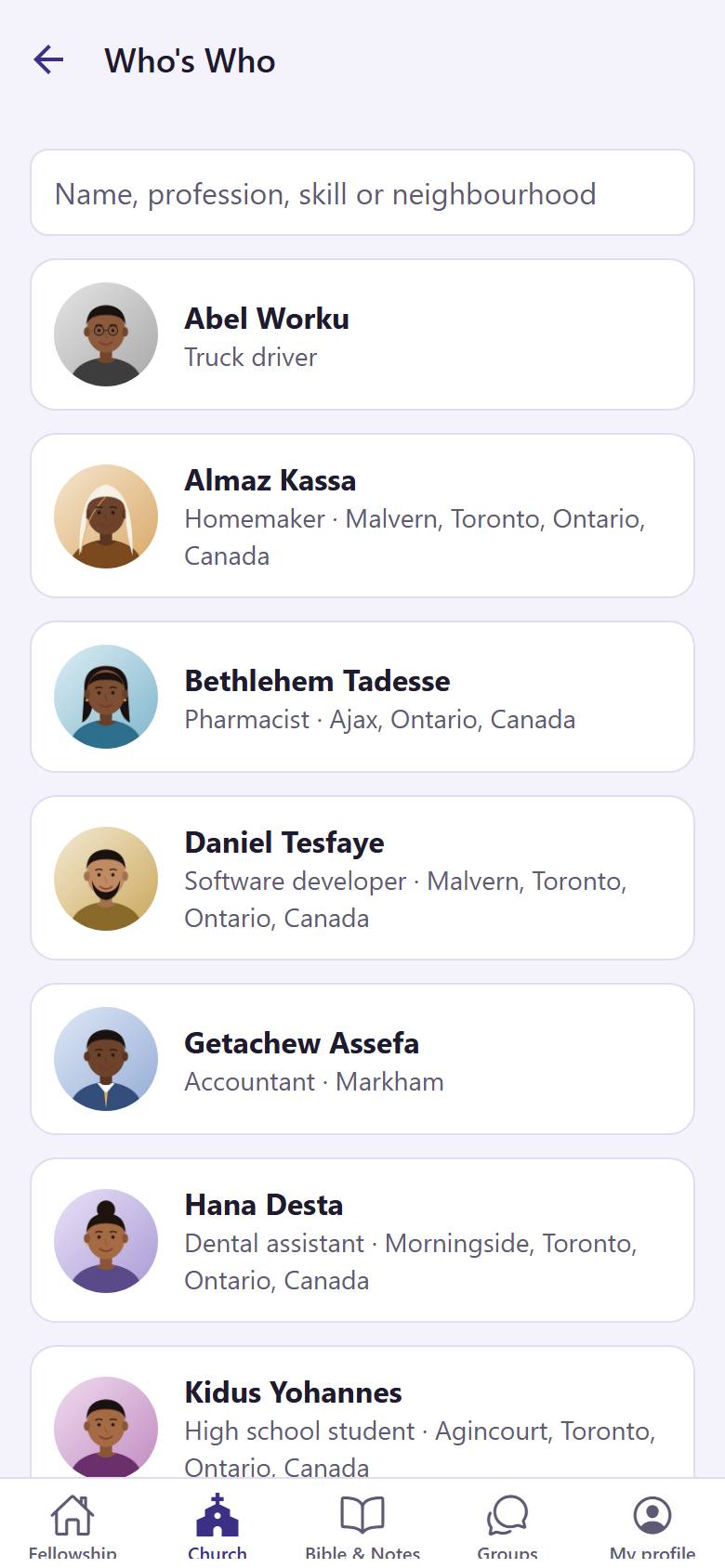
In "Church", tap "Who's Who" 1 to see the members, or "Our leaders" 2 to see the pastors and leaders.
1
2
Tap a name 1 to see the person. You see only what each person chose to show.
Only approved members of your church see this list.
Read the Bible
The Bible in your language, one chapter at a time.
1234
1
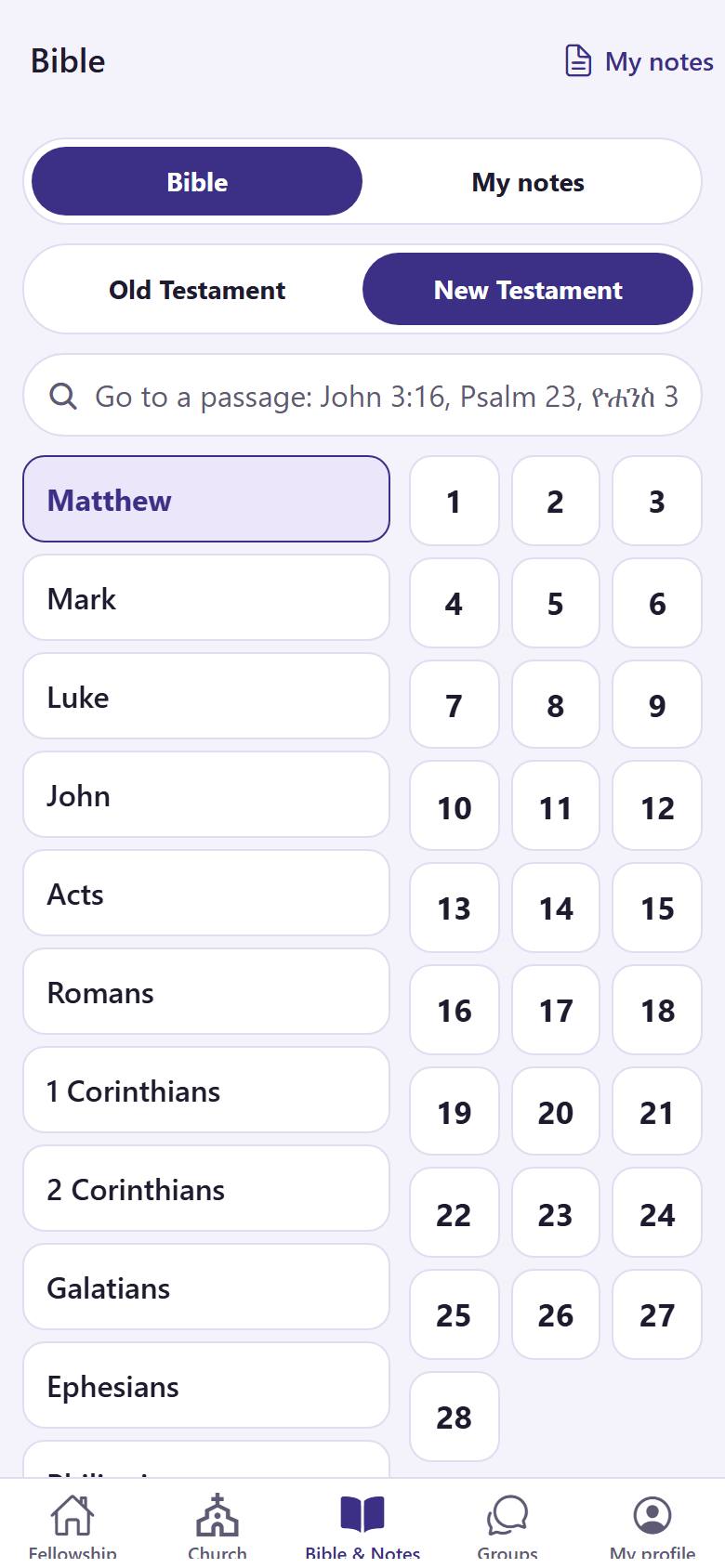
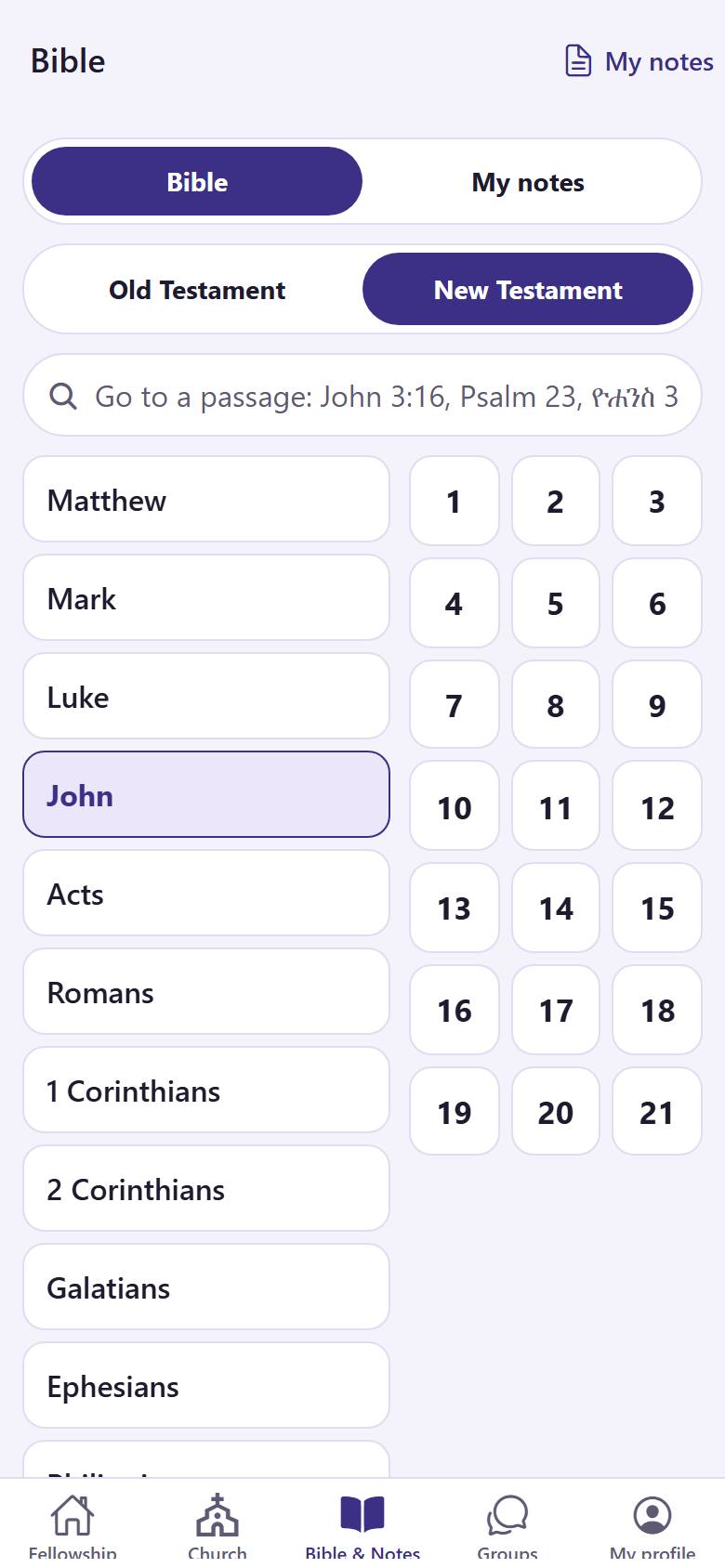
Tap "Bible & Notes" 1. Choose the Old or the New Testament 2. Tap a book 3. Or type a passage in the search box 4, for example "John 3:16".
1
2
Tap a chapter 1. The chapter opens. Tap a verse to copy it, share it or add it to your note.
The Bible opens in the version of your language. Tap the version name at the top to choose another one.
Write a note with a verse
Keep what you learn: from a sermon, a Bible study or your own reading.
12
1
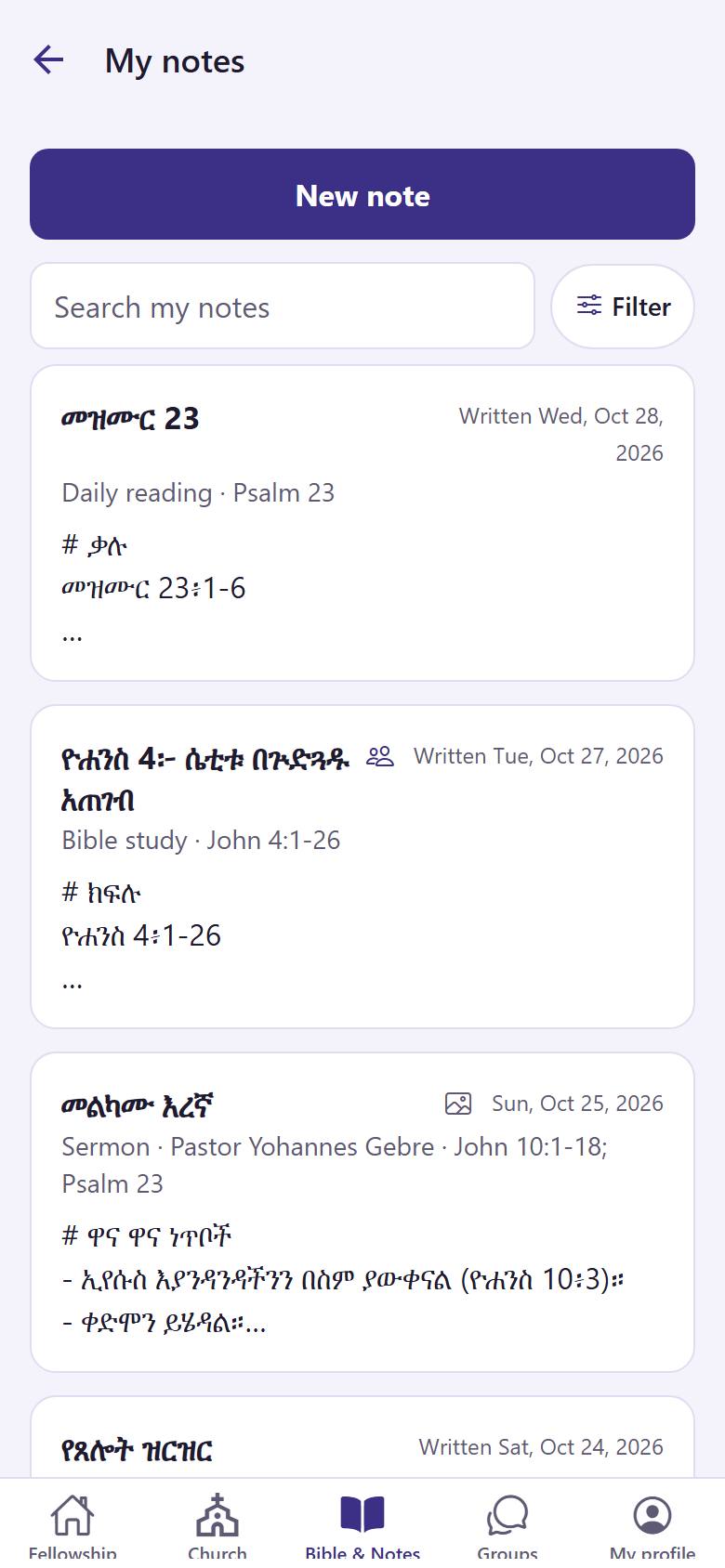
In "Bible & Notes", open "My notes". Tap "New note" 1. Tap a note 2 to read or change it.
1234
2
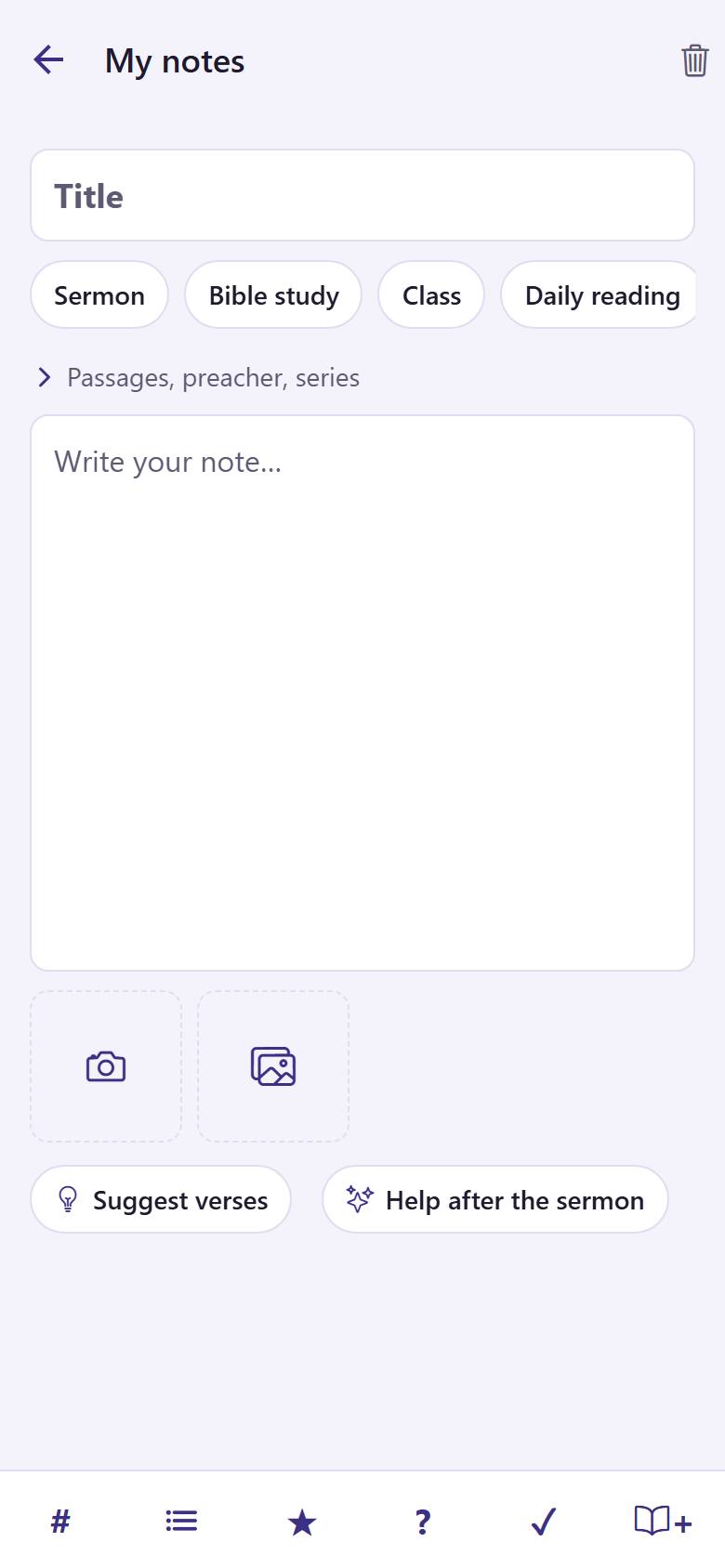
Write a title 1 and choose the kind of note 2. Write your note 3. Tap the book 4 to add a Bible verse.
Hibret saves your note by itself while you write.
12
3
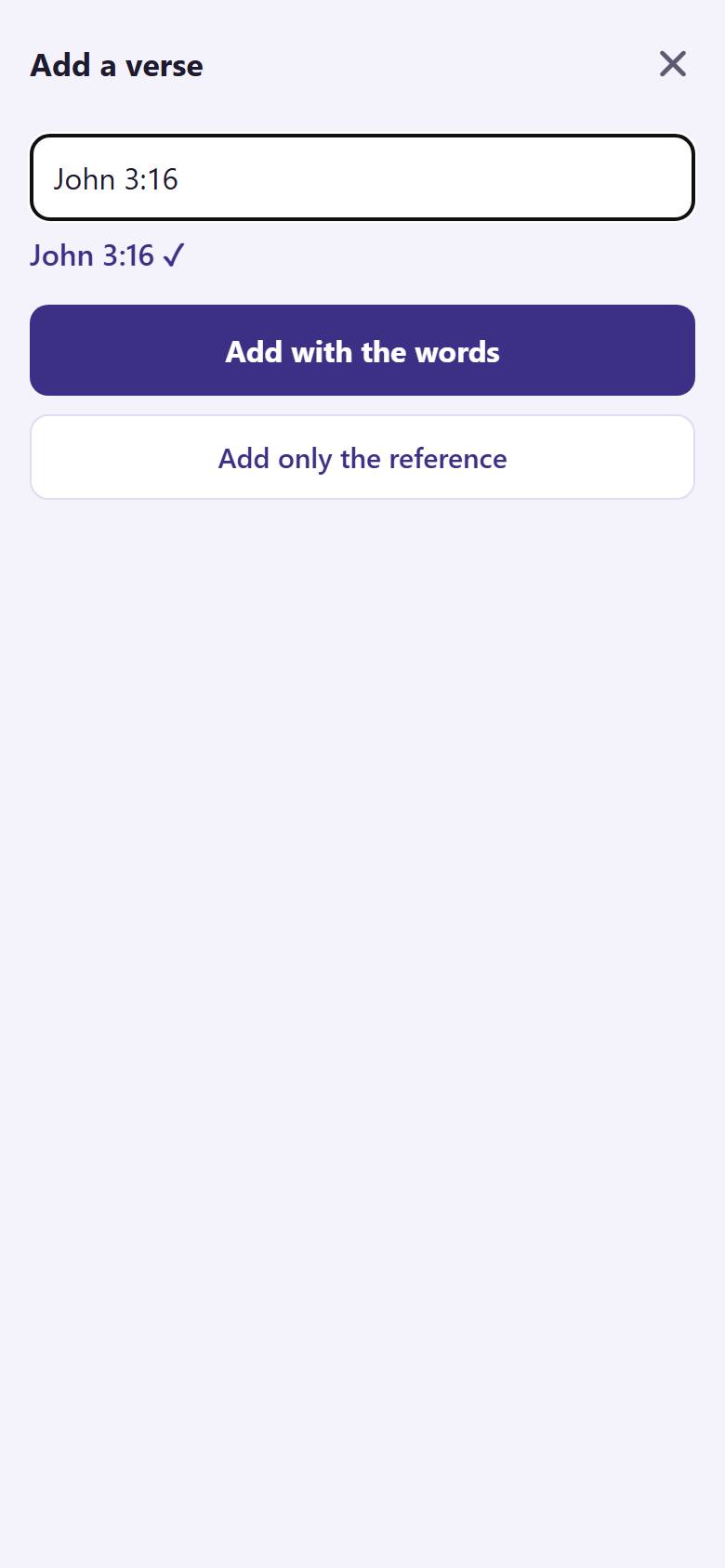
Type the verse 1, for example "John 3:16". Tap "Add with the words" 2 to put the words of the verse in your note.
The verse shows as a button in your note. Tap it later to read it.
Join a group
Home cells, the choir, the youth: find your place in the church.
12
1
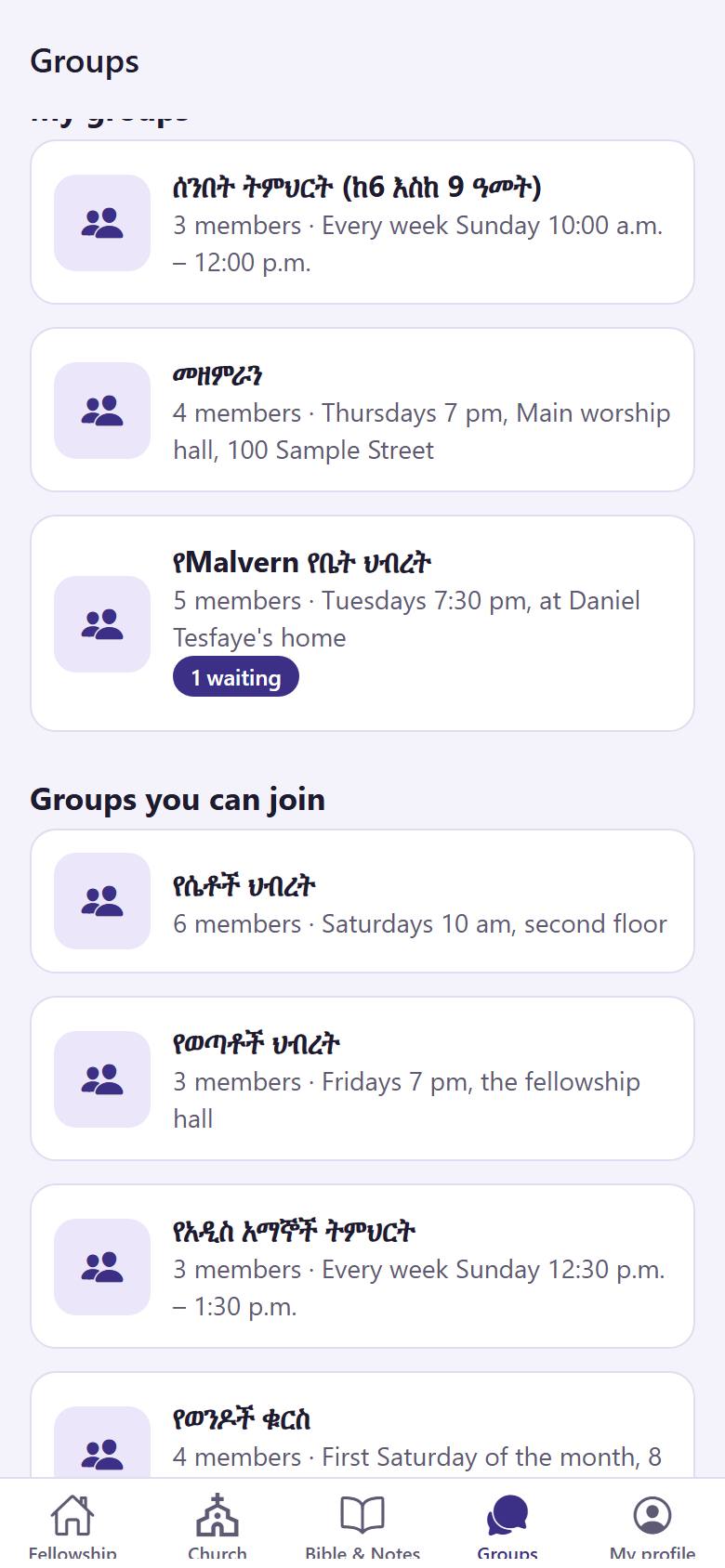
Tap "Groups". Under "Groups you can join" 1, tap a group 2.
1
2
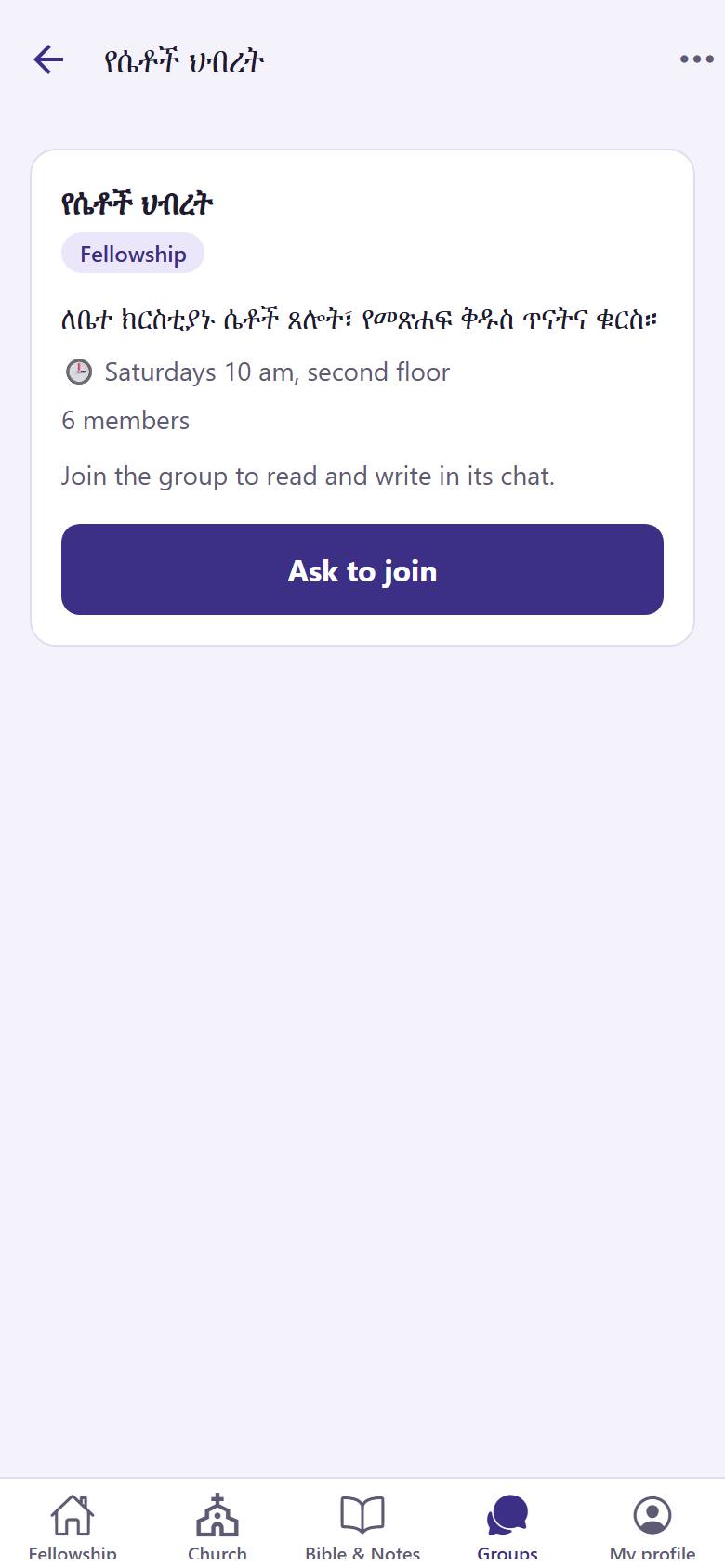
Read about the group. Tap "Ask to join" 1. In an open group the button says "Join".
Some groups need the leader to say yes first. Then you can open the chat.
Talk in your group
Each group has its own chat, only for its members.
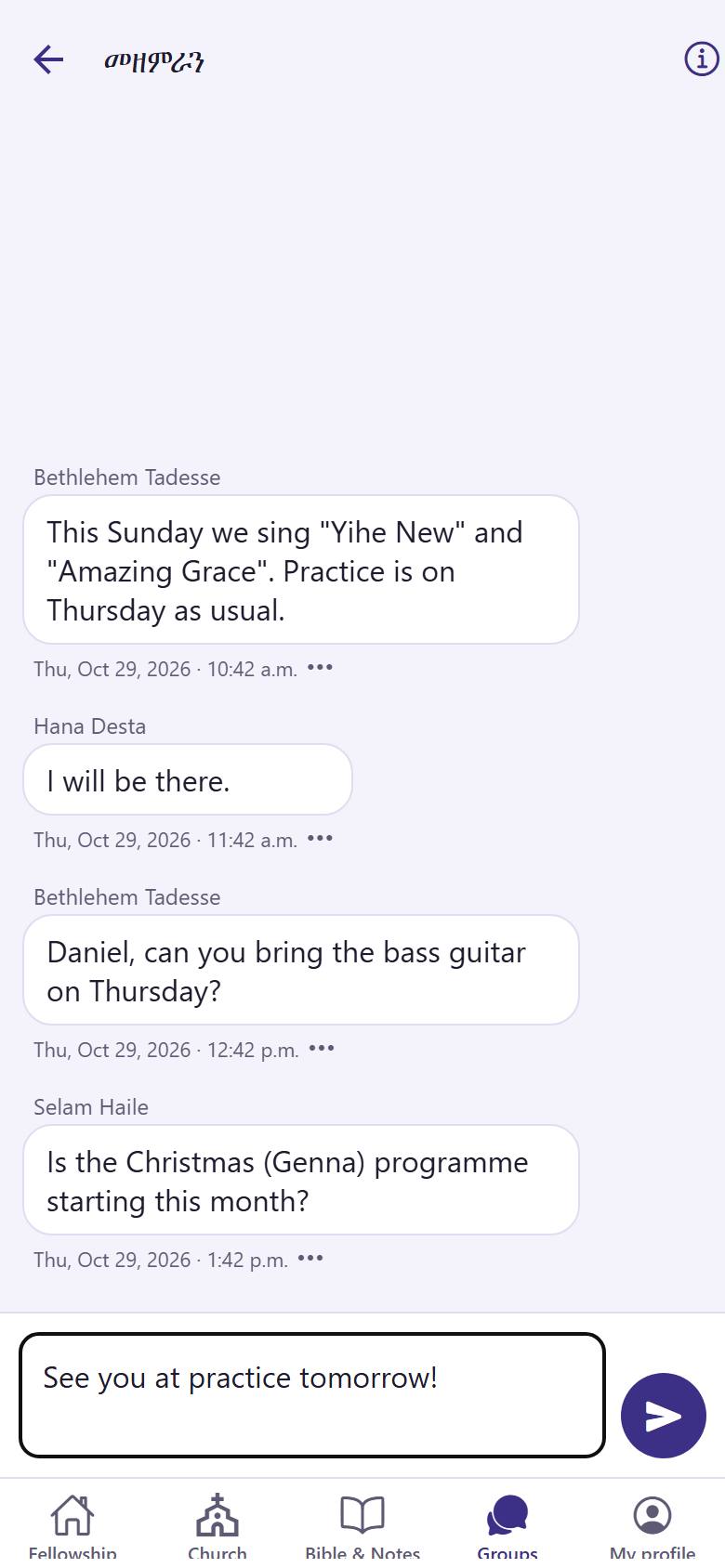
12
1
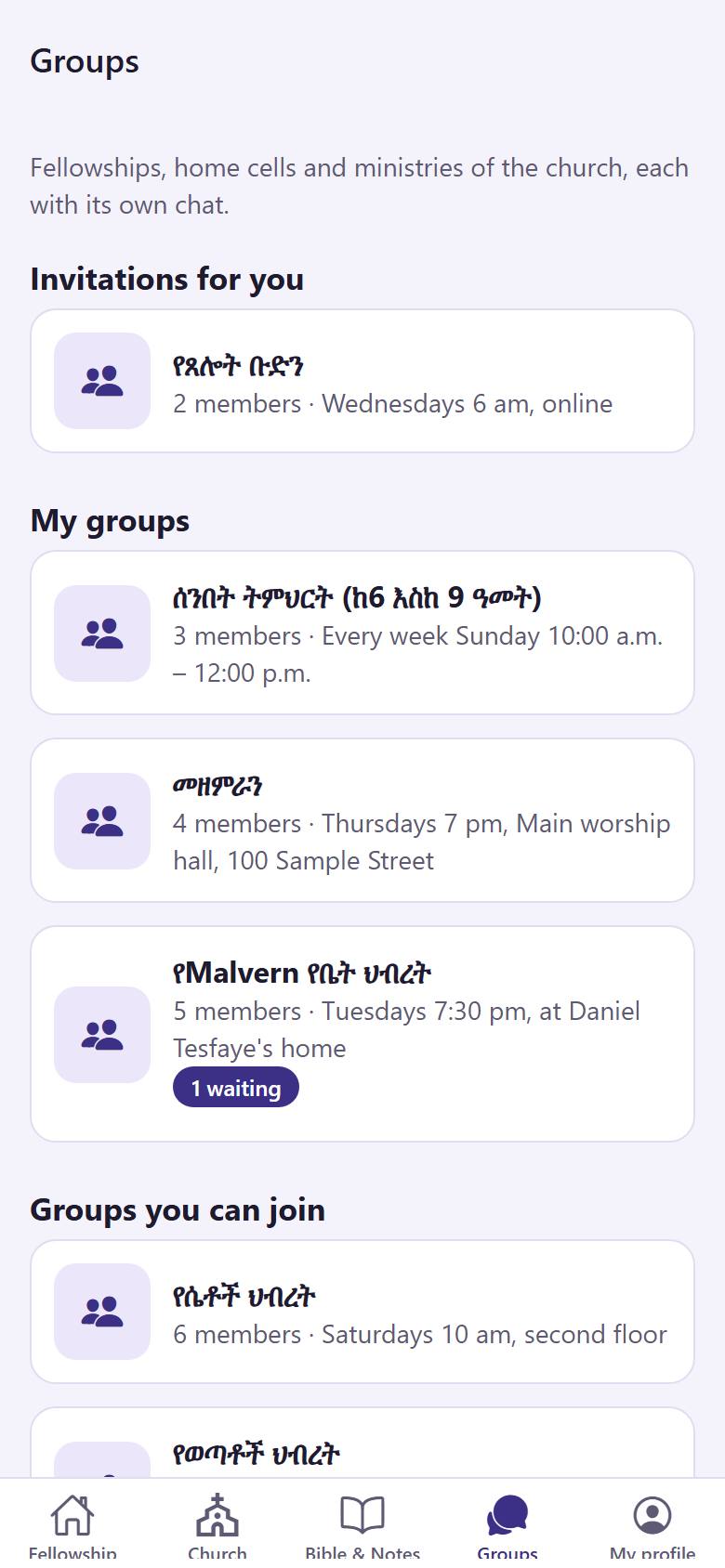
Under "My groups" 1, tap your group 2.
1
2
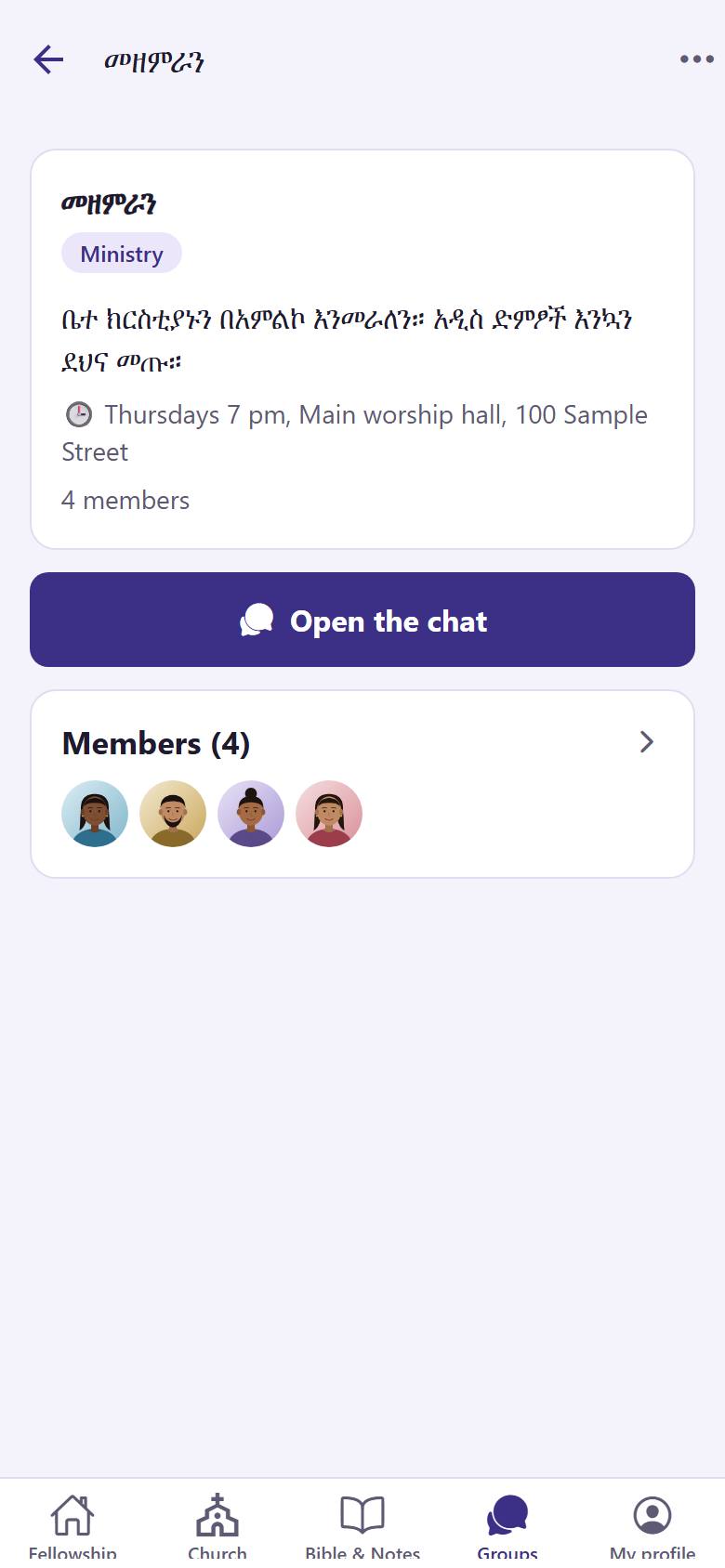
Tap "Open the chat" 1.
12
3
Write your message 1 and tap "Send" 2.
Everyone in the group sees it at once.
Check in your children
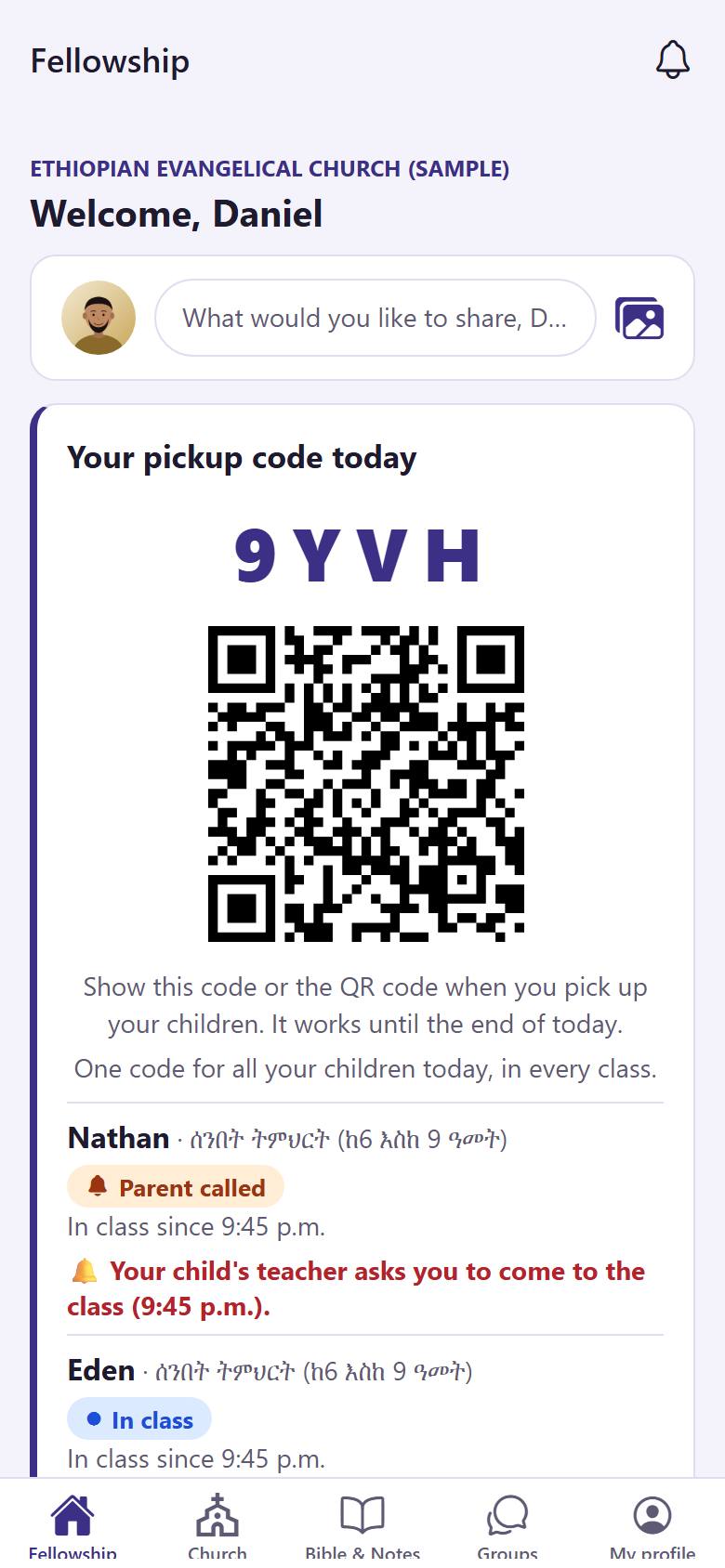
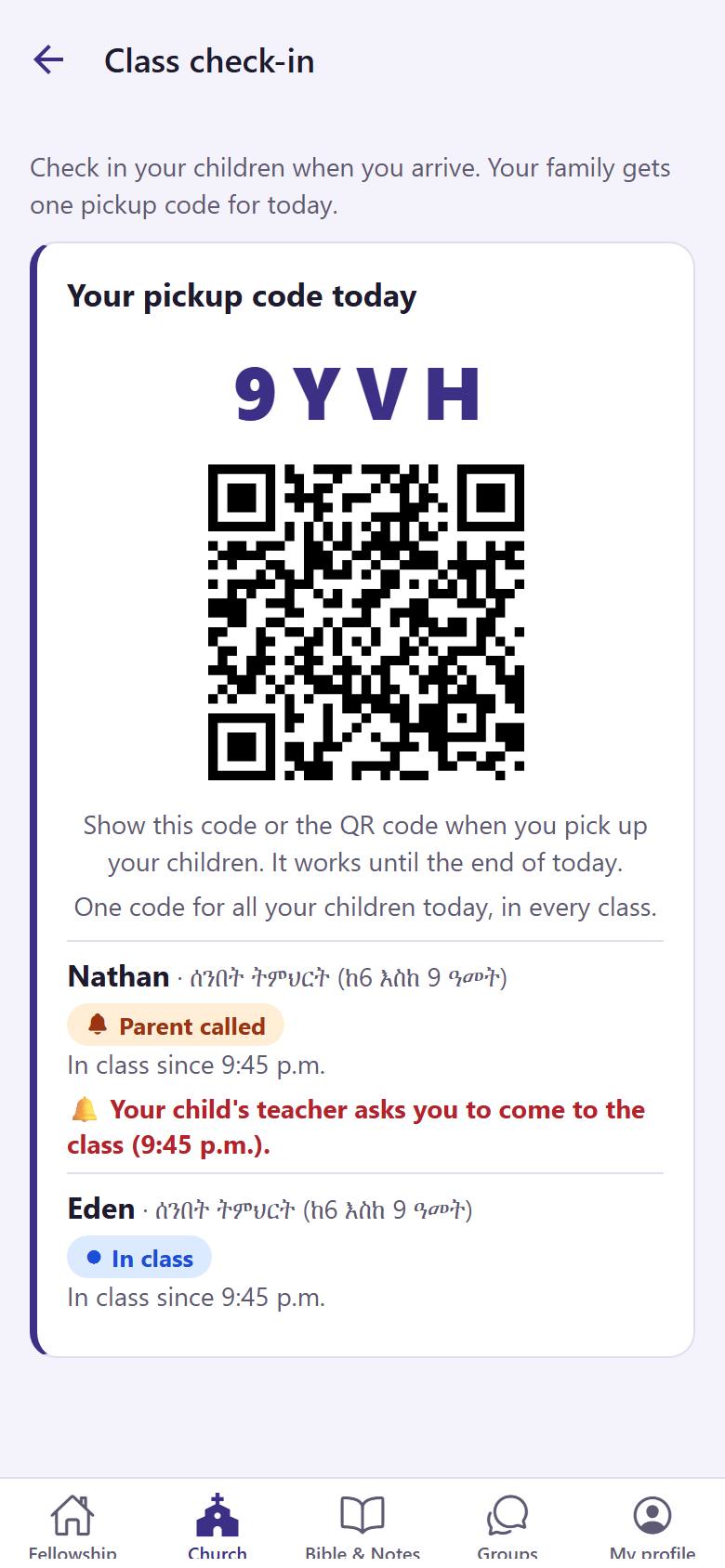
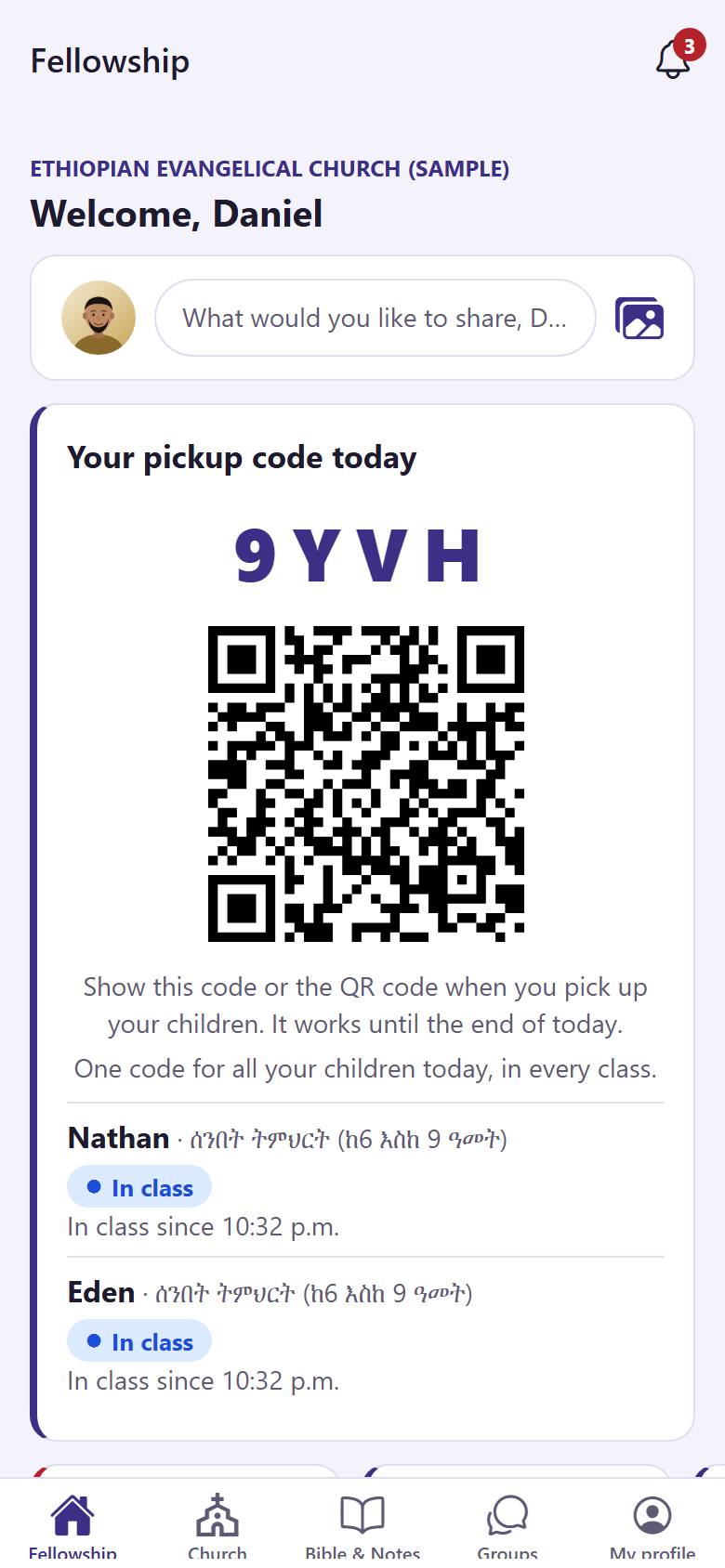
On Sunday, check in your children for their class. You get one pickup code for the day.
12
1
In "Church", open "Sunday school check-in". Choose the children who are here and tap "Check in my children". You get "Your pickup code today" 1. Under it you see each child 2 and the class.
When you pick up your children, show the code or the QR code to the teacher. The code works until the end of the day.
Answer a survey
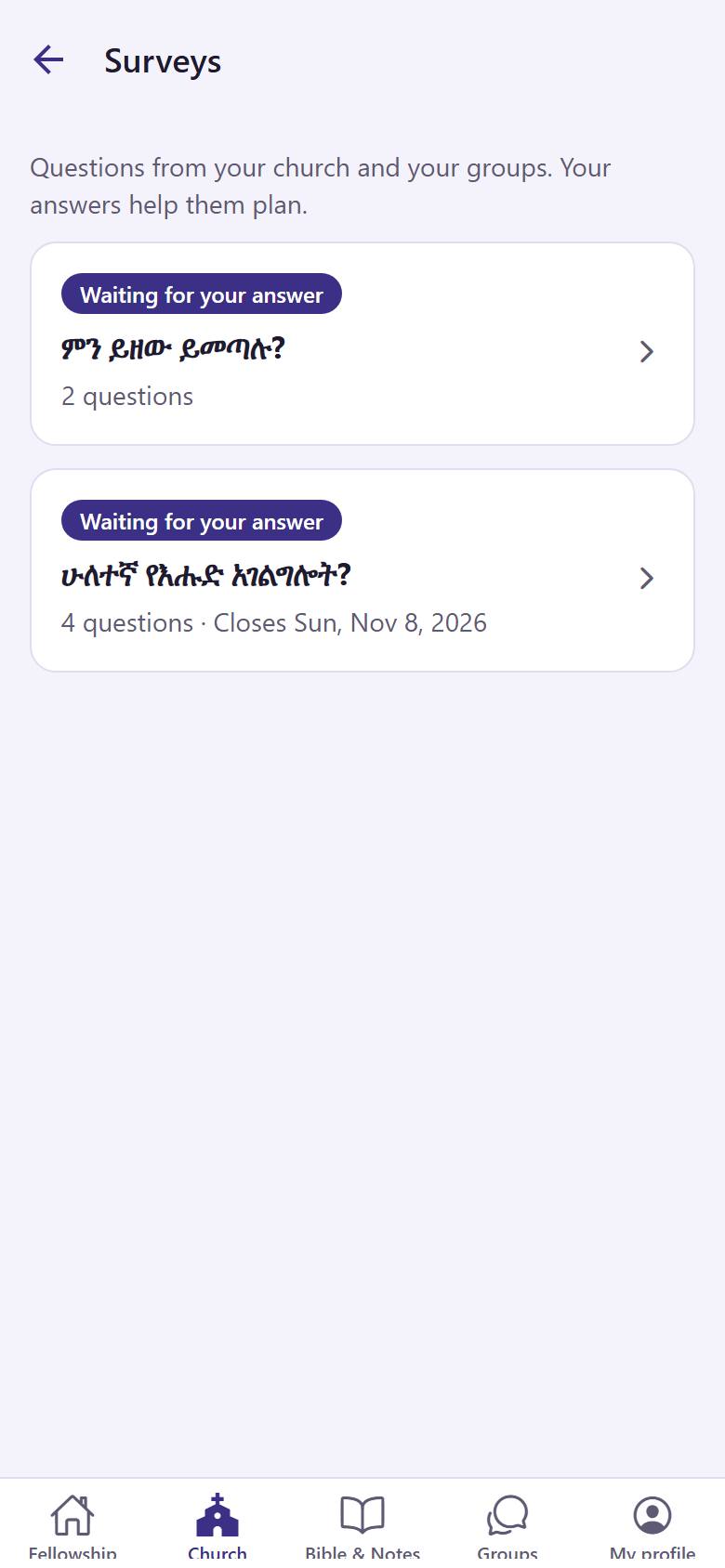
Your church asks short questions to plan well. Your answers help.
1
1
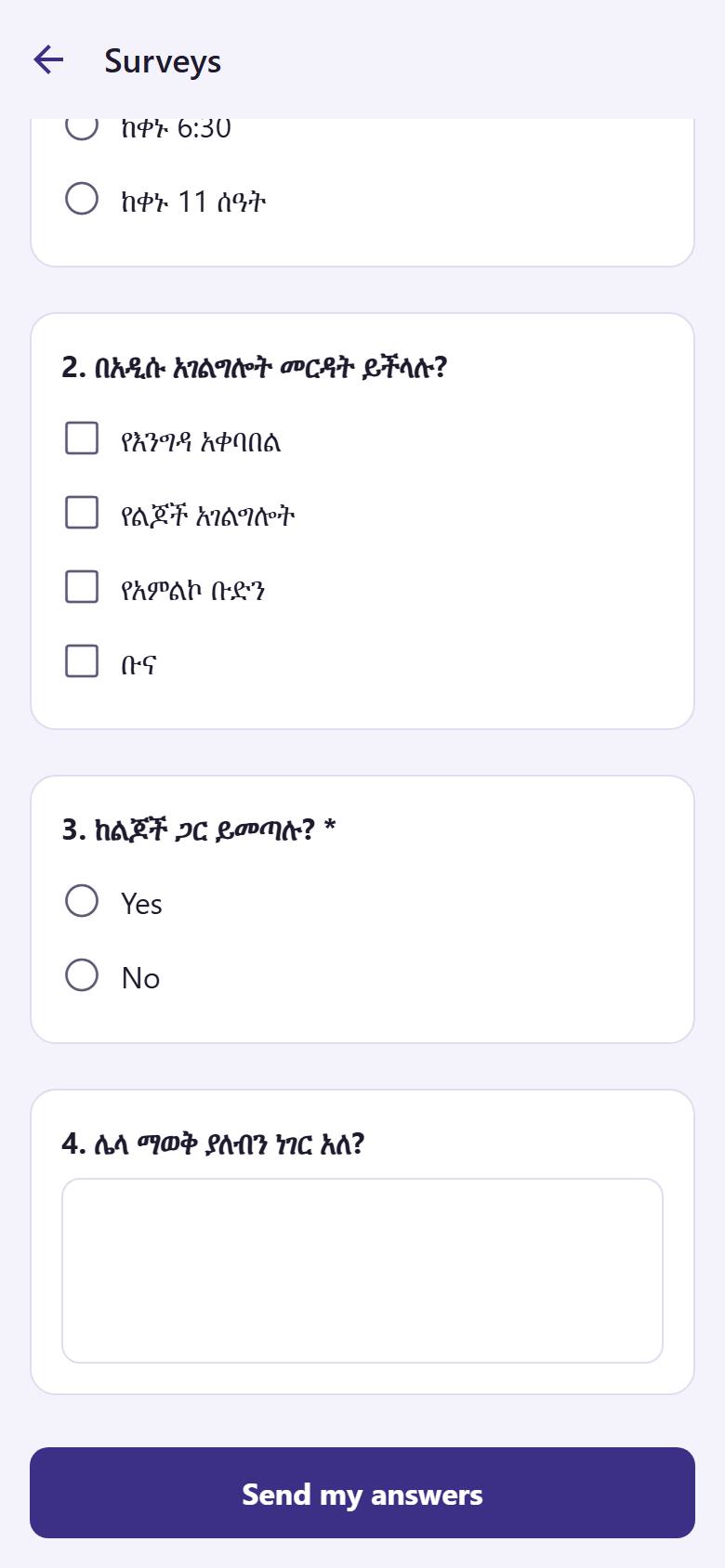
In "Church", open "Surveys". Tap a survey that is "Waiting for your answer" 1.
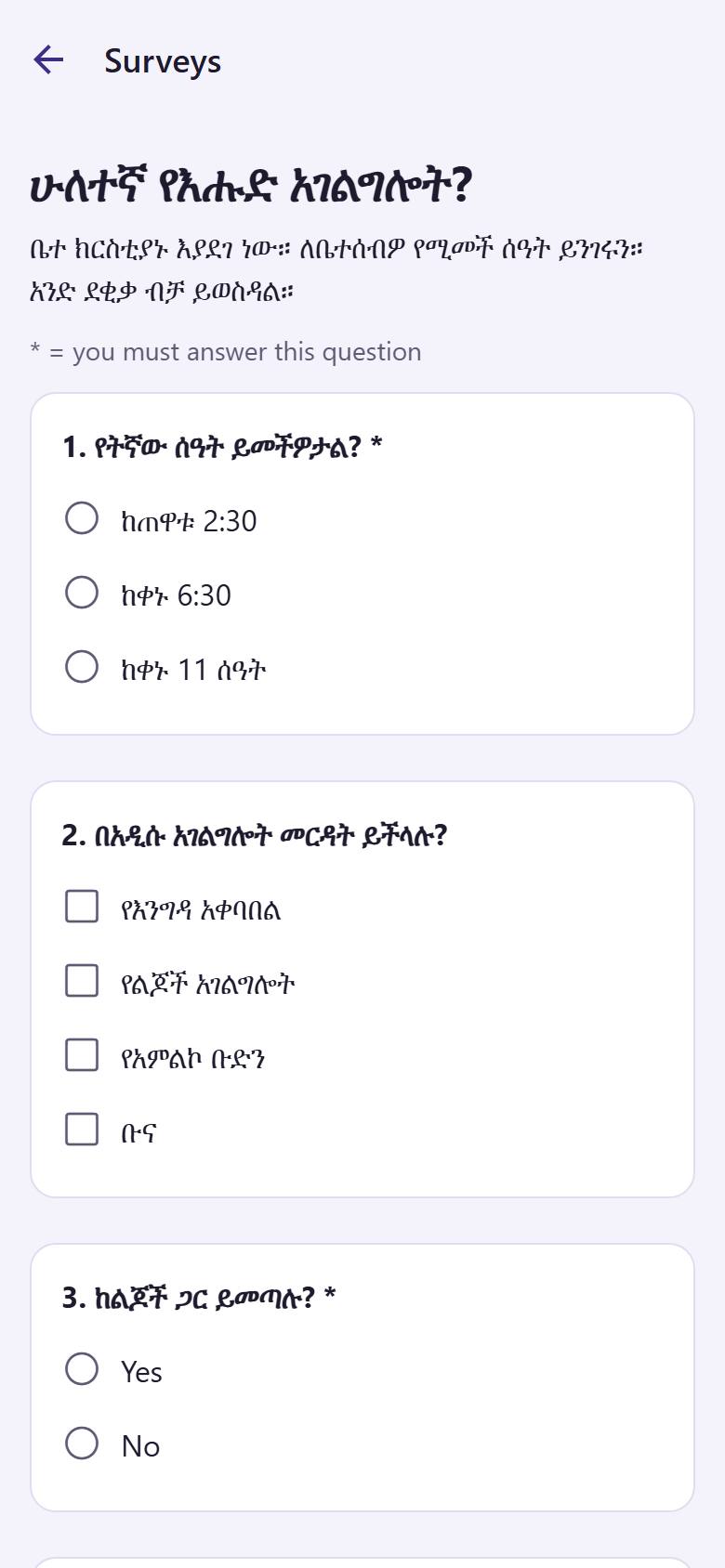
1
2
Answer each question: tap your answer 1. Questions with * must be answered.
1
3
At the bottom, tap "Send my answers" 1.
You can change your answers until the survey closes.
Your photo and details
Help your church family know you. You decide what they see.
1
1
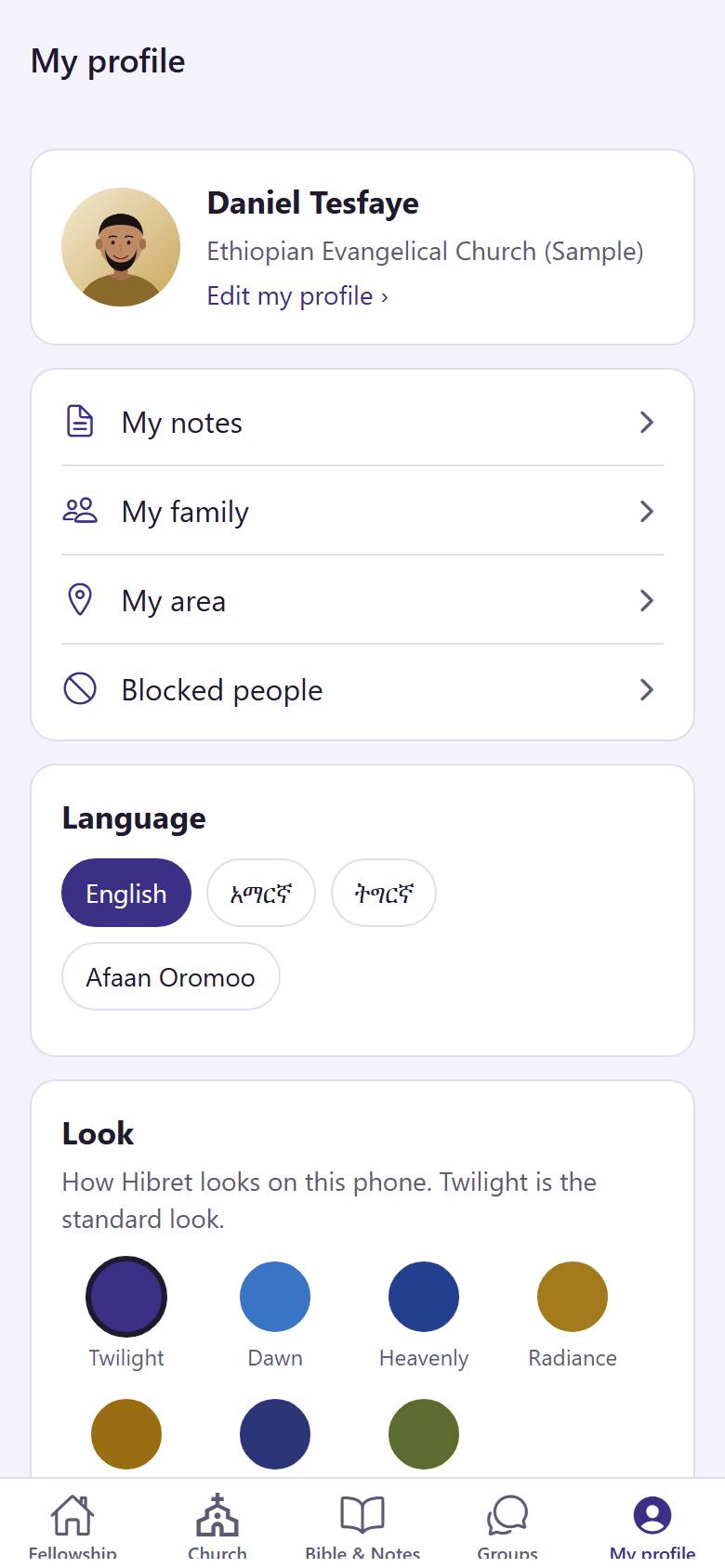
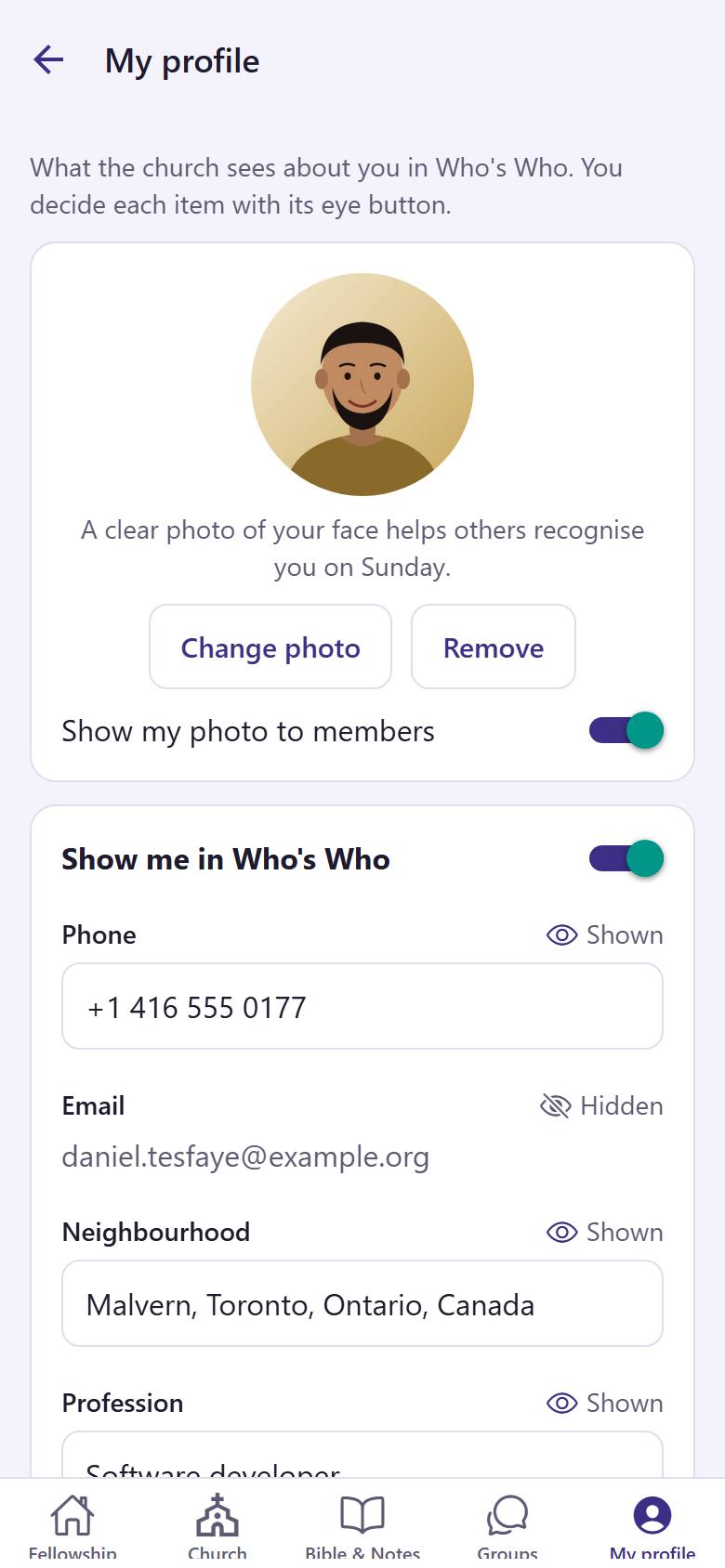
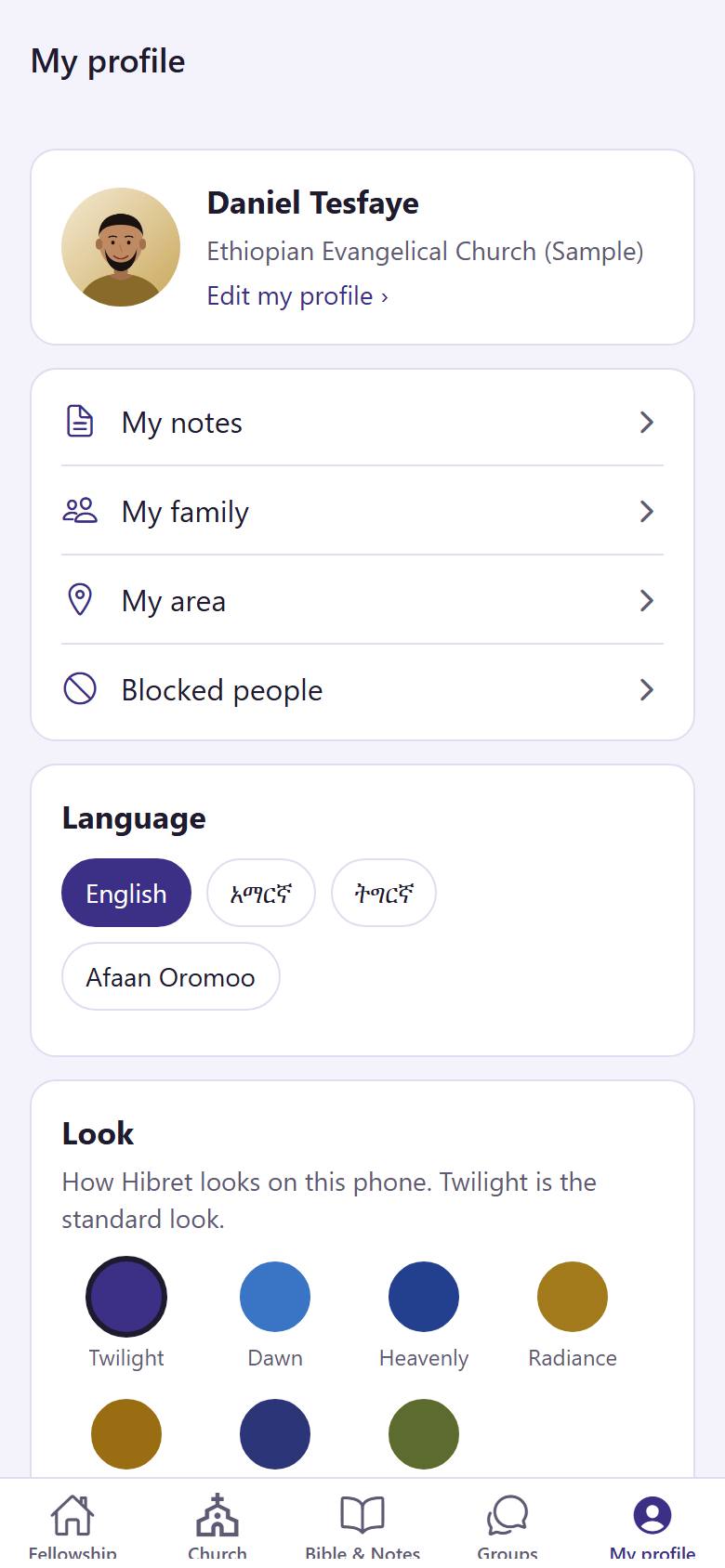
Tap "My profile". Tap "Edit my profile" 1.
12
2
Tap "Change photo" 1 to add a clear photo of your face. Tap the eye 2 next to each item to show or hide it.
123
3
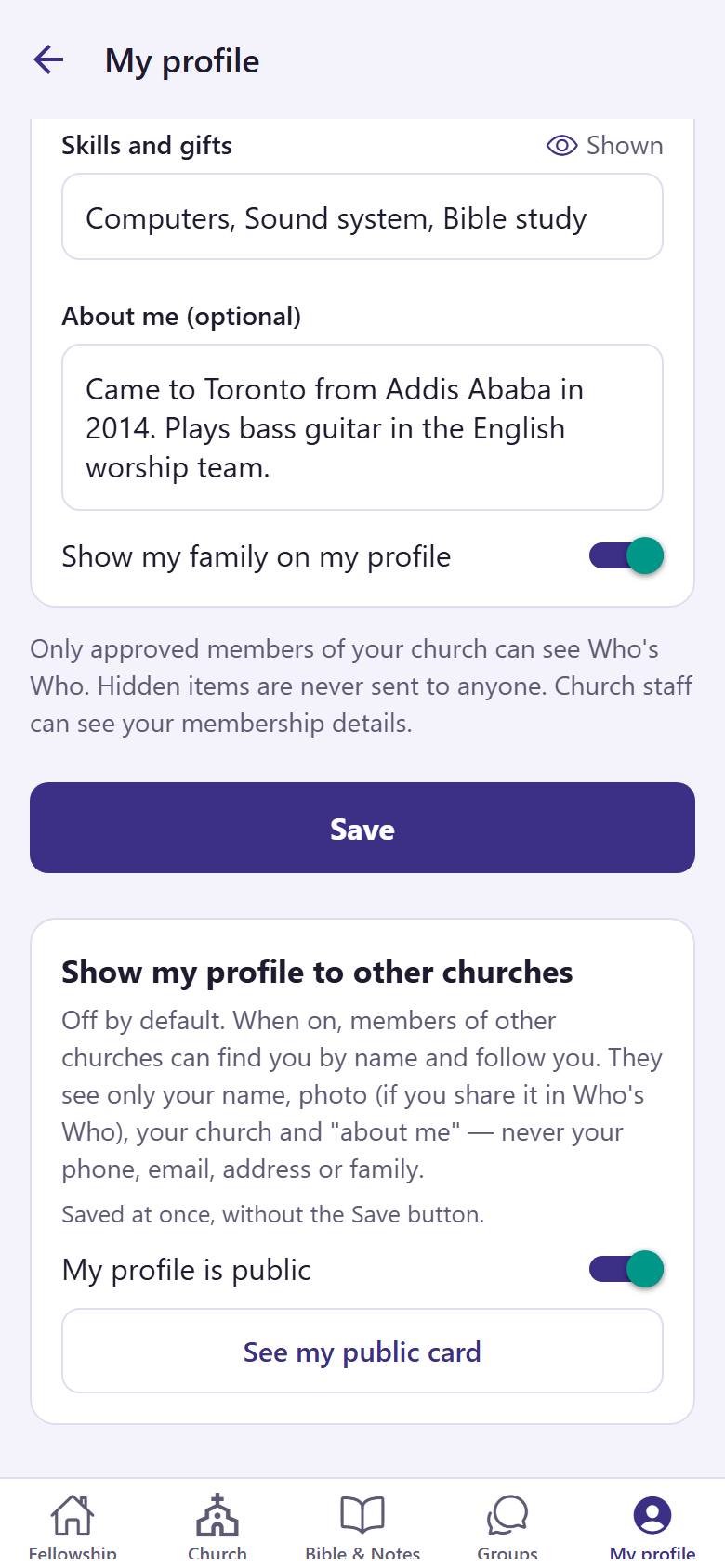
Write your skills and gifts 1 and a few words about you 2. Tap "Save" 3.
Your church family sees you in Who's Who.
Your family
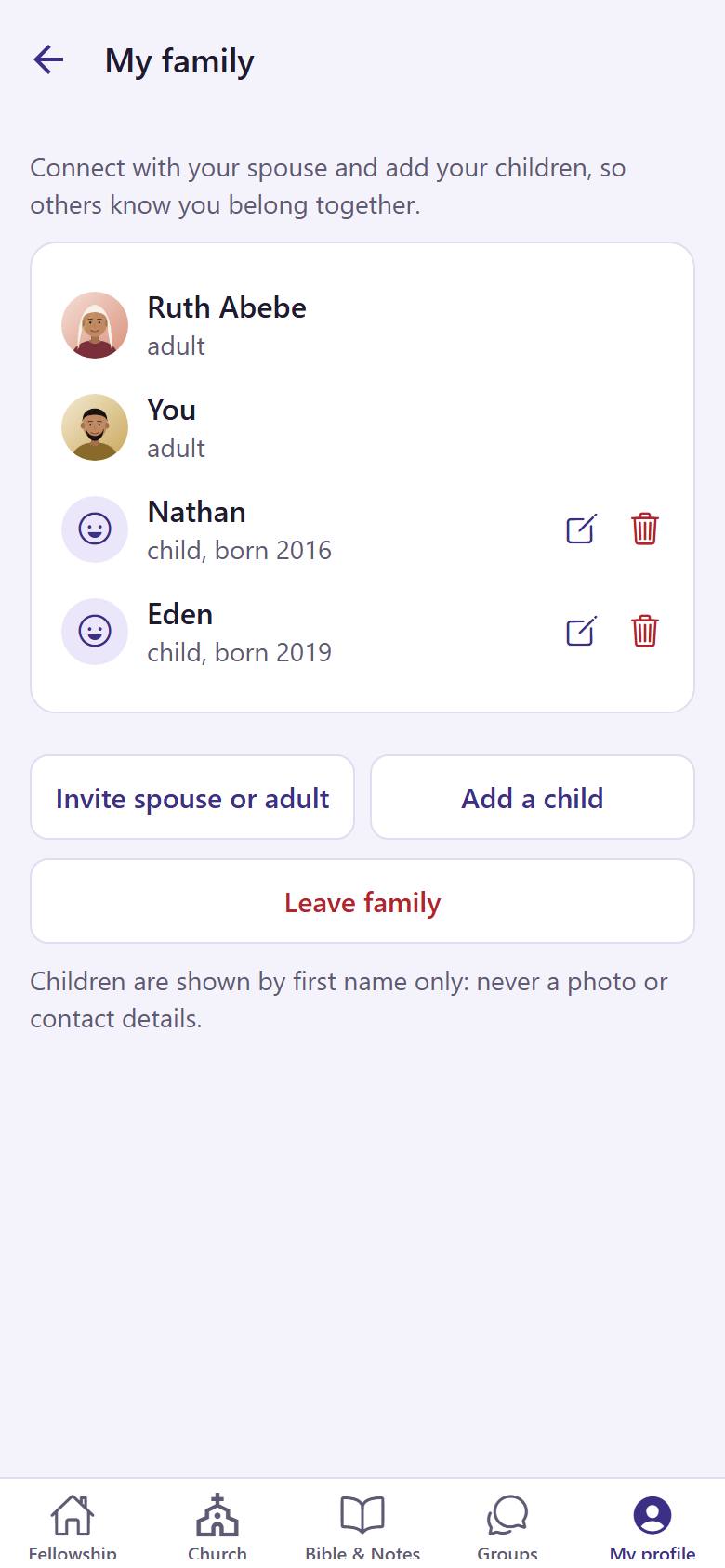
Connect with your spouse and add your children, so the church knows you belong together.
1
1
In "My profile", tap "My family" 1.
12
2
Tap "Invite spouse or adult" 1 to connect with your husband or wife. Tap "Add a child" 2 for each child.
Your children can then be checked in to their Sunday school class.
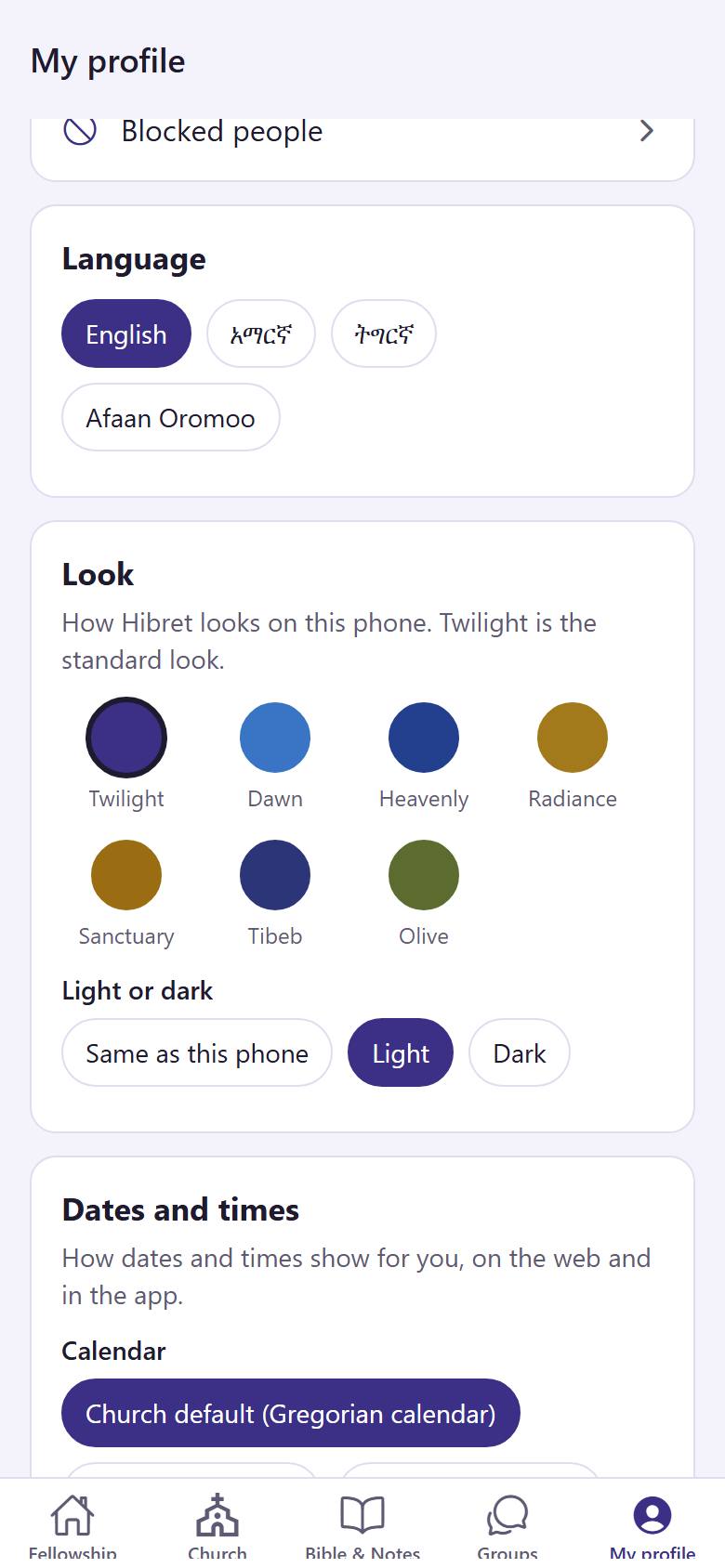
Language, look and notifications
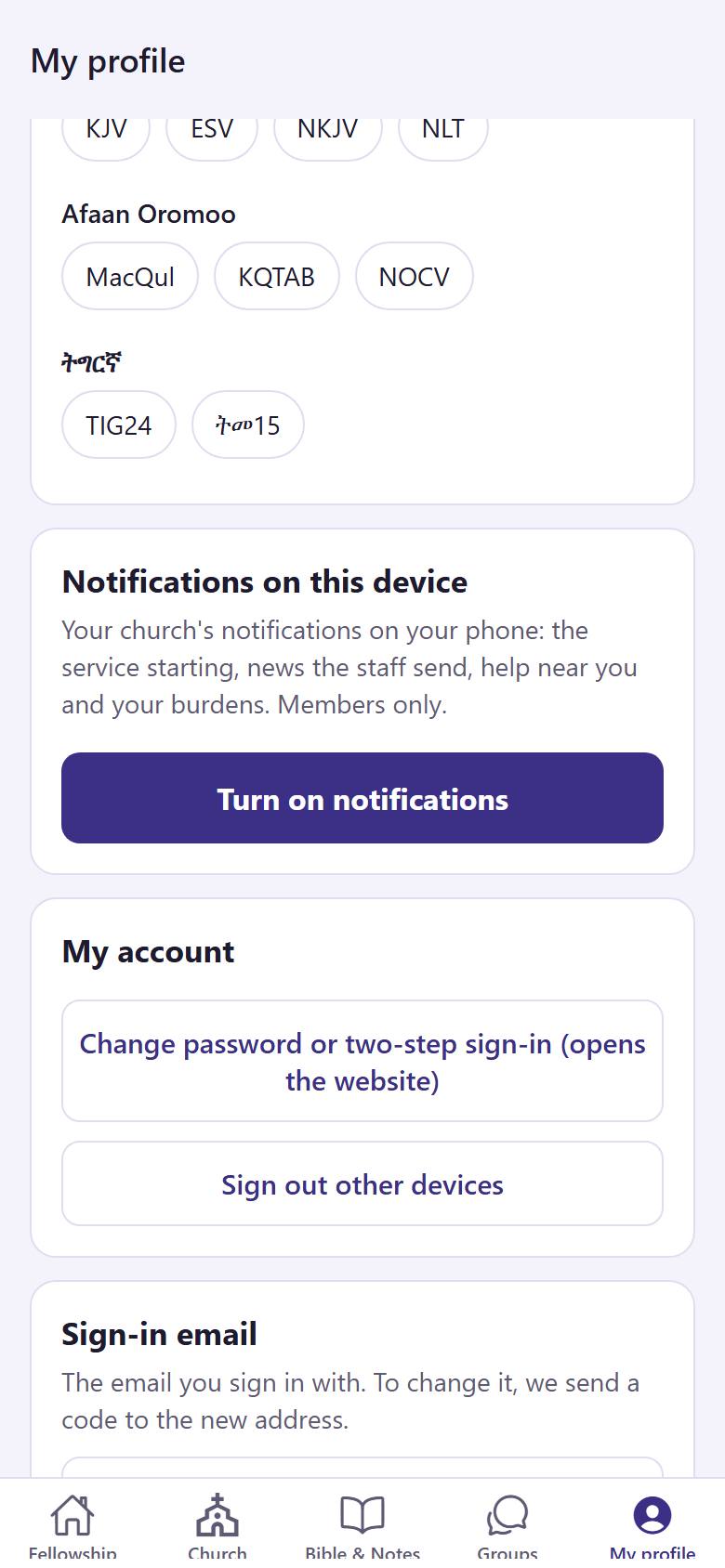
Make the app yours: your language, its colours and the notifications on your phone.
123
1
In "My profile", choose your language 1. Under "Look", tap the colours you like 2. Under "Light or dark", choose a light or a dark screen 3.
The app changes at once.
1
2
Tap "Turn on notifications" 1 to know when the service starts, when the church sends news and when someone near you needs help.
Your phone asks if Hibret may send notifications. Tap Allow.
 Hibret ህብረት
 123451
 122
122