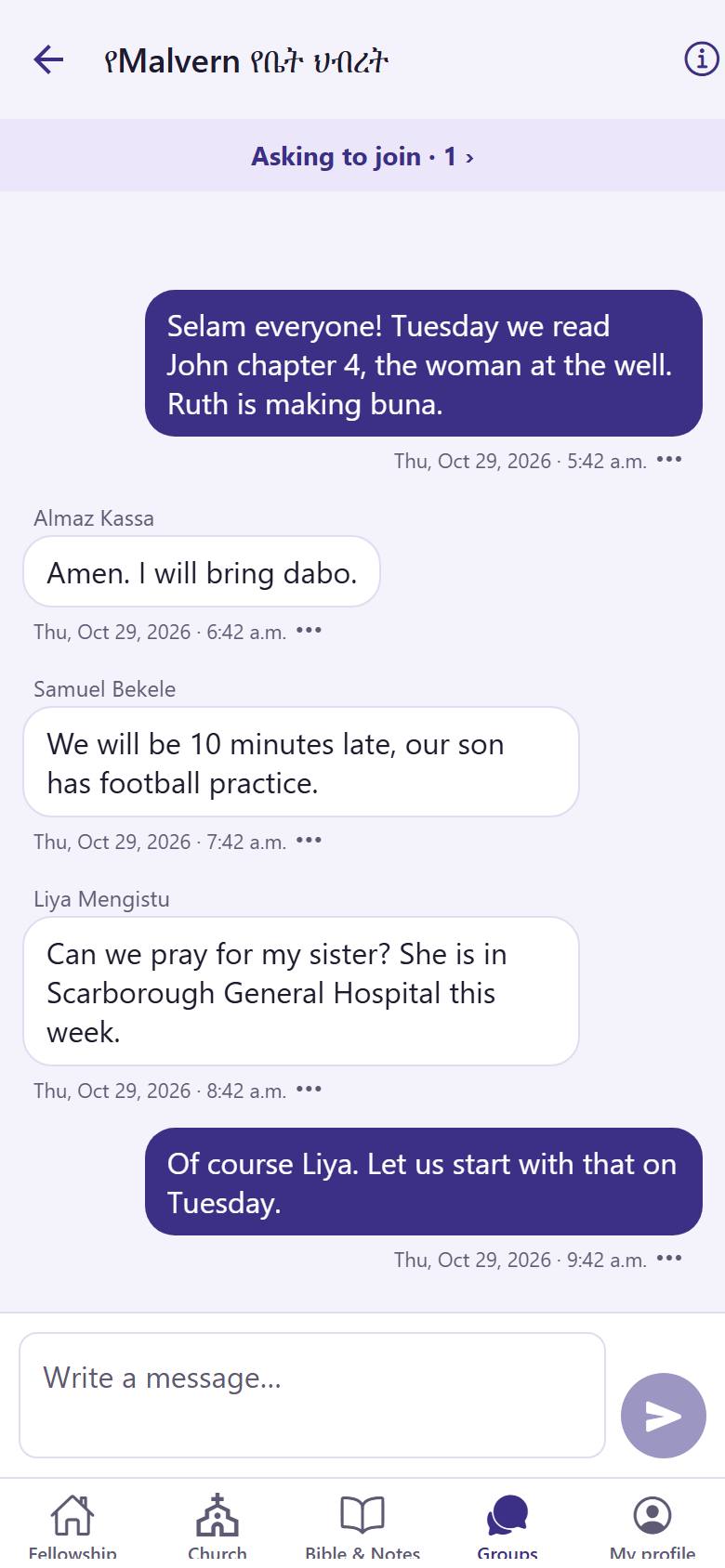
As a group leader you see your group's chat, its members and the people who ask to join.
12
1
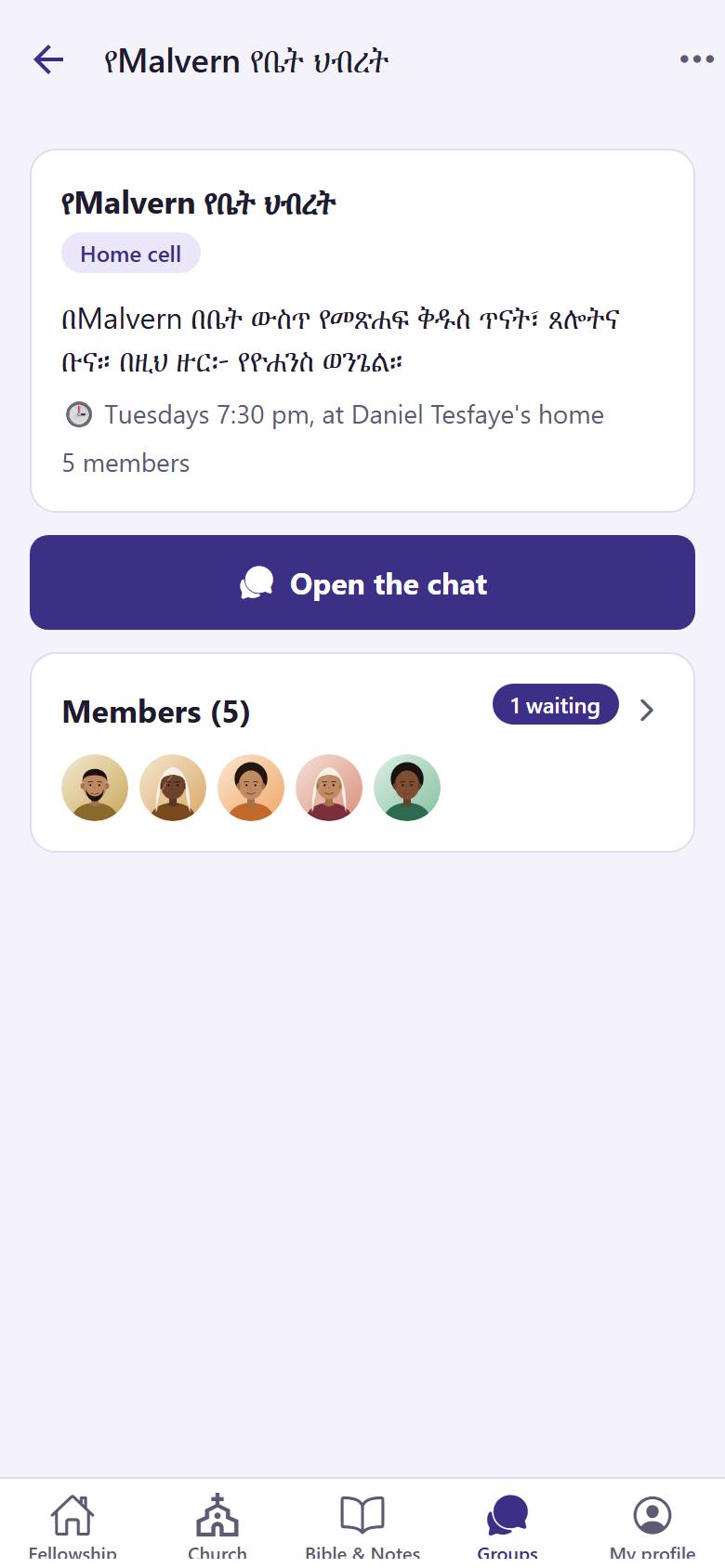
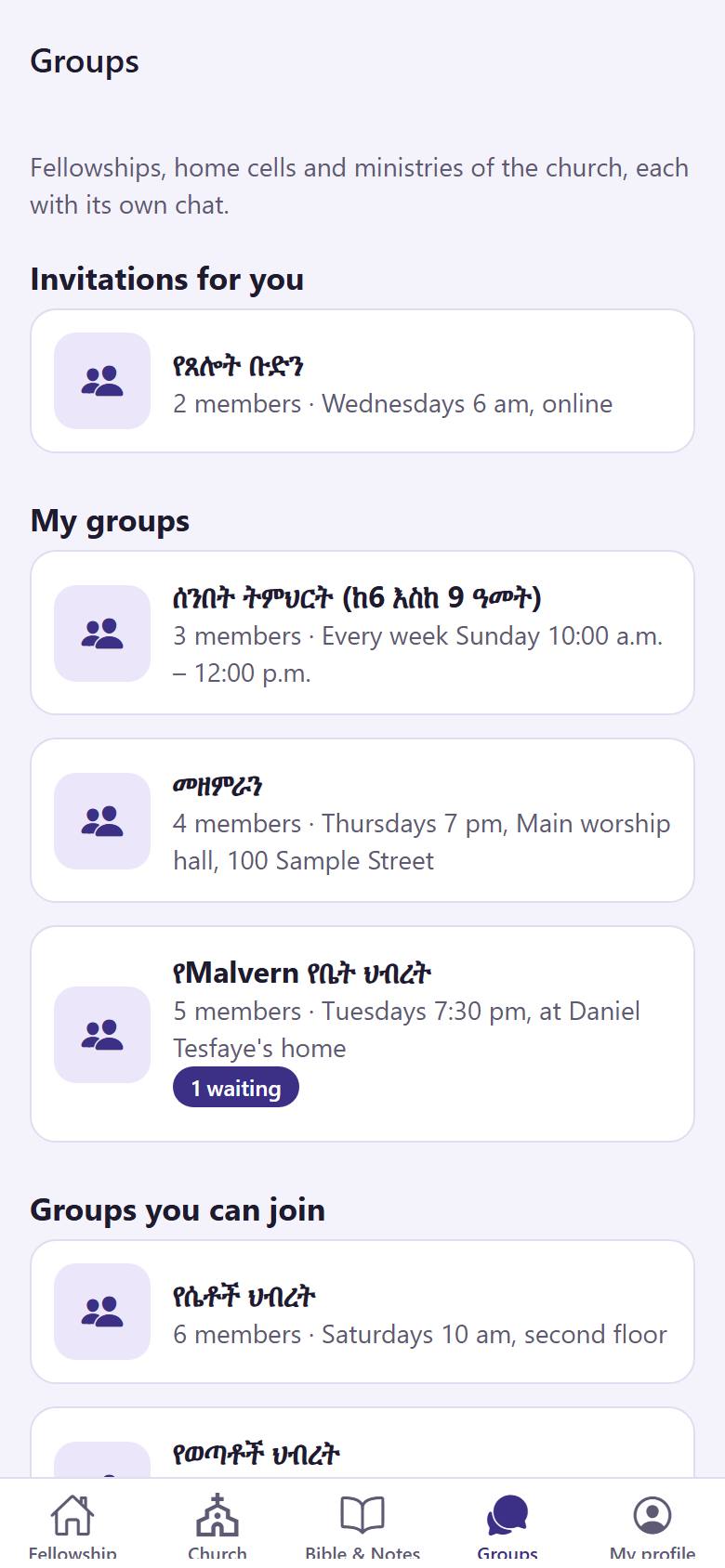
Tap "Groups" 1. Under "My groups", tap the group you lead 2.
12
2
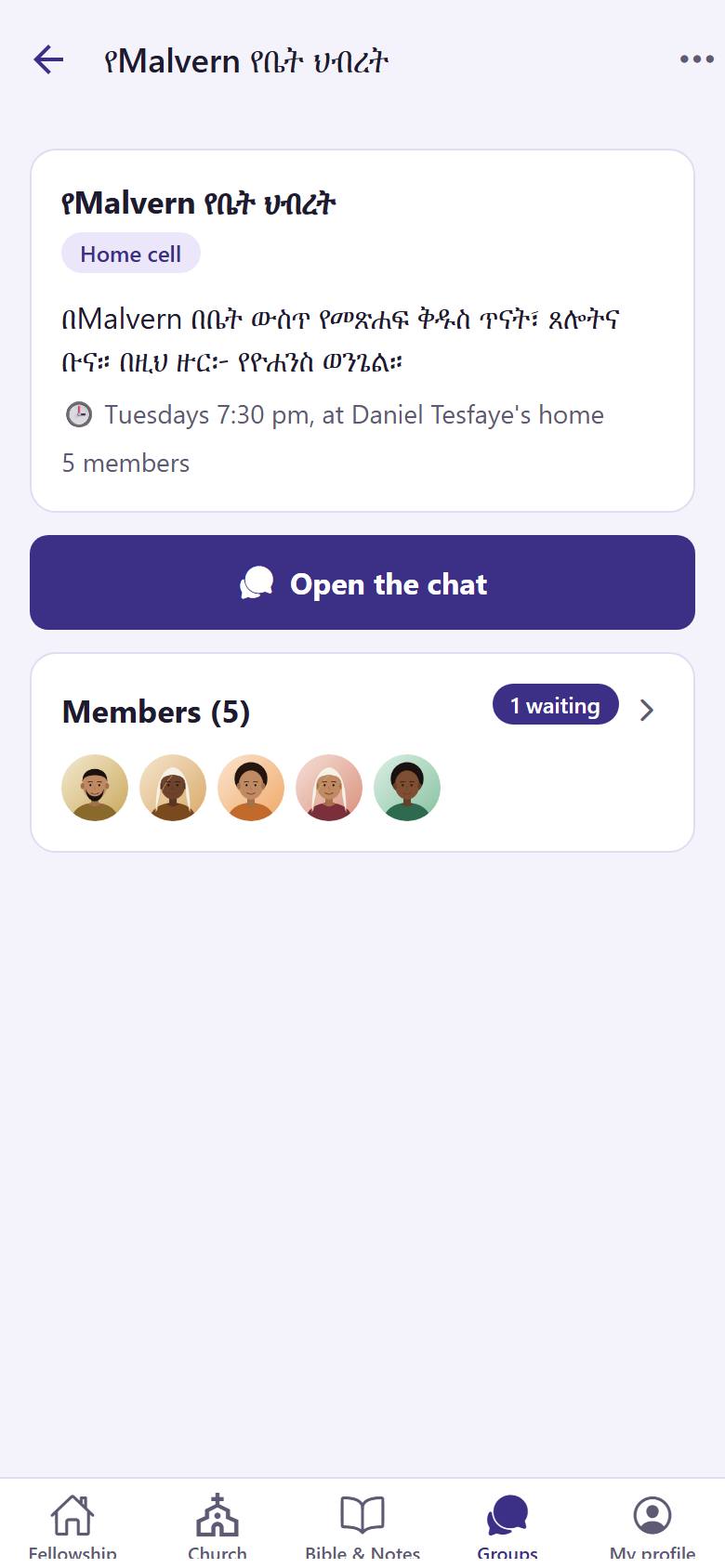
Tap "Open the chat" 1 to talk with the group. The members card 2 shows how many people wait to join.
Only you and the other leaders see who waits to join.
Accept a person who asks to join
In a group where people ask to join, a leader says yes or no to each request.
1
1
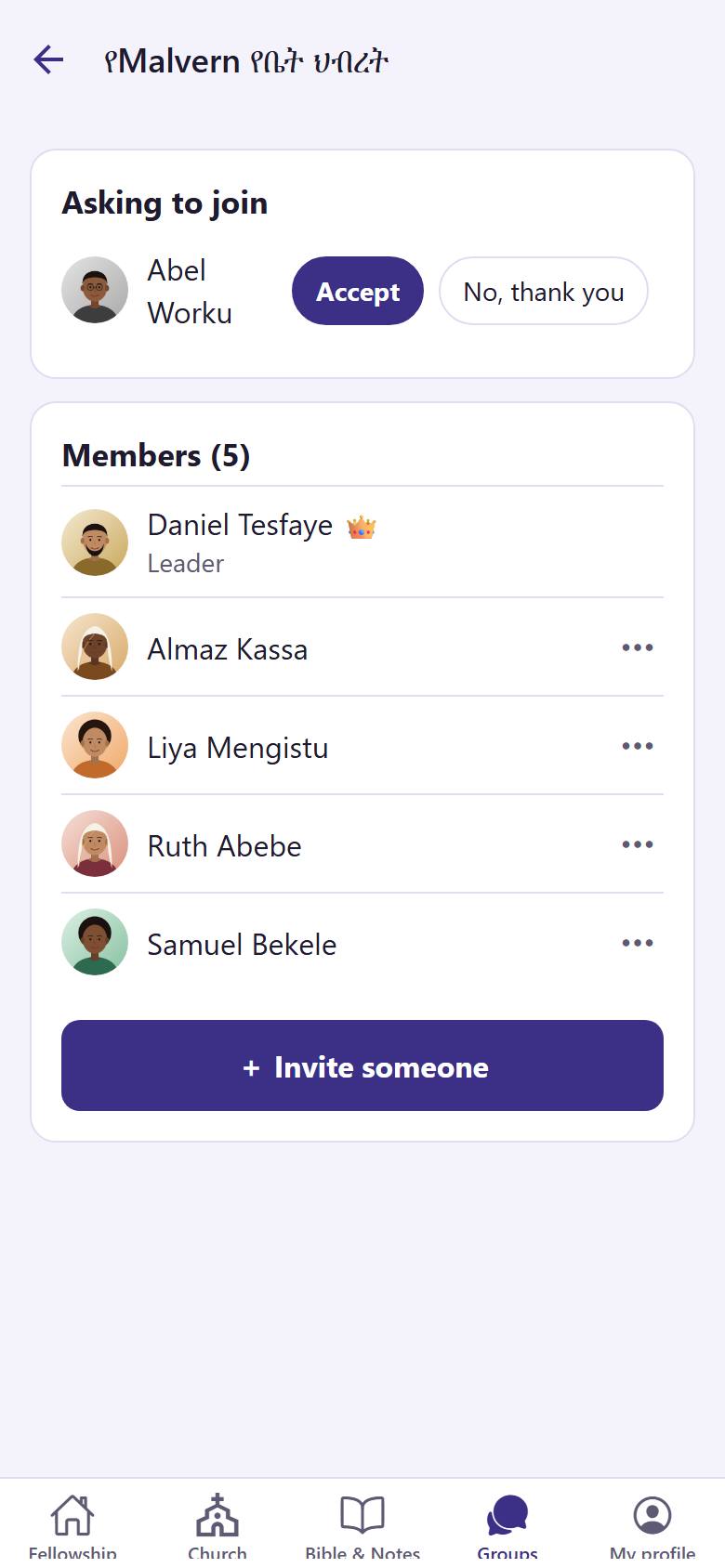
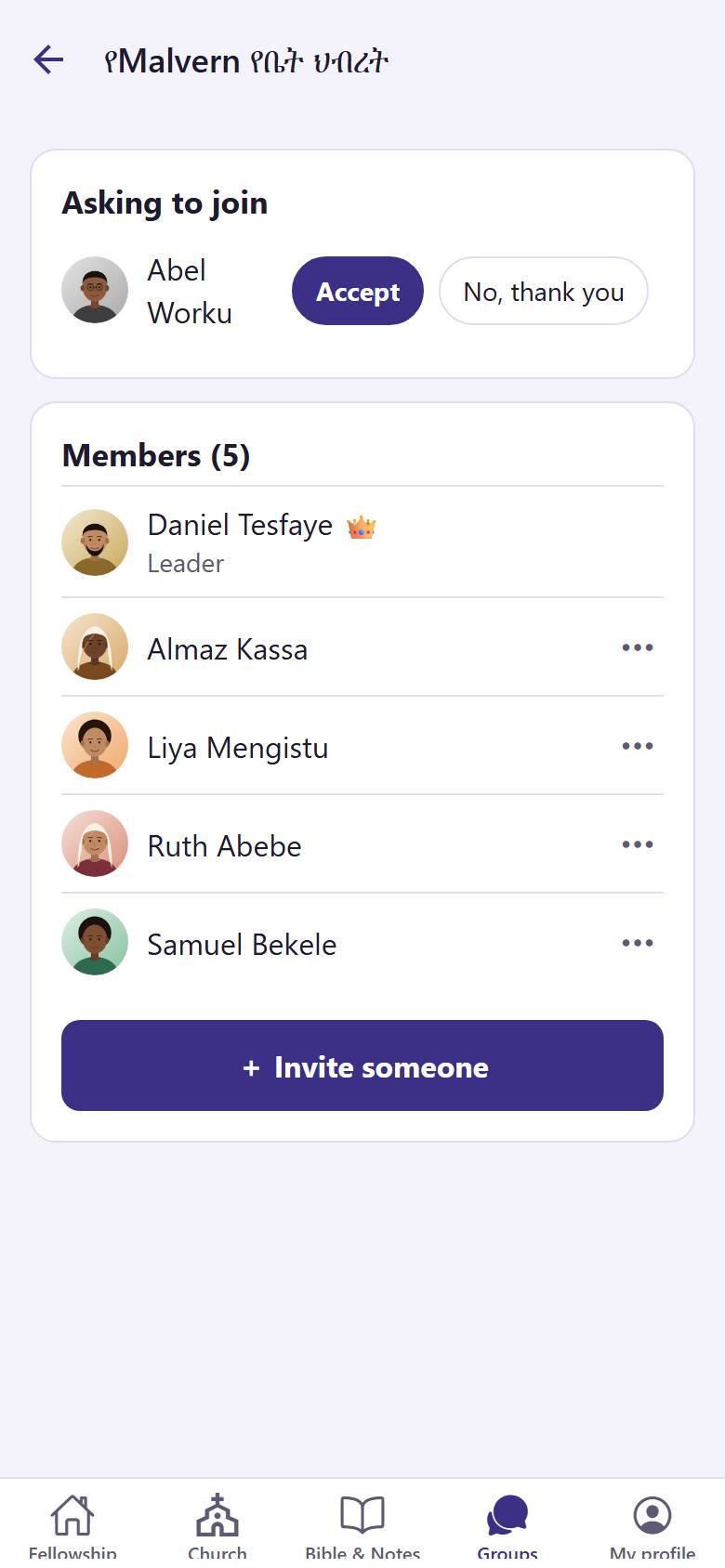
Open your group. Tap the members card 1.
12
2
Under "Asking to join", tap "Accept" 1 to let the person in. Tap "No, thank you" 2 to say no.
An accepted person becomes a member and can read and write in the chat. "No, thank you" asks you first.
Write in the group chat
The chat is for the members of the group only. Share the plan for the next meeting or a prayer need.
1
1
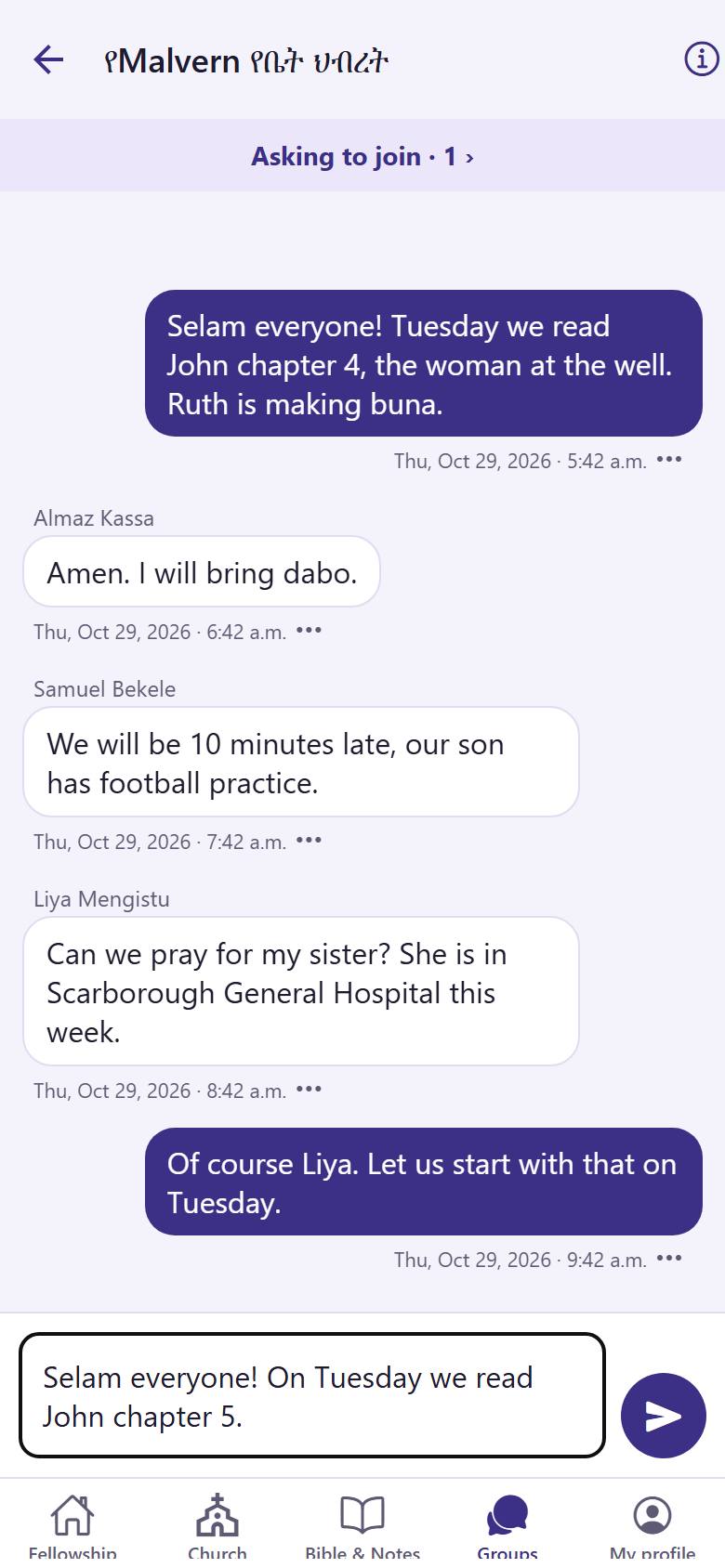
Open your group. Tap "Open the chat" 1.
12
2
Write your message 1. Tap the send button 2.
Every member of the group sees it at once and gets a notice on the phone.
Hide a message in the chat
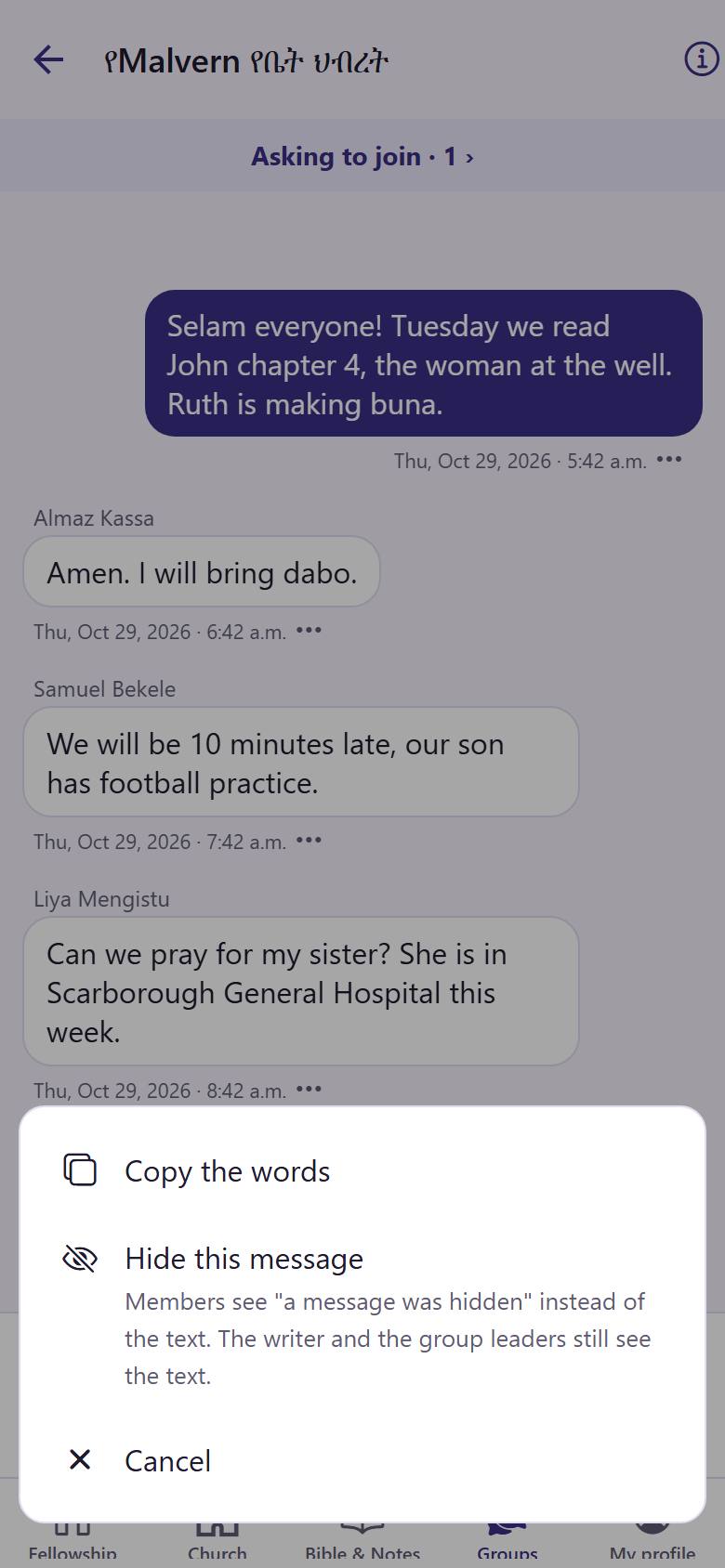
A leader can hide a message that does not belong in the group. Nothing is deleted.
1
1
In the chat, tap "More" 1 under the message.
1
2
Read what each choice does. Tap "Hide this message" 1. The app asks you first.
Members see "a message was hidden". The writer and the leaders still see the text.
Make a leader or remove a member
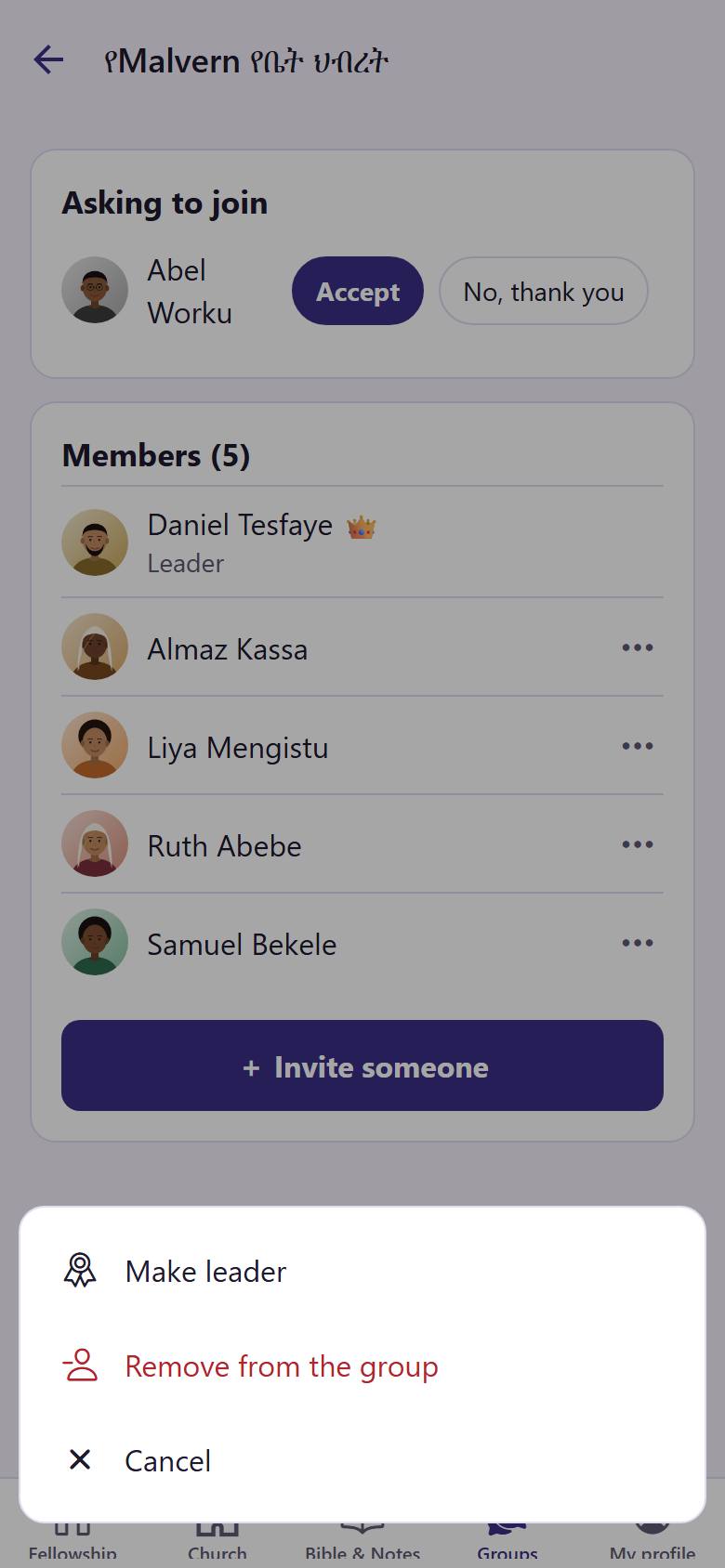
From the members list, a leader can make another member a leader, or take someone out of the group.
1
1
Open your group and tap the members card. Tap "More" 1 next to the person.
12
2
Tap "Make leader" 1 to share the leading. Tap "Remove from the group" 2 to take the person out.
Before removing, the app asks you. Tap "Cancel" if you changed your mind.
Ask your group with a survey
A short survey for your group only: a date for the next meeting, who brings food, or what to study next. Surveys are made on the website.
1
1
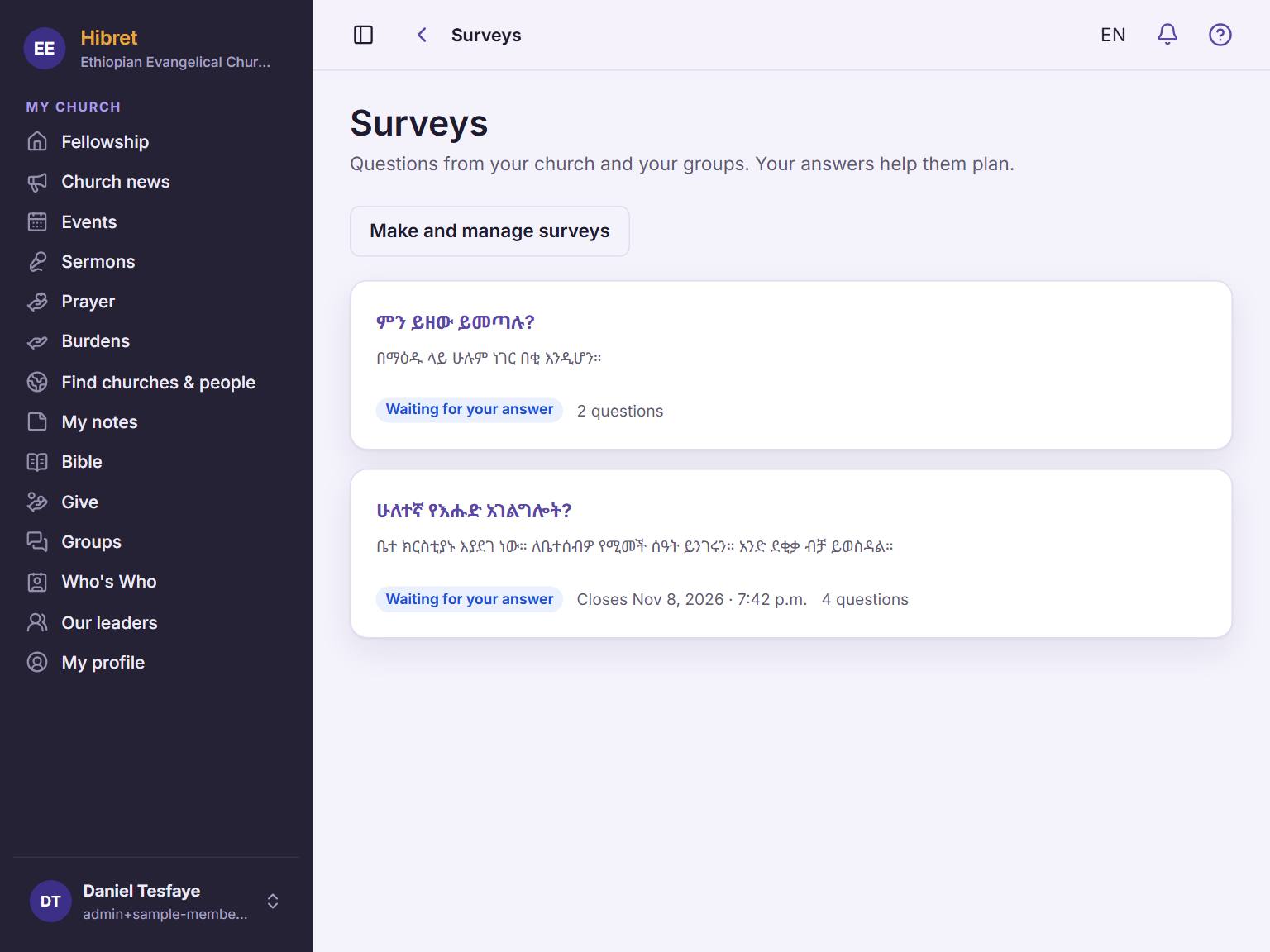
On the website, open "Surveys". Tap "Make and manage surveys" 1.
1
2
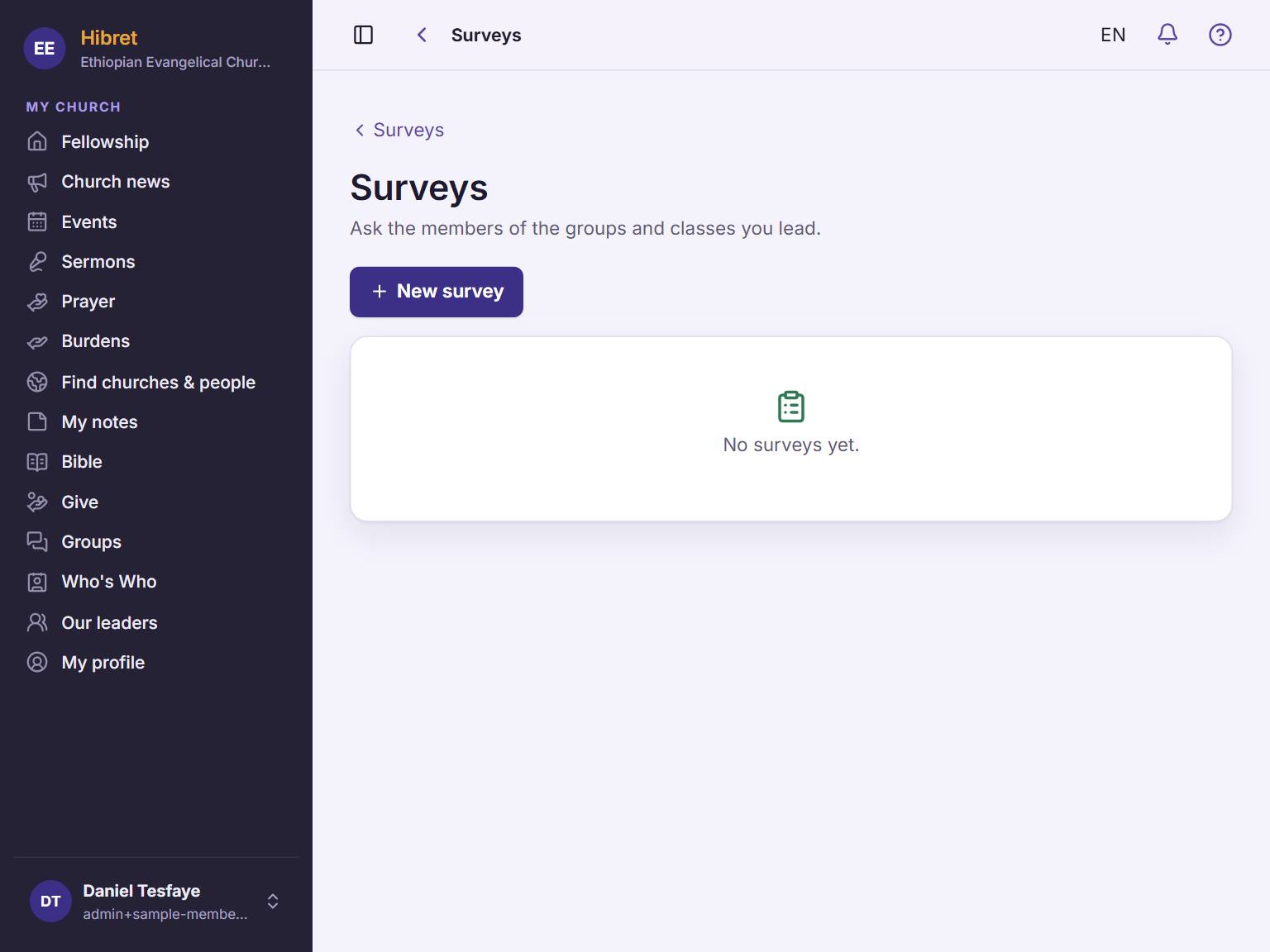
Tap "New survey" 1.
1234
3
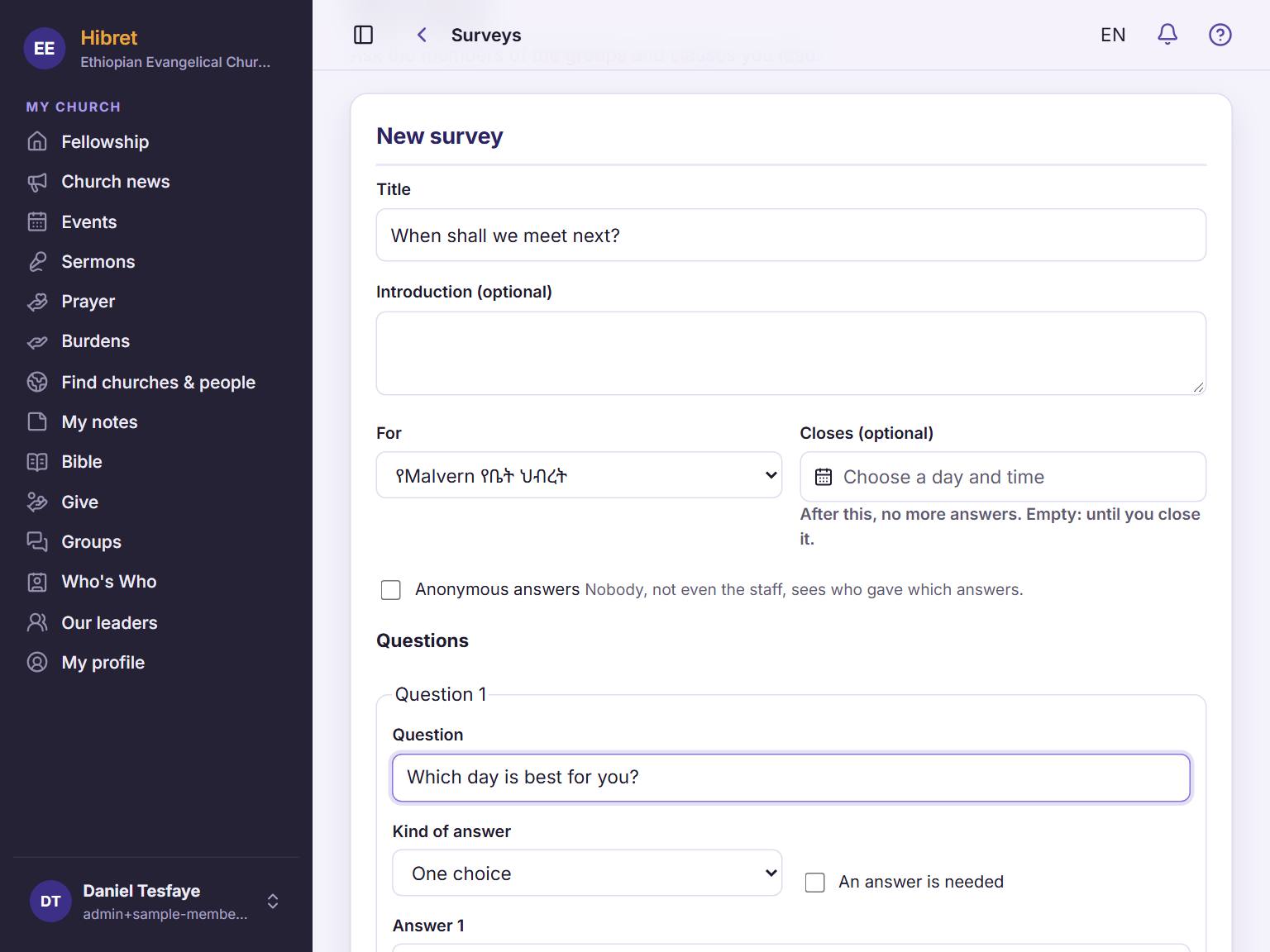
Write a title 1. Under "For", choose your group 2. Write your question 3 and choose the kind of answer 4.
12
4
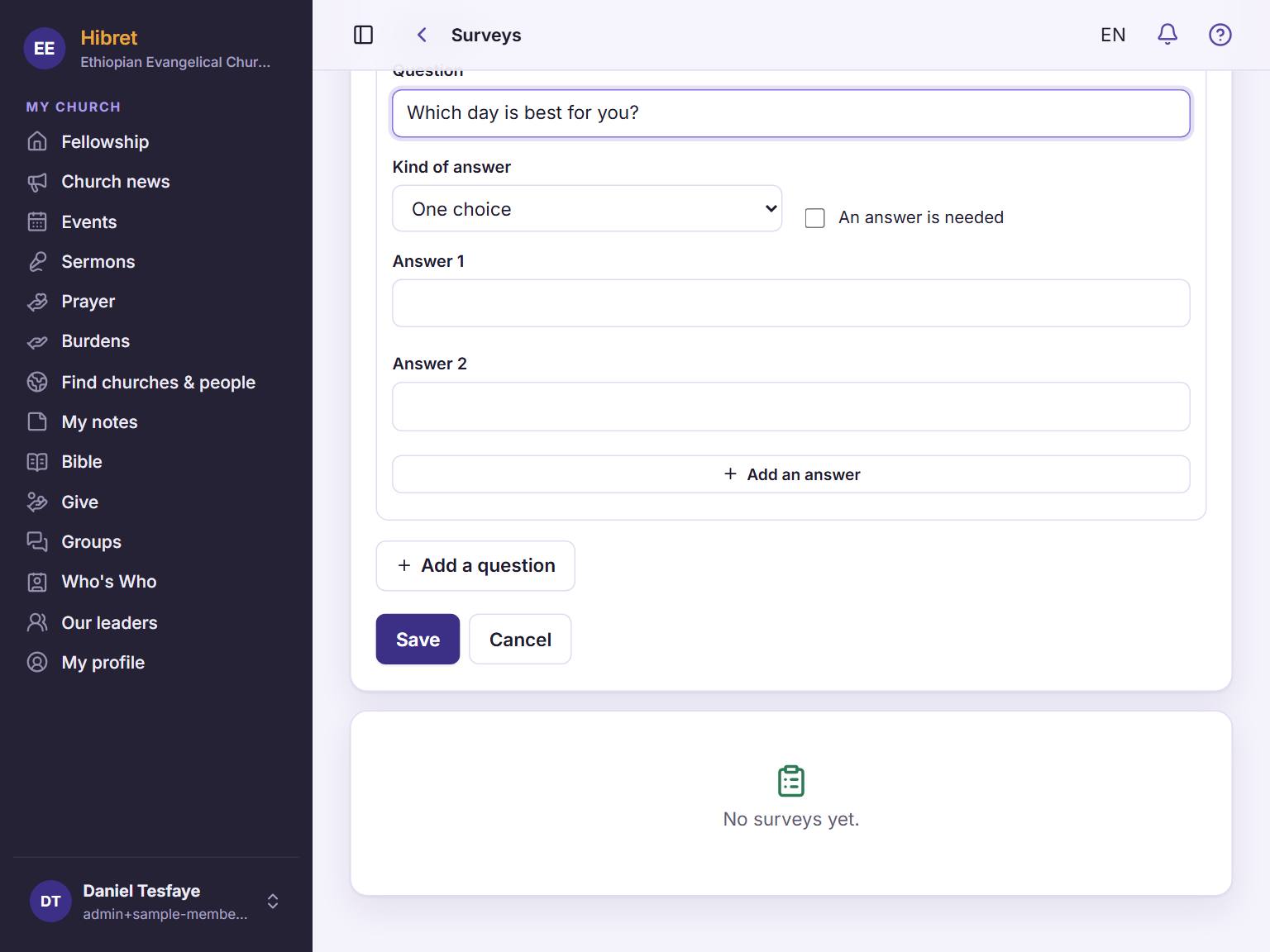
Add the answers people can choose. Tap "Add a question" 1 for one more question. Tap "Save" 2.
The survey is saved as a draft. In the list, tap "Open" to send it to your group.
Your class page and its times
Each class has its own page. As the teacher you see the class times, the children and the check-in.
123
1
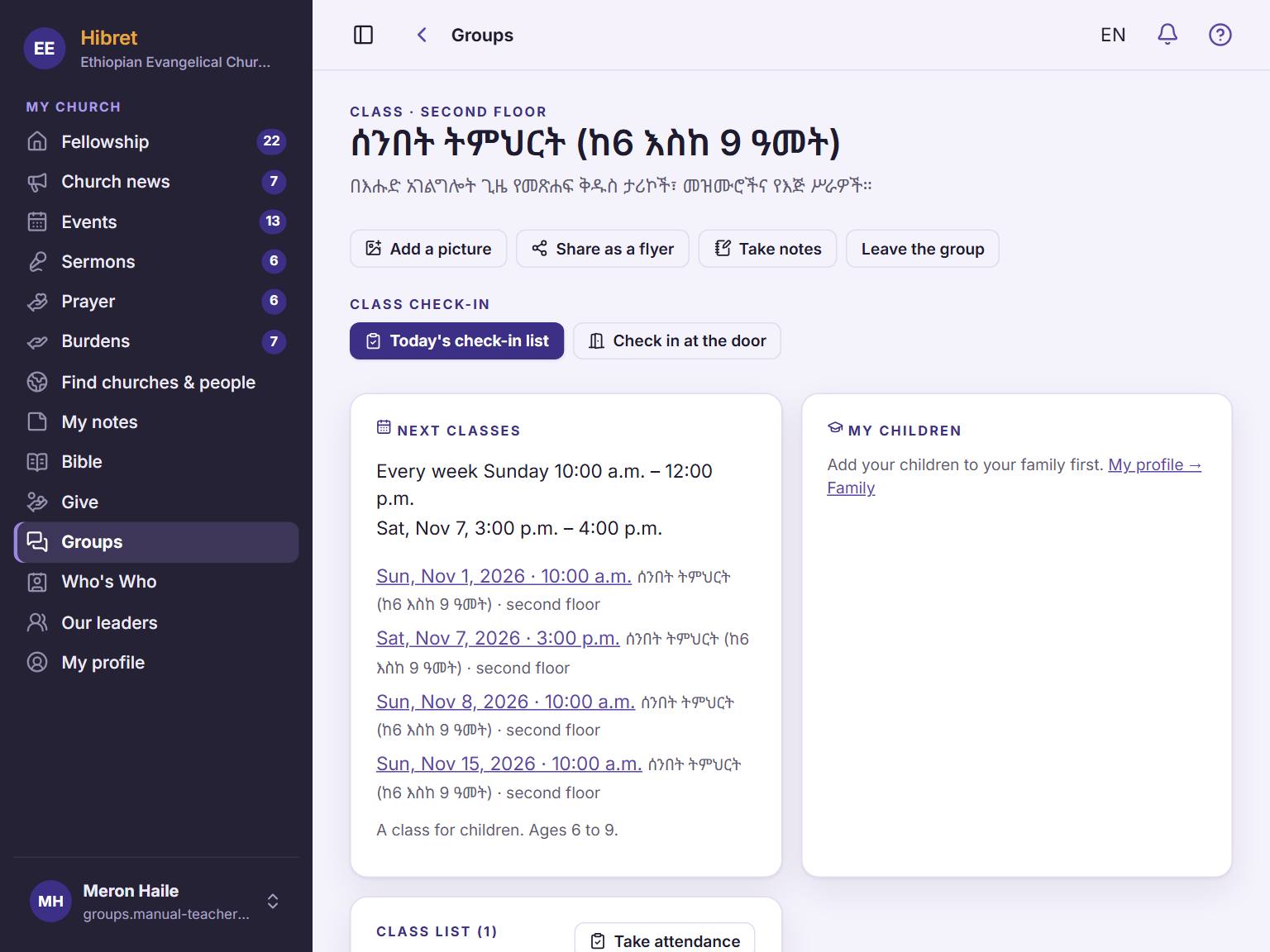
Open "Groups" and tap your class. "Next classes" 1 shows when the class meets. On Sunday, use "Today's check-in list" 2 and "Check in at the door" 3.
12
2
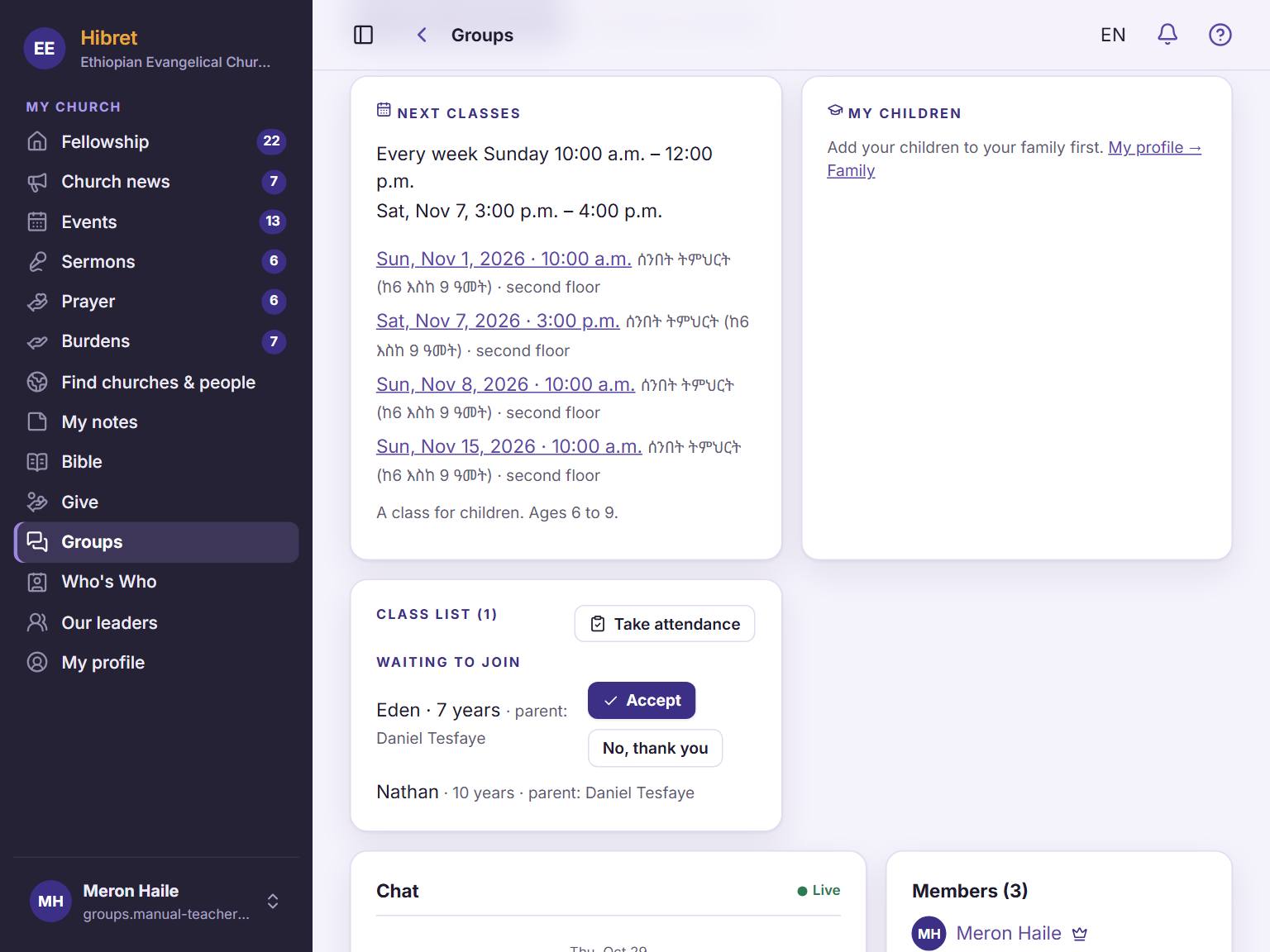
Further down is the class list 1. Tap "Take attendance" 2 to mark who came.
Checking a child in also marks the child present.
Check children in at the door
When a parent brings children without checking in on the phone, you check them in at the door.
1
1
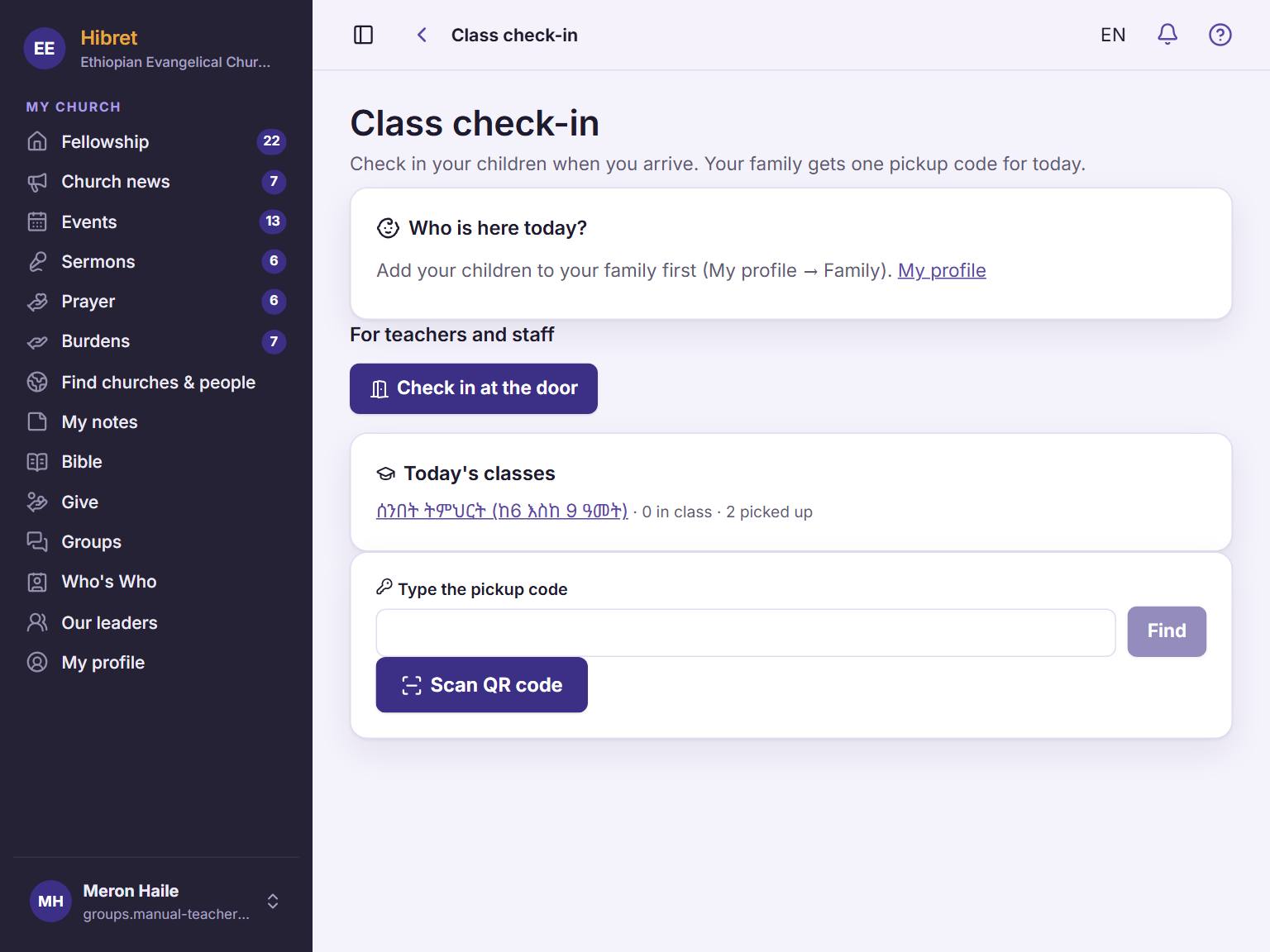
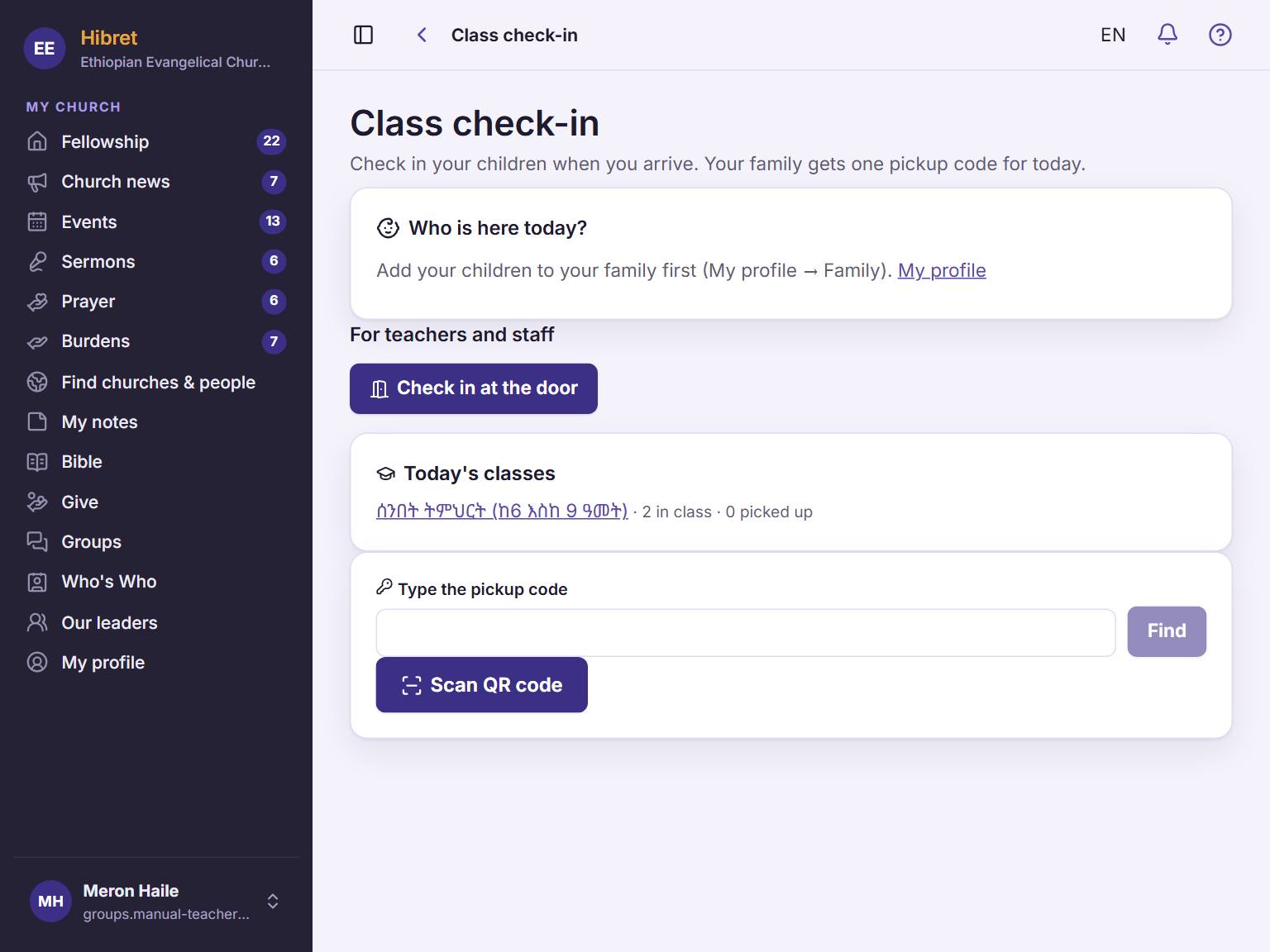
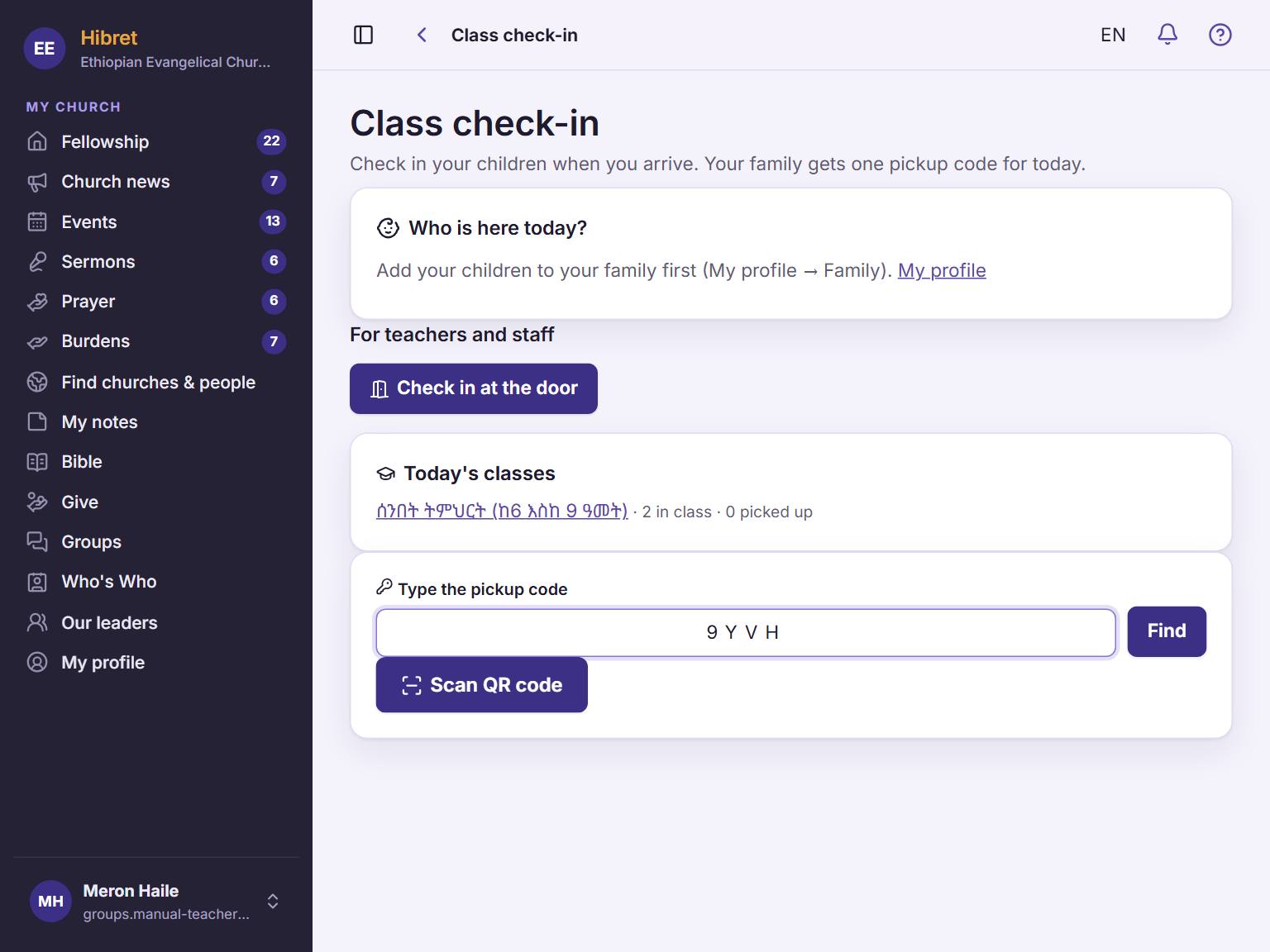
Open "Class check-in". Tap "Check in at the door" 1.
123
2
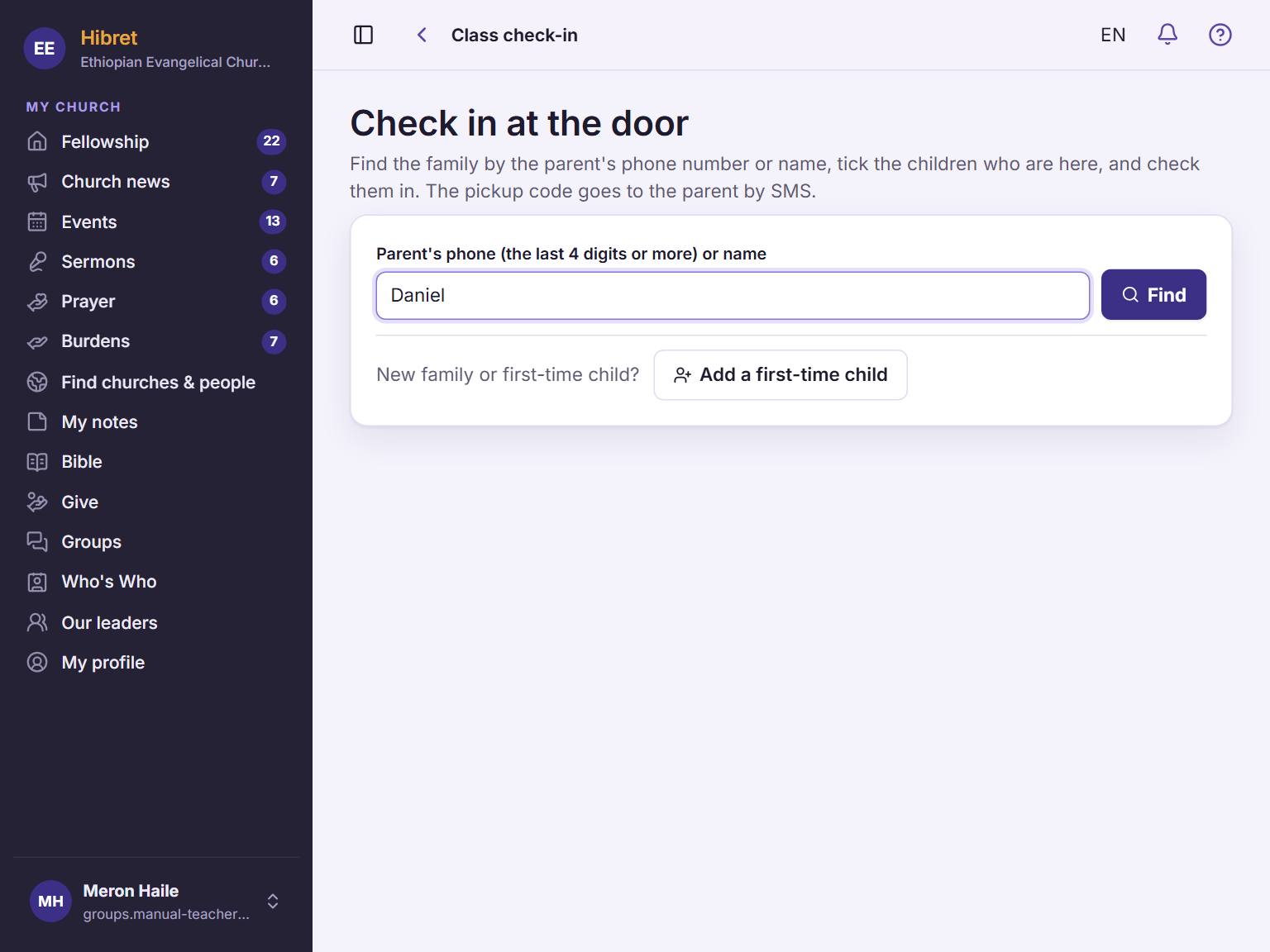
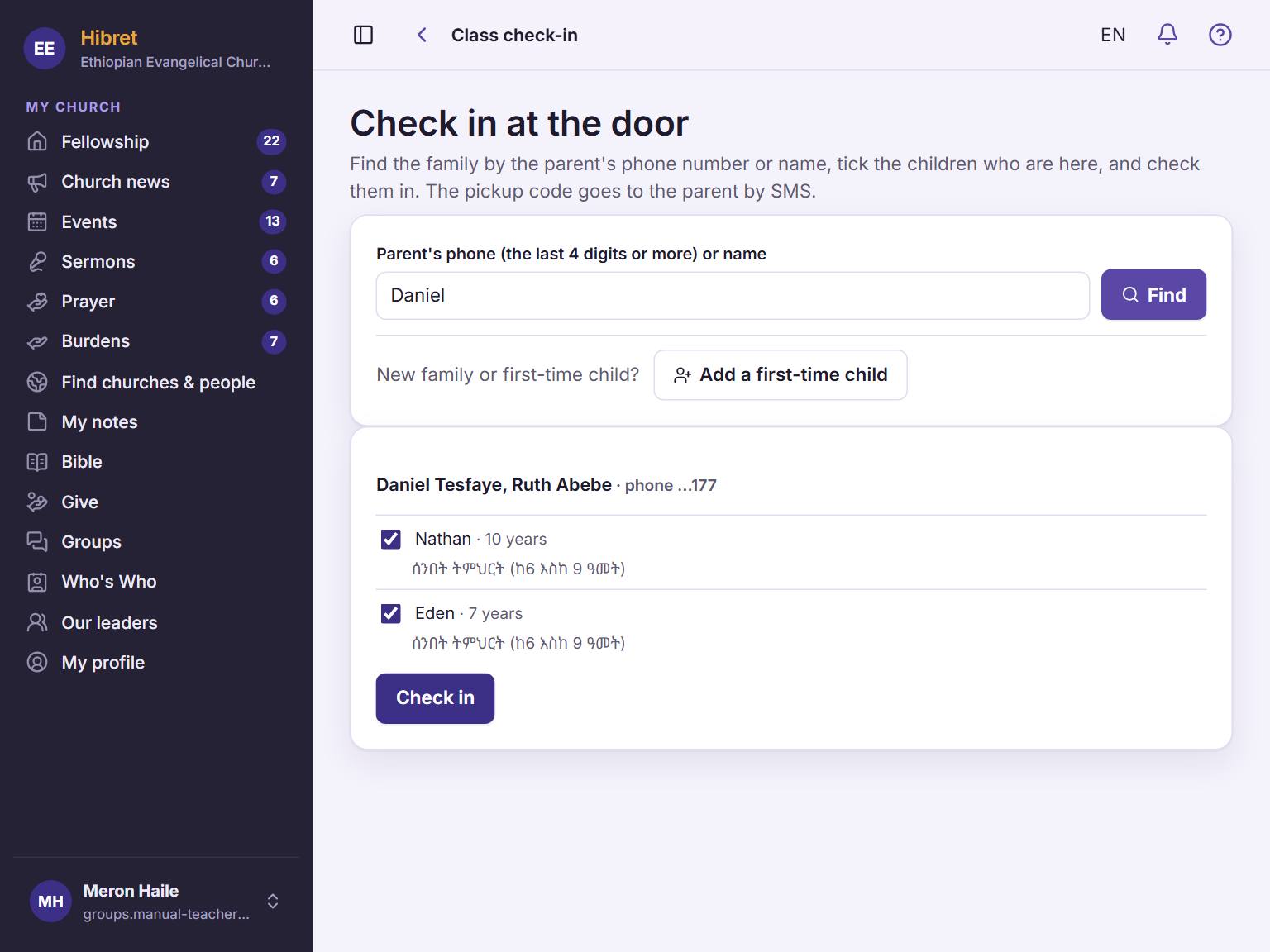
Type the parent's name or the last 4 digits of the phone 1. Tap "Find" 2. A child who comes for the first time: tap "Add a first-time child" 3.
12
3
Tick the children who are here 1. Tap "Check in" 2.
1
4
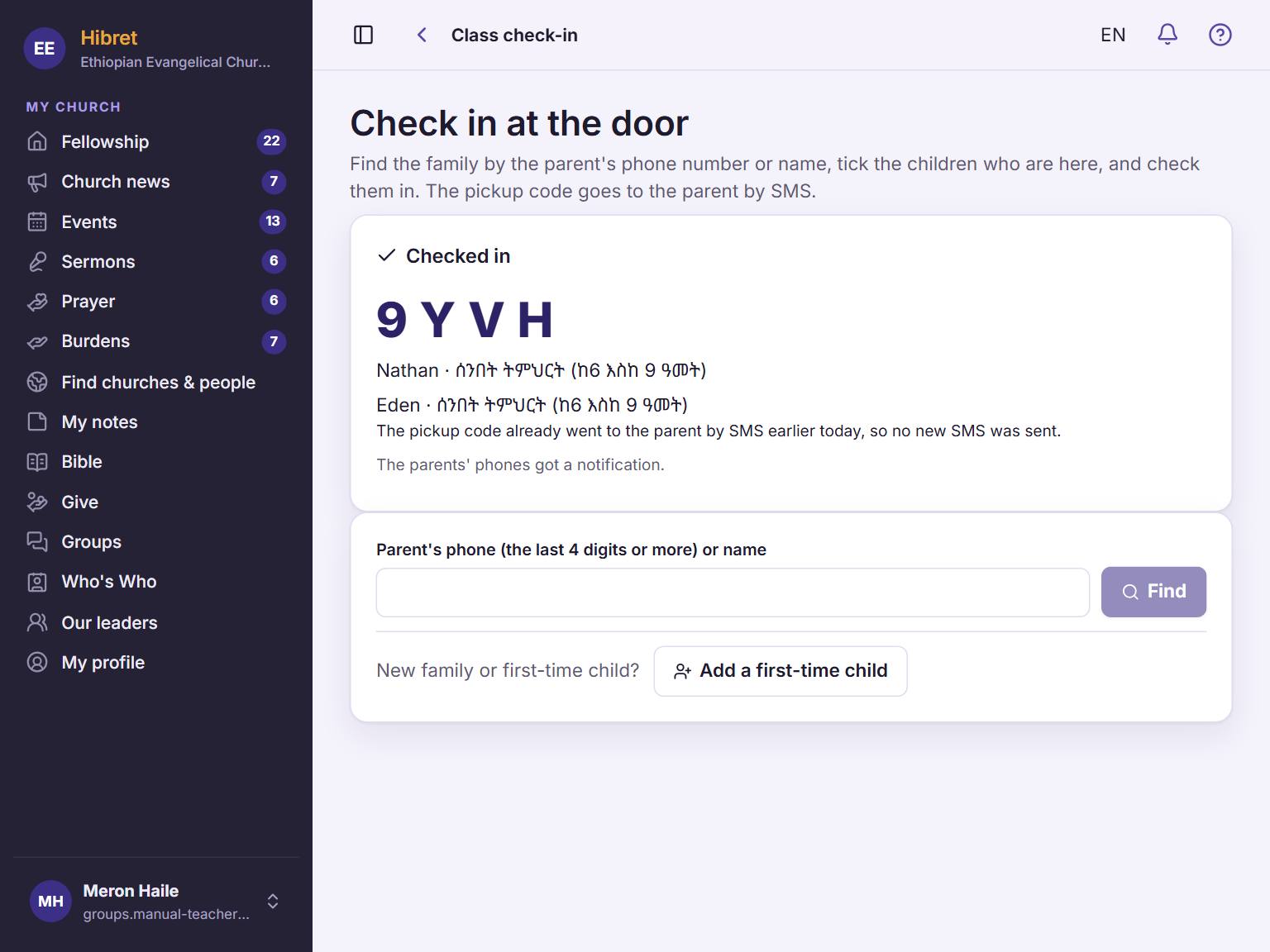
The children are in. The family's pickup code shows here 1.
The parents' phones get a notice, and a text message with the code goes to the parent's phone number. The page says when no text message was sent: then tell the parent the code.
See who is in your class today
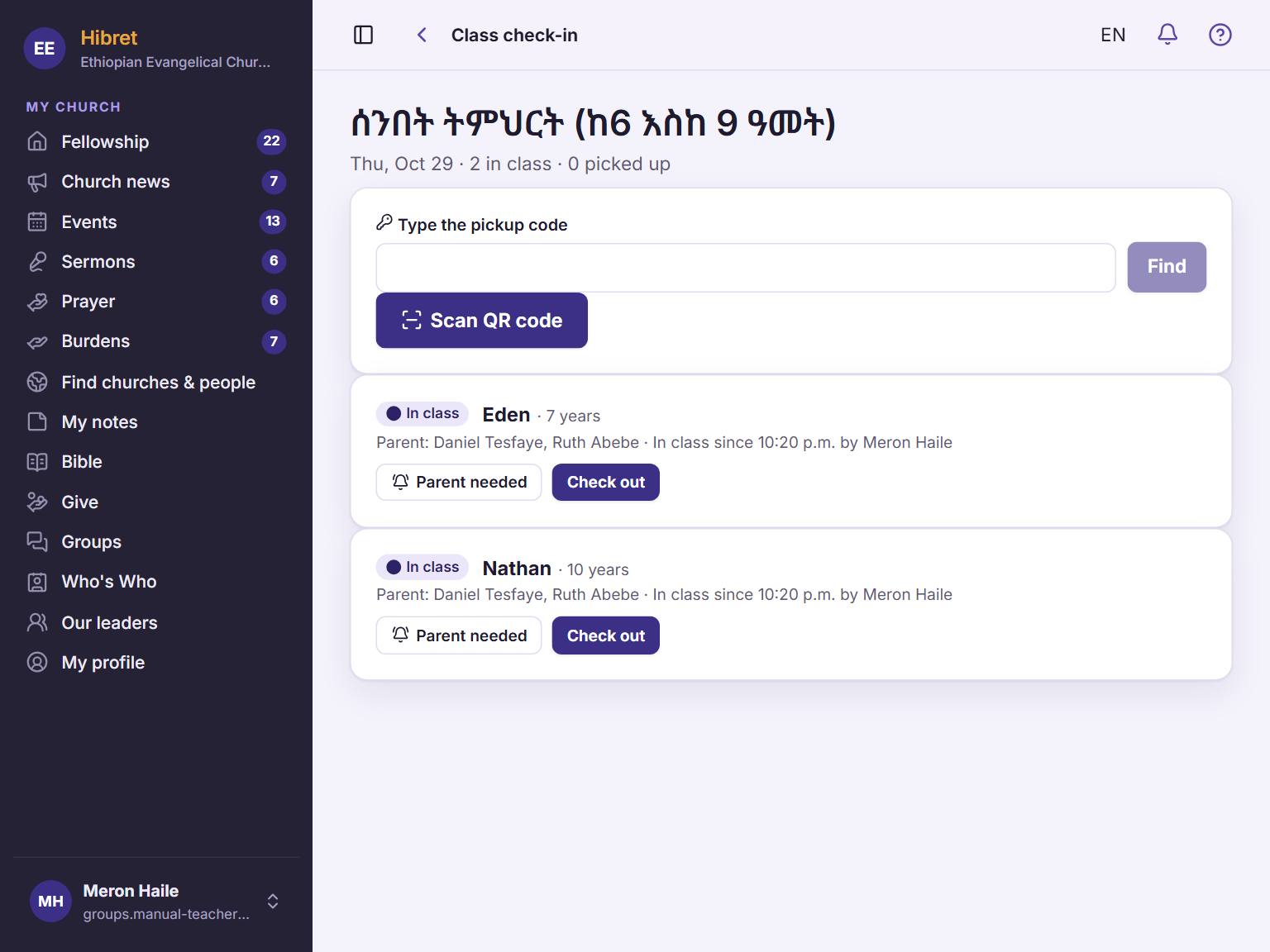
The check-in list shows each child, the parents and any allergy. It changes by itself when a parent checks a child in.
1
1
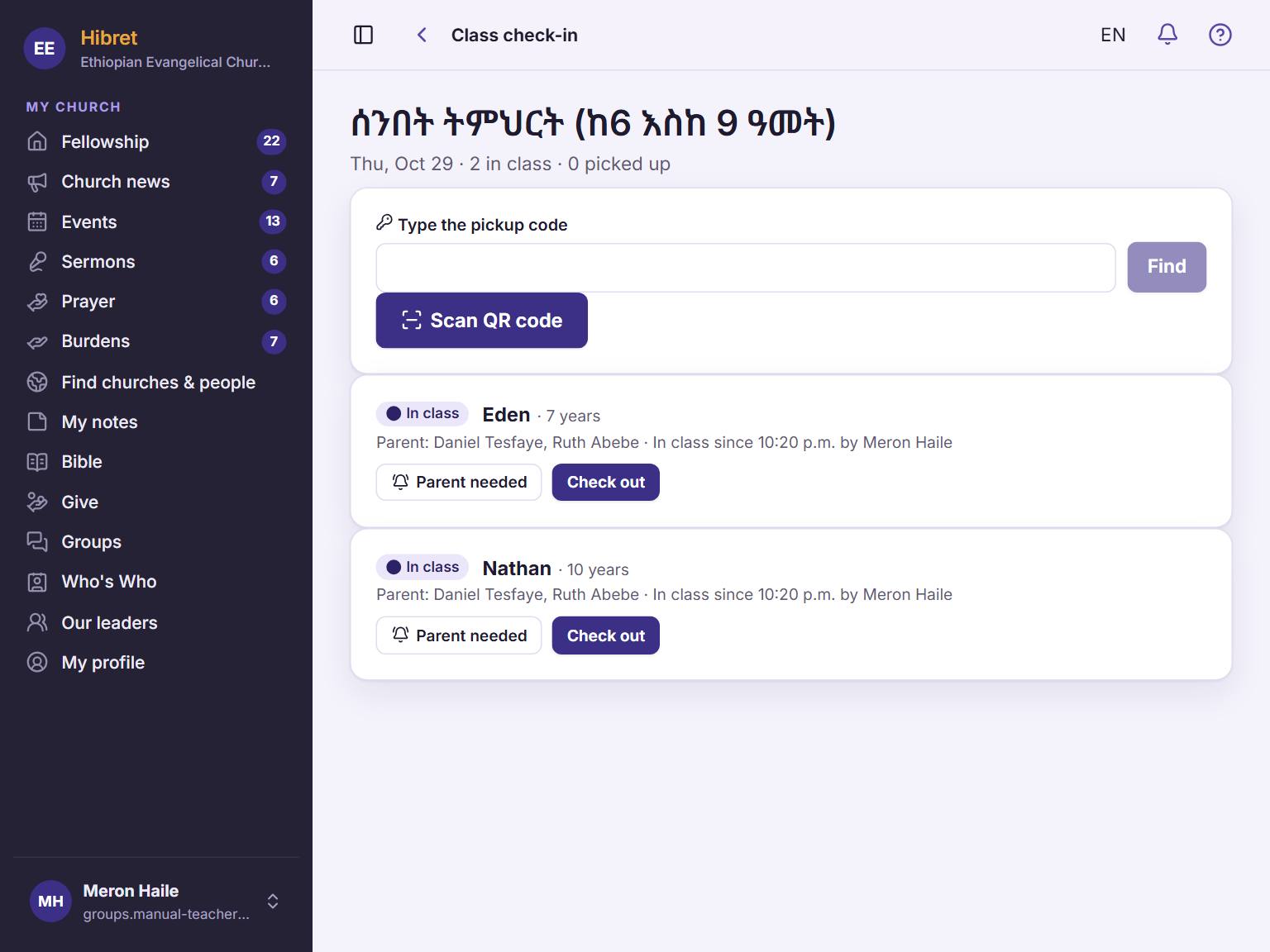
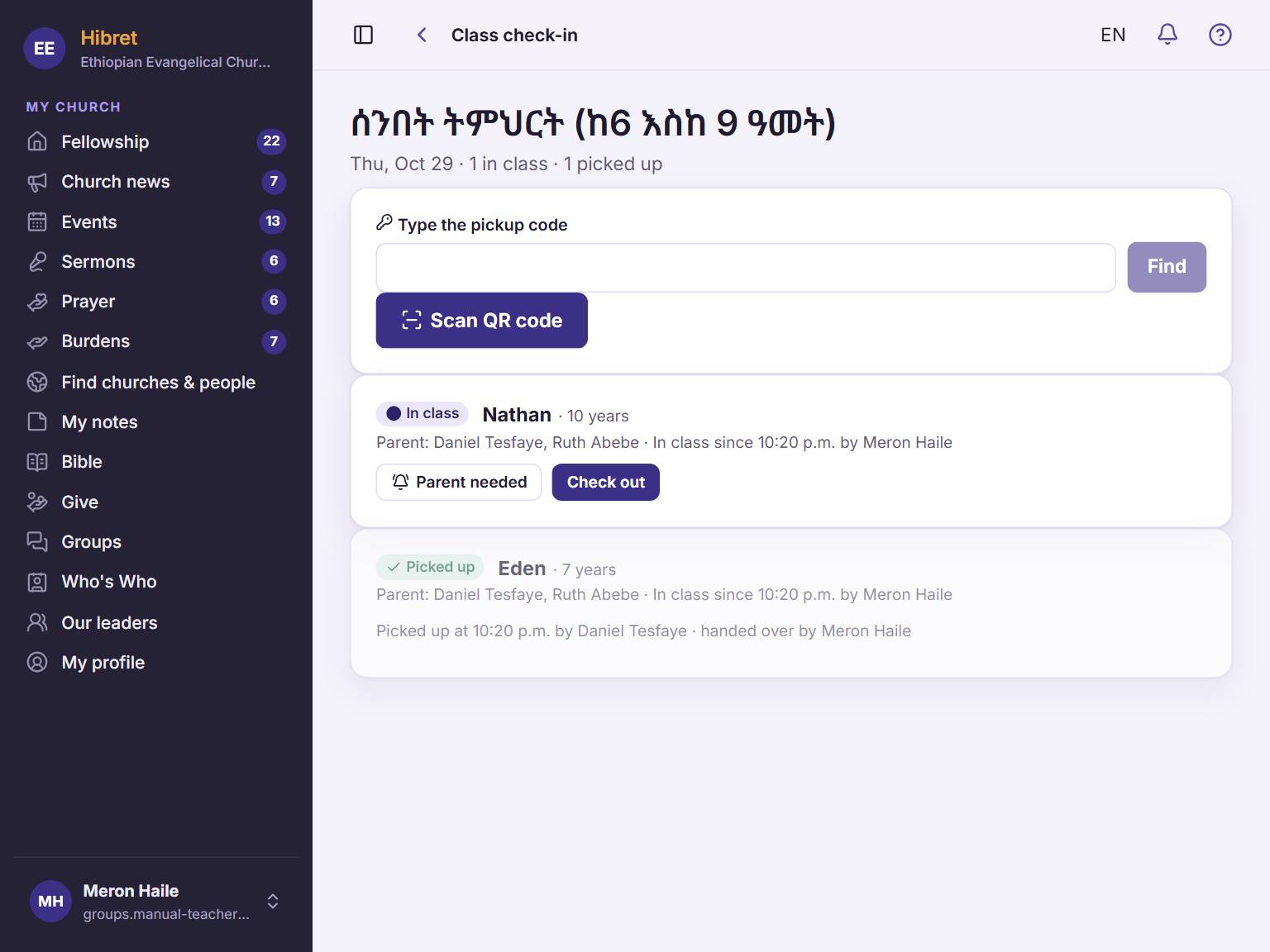
Open "Class check-in". Under "Today's classes", tap your class 1.
123
2
Each child has a label 1: "In class", "Parent called" or "Picked up". Use "Parent needed" 2 and "Check out" 3.
Children still in class are at the top. Children who went home move down.
Call a parent to the class
A child is sick, hurt or cannot calm down. One tap calls the parents.
1
1
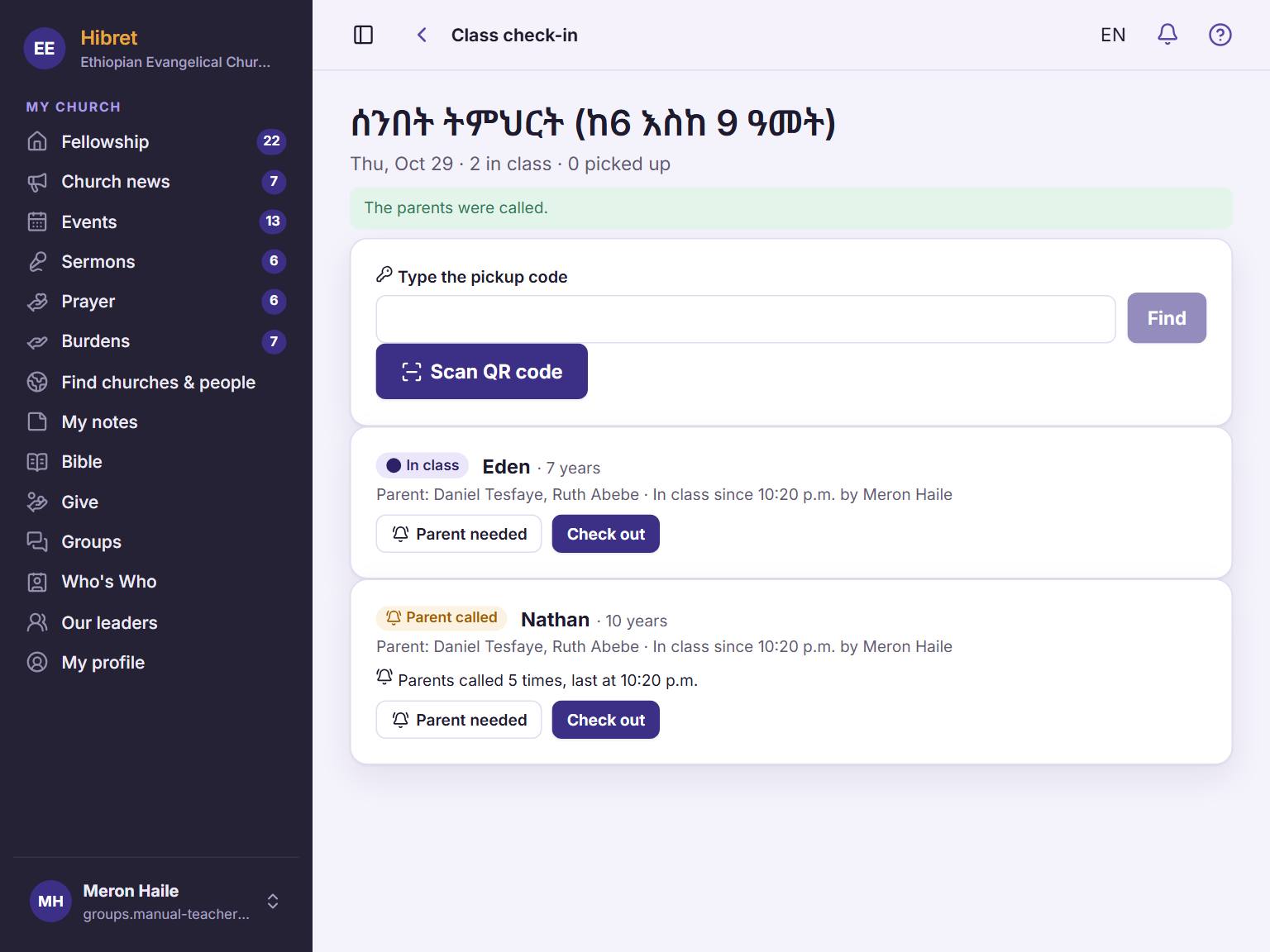
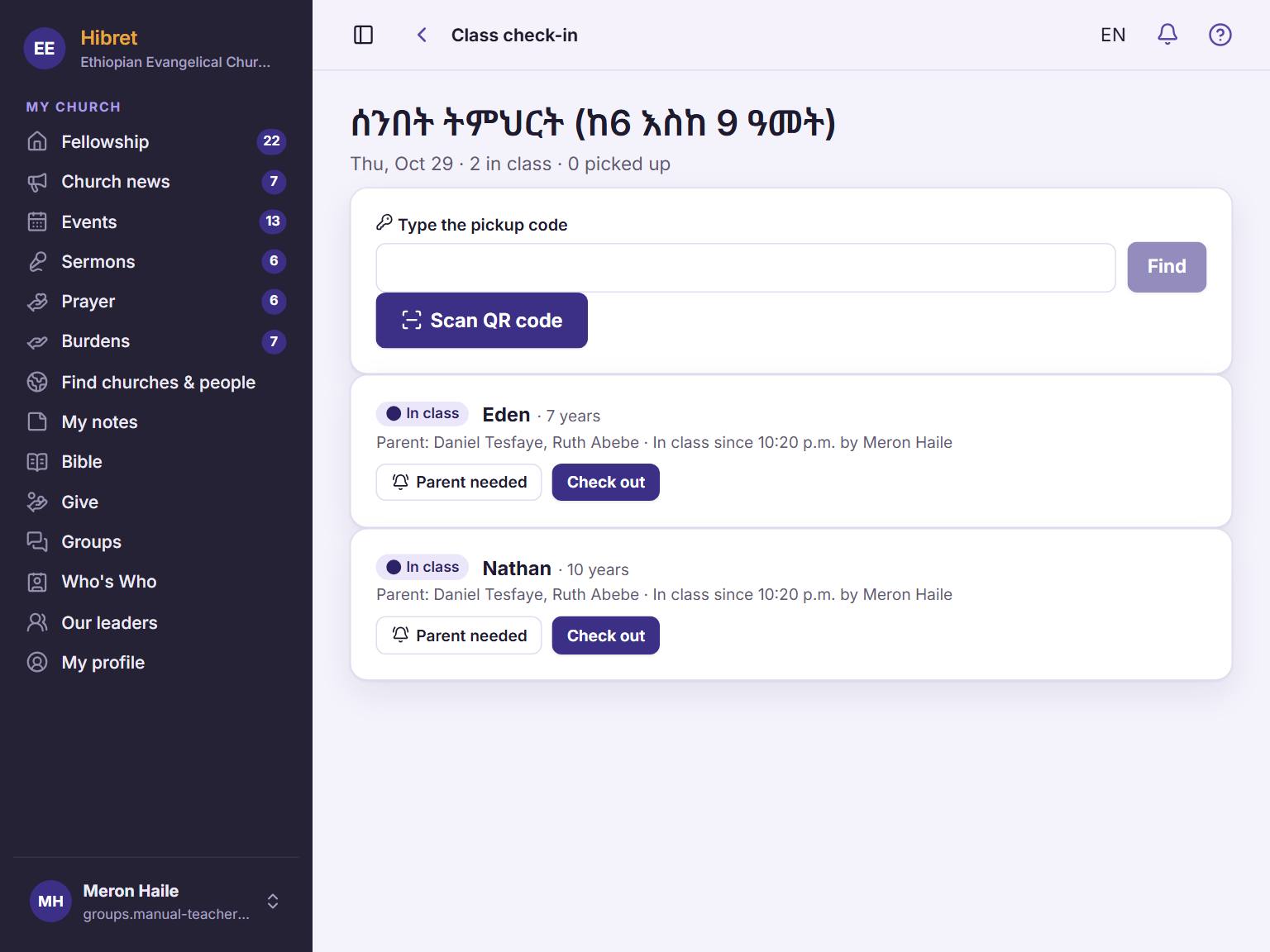
In your class list, tap "Parent needed" 1 for the child.
12
2
The page says the parents were called 1. The child's label shows "Parent called" 2.
The parents get a notice in the app and a text message. The call is written in the day's record.
Check a child out
After class, give each child only to a parent or to an adult the parents allowed.
1
1
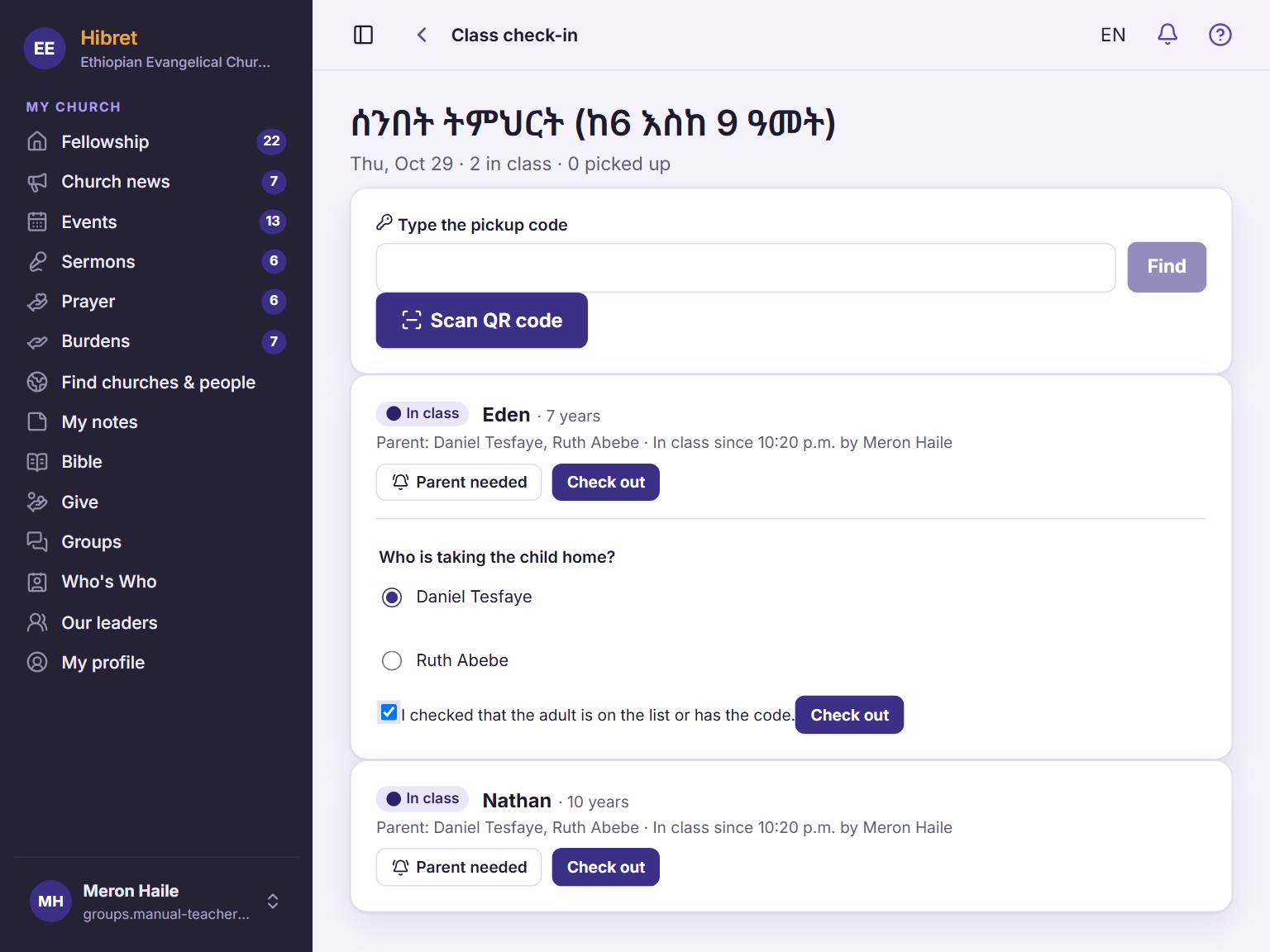
In your class list, tap "Check out" 1 for the child.
123
2
Choose who takes the child home 1. Tick that you checked the adult 2. Tap "Check out" 3.
1
3
The label shows "Picked up" 1, with the time and who took the child.
The parents get a notice that the child was picked up.
Check out with the parent's pickup code
The parent shows the pickup code or its QR code on the phone. You see the whole family and check the children out together.
123
1
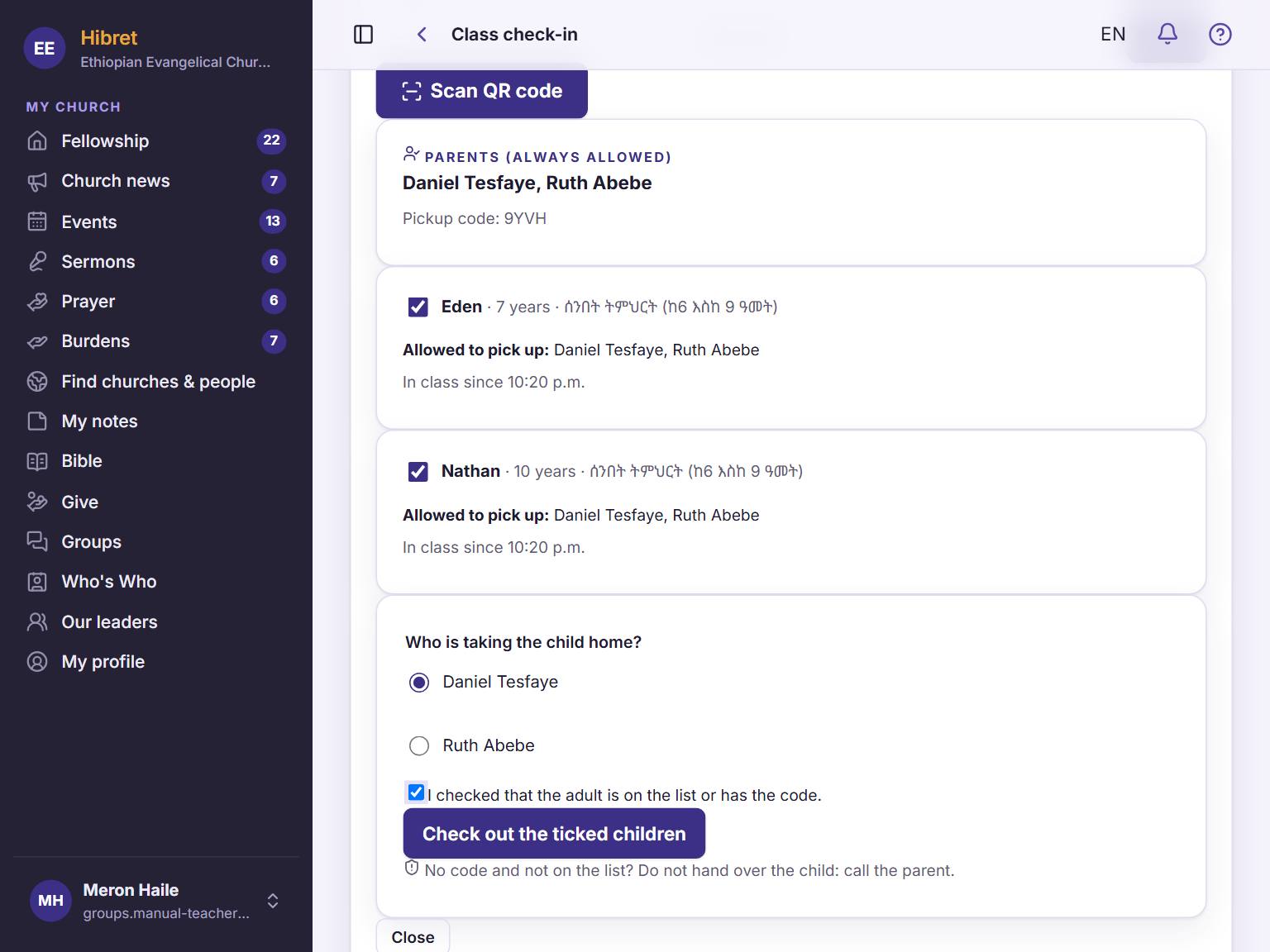
Type the code from the parent's phone 1 and tap "Find" 2. Or tap "Scan QR code" 3 and hold the parent's QR code to the camera.
12345
2
Check the parents' names 1 and the ticked children 2. Choose who takes them home 3, tick that you checked the adult 4 and tap "Check out the ticked children" 5.
All the ticked children show "Picked up". If the code is wrong, nobody's names show.
 Hibret ህብረት
 121
121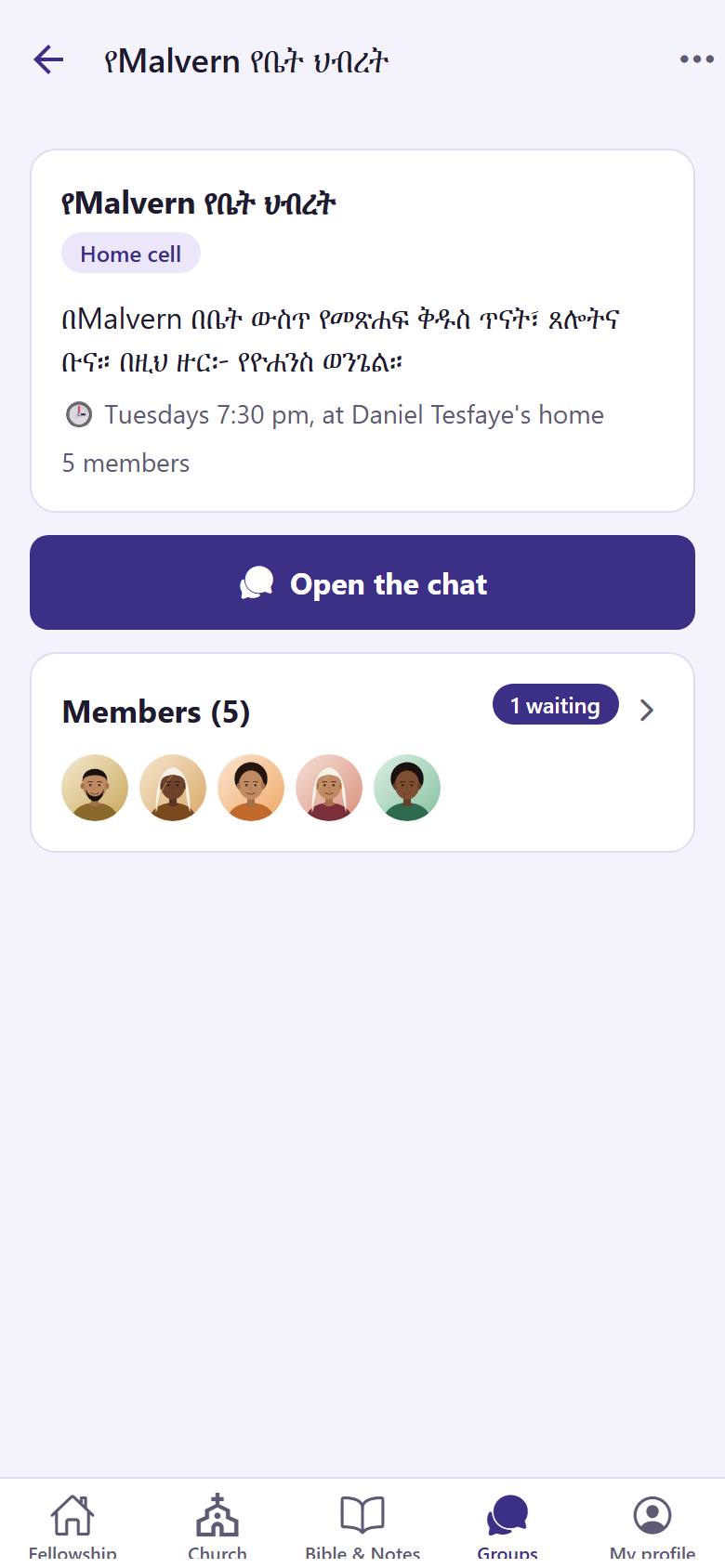 122
122