Members see your church's names and contact details. Only the owner changes them.
1
1
In the menu on the left, click "Church details" 1.
1234
2
Write the church's name in English 1 and in Amharic 2. Choose the language the church writes in 3: news, events and sermons are written in it. Say if it is an Ethiopian or Eritrean church 4.
Each person still chooses the language of their own menus.
12345
3
Add the church's phone 1 and email 2. Type the address 3 and choose a suggestion, so members get directions. Check the time zone 4. Click "Save" 5.
Members see the new details at once.
Logo, cover photo and your page on hibret.org
Give your church its own look, and choose if people can find it on the Hibret website.
123
1
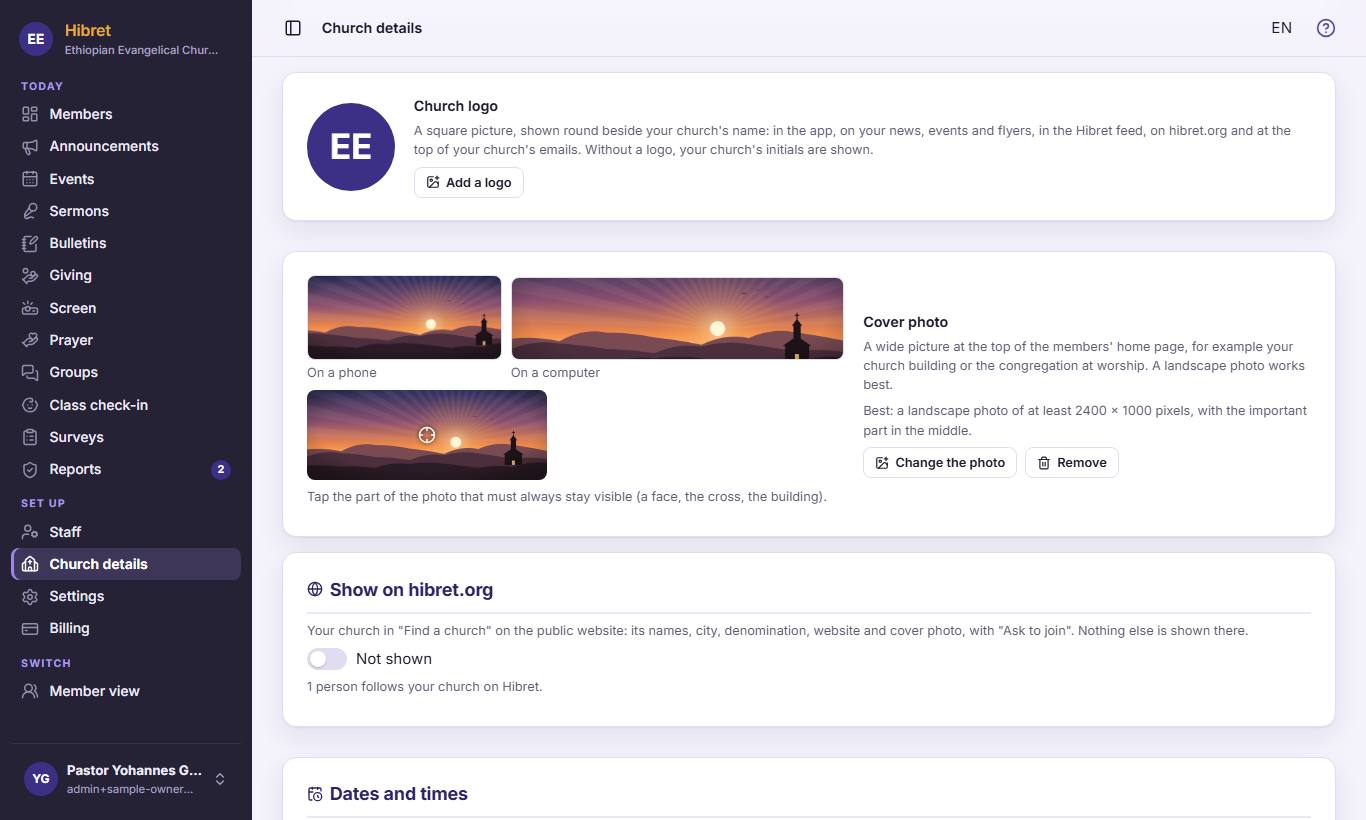
On "Church details", click "Add a logo" 1 and choose a square picture. For the wide picture at the top of the members' home page, click "Change the photo" 2. Click the important part of the photo 3 (a face, the cross): it always stays in view.
The logo shows next to your church's name in the app, on news and on emails.
1
2
Turn on "Show on hibret.org" 1. Your church is then listed in "Find a church" on hibret.org: its names, city, website and cover photo. Nothing else is shown.
People who find you can press "Ask to join".
Ethiopian or Gregorian calendar
Choose how dates and times show for your members.
123
1
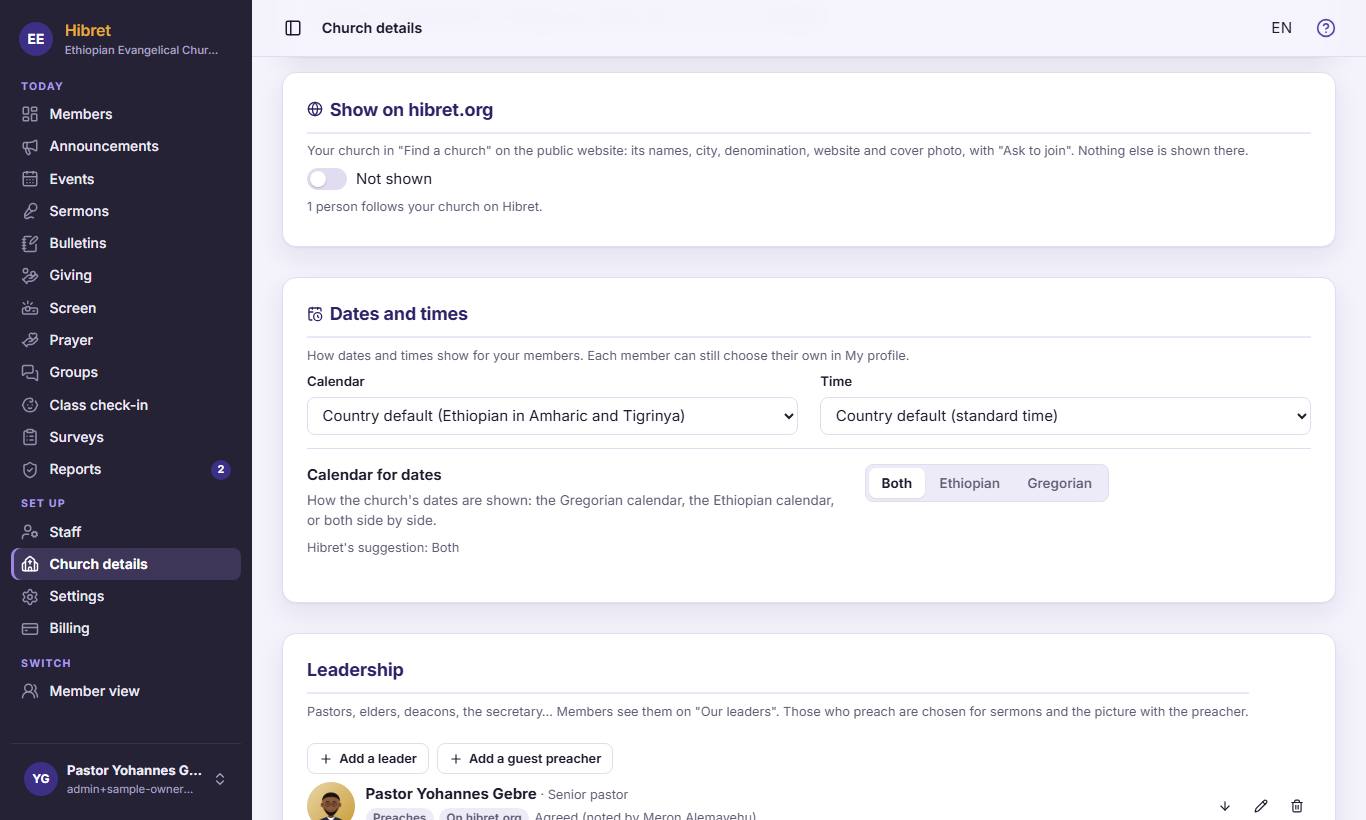
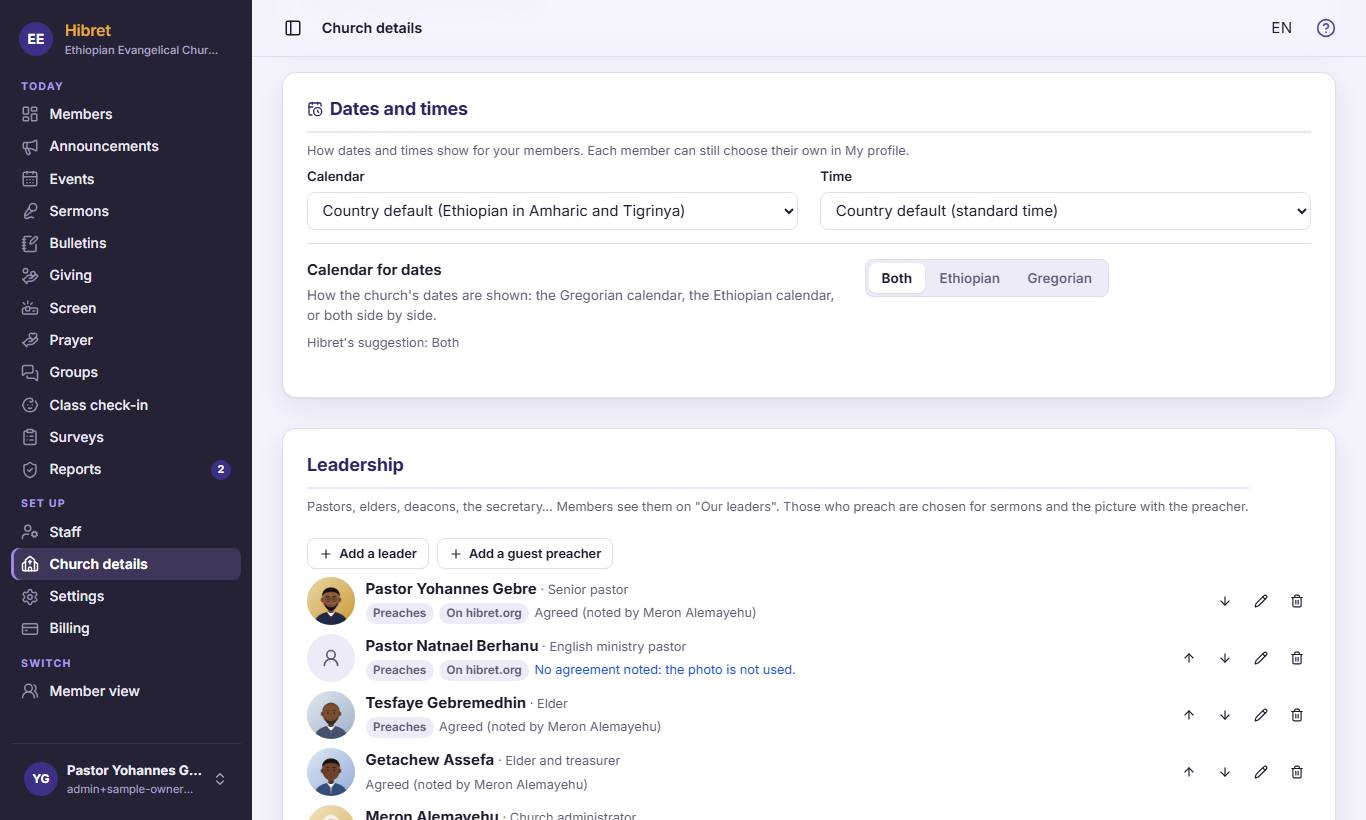
On "Church details", find "Dates and times". Choose the calendar 1 and the clock 2. Then choose how the church's dates show 3: Ethiopian, Gregorian or both side by side.
A change is saved at once. Each member can still choose their own in My profile.
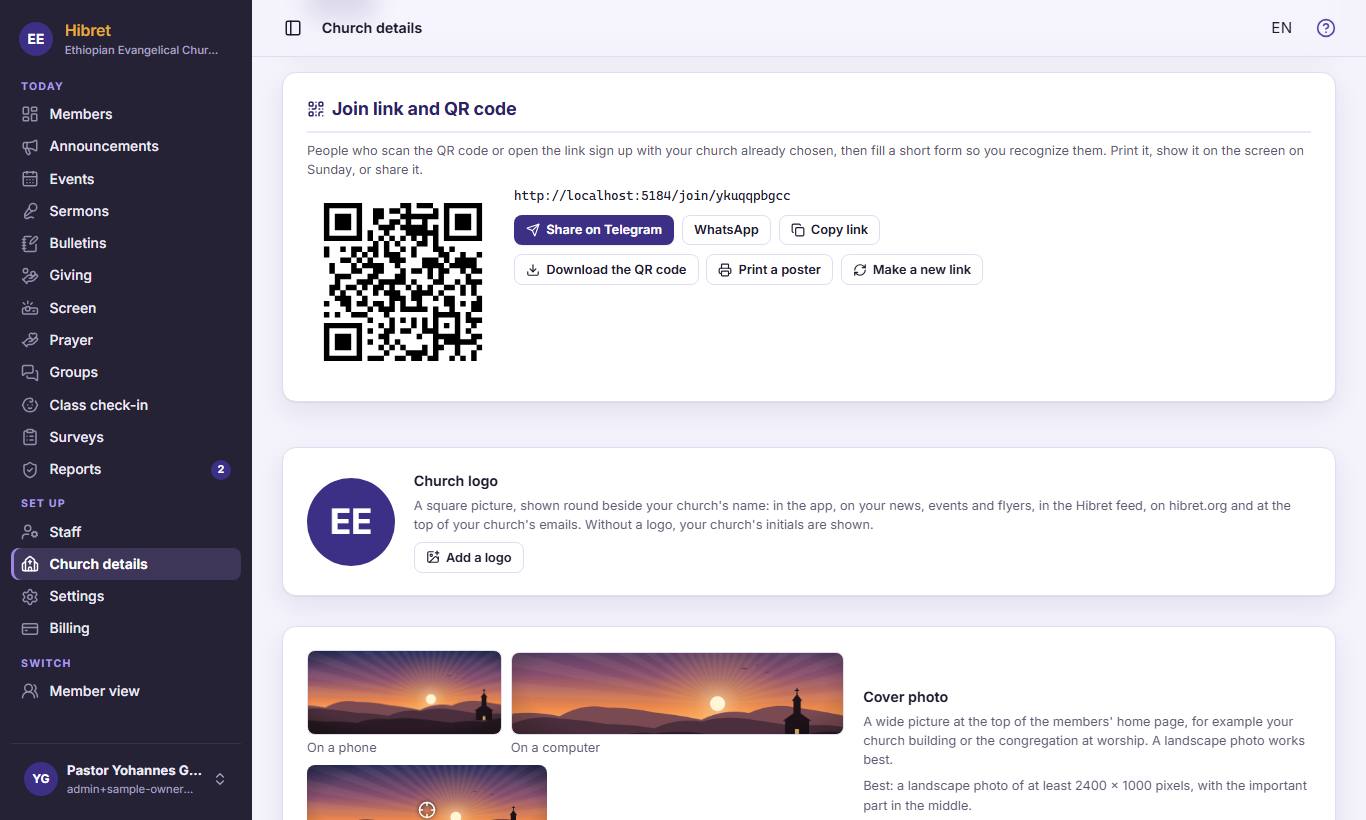
Invite members with the join link and QR code
People who scan the QR code or open the link sign up with your church already chosen.
12345
1
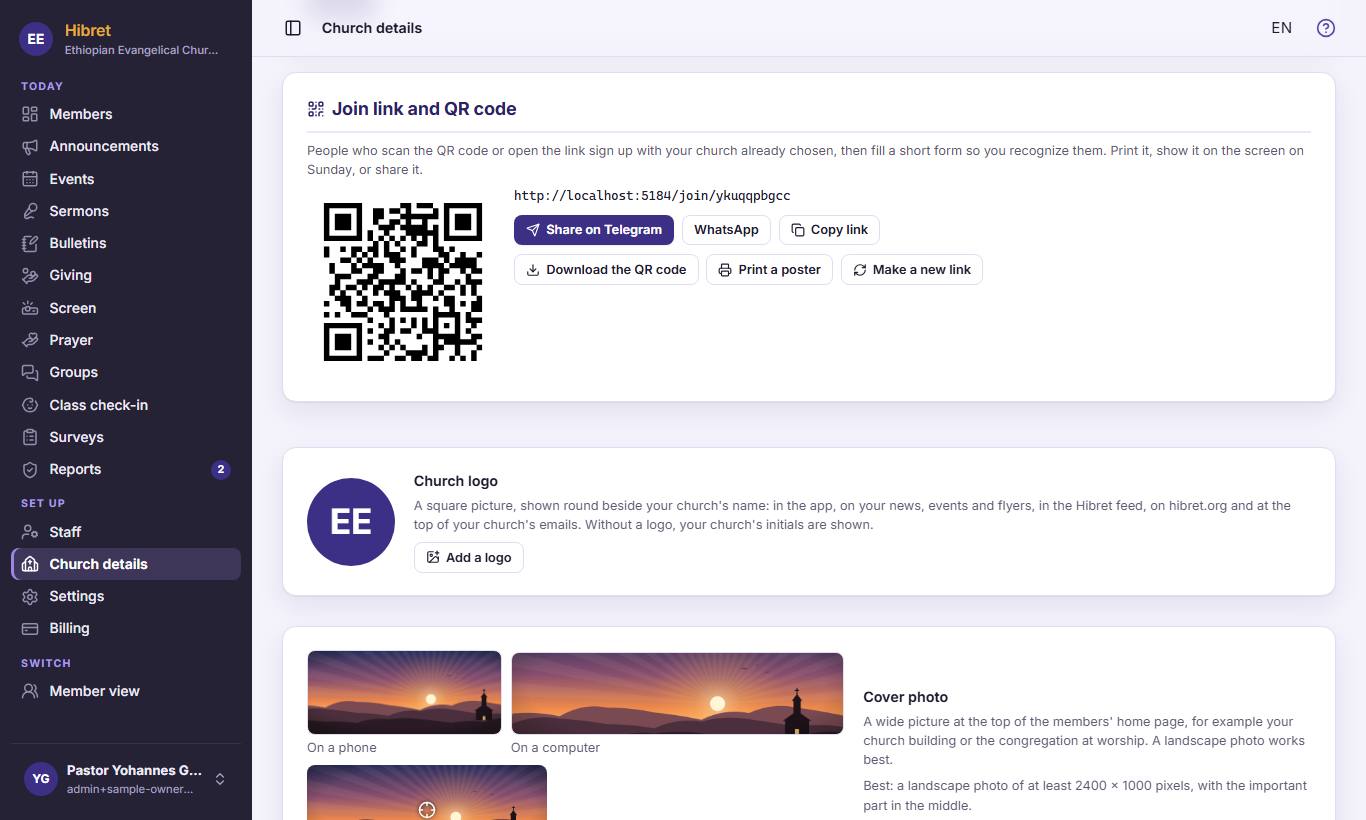
On "Church details", find "Join link and QR code". Show the QR code 1 on the screen on Sunday. Send the link with "Share on Telegram" 2 or "WhatsApp" 3, or click "Copy link" 4. Click "Print a poster" 5 for a poster for the church door.
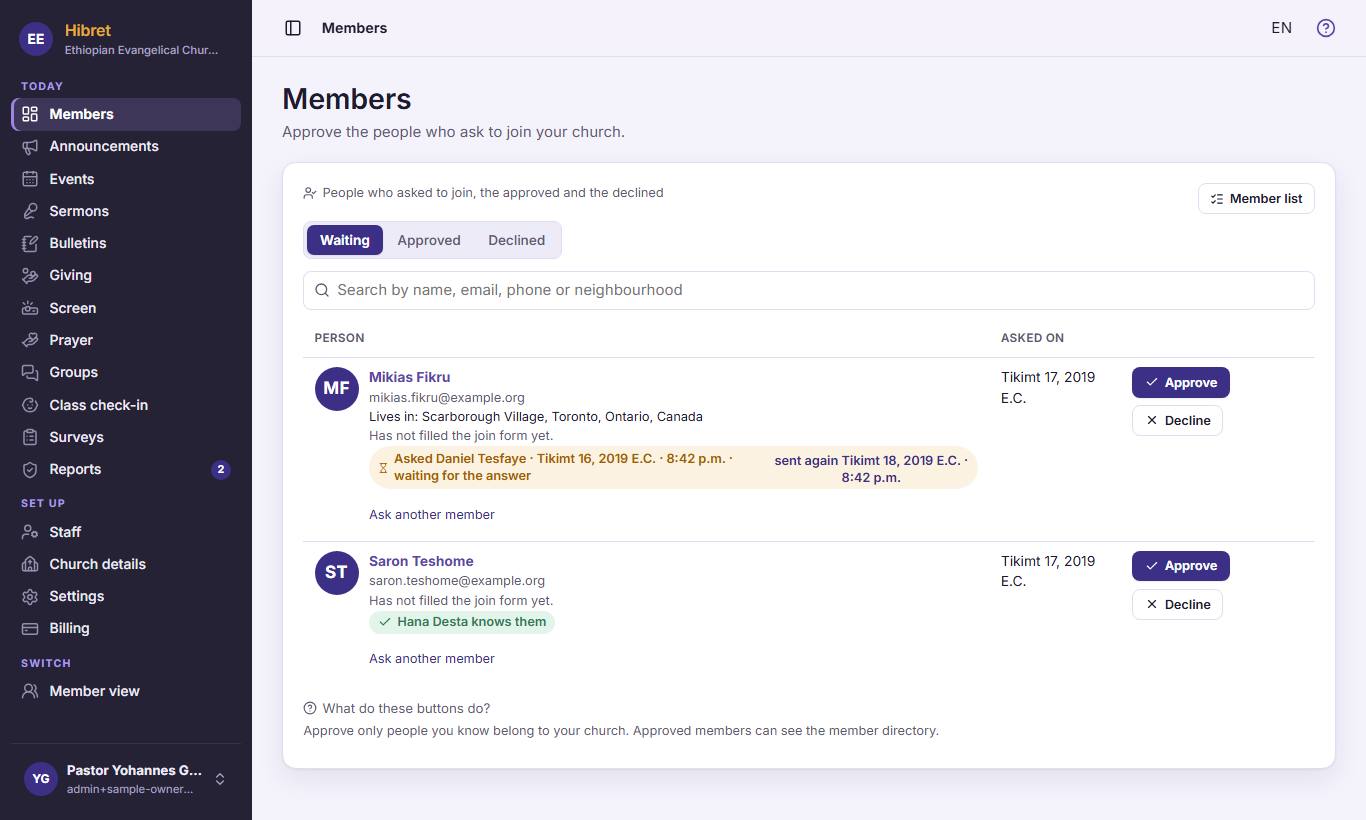
New people fill a short form, and staff approve them on "Members".
1
2
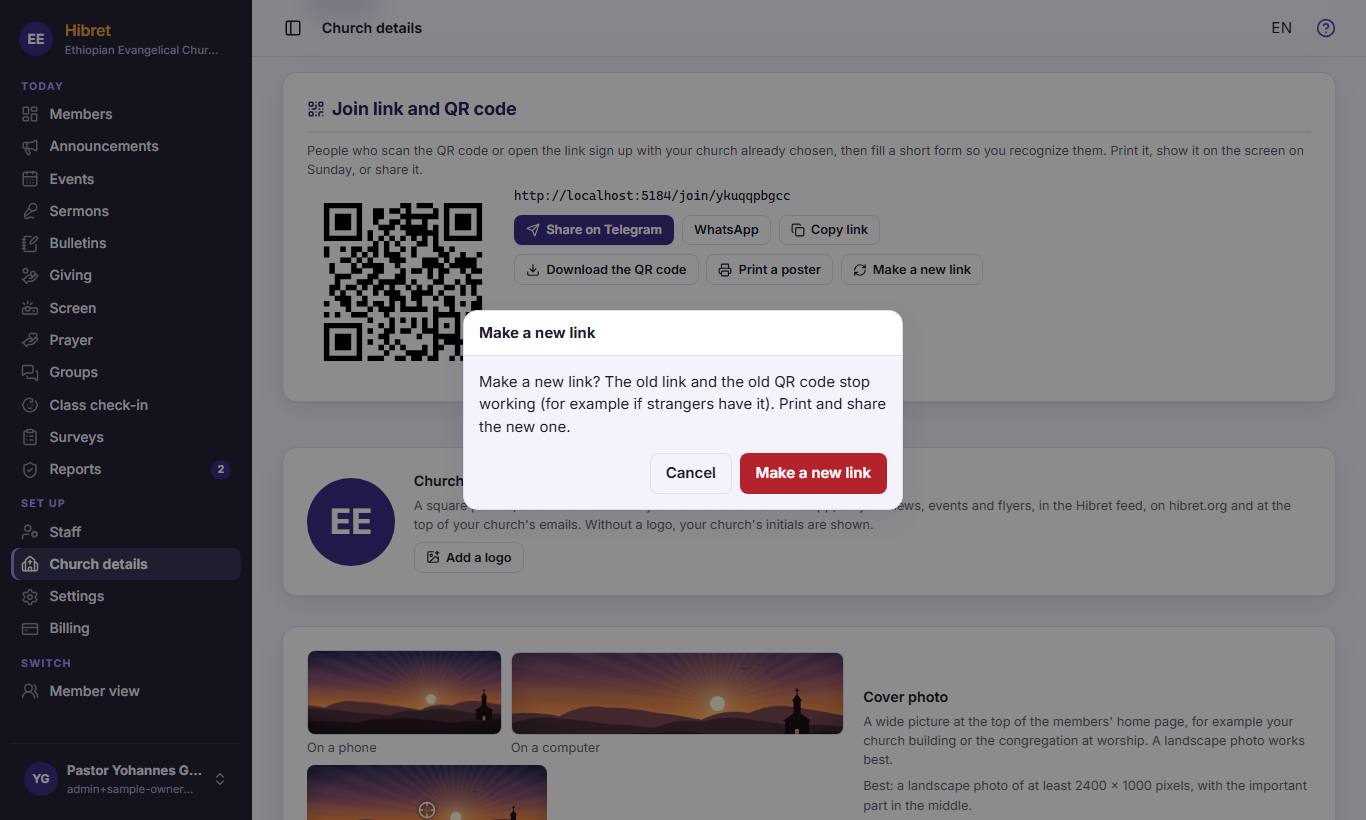
If strangers have the link, click "Make a new link" 1.
12
3
Hibret asks first. Click "Cancel" 1 to keep the old link, or "Make a new link" 2 to make a new one.
The old link and the old QR code stop working. Print and share the new ones.
Add a staff member or a viewer
Staff help you run the church on Hibret. A viewer can look at everything but changes nothing.
12
1
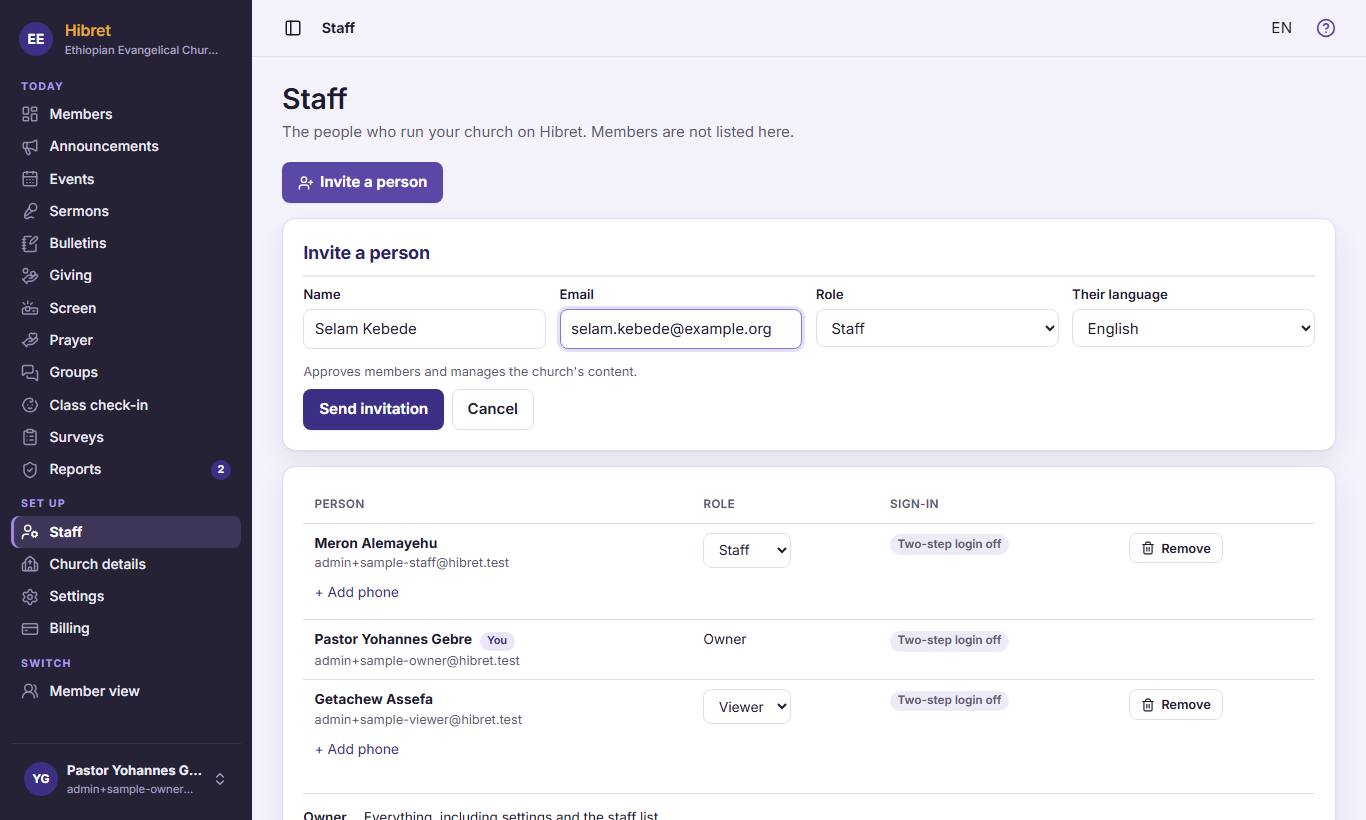
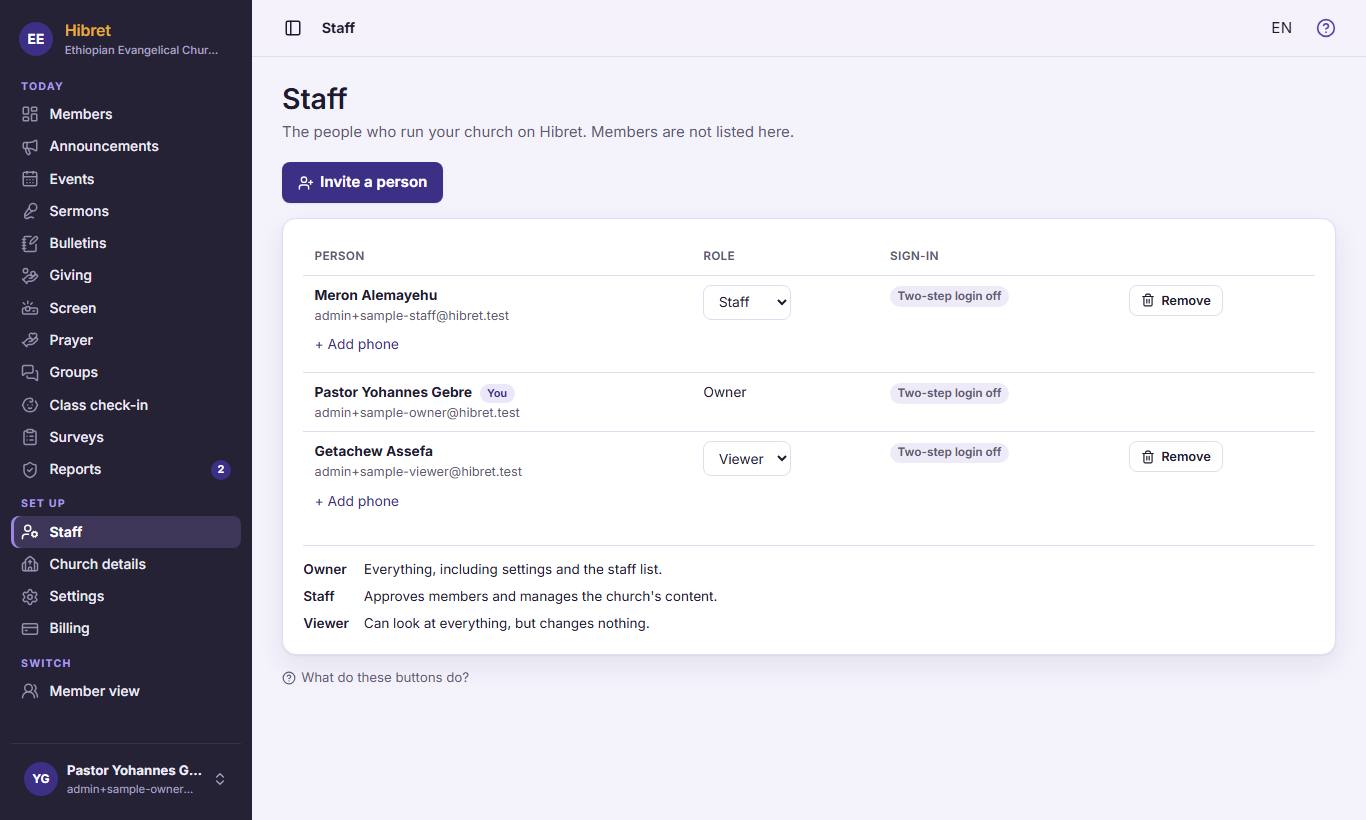
In the menu, click "Staff" 1. Then click "Invite a person" 2.
12345
2
Write the person's name 1 and email 2. Choose the role 3: "Staff" or "Viewer". Choose the language of their email 4. Click "Send invitation" 5.
The person gets an email with a link. They set a password and two-step login, then they are on the list.
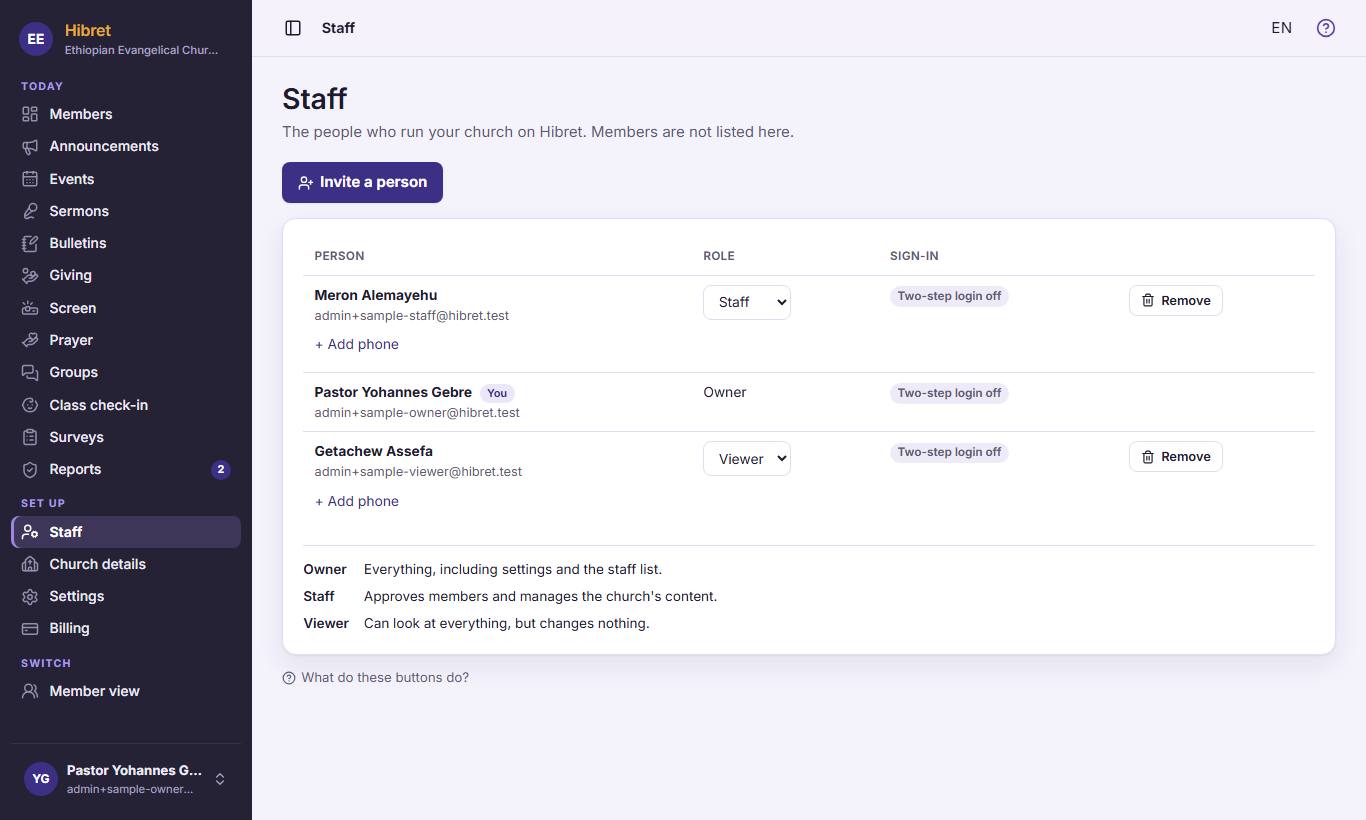
Change or remove a staff member
Give someone more or fewer rights, or remove them when they leave.
12
1
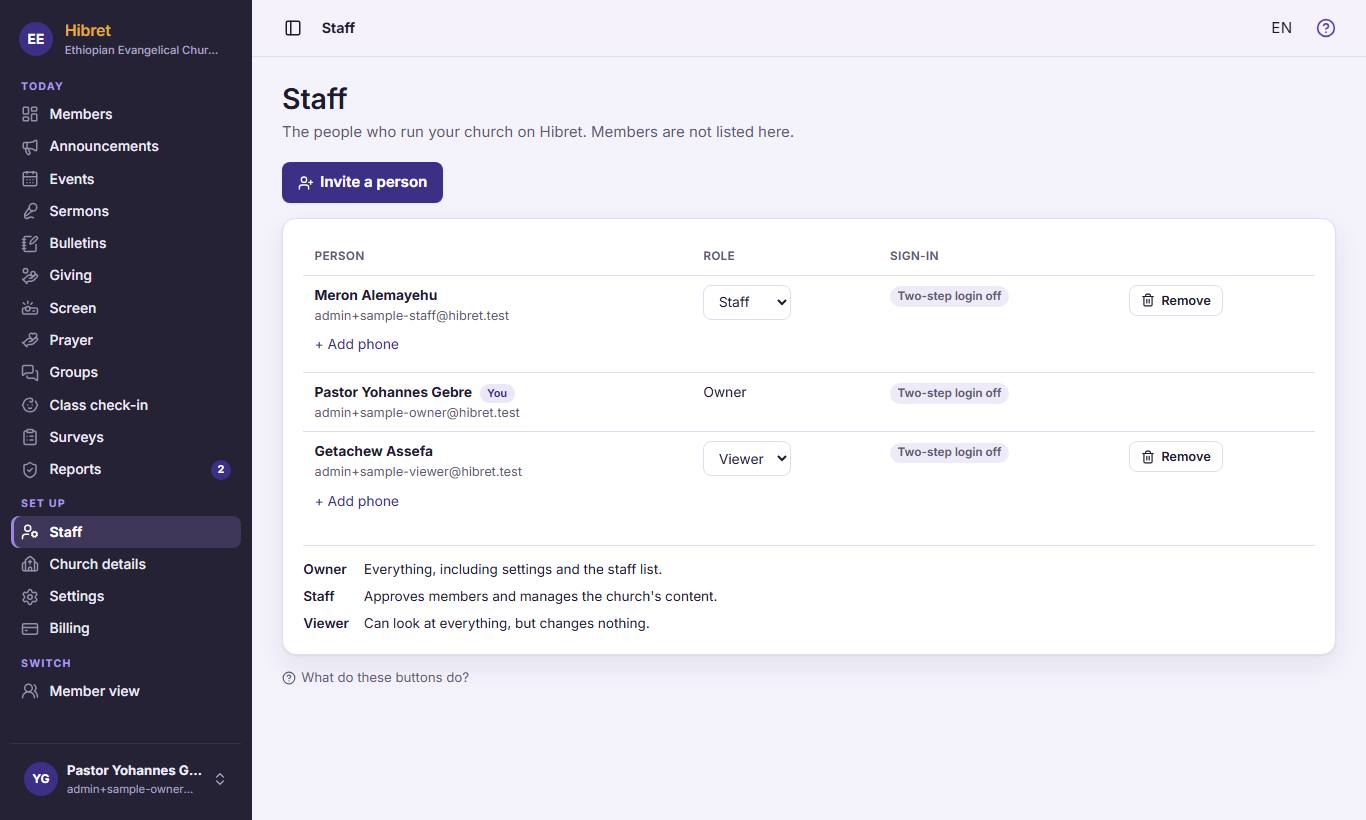
On "Staff", choose a new role in the list 1. It is saved at once. The roles are explained below 2. If someone lost their phone, click "Reset two-step login" on their line (you see it when their two-step login is on).
1
2
To take someone off the staff, click "Remove" 1 on their line.
12
3
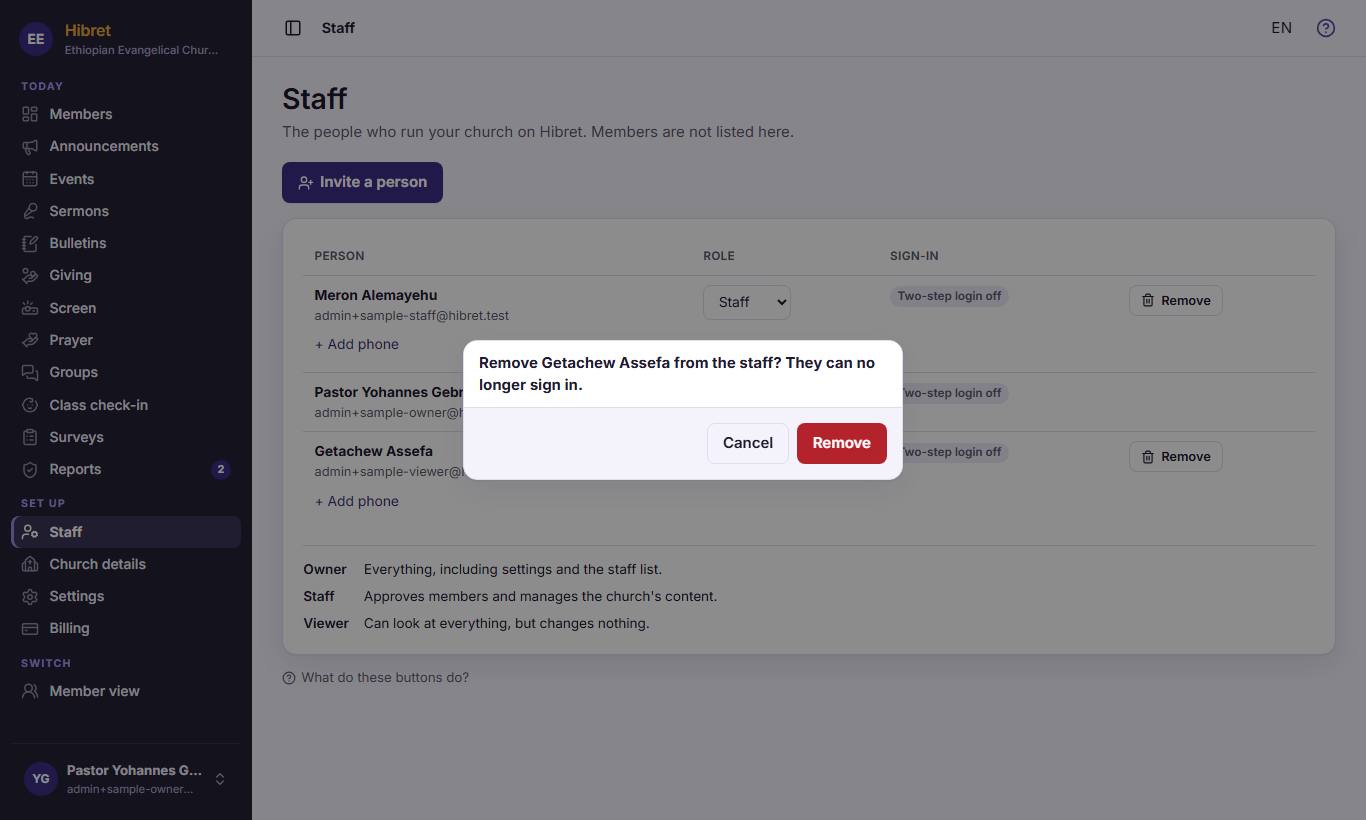
Hibret asks first. Click "Cancel" 1 to keep the person, or "Remove" 2 to remove them.
A removed person can no longer sign in to the church portal.
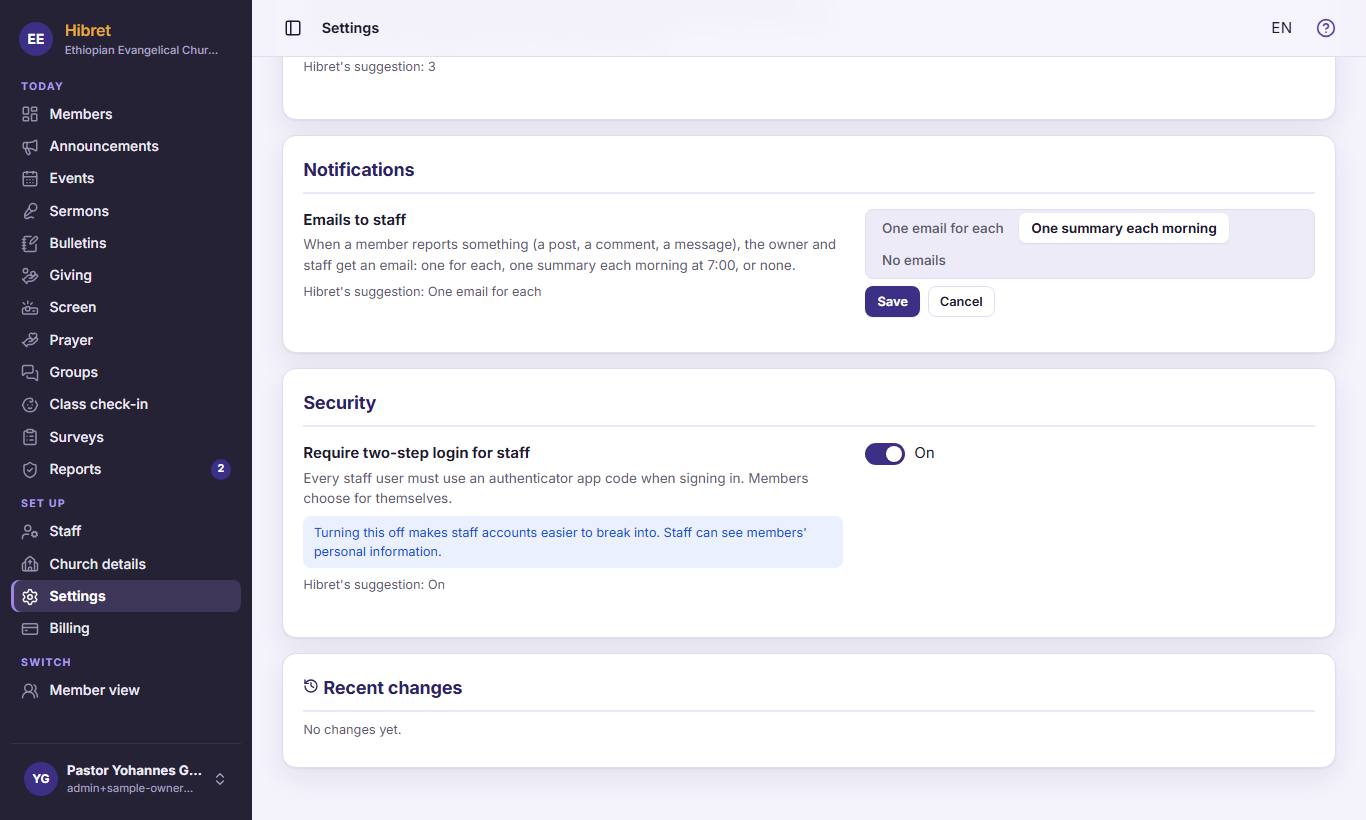
Change a church setting
Each setting explains its rule. Every change is kept in a list, and you can undo it.
123
1
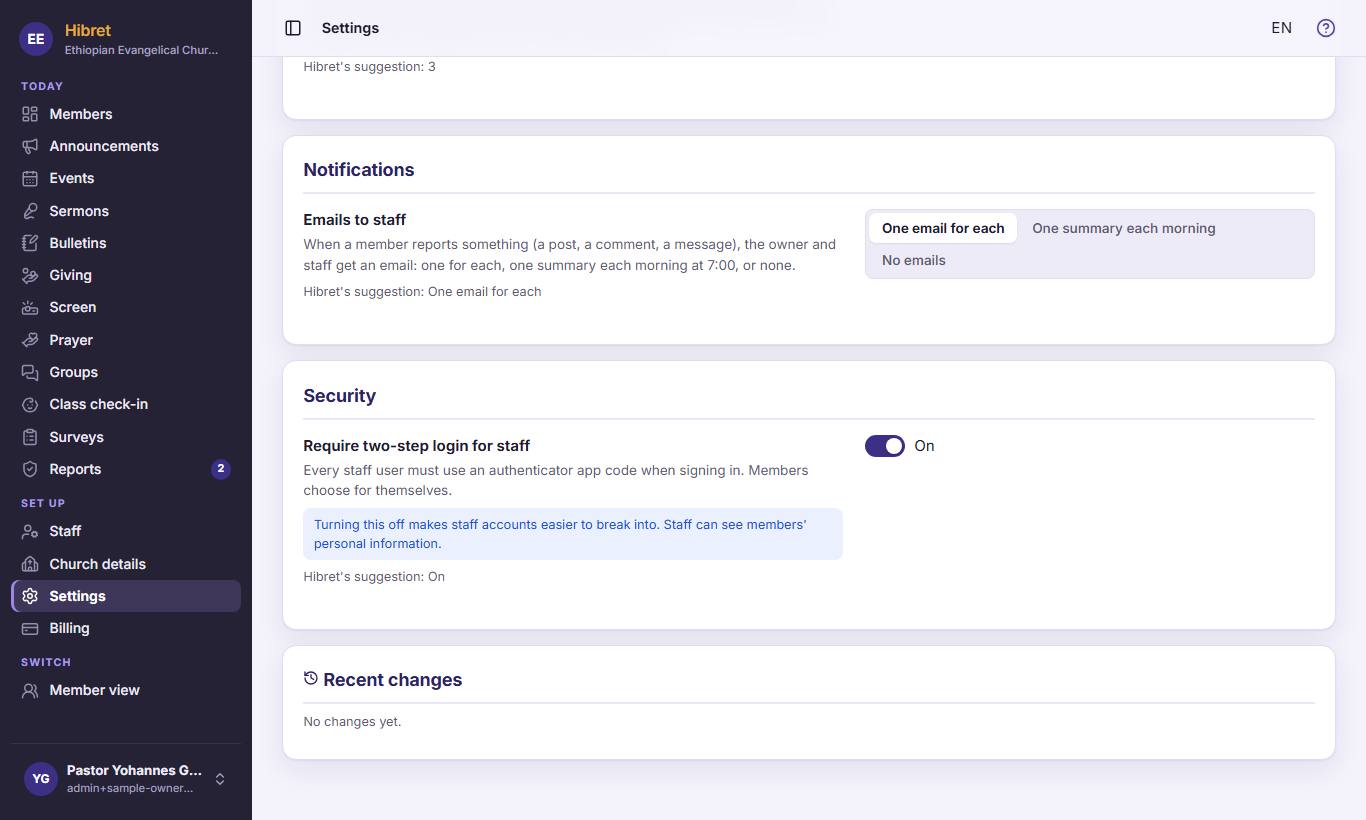
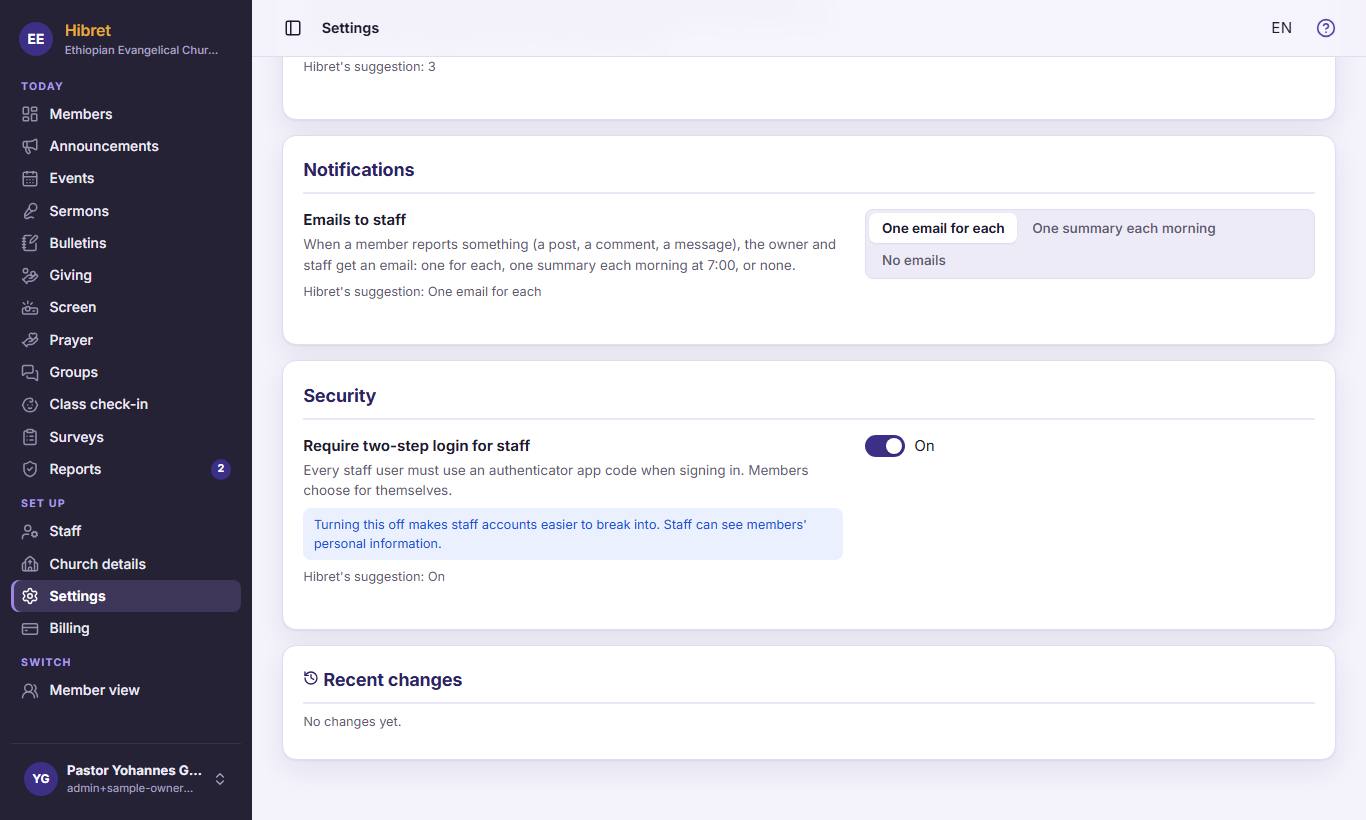
In the menu, click "Settings" 1. For example, choose how staff get emails about reports 2. Choose if staff must use two-step login 3.
12
2
After a change, click "Save" 1 to keep it, or "Cancel" 2 to leave it as it was.
The new rule works at once for the whole church.
1
3
At the bottom, "Recent changes" 1 shows who changed what and when. Click "Undo" on a line to go back.
Choose a plan and pay for it
Your plan sets how many members and how much space for photos your church has.
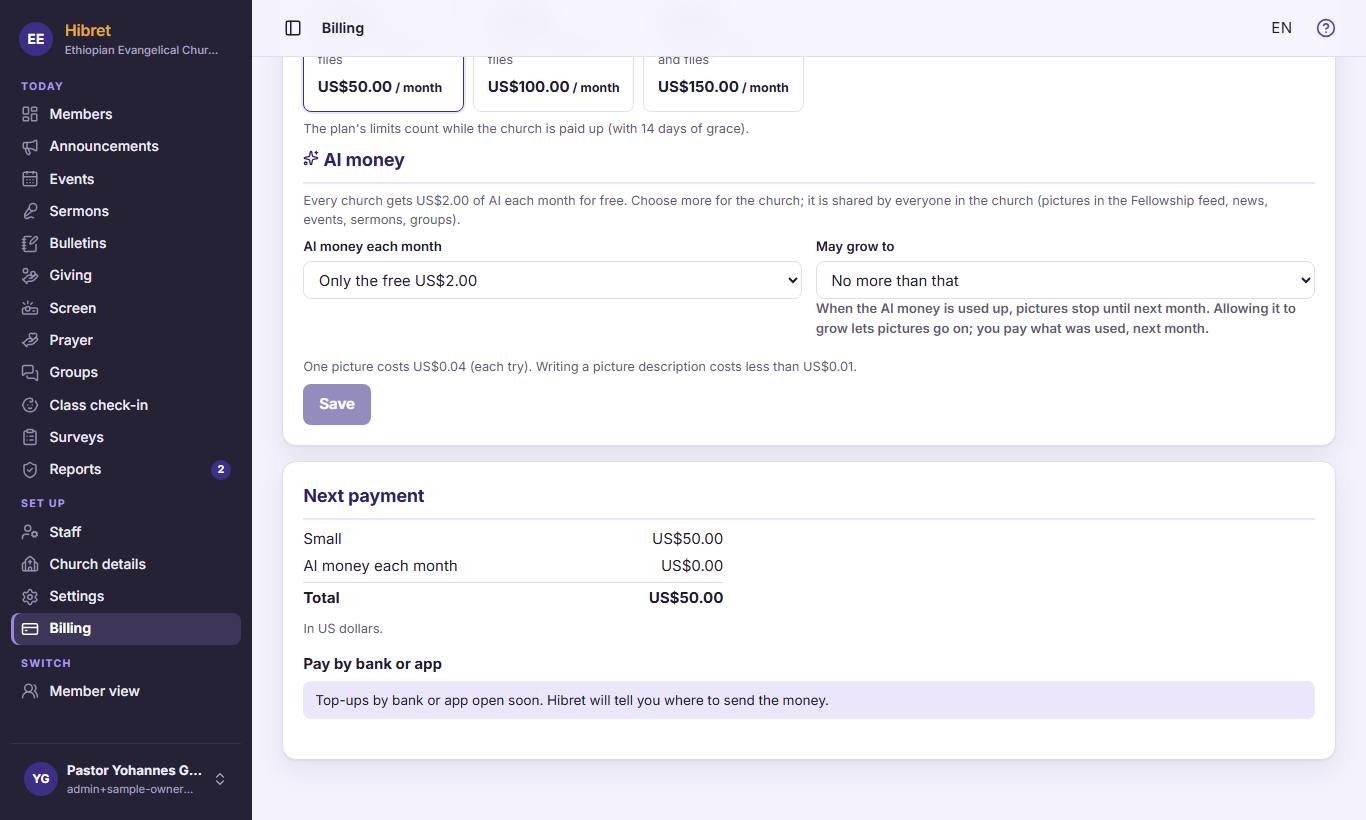
123
1
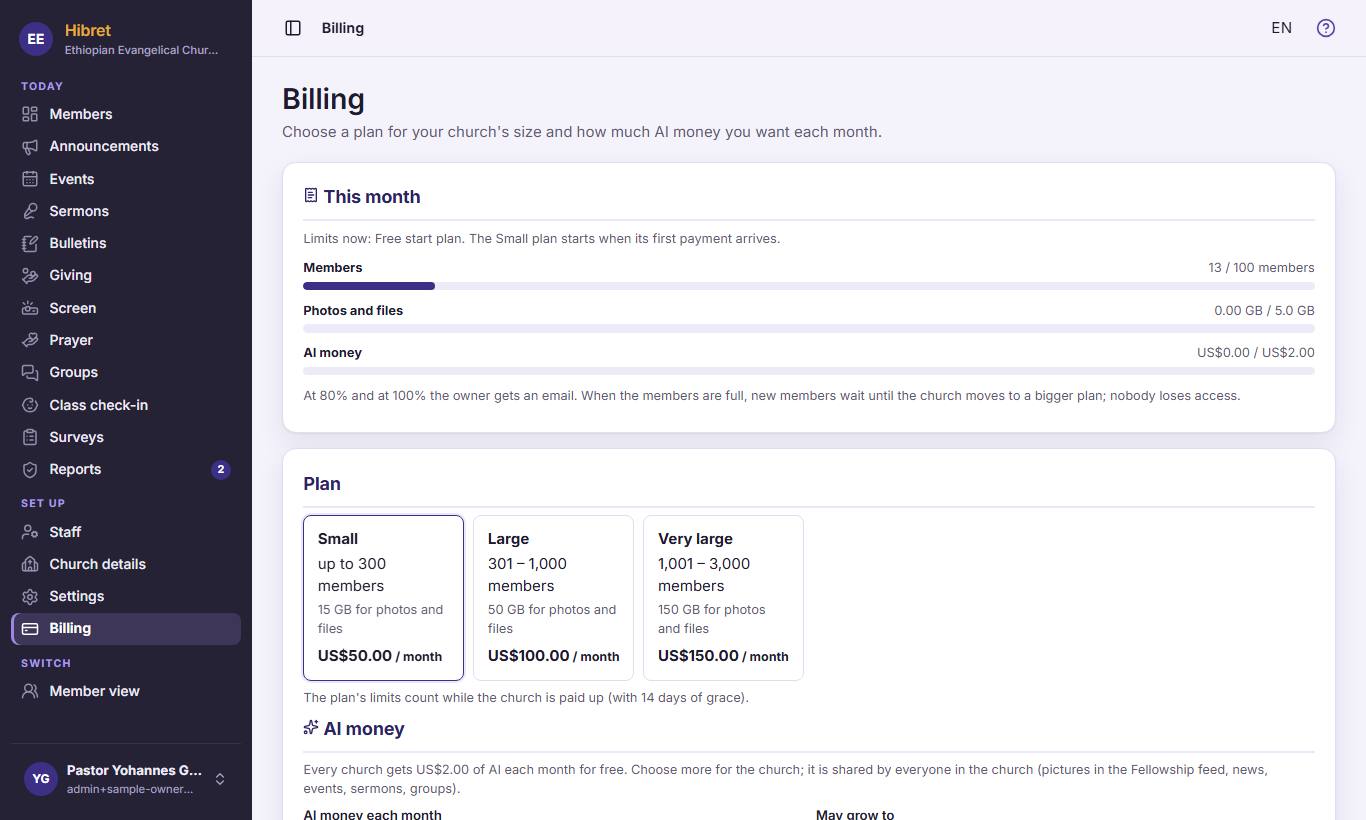
In the menu, click "Billing" 1. "This month" 2 shows your members, photos and AI money against the limits. Choose the plan for your church's size 3.
At 80% and at 100% you get an email. Nobody loses access.
12
2
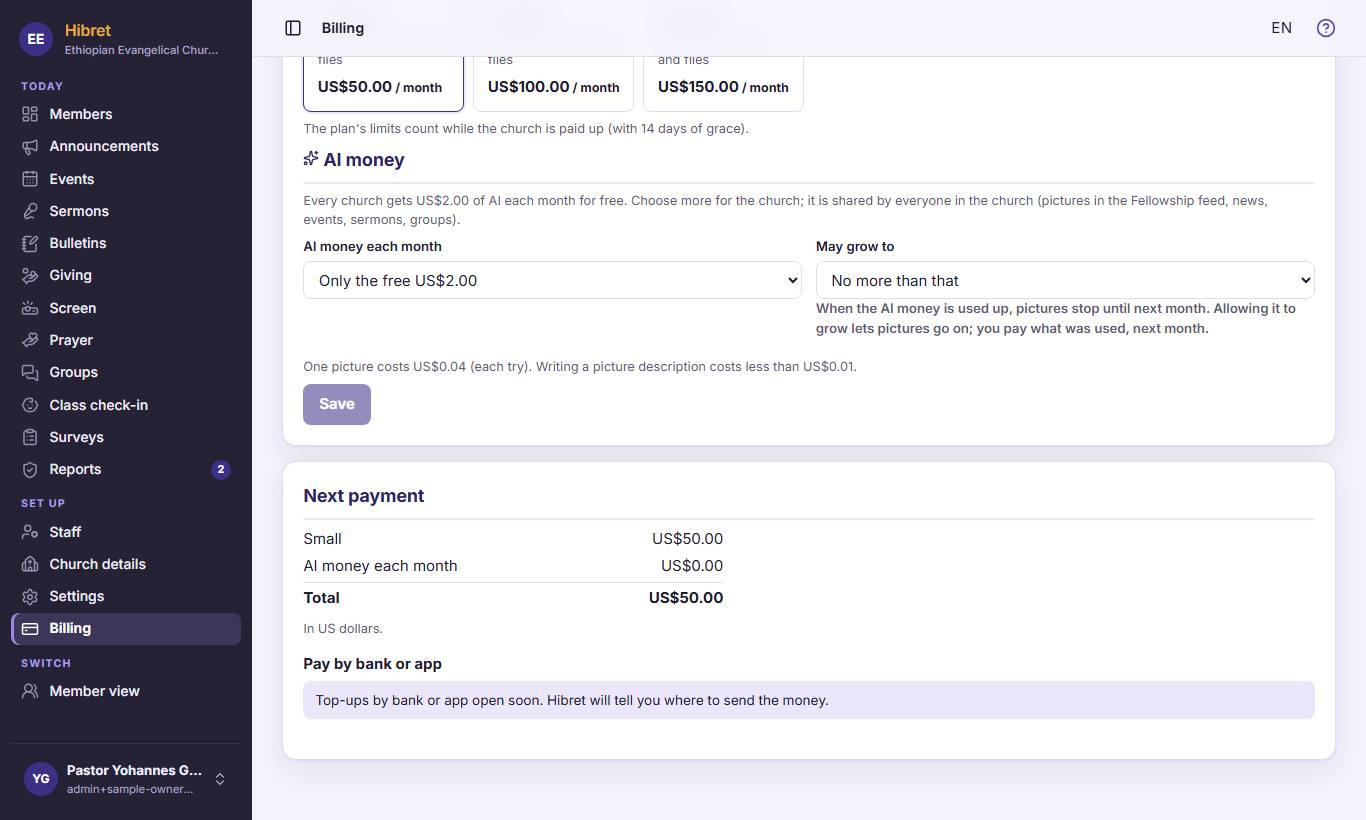
"Next payment" shows what to pay 1. Under "Pay by bank or app" 2 you see how to send the money (bank, Interac, telebirr…). After you sent it, choose how you sent it, write the bank reference and click the button to say you sent it.
Hibret checks the payment. The plan starts when it arrives.
The AI money and its limit
AI draws pictures and helps to write. Every church gets some AI money each month for free; you choose if you want more.
123
1
On "Billing", choose the AI money each month 1. Choose if it may grow when it is used up 2. Click "Save" 3.
When the AI money is used up and may not grow, pictures stop until next month.
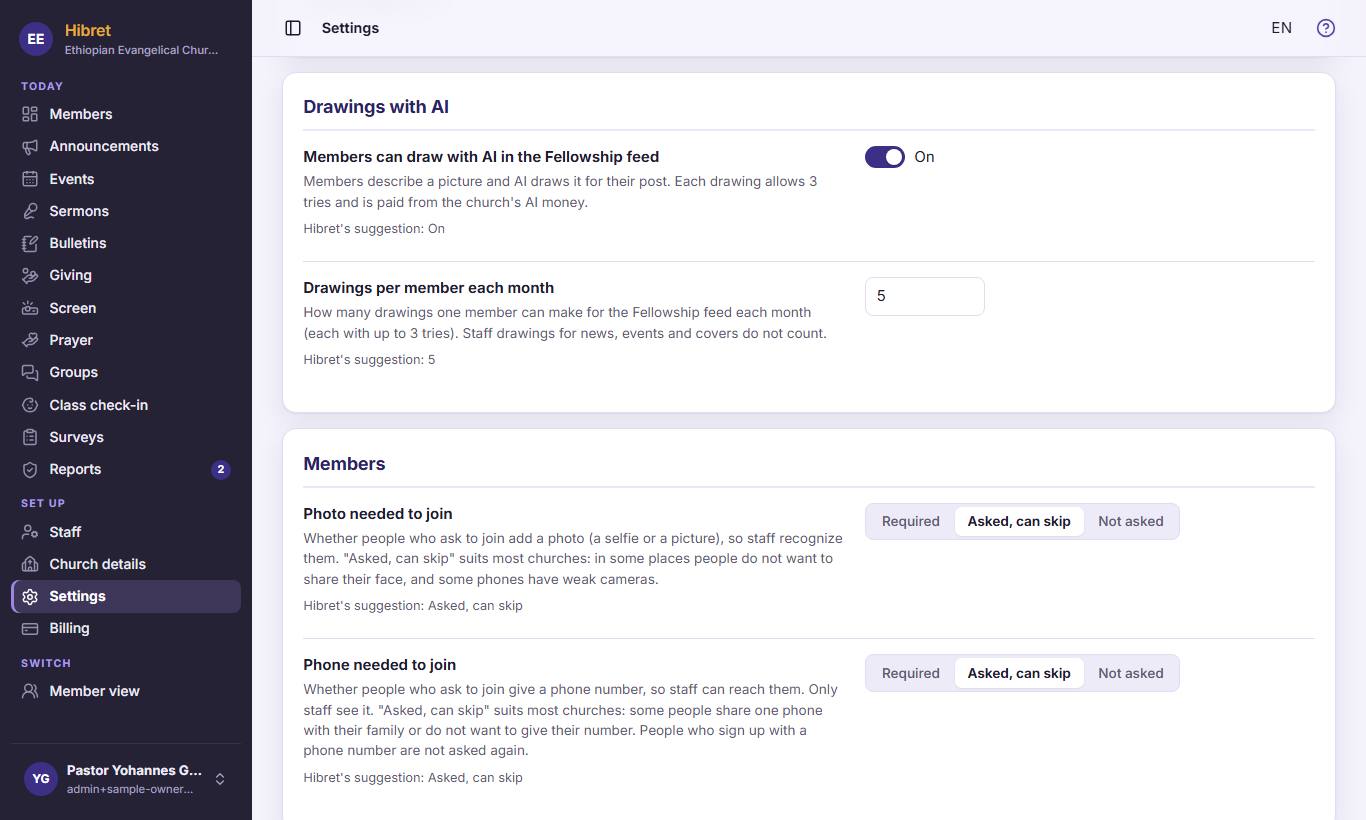
12
2
On "Settings", choose if members may draw with AI in the Fellowship feed 1, and how many drawings each member may make in a month 2.
Staff drawings for news, events and covers do not count in this limit.
 Hibret ህብረት
 11
11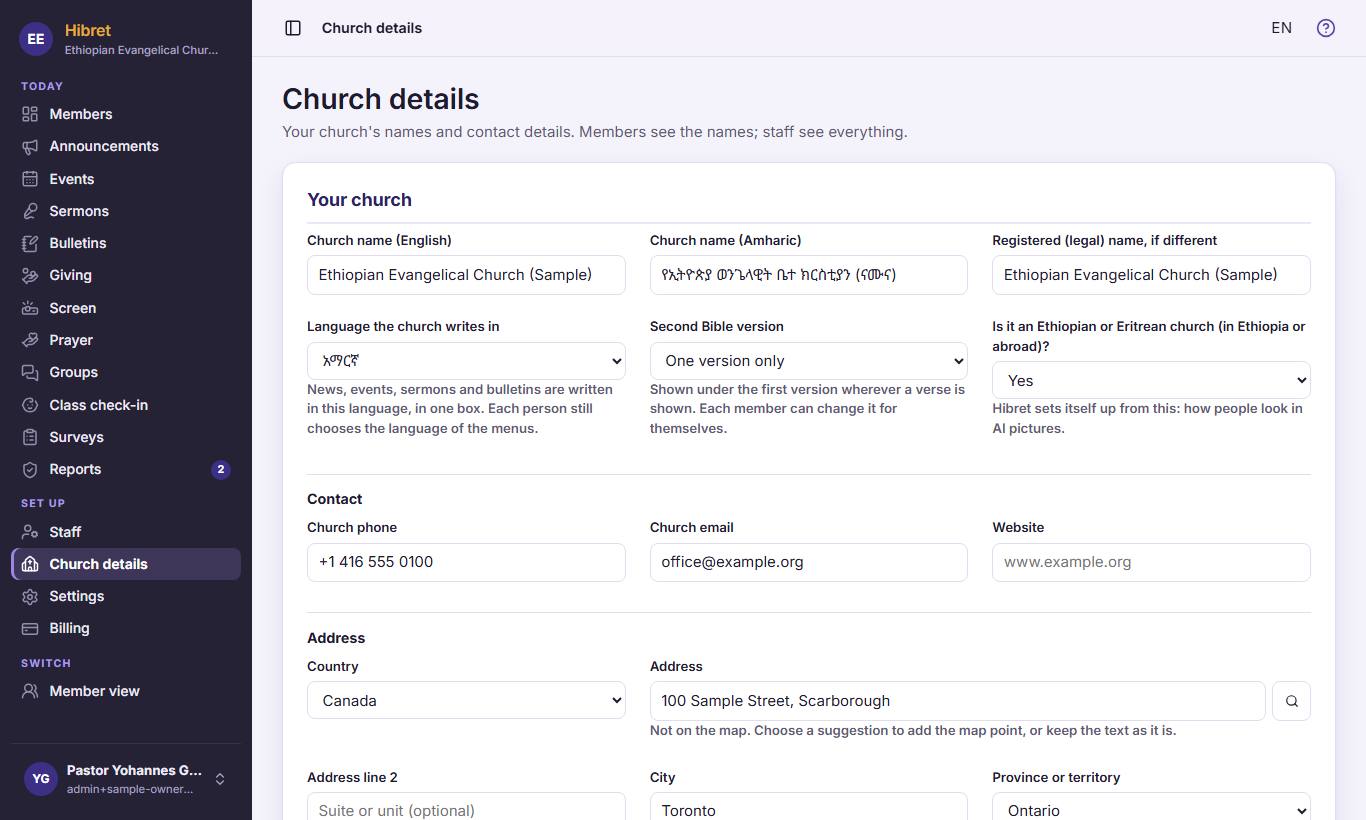 12342
12342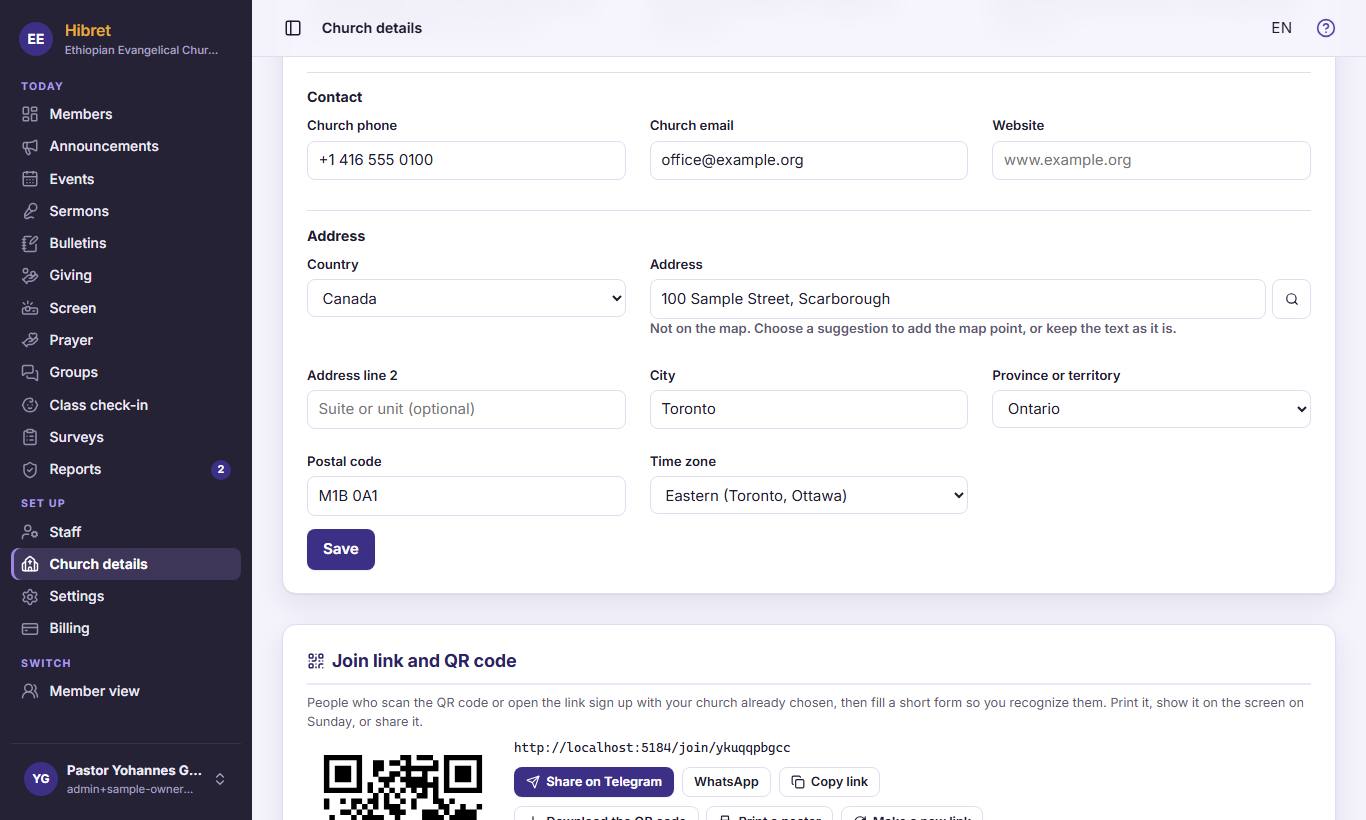 123453