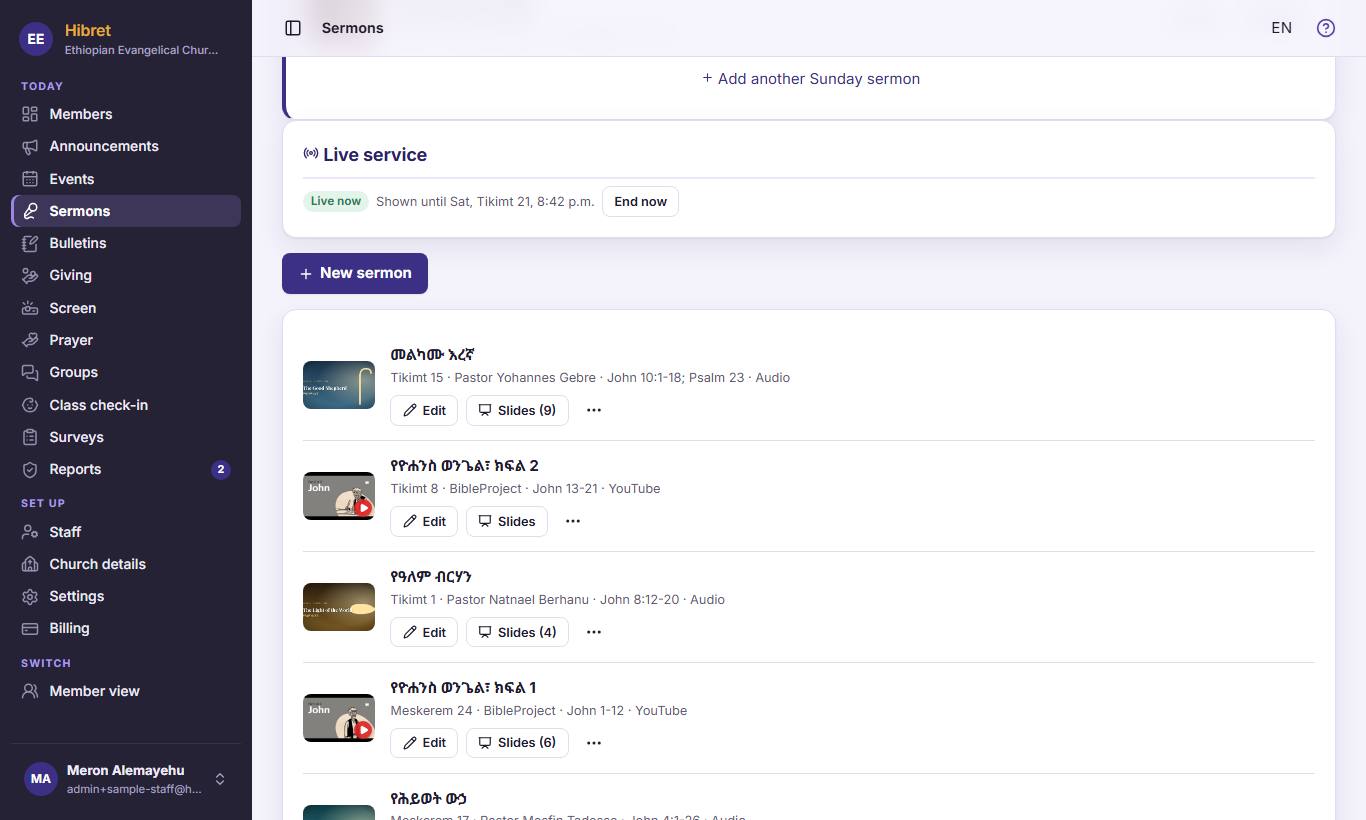
The church portal on a laptop or tablet: members, news, events, sermons, slides and more.
How to use Hibret · 2026-10-30 · hibret.org/help
Find your way in the church portal
The church portal is where staff look after the church on Hibret. The menu on the left opens every part.
12345
1
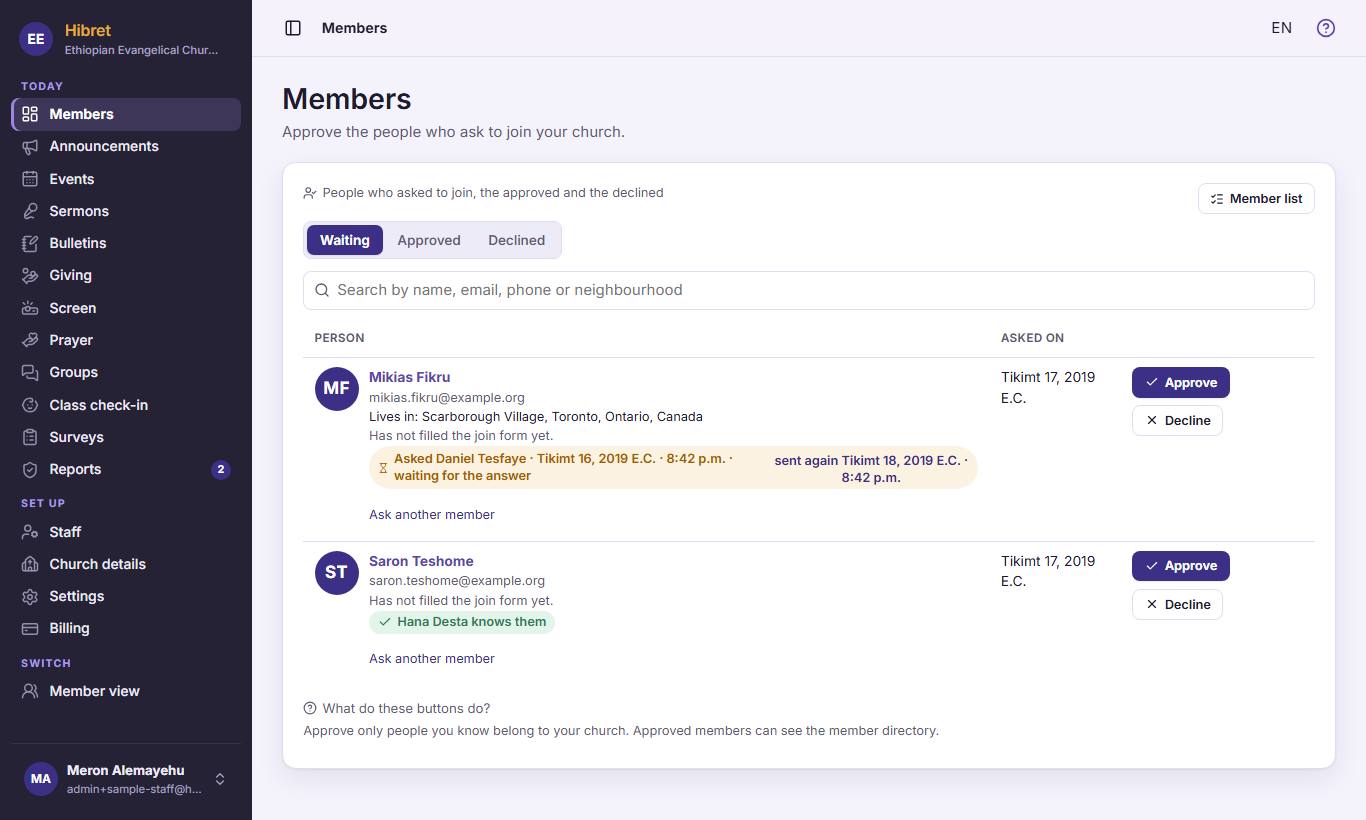
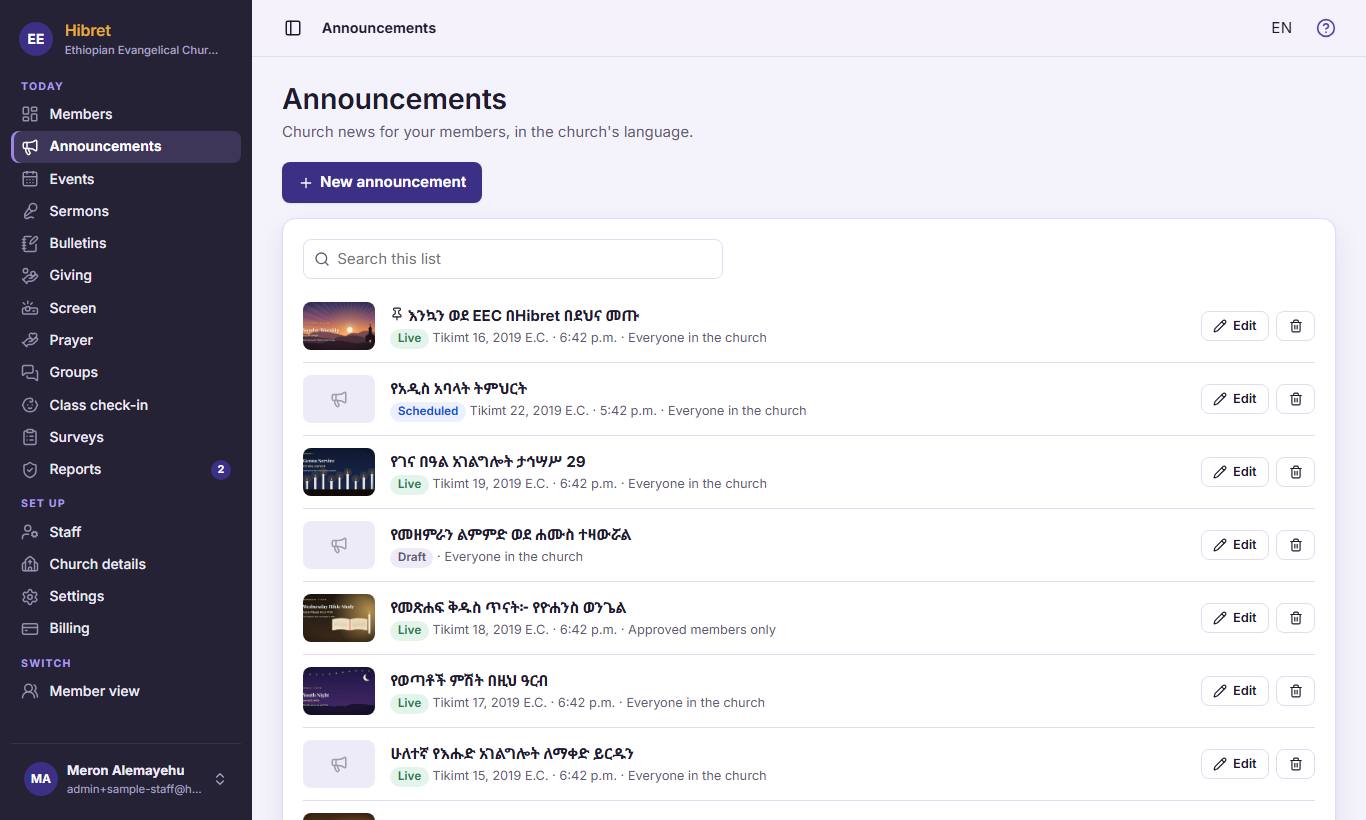
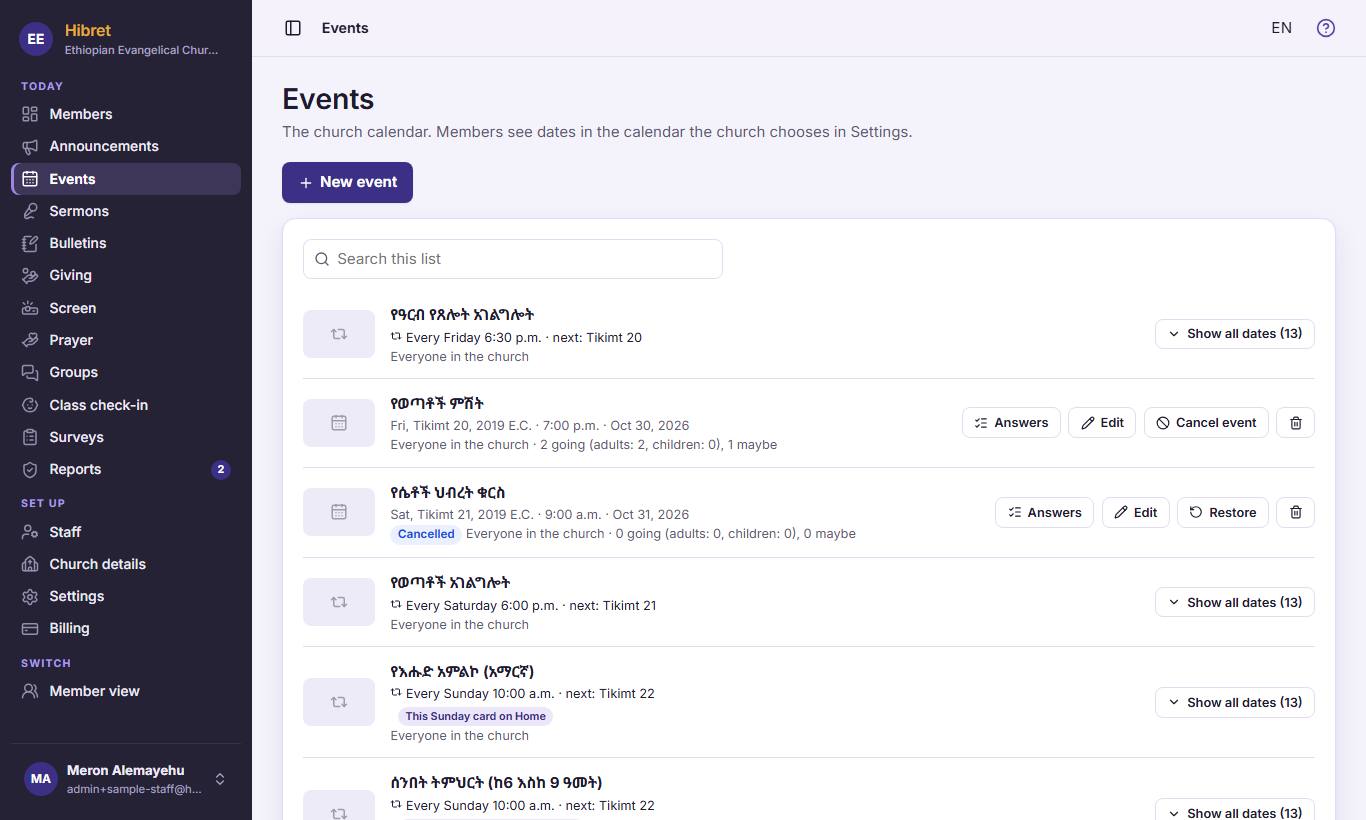
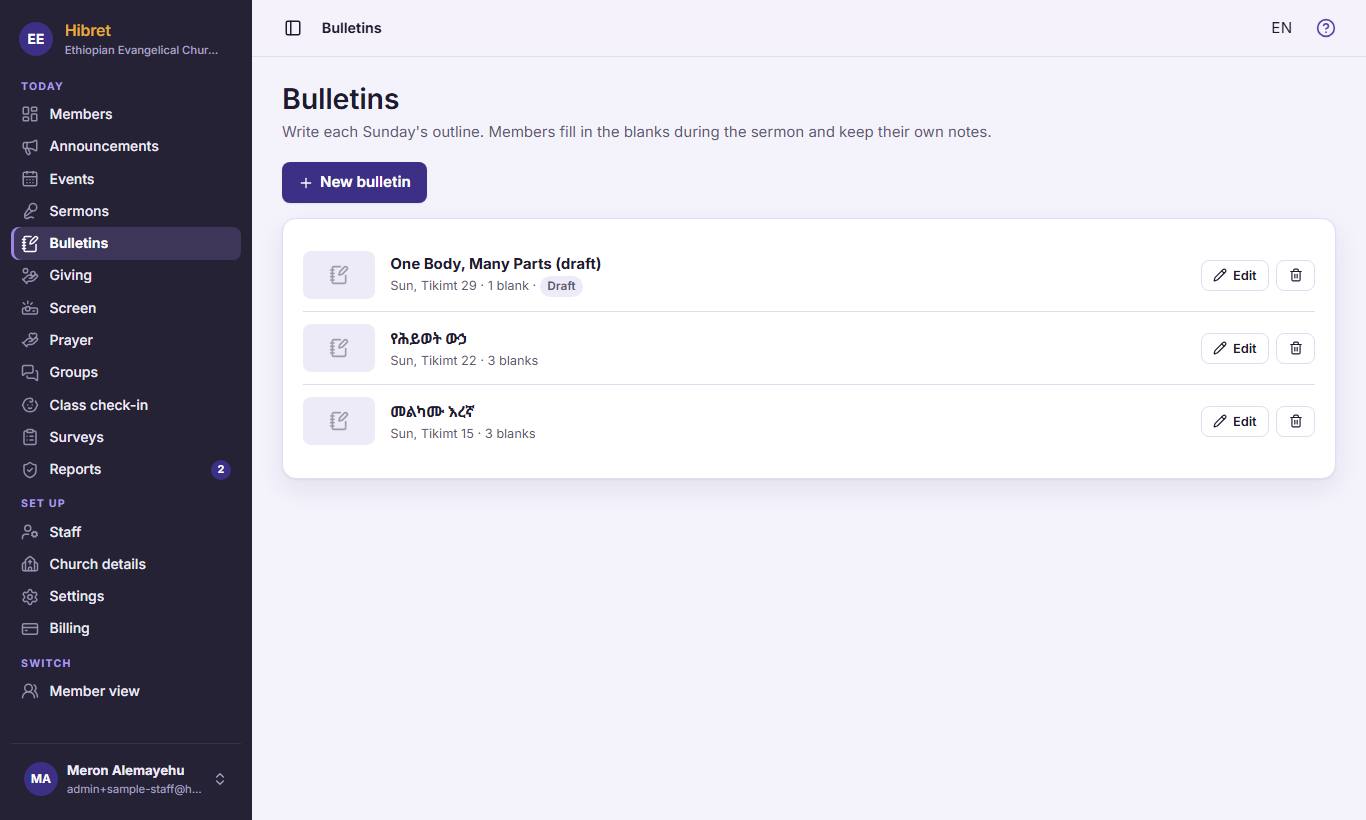
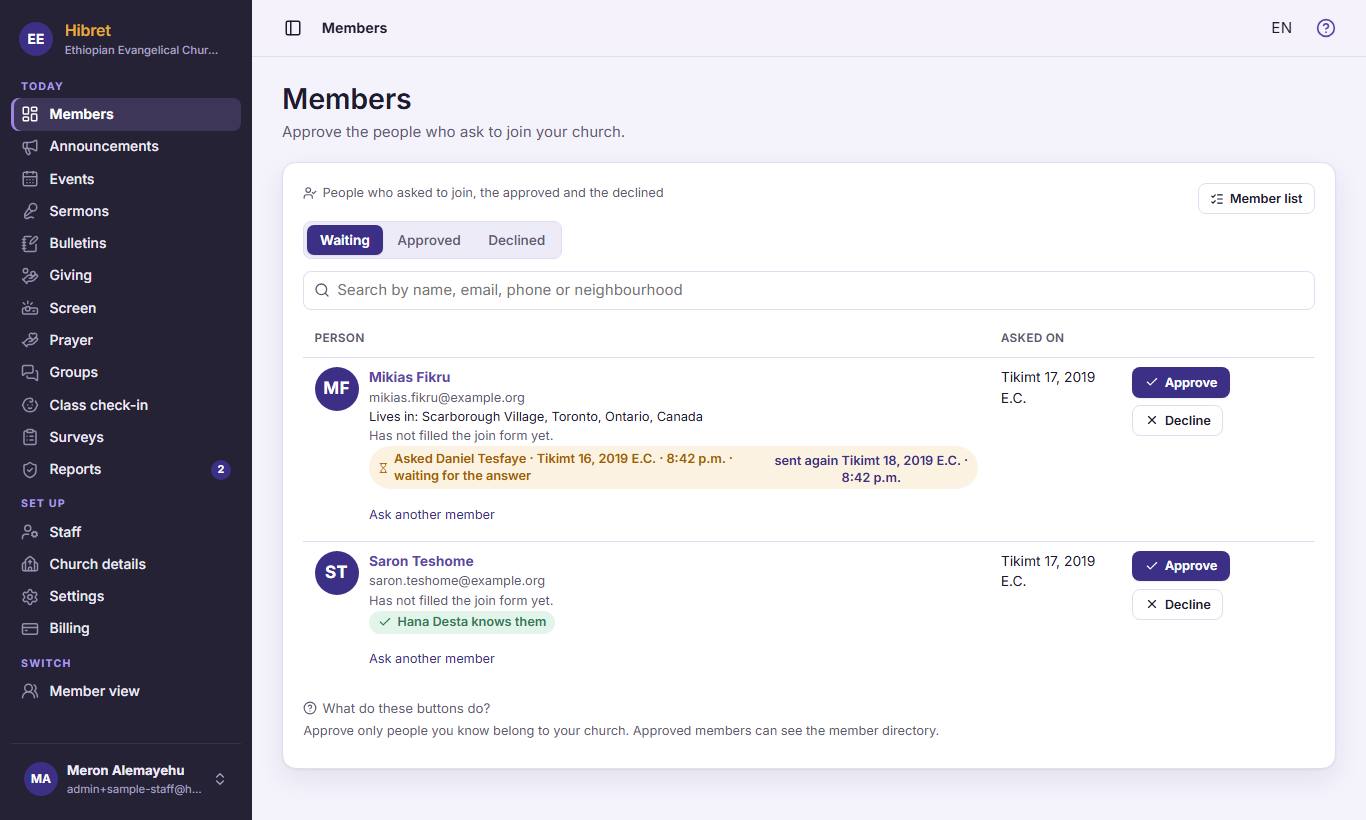
The menu on the left has every part of the portal. "Members" 1 shows the people who ask to join. "Announcements" 2 is the church news, "Events" 3 the calendar, "Sermons" 4 the sermon library and "Bulletins" 5 the Sunday outline.
12345
2
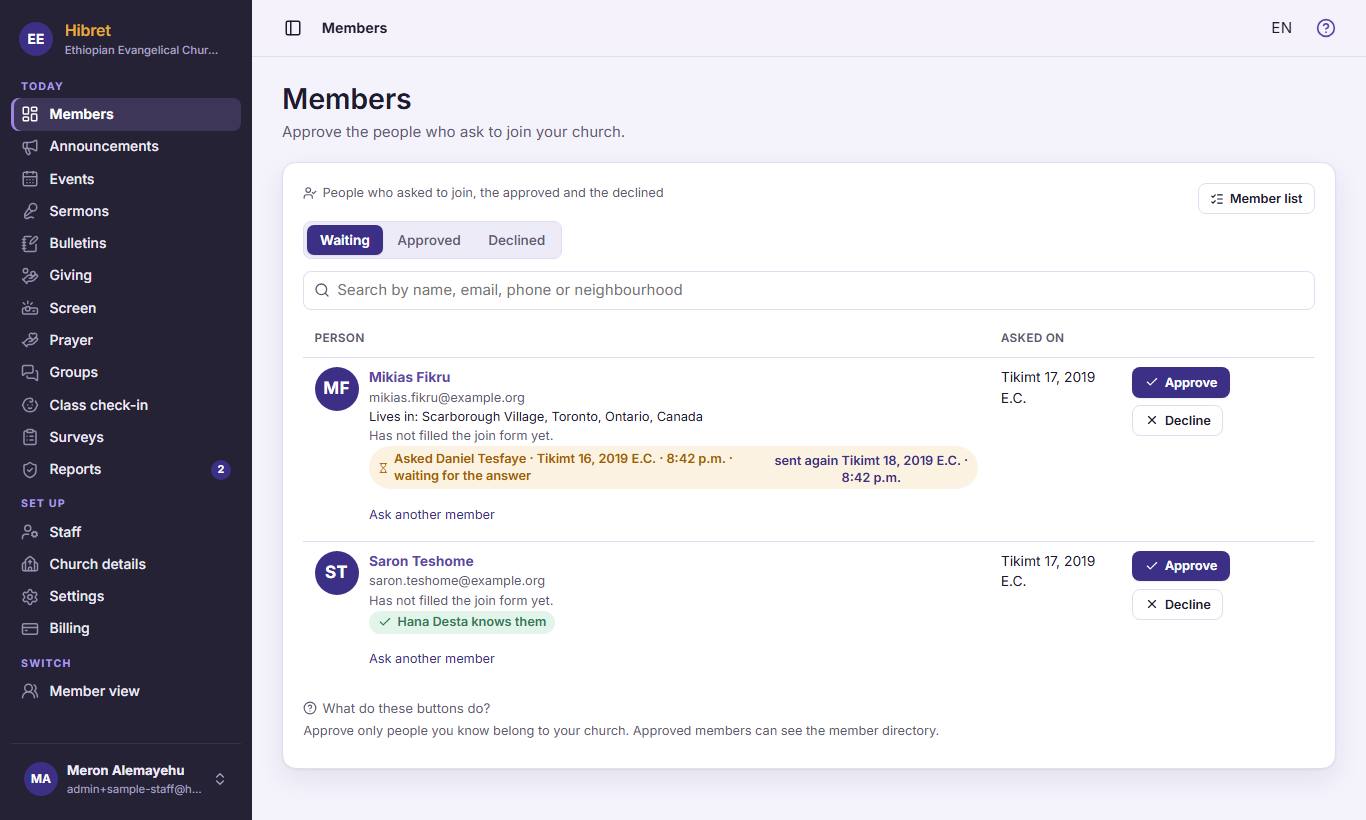
"Giving" 1 holds the ways to give. "Screen" 2 is the slideshow for the projector. "Prayer" 3 is the prayer board. "Groups" 4 holds the groups and classes, and "Class check-in" 5 the children's check-in.
1234
3
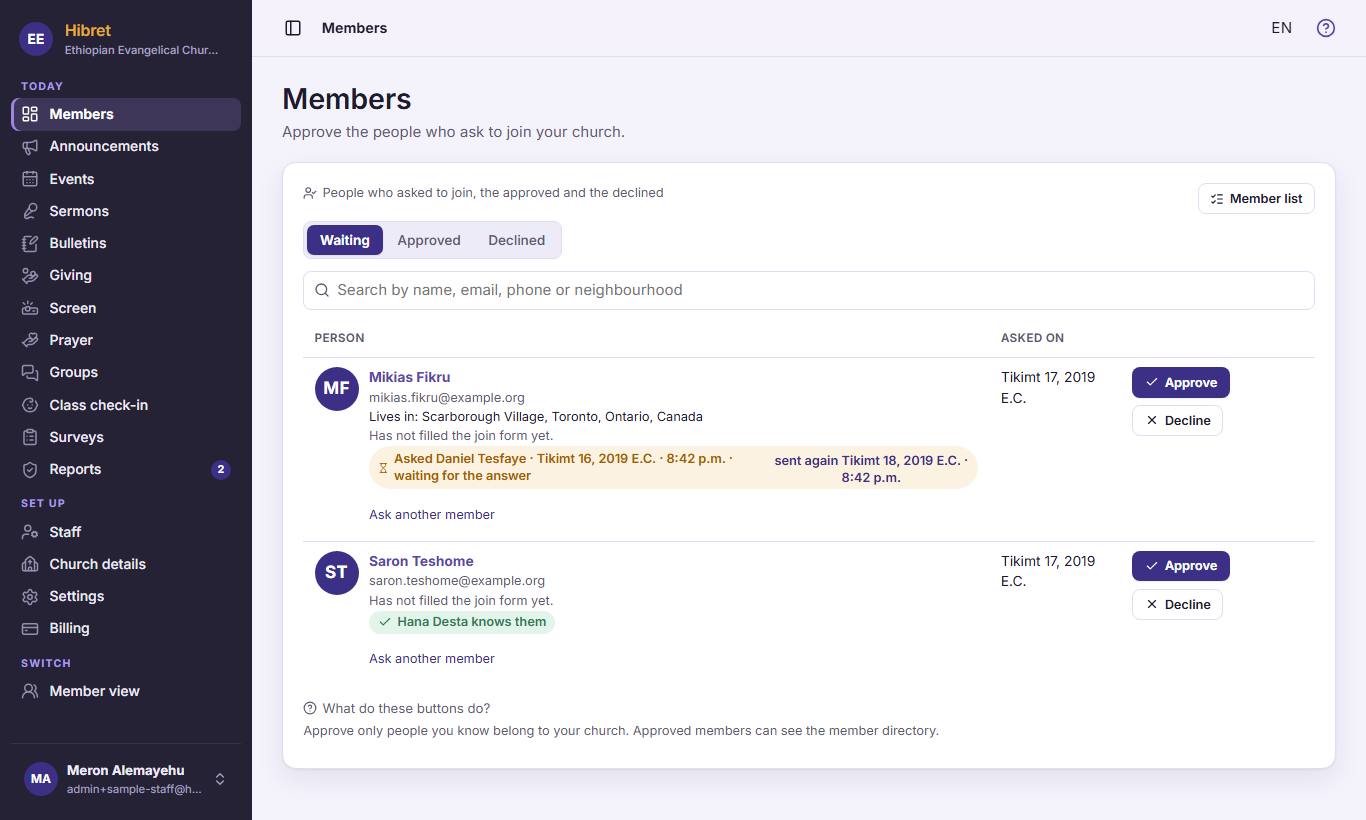
"Surveys" 1 asks the church questions. "Reports" 2 shows what members reported; the number says how many wait. "Staff" 3 lists who runs the church on Hibret. "Member view" 4 shows Hibret as your members see it.
In the member view, "Church portal" brings you back here.
Approve or decline a person who asks to join
People who sign up for your church wait until staff approve them. Approve only people you know belong to your church.
123
1
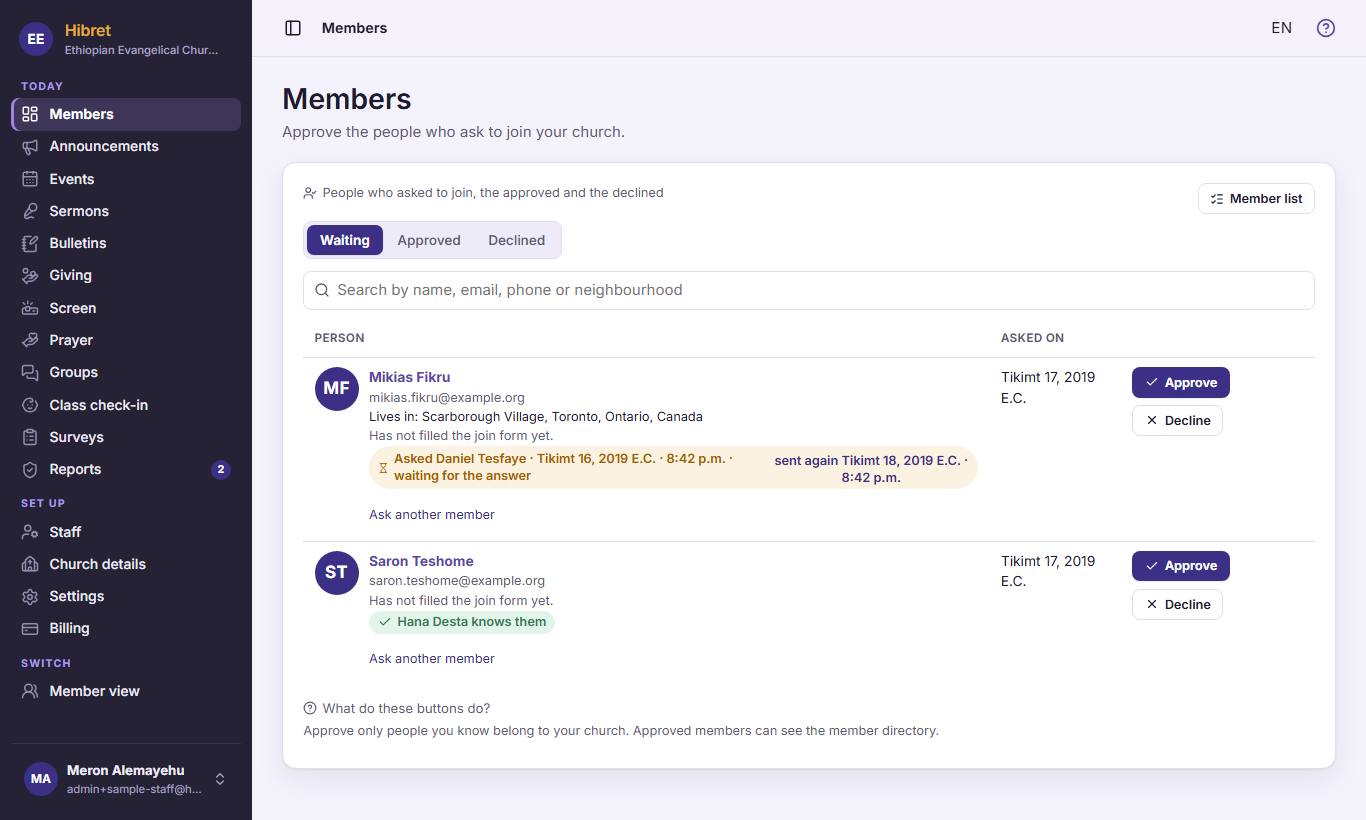
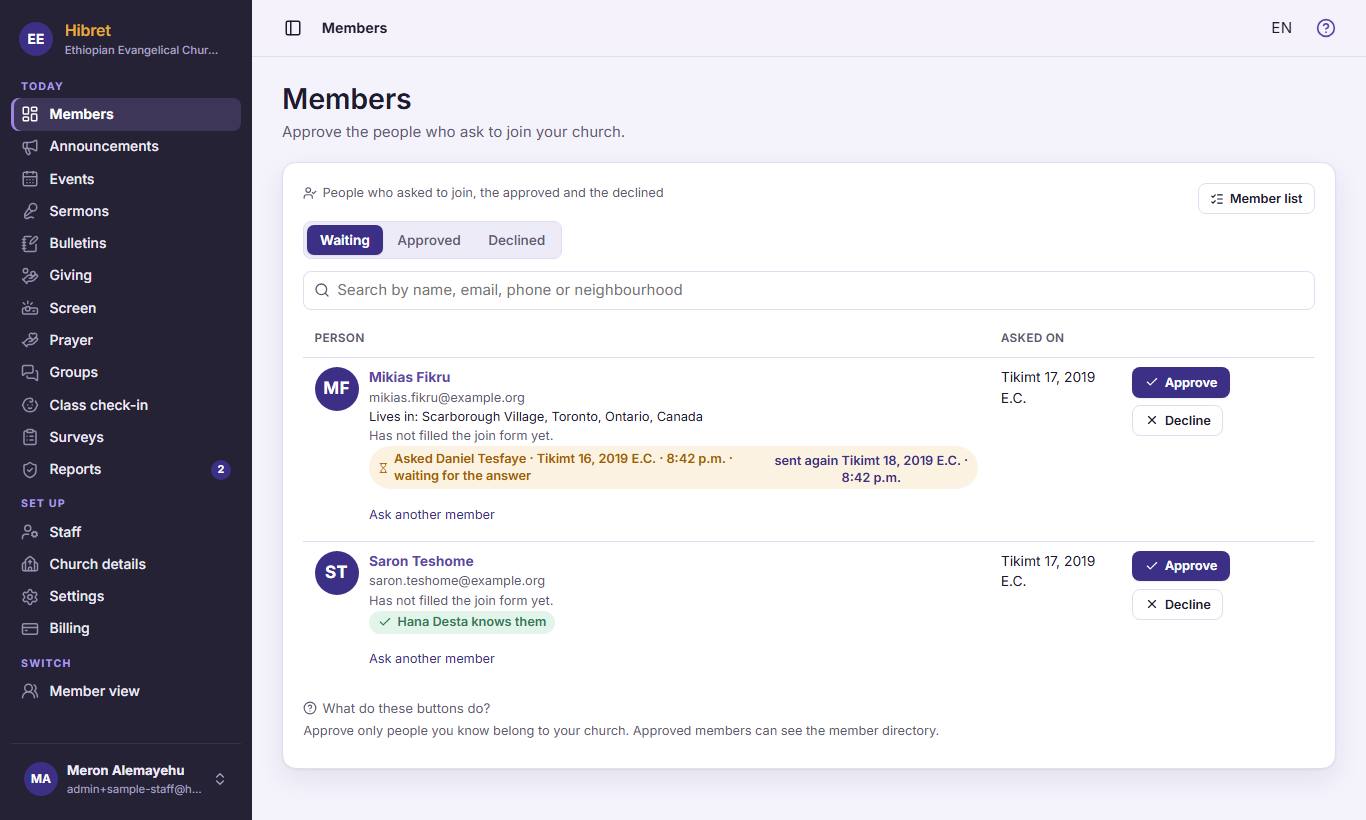
"Waiting" 1 lists the people who asked to join. Under a name you see what other members said about them 2. Press "Approve" 3 when you know the person belongs to your church.
The person becomes a member and can see the member directory.
1
2
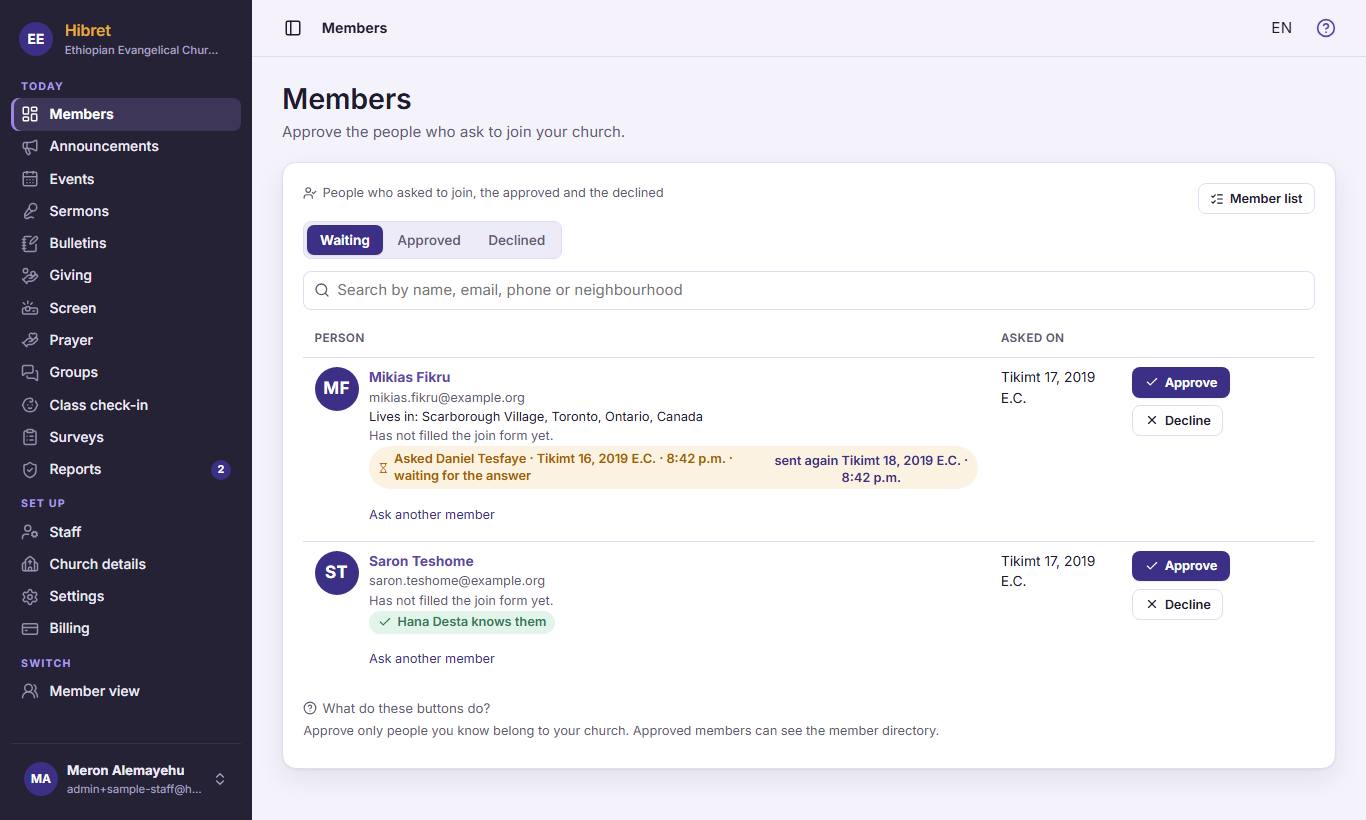
Not sure? Press "Ask another member" 1 and choose a member who may know the person. Hibret asks that member for you.
The answer shows under the name: "knows them" or "does not know them".
123
3
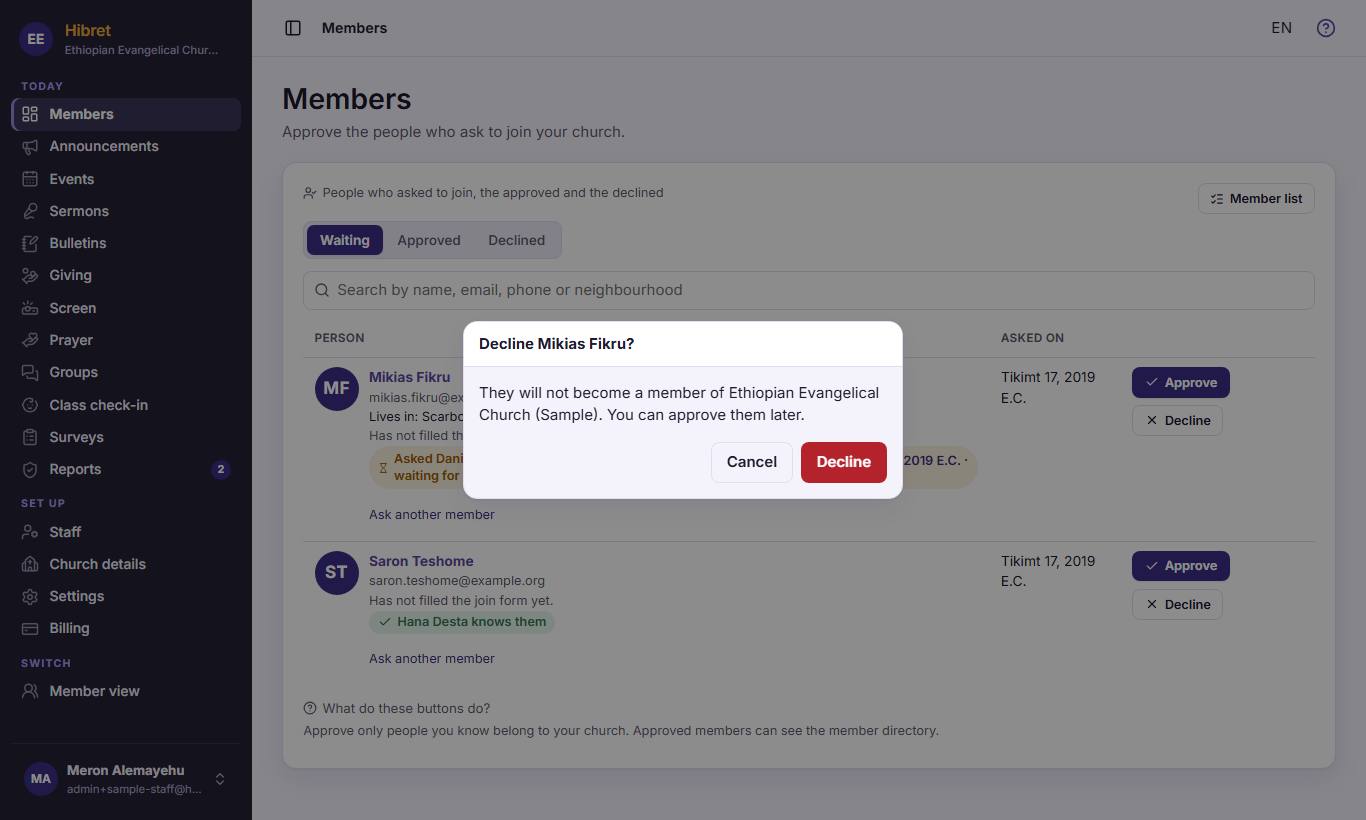
To turn someone away, press "Decline". Hibret asks first 1. Press "Cancel" 2 if you changed your mind, or "Decline" 3 to decline.
A declined person can still be approved later, under "Declined".
Add the people your church already knows
Put your church's list into Hibret and invite the people. When they sign up with their own link, or with the phone number on the list, they are approved at once.
1
1
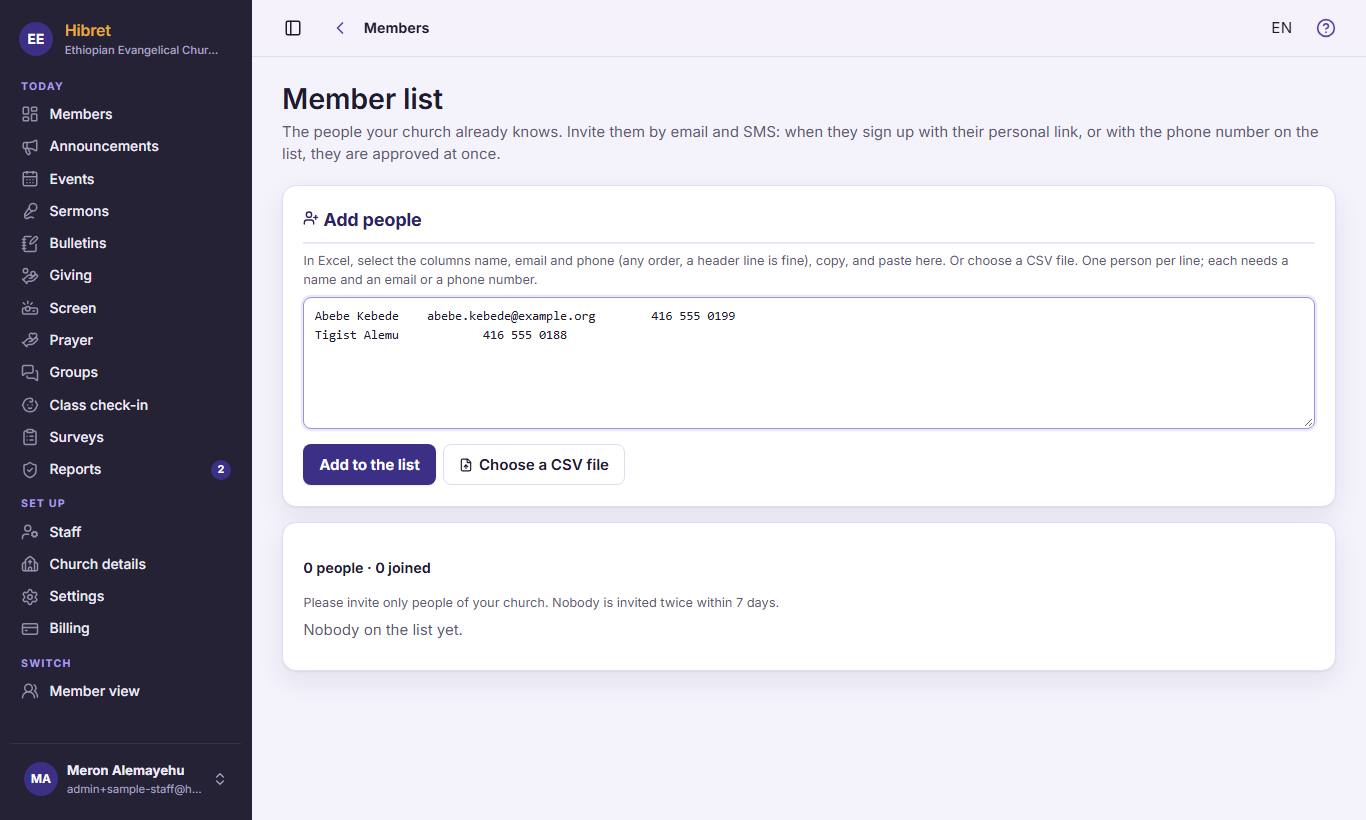
On "Members", press "Member list" 1.
123
2
In Excel, copy the columns name, email and phone, and paste them here 1. Then press "Add to the list" 2. You can also press "Choose a CSV file" 3 to choose a file.
The people are on the list, ready to invite by email and SMS. Nobody is invited twice within 7 days.
Find a person in Who's Who
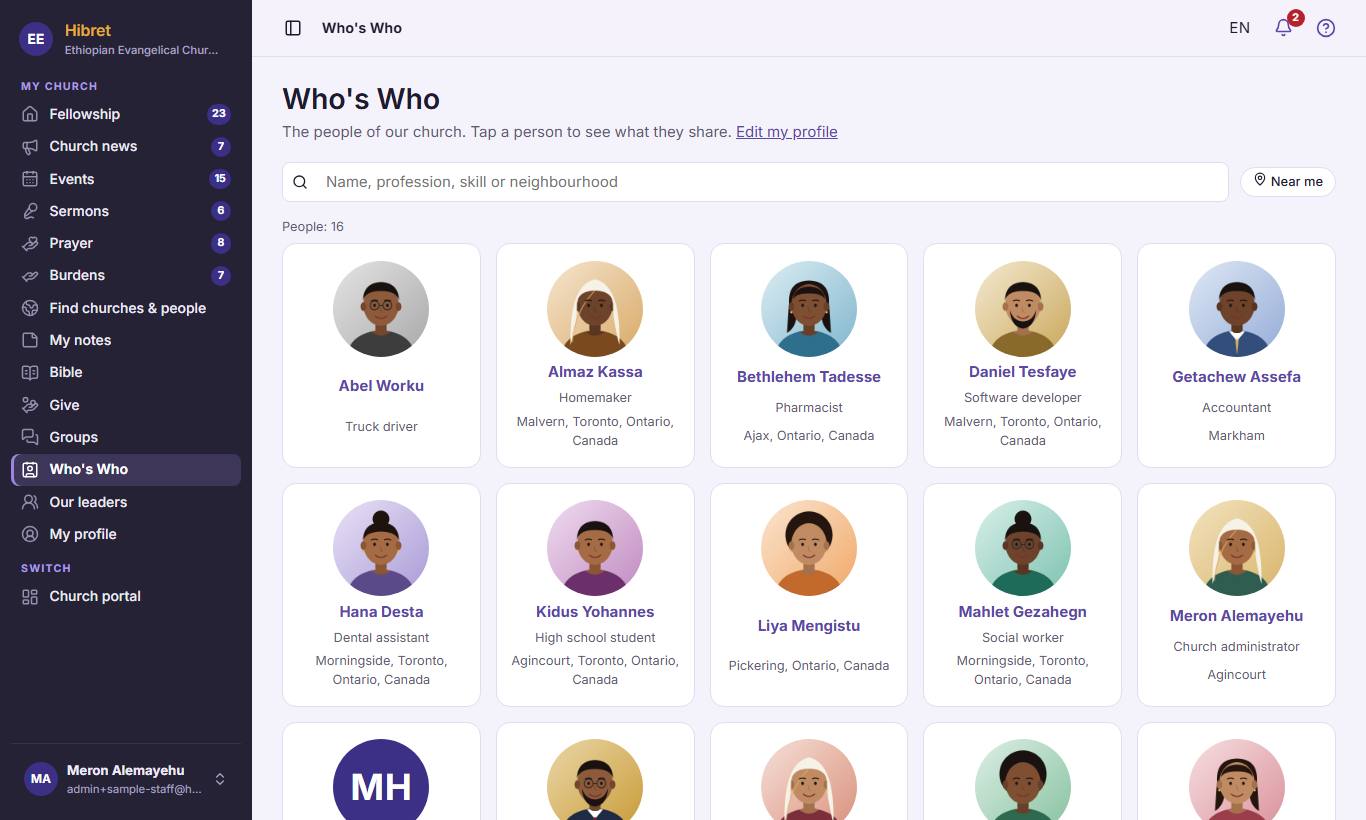
Who's Who shows the approved members of your church, with what each person chose to share. It is in the member view.
1
1
Press "Member view" 1.
123
2
Open "Who's Who" 1. Search by name, profession, skill or neighbourhood 2. Press a person 3 to see what they share.
"Church portal" at the bottom of the menu brings you back to the portal.
Show your church's leaders
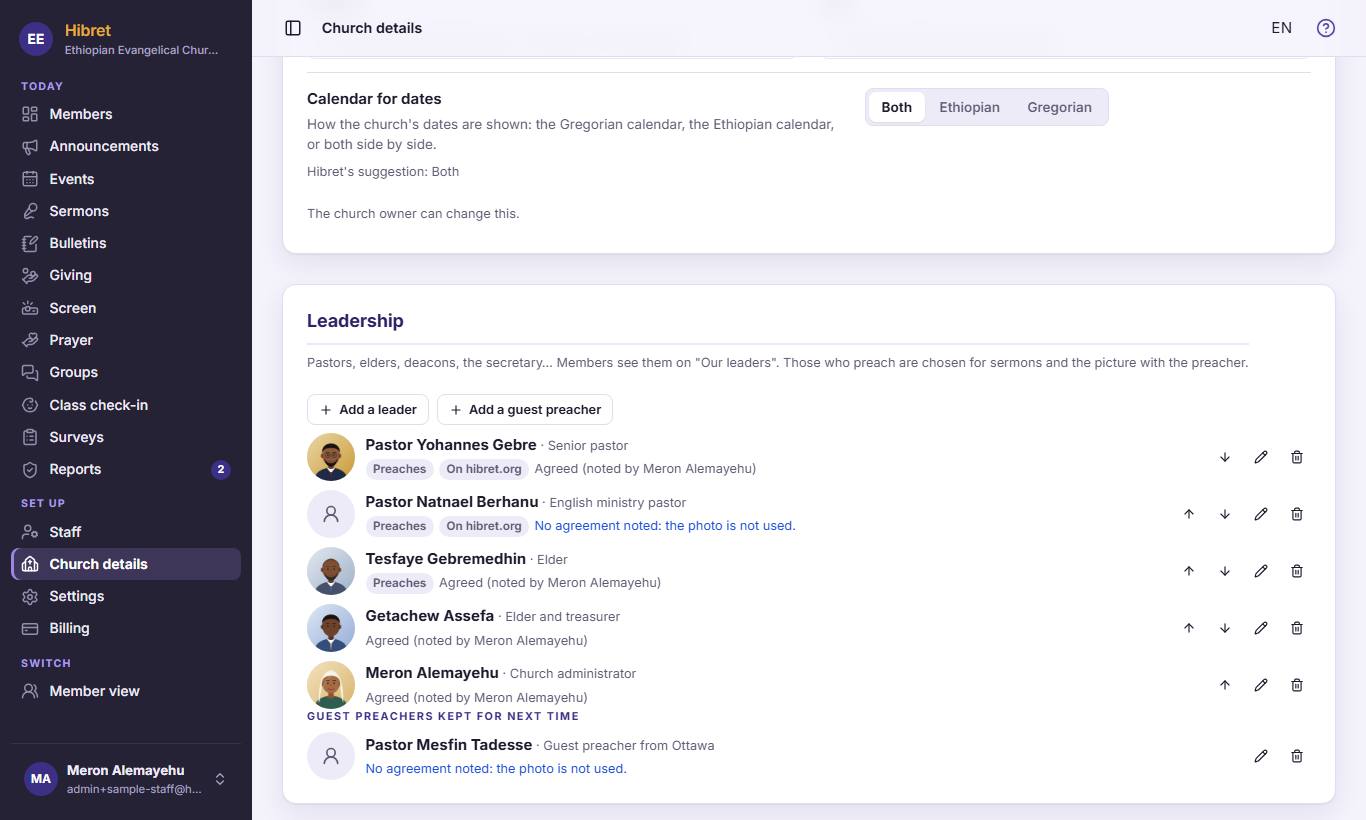
Our leaders shows the pastors, elders and other leaders to your members. Staff add them under Church details.
123
1
In "Church details" 1, find the leaders. Press "Add a leader" 2 for a pastor, an elder or another leader. Press "Add a guest preacher" 3 for a preacher from outside.
1
2
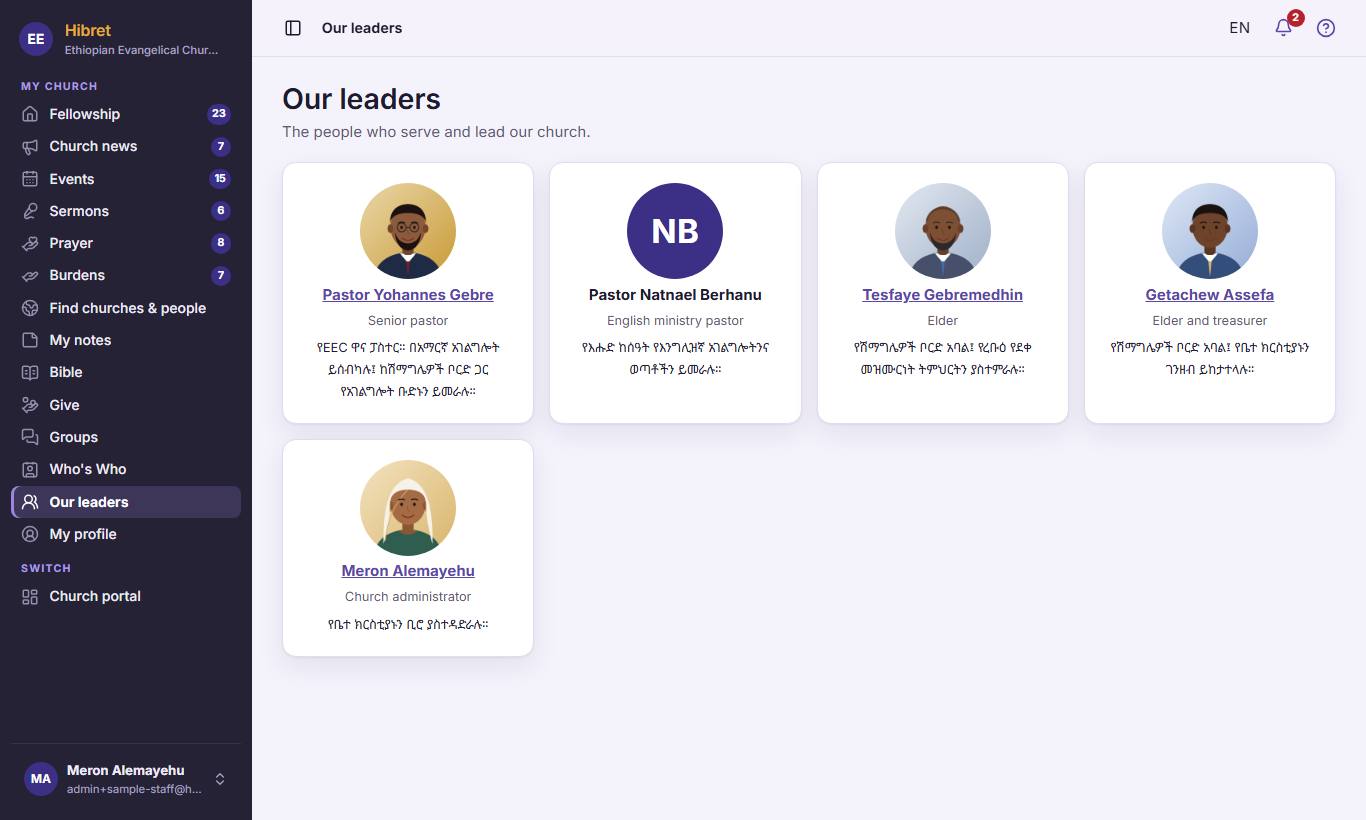
Members see them in "Our leaders" 1, with their role and a short word about them.
Write church news
News goes to your members' Church news and Fellowship. Write it in the church's language; everyone sees it exactly as you write it.
1
1
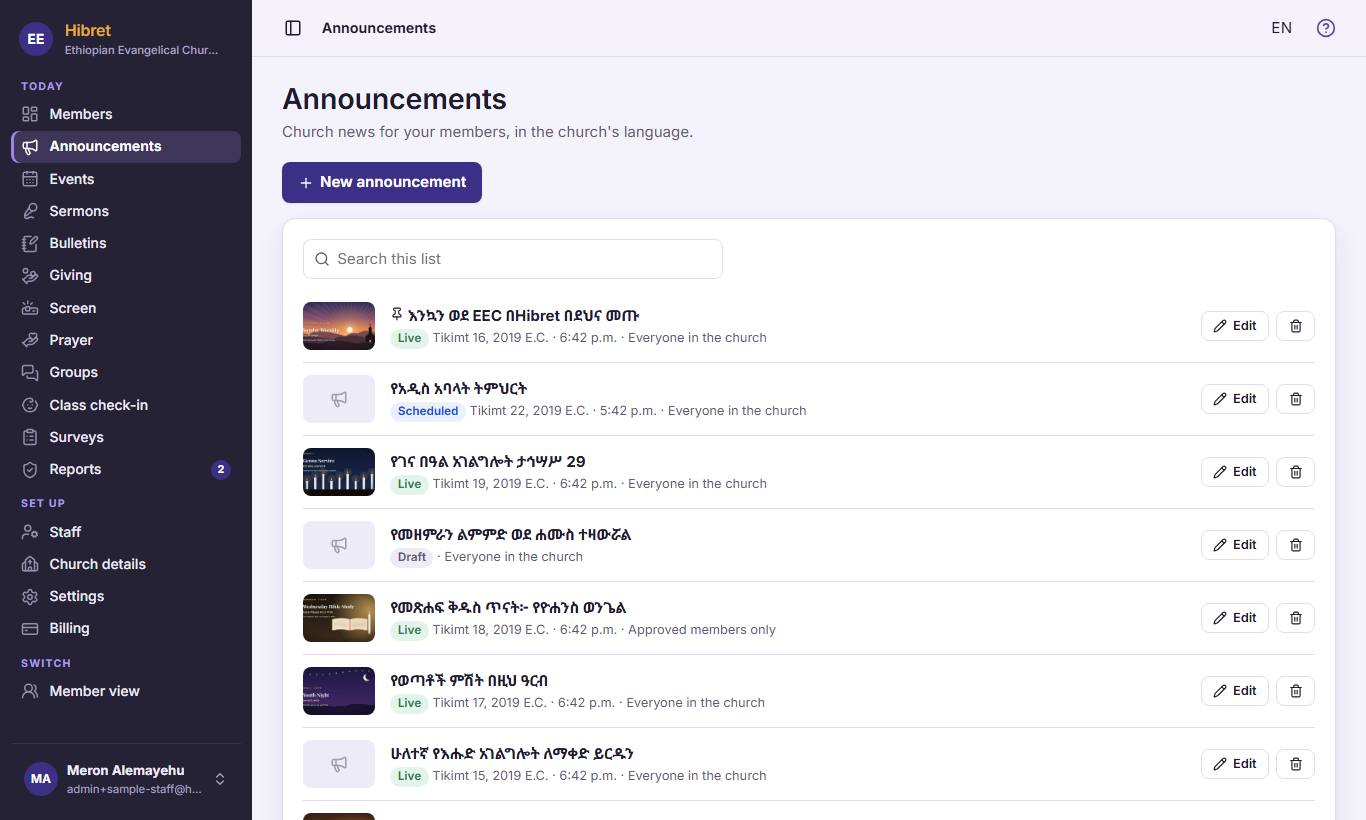
In "Announcements", press "New announcement" 1.
1234
2
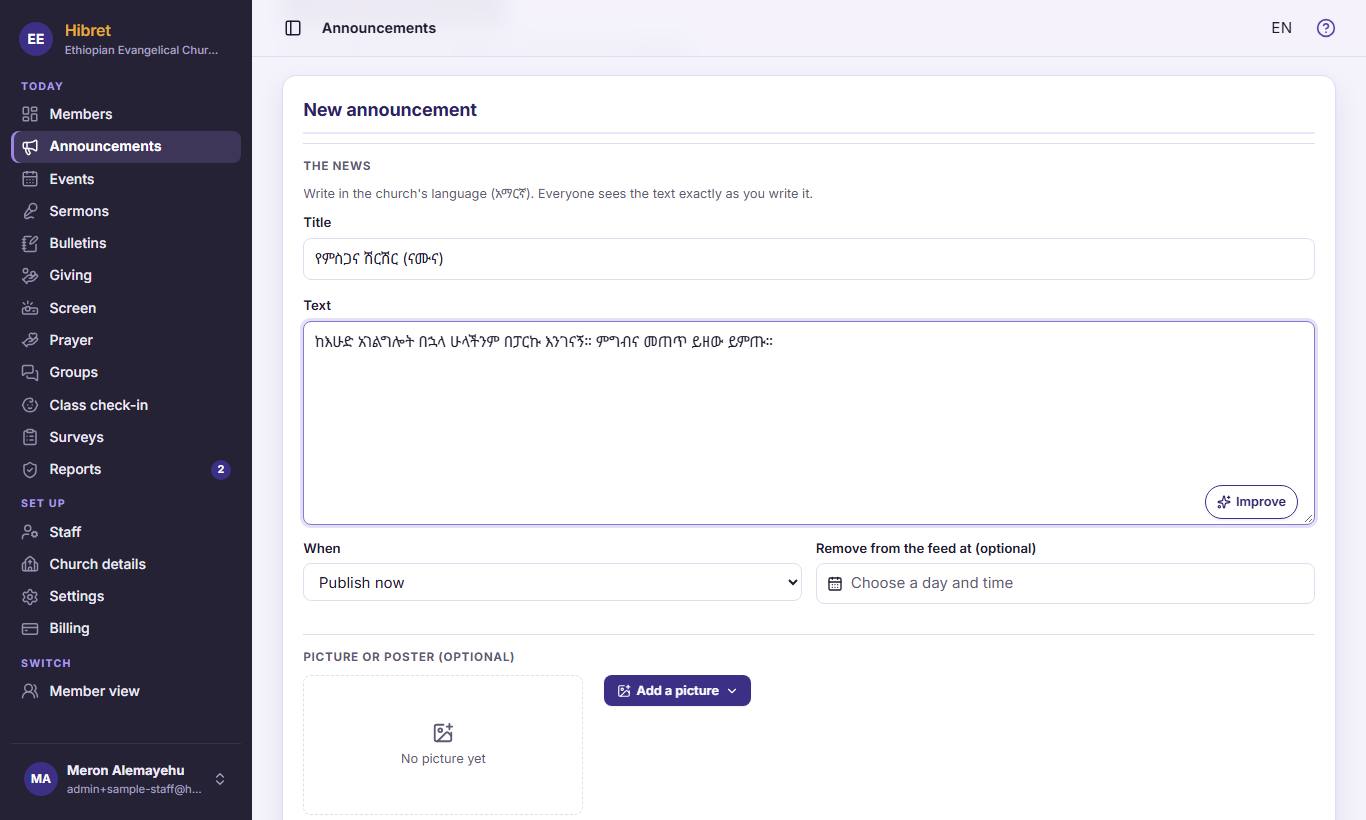
Write the title 1 and the text 2. "Improve" 3 suggests better words; you choose to use them or keep yours. In "When" 4 choose now, later, or a draft.
12
3
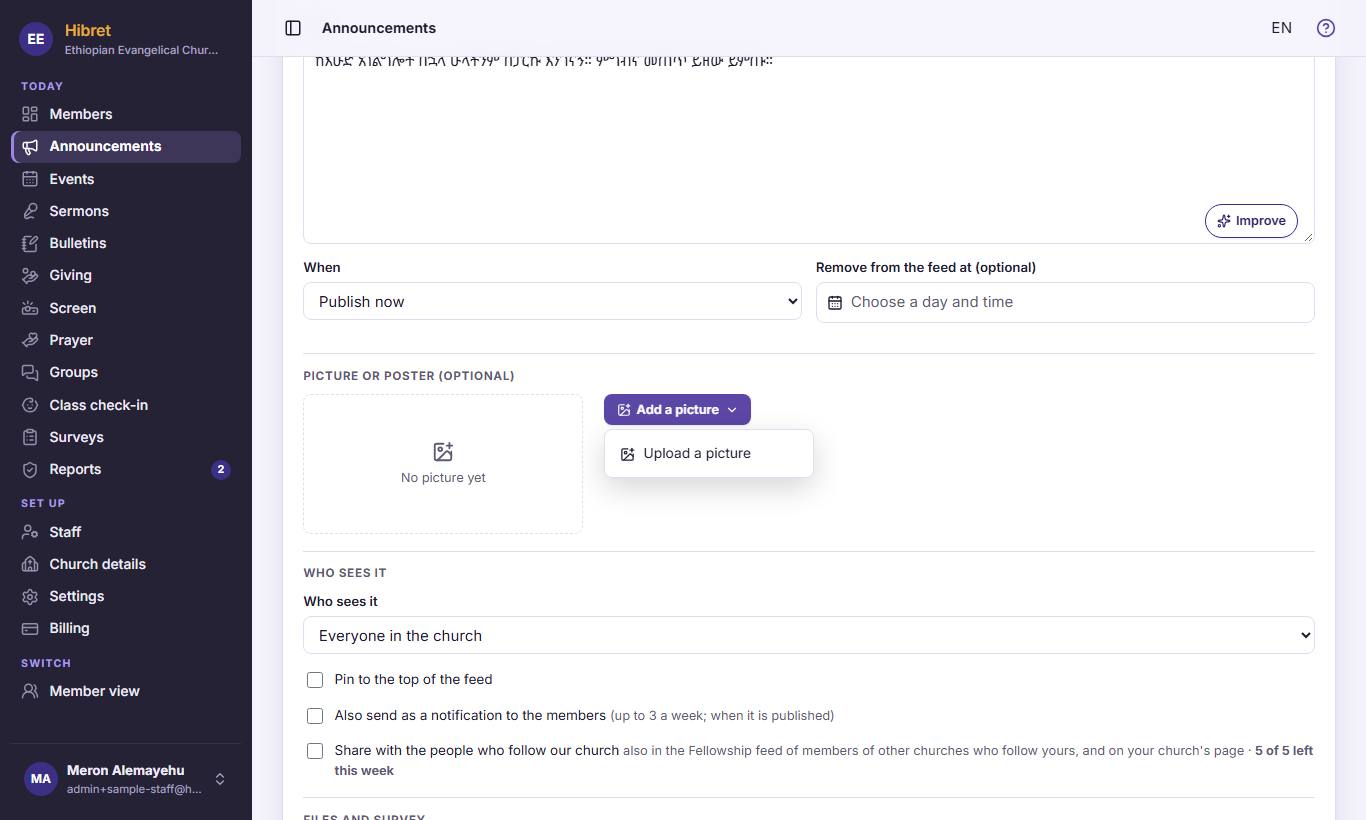
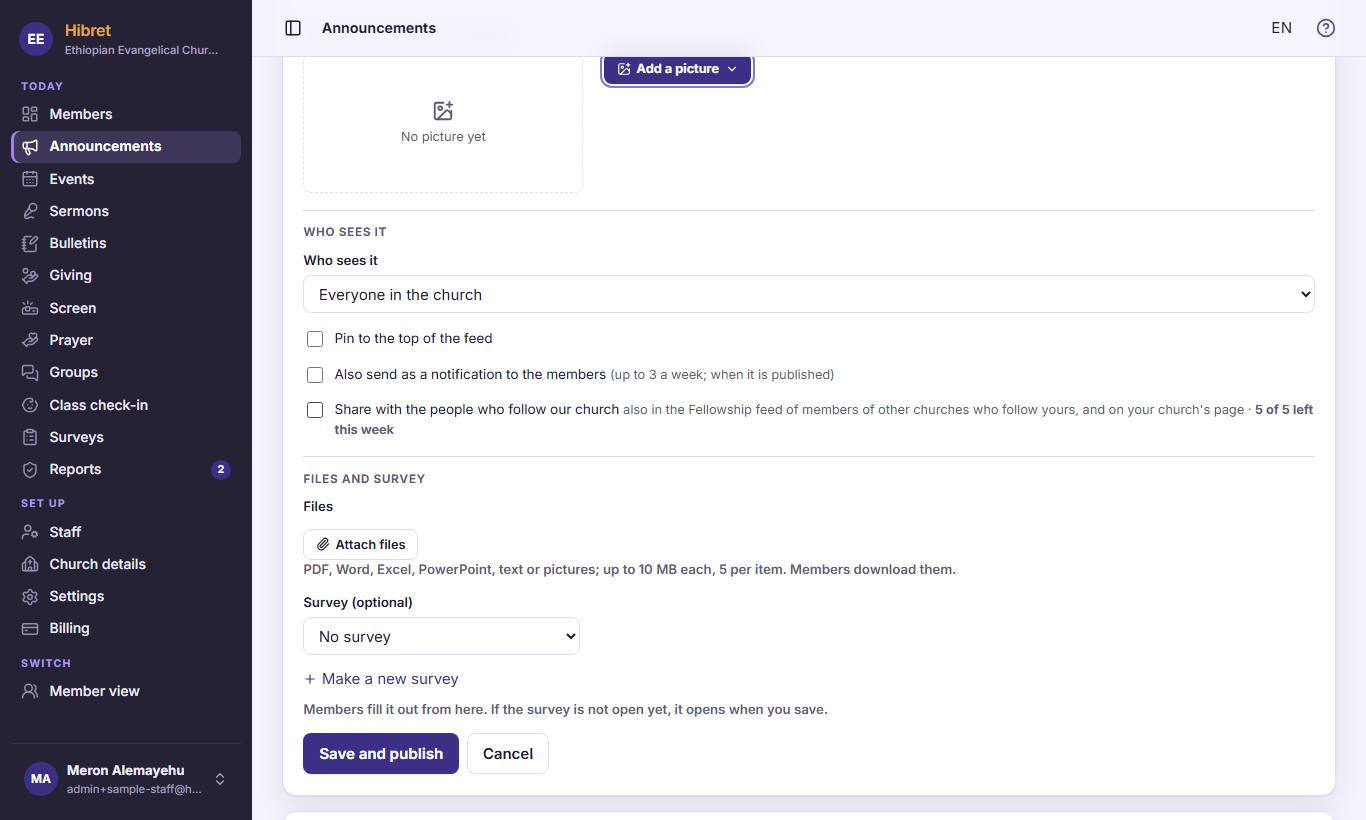
To add a picture or a poster, press "Add a picture" 1, then "Upload a picture" 2.
The picture shows on top of the news.
12345
4
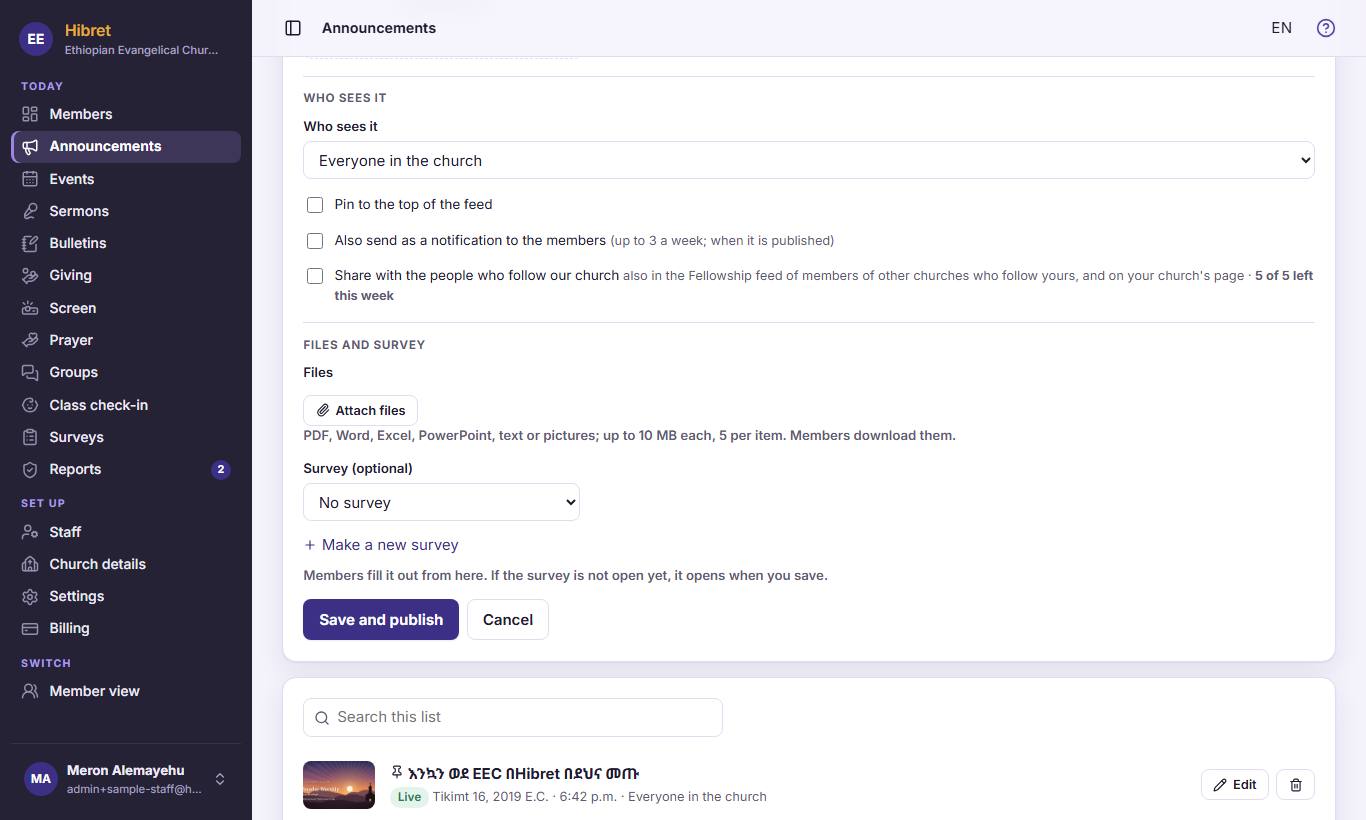
Choose "Who sees it" 1. Tick "Pin to the top of the feed" 2 to keep it first. Tick "Also send as a notification to the members" 3 for important news. Tick "Share with the people who follow our church" 4 so people who follow your church see it too. Press "Save and publish" 5.
Your members see the news in Church news and on Fellowship.
Ask Hibret to share news with other churches
Some news is for more than your church: a conference, a day of prayer. Ask Hibret to show it to other churches too.
1
1
In "Announcements", press "Edit" 1 next to the news.
1
2
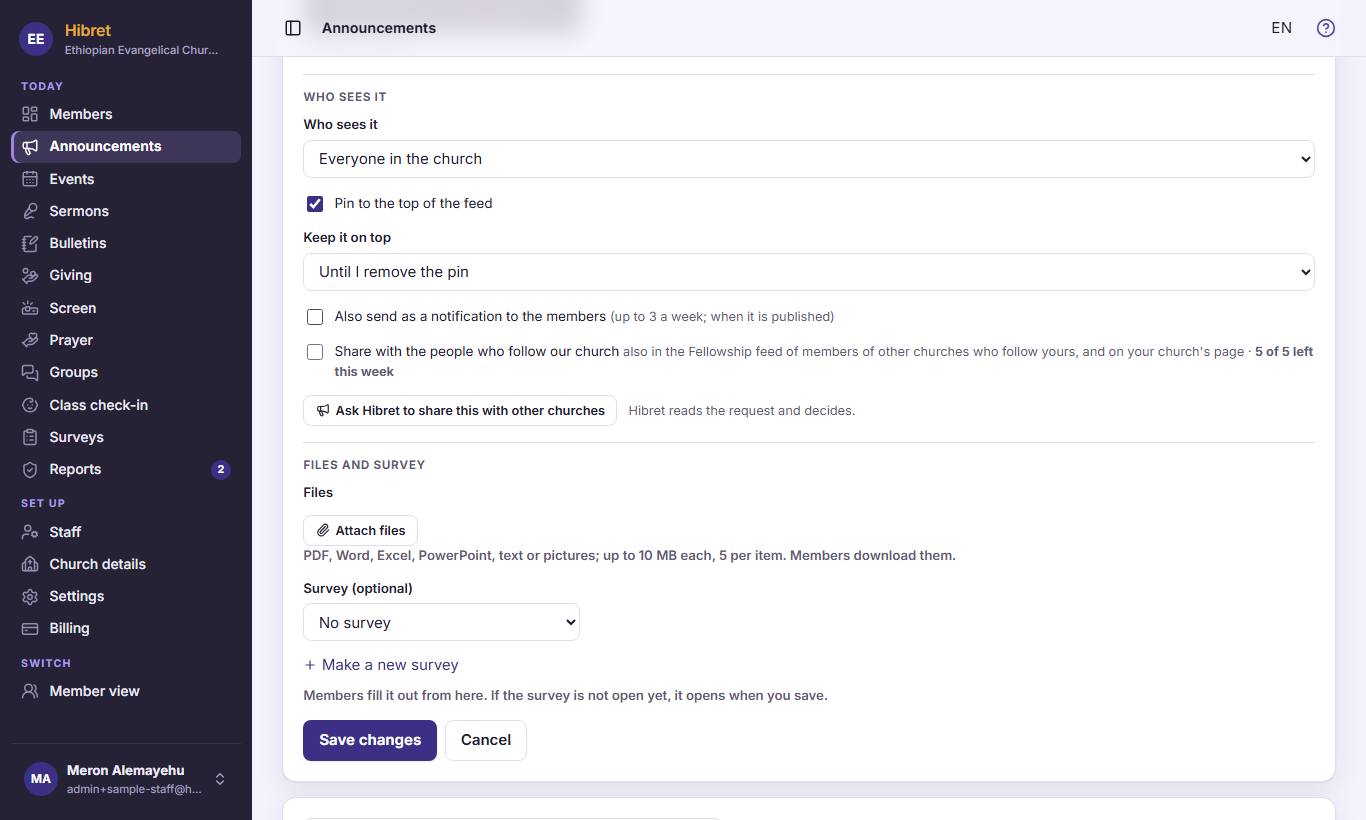
Under "Who sees it", press "Ask Hibret to share this with other churches" 1.
123
3
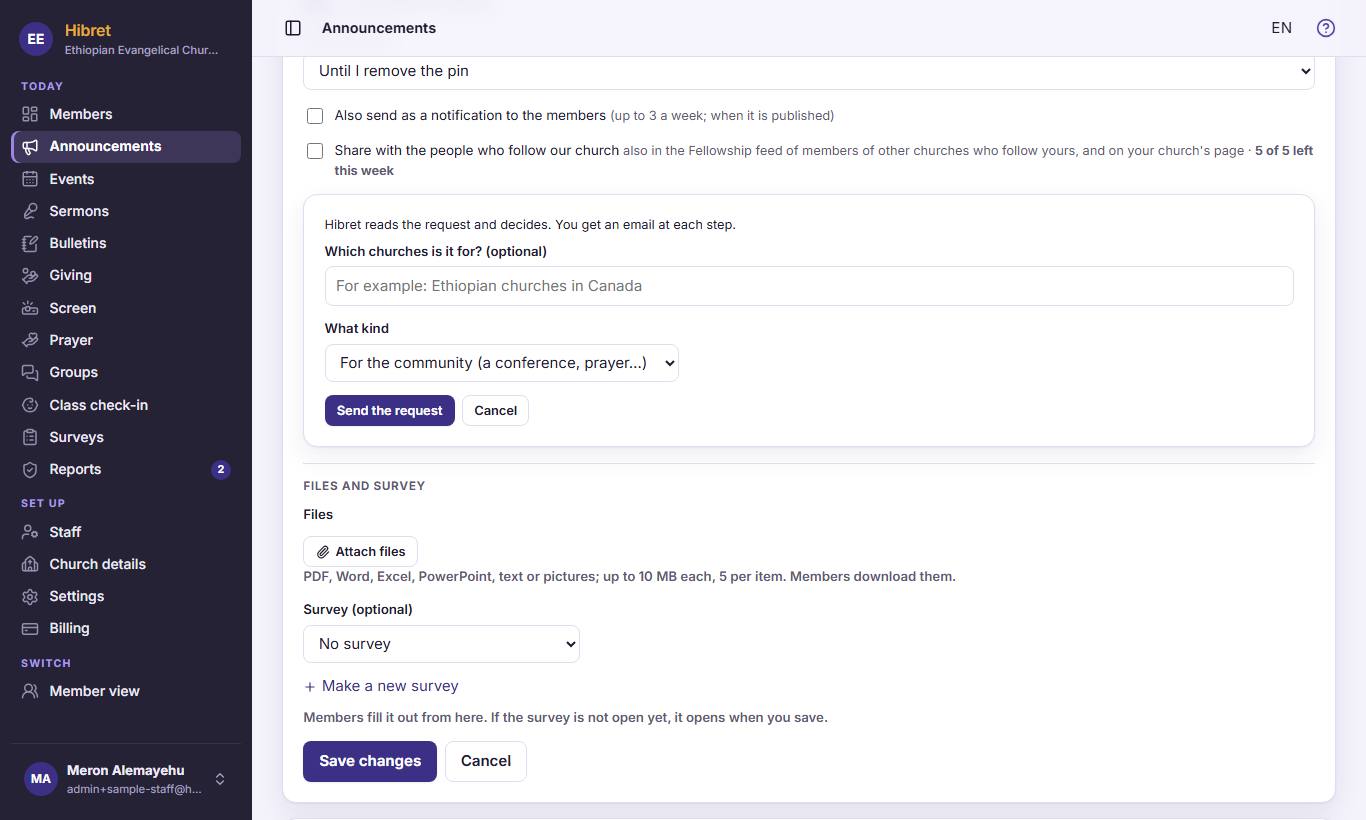
Say which churches it is for 1 and what kind of news it is 2. Press "Send the request" 3.
Hibret reads the request and decides. You get an email at each step.
Add an event or a weekly service
Events go into your members' calendar. A service that repeats every week is one event with "Repeats".
1
1
In "Events", press "New event" 1.
1234
2
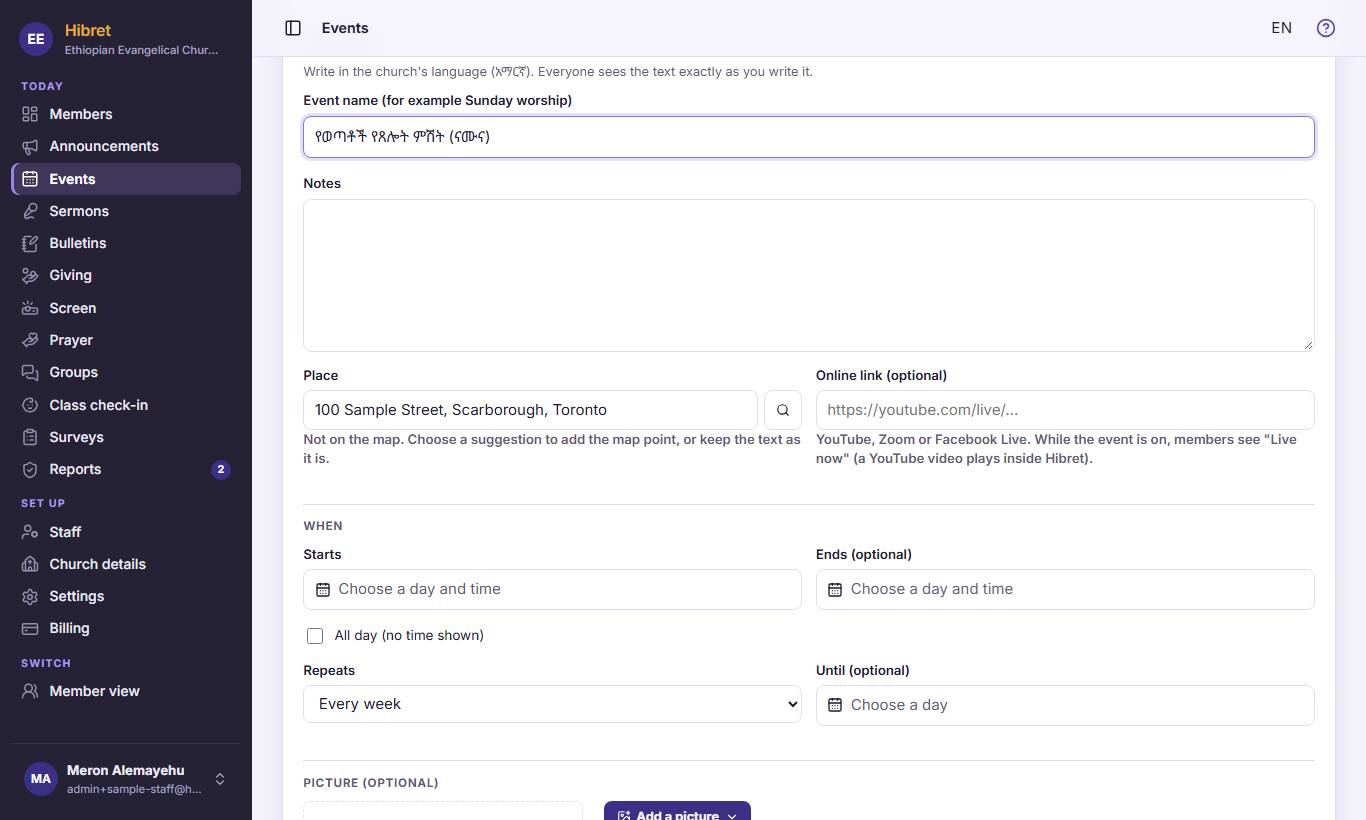
Write the name 1 and the place 2. Choose the day and time it "Starts" 3. For a weekly service, choose it in "Repeats" 4.
1234
3
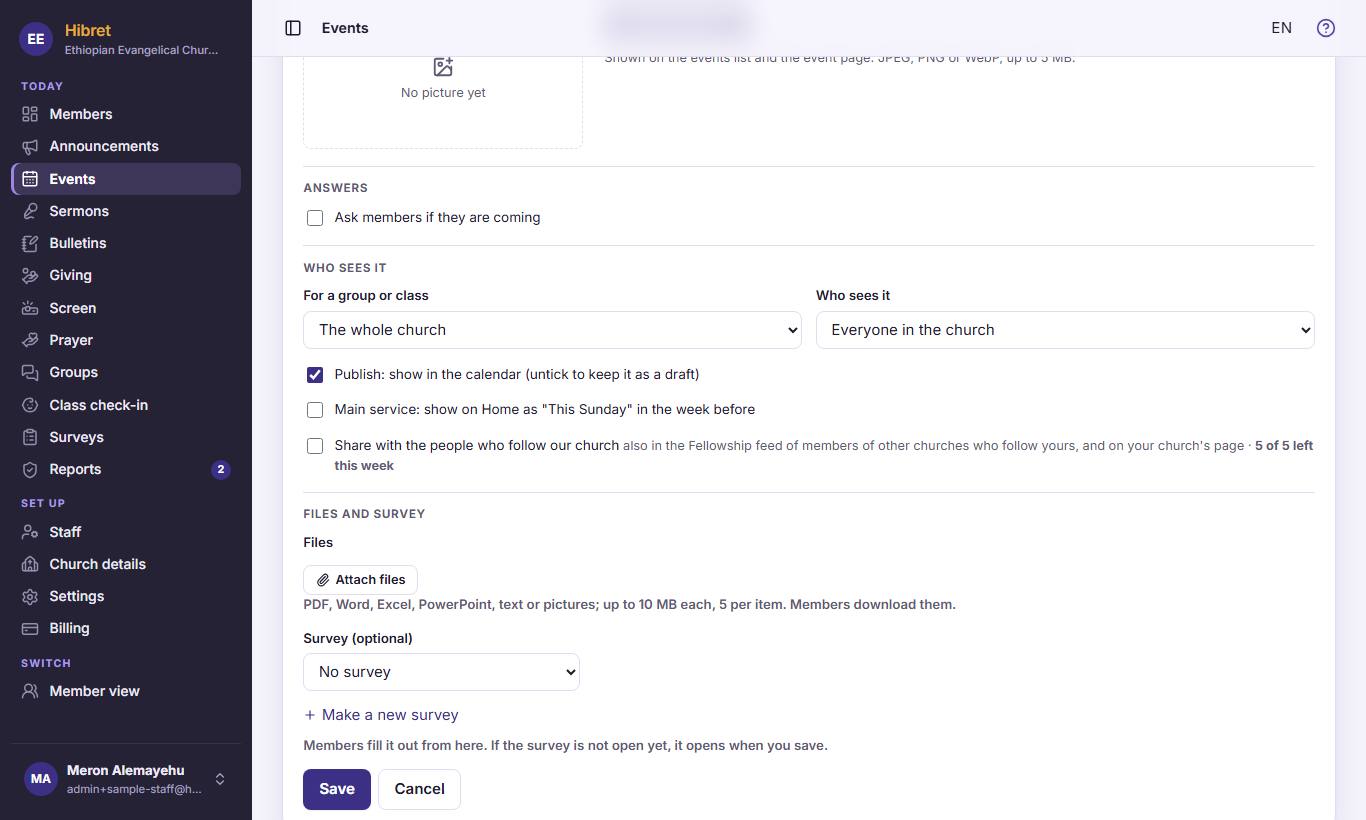
Tick "Ask members if they are coming" 1 to know who comes. Choose a group or class 2 if it is only for them. Tick "Main service: show on Home as "This Sunday" in the week before" 3 for the main Sunday service. Press "Save" 4.
The event is in the members' calendar. A weekly service shows every date.
See who is coming
When an event asks members if they are coming, you see the answers and the number of adults and children.
12
1
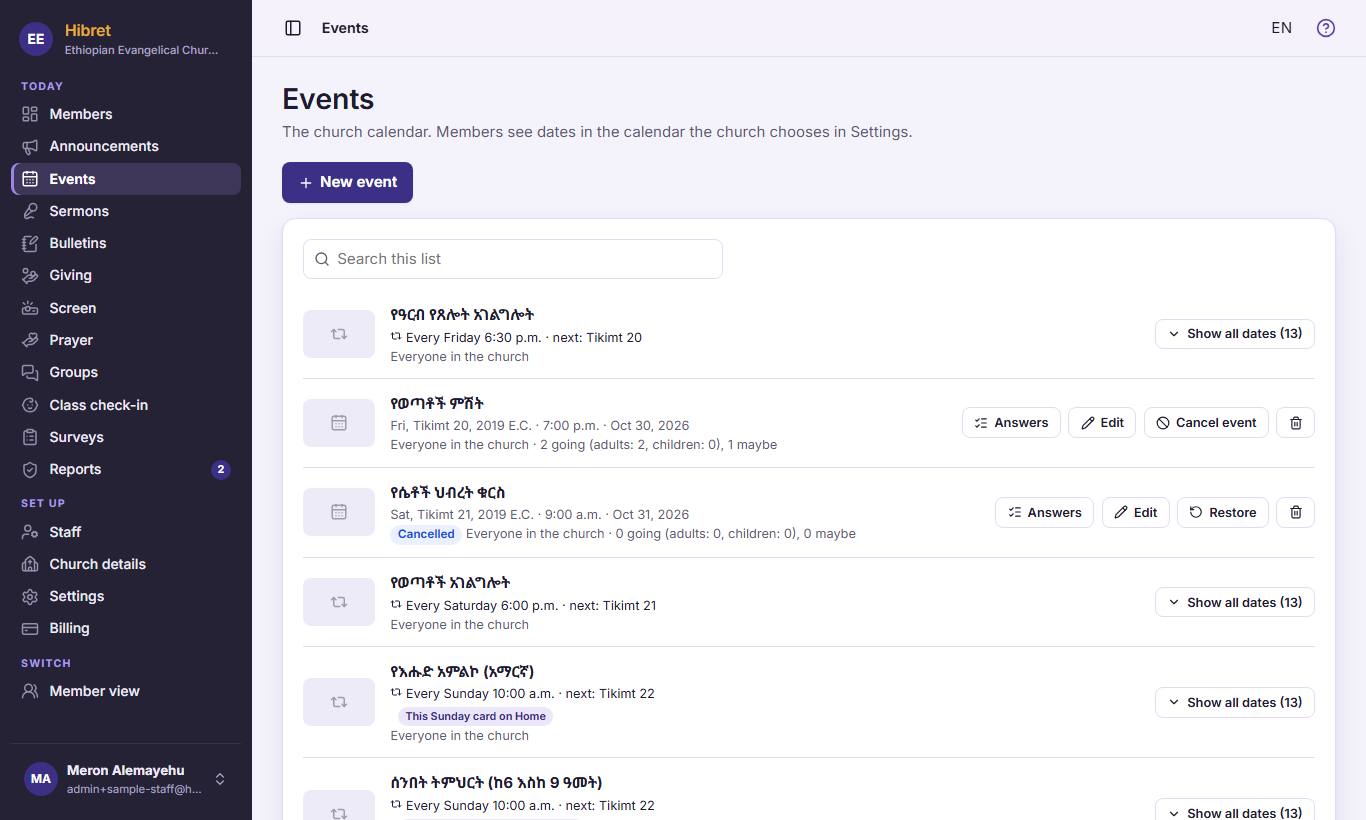
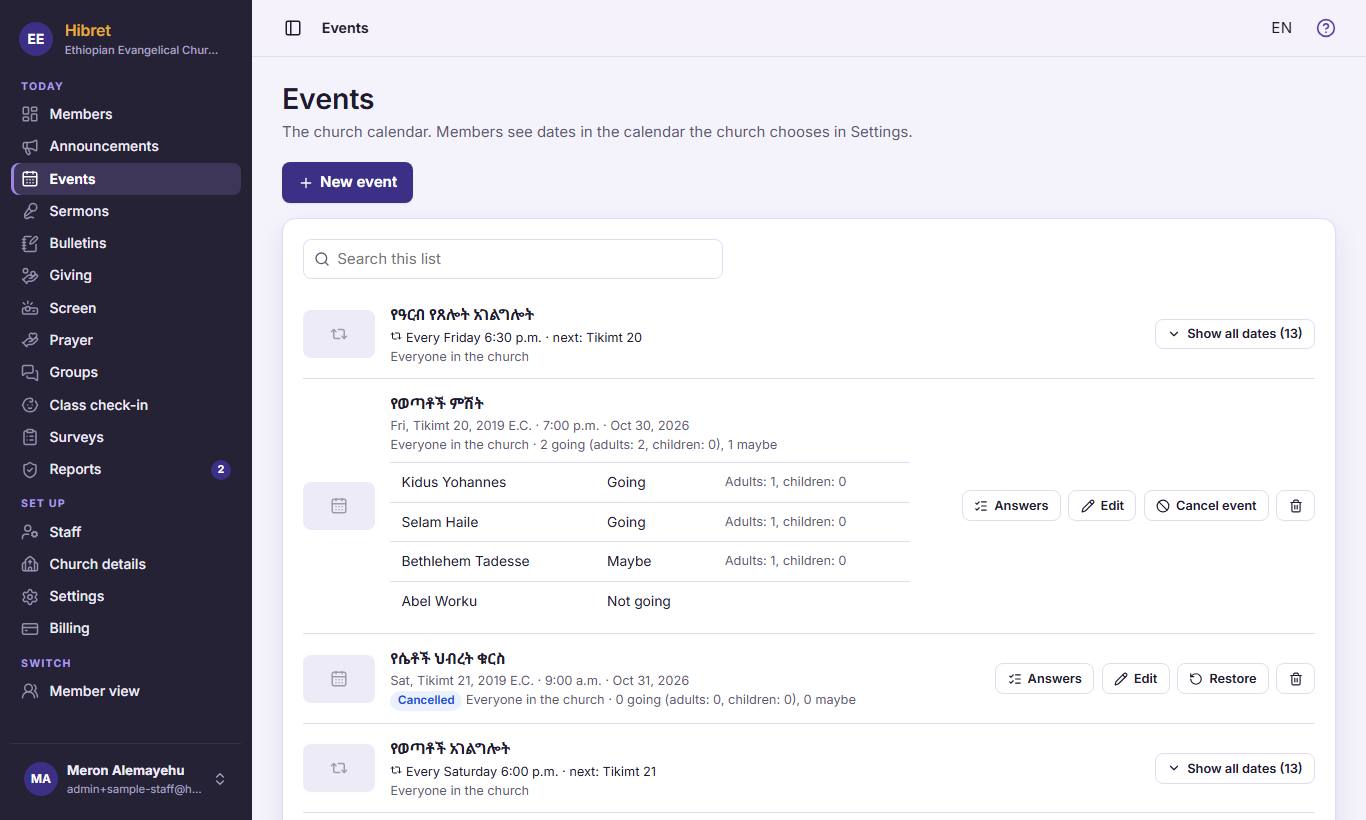
Under each event you see how many are going 1. Press "Answers" 2 to see the names.
1
2
The list 1 shows each person's answer: going, maybe or not going, with adults and children.
Add a sermon
The sermon library keeps each sermon with its Bible passages, the preacher, a YouTube link or a recording.
1
1
In "Sermons", press "New sermon" 1.
12345
2
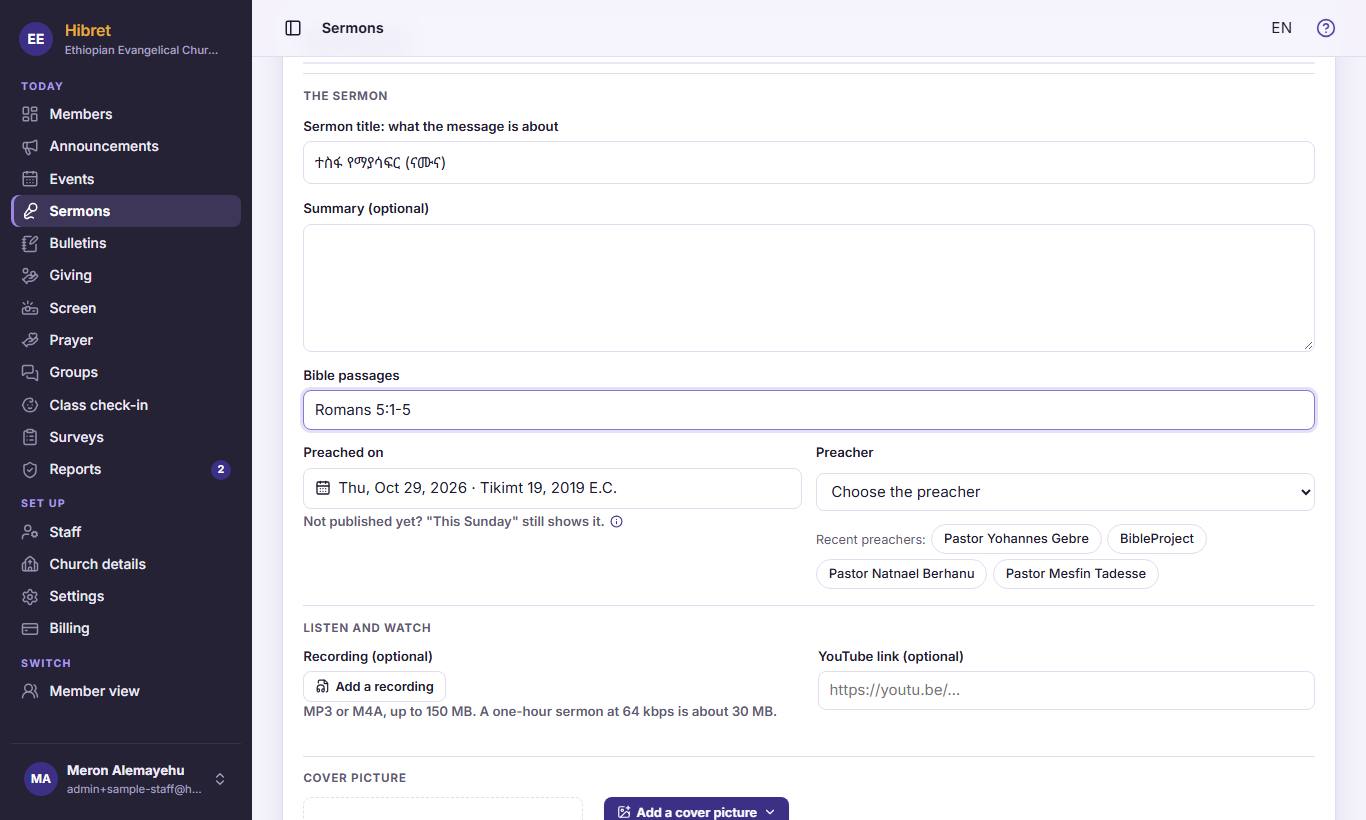
Write the title 1 and the Bible passages 2. Choose the "Preacher" 3. Paste the YouTube link 4, or press "Add a recording" 5 for a recording.
123
3
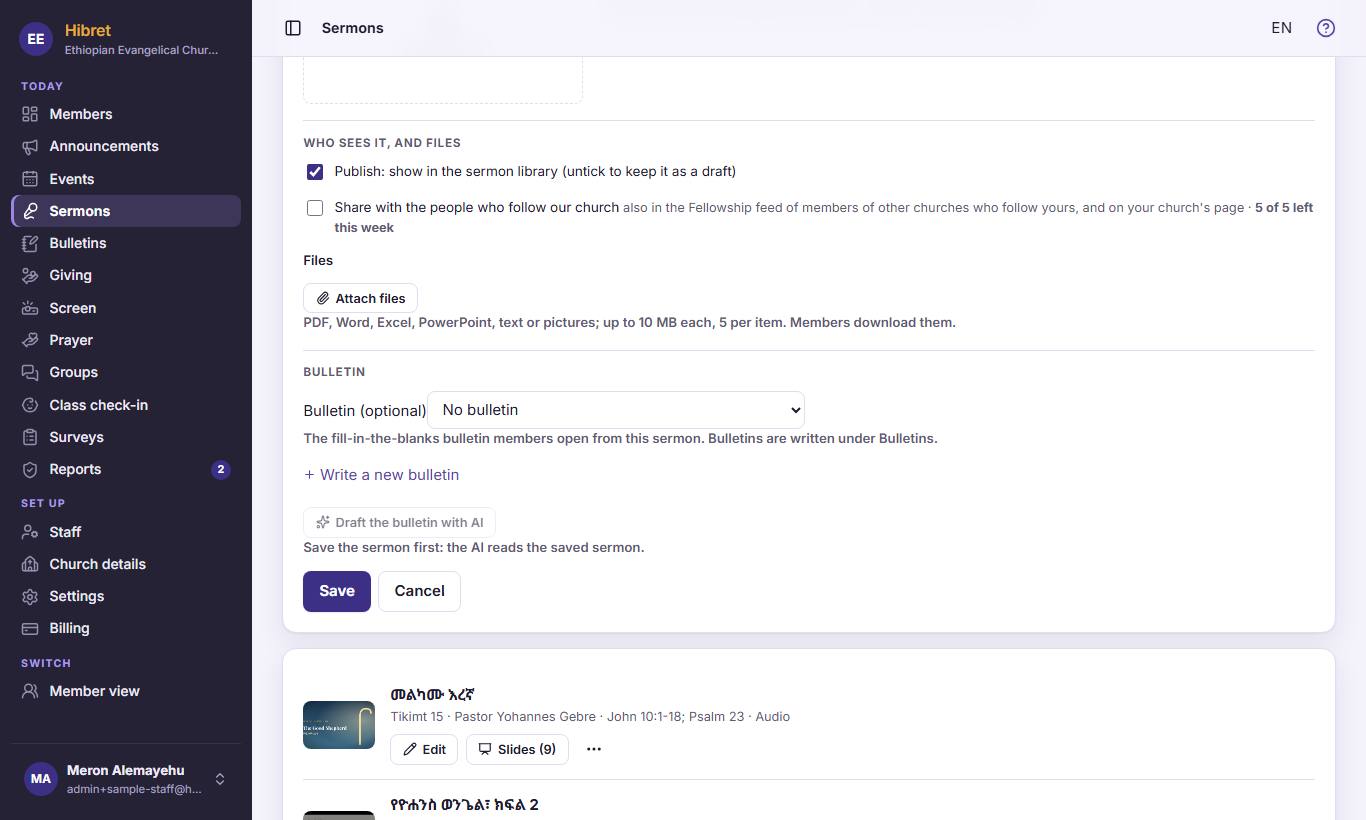
Keep "Publish: show in the sermon library (untick to keep it as a draft)" 1 ticked. Choose the Sunday bulletin 2 if there is one. Press "Save" 3.
The sermon is in the library. Members can watch or listen, and open the slides and the bulletin.
Prepare the sermon slides
Slides for the big screen: titles, Bible verses, points and pictures. Prepare them any time before Sunday.
1
1
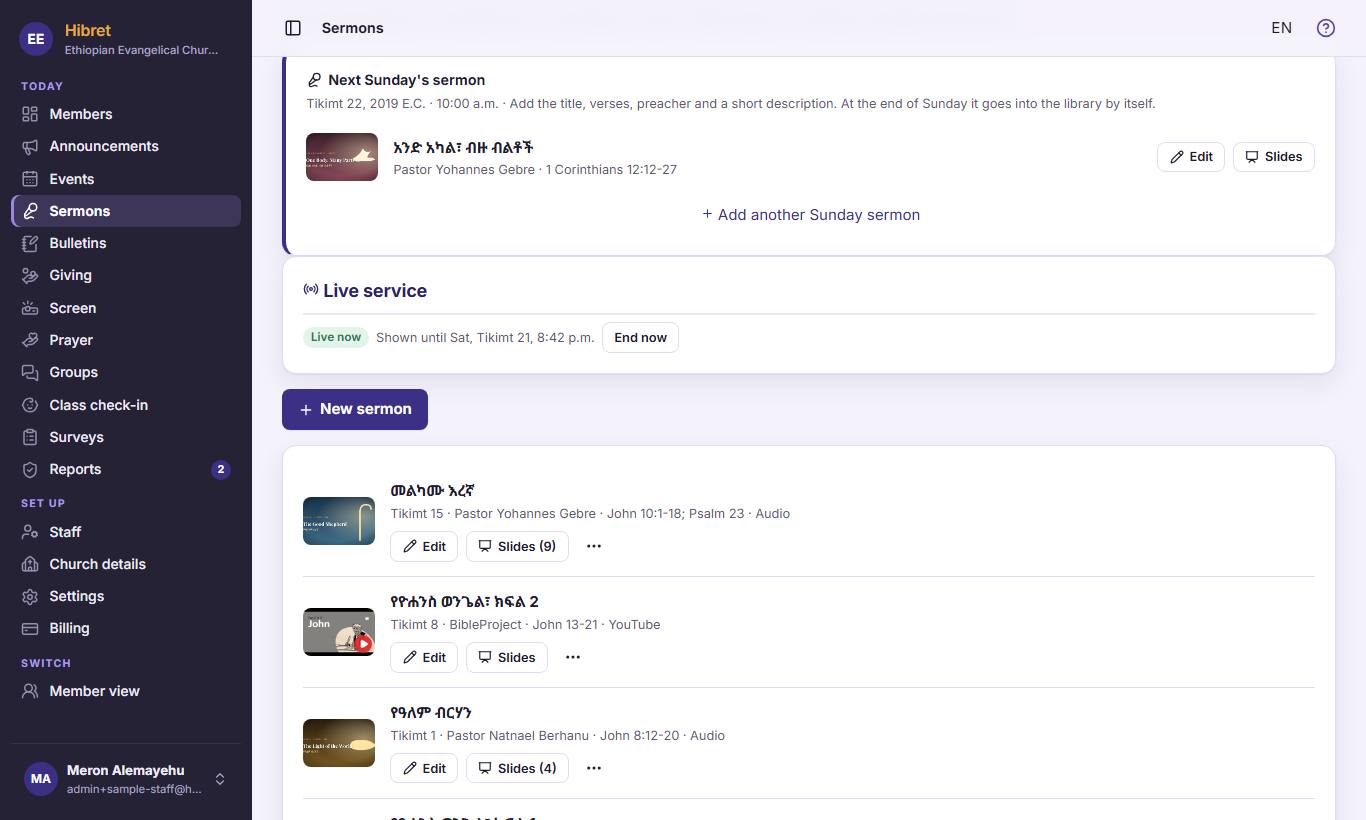
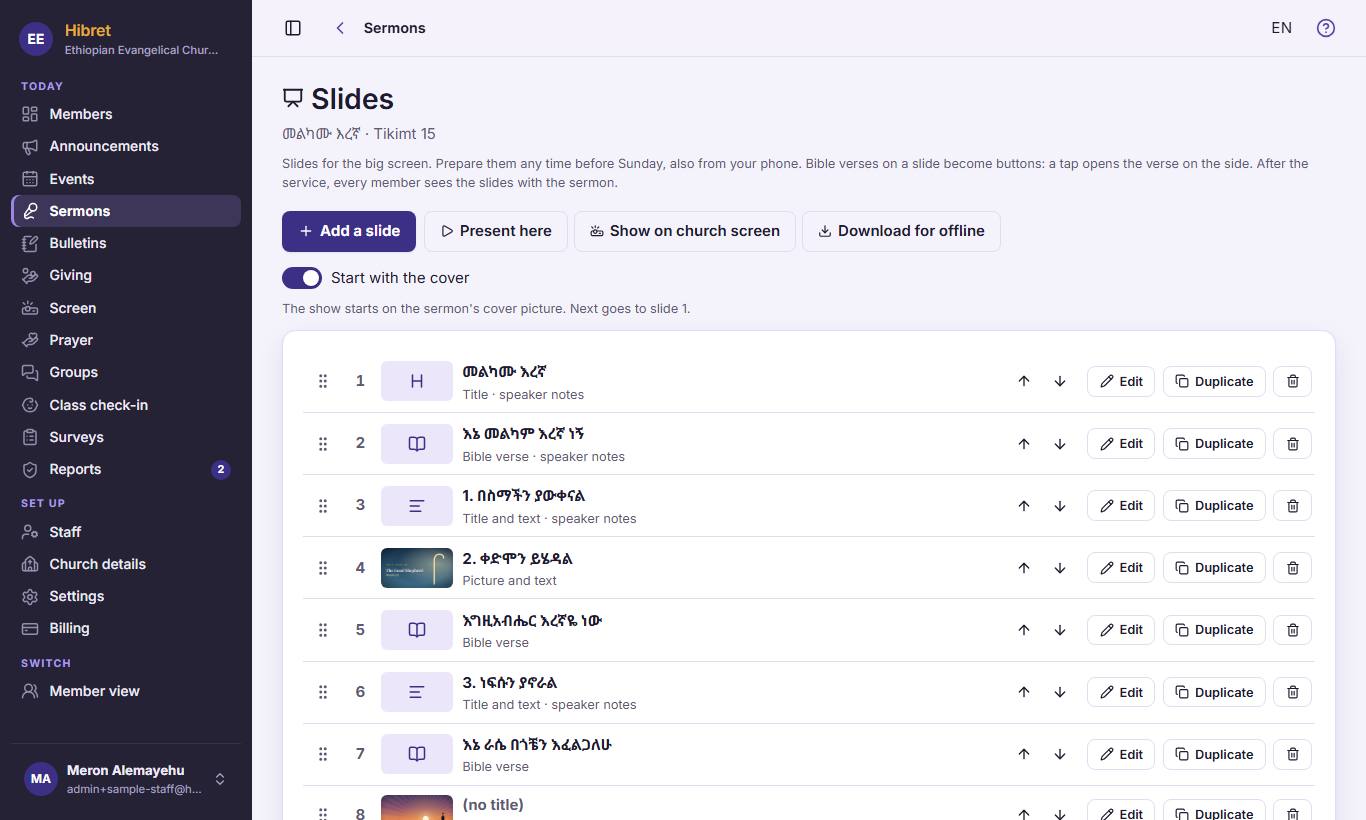
In "Sermons", press "Slides" 1 next to the sermon. The number says how many slides it has.
123
2
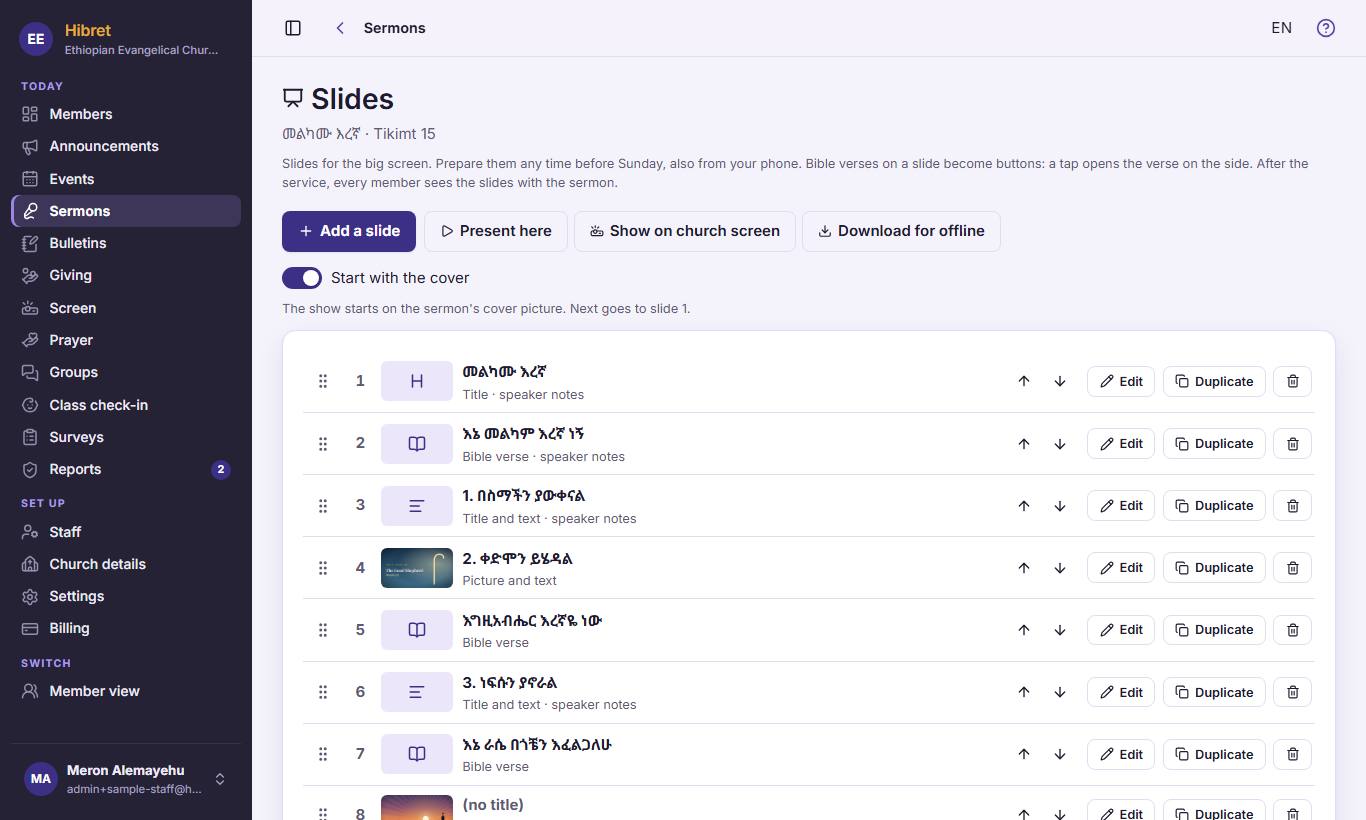
Press "Add a slide" 1 for a new slide. Move a slide up or down with the arrows 2. Press "Edit" 3 to change one.
123
3
"Present here" 1 shows the slides on this computer. "Show on church screen" 2 shows them on the church screen. "Download for offline" 3 keeps them for a church without internet.
After the service, every member sees the slides with the sermon.
Move the slides from a tablet
During the sermon, the remote moves the slides on the church screen. Use it on a tablet or a phone, signed in as staff.
1
1
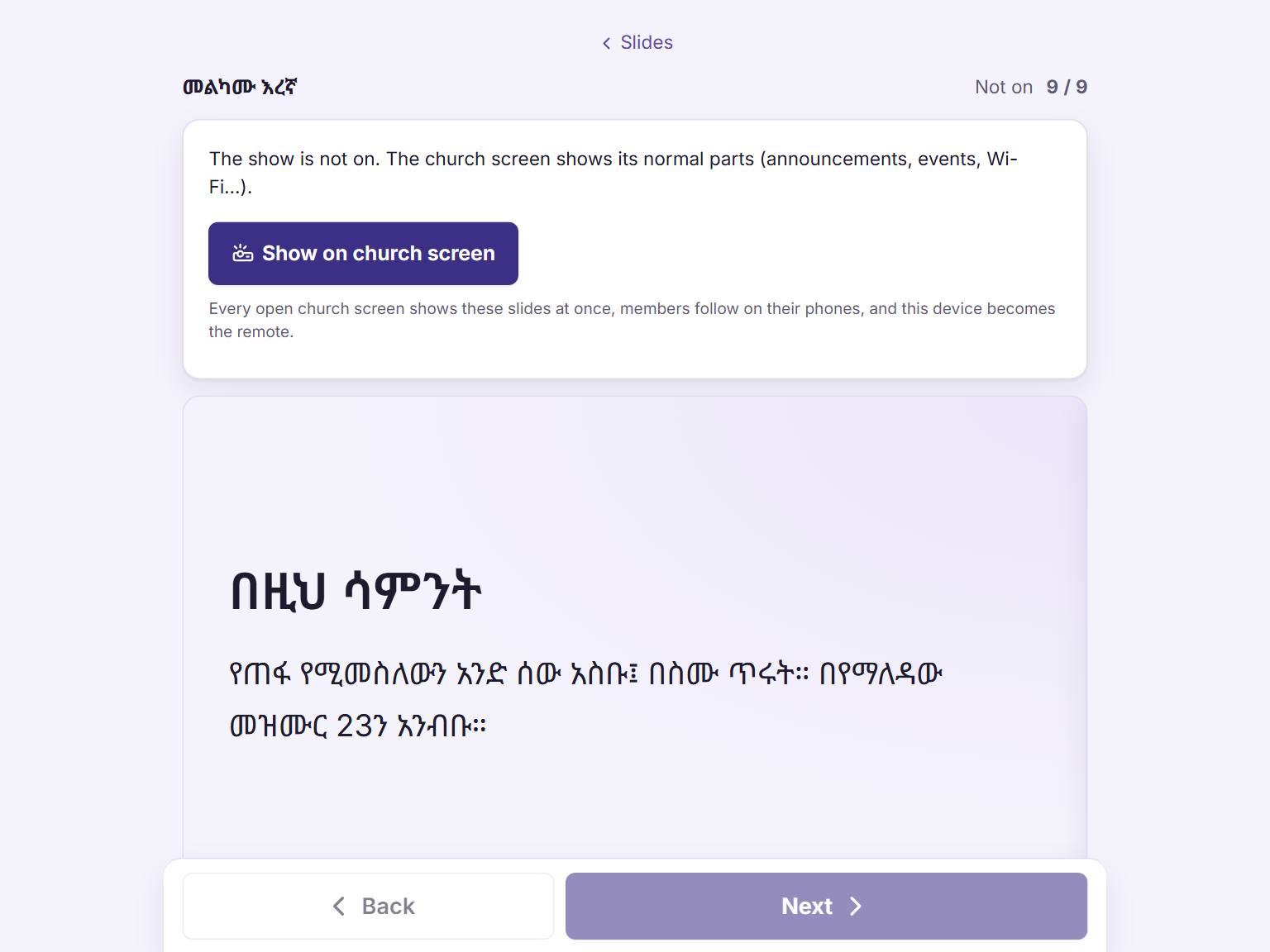
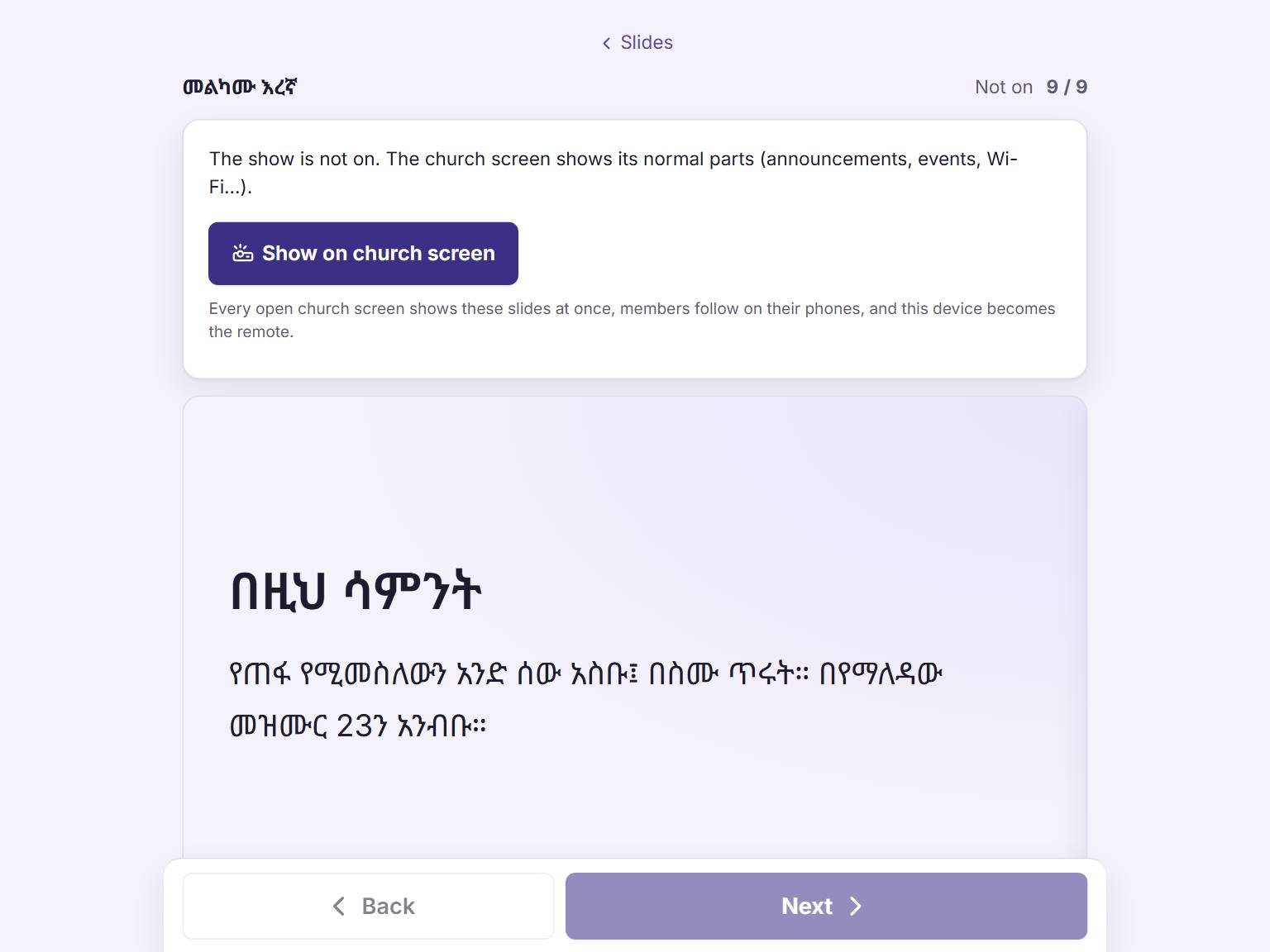
Open the sermon's slides and the remote. Press "Show on church screen" 1 when the sermon starts.
The church screen shows the first slide. The remote shows the slide that is on the screen now, and the next one.
12
2
While the show is on, press "Next" 1 for the next slide and "Back" 2 for the one before. Every open church screen follows at once.
No internet in the church? Use "Present here" on the computer that is connected to the projector.
Show the church slideshow on the projector
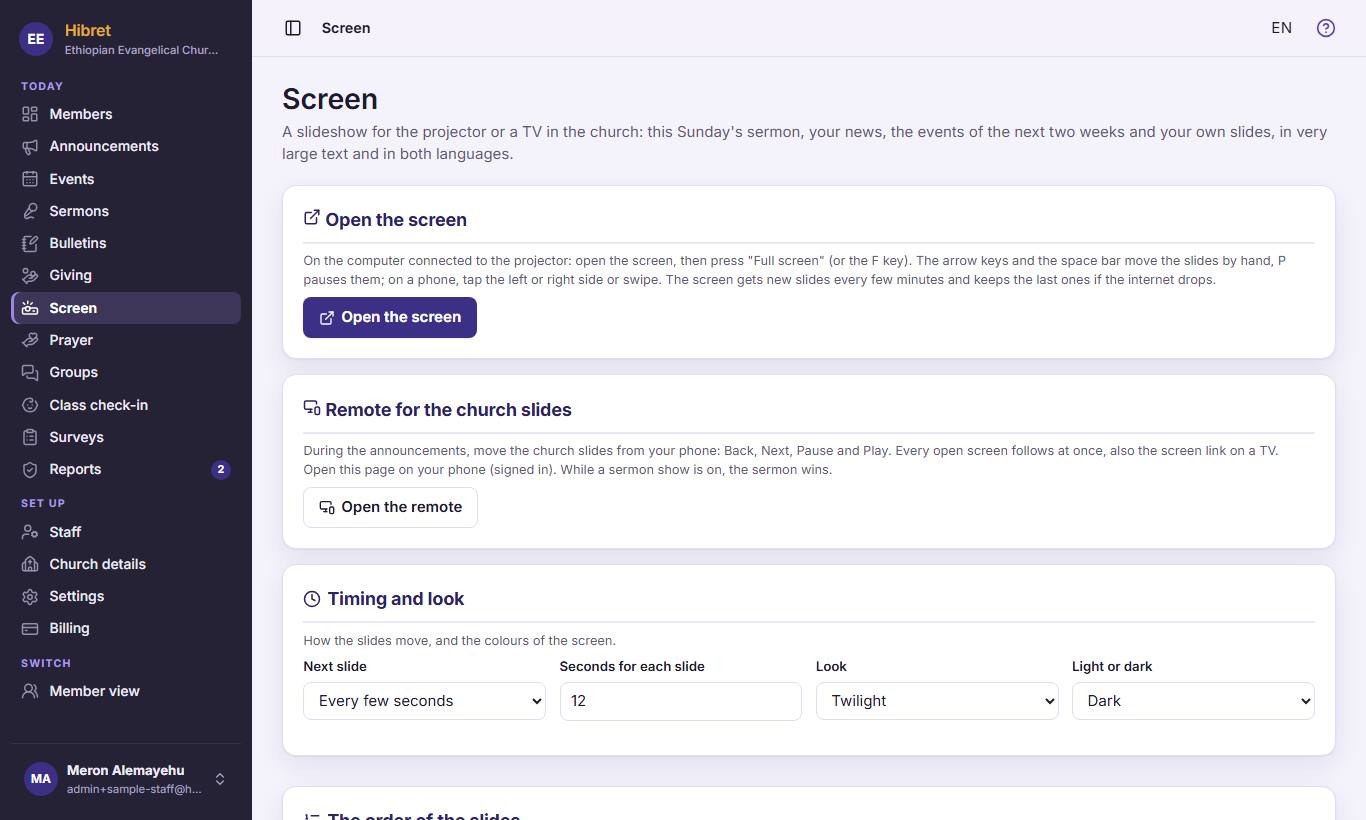
The screen shows this Sunday's sermon, your news, the events of the next two weeks and your own slides, in very large letters.
12
1
In "Screen", on the computer connected to the projector, press "Open the screen" 1. On your phone, "Open the remote" 2 moves the slides during the announcements.
Press the F key for full screen. The screen gets new slides every few minutes.
12
2
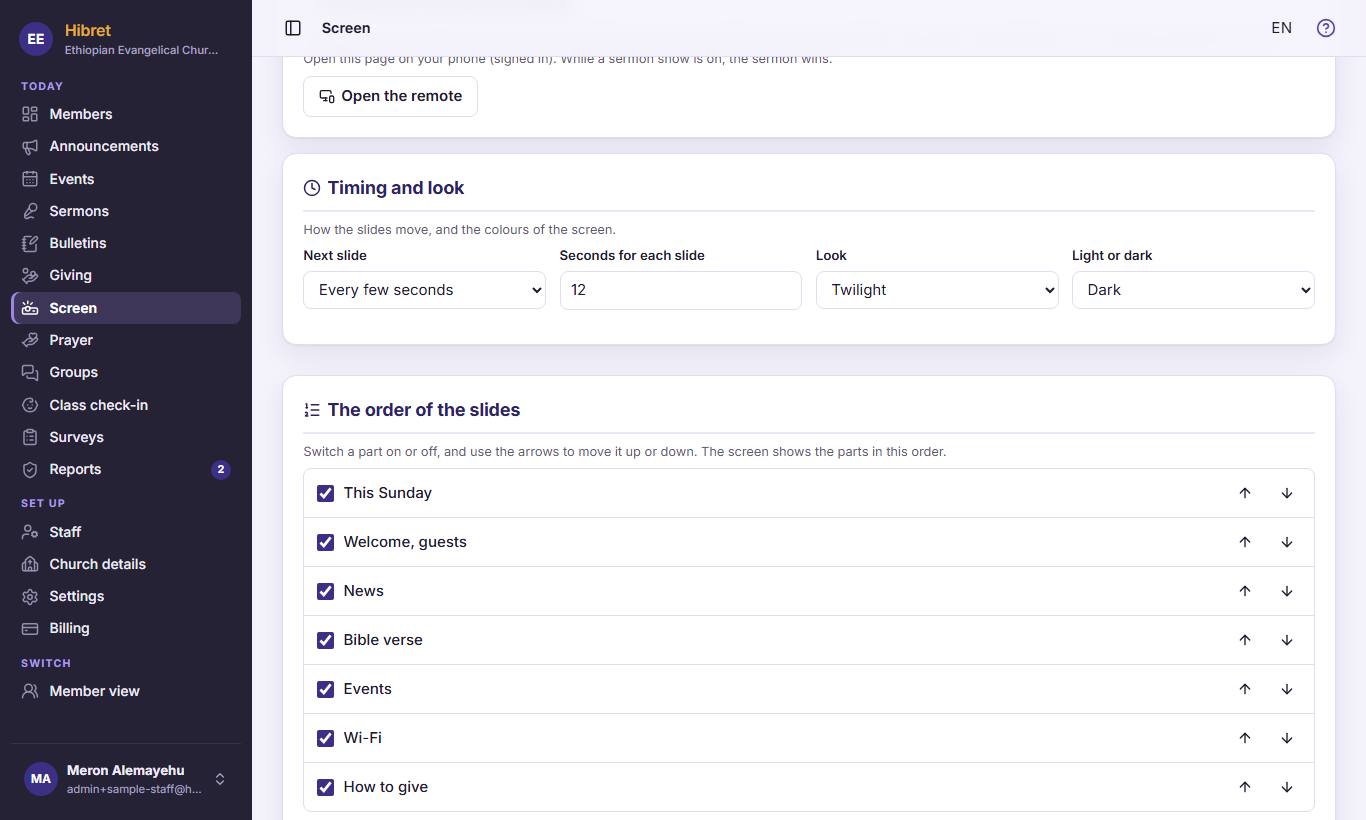
In "Timing and look" 1 choose how fast the slides move and the colours. In "The order of the slides" 2 switch a part on or off and move it up or down.
1
3
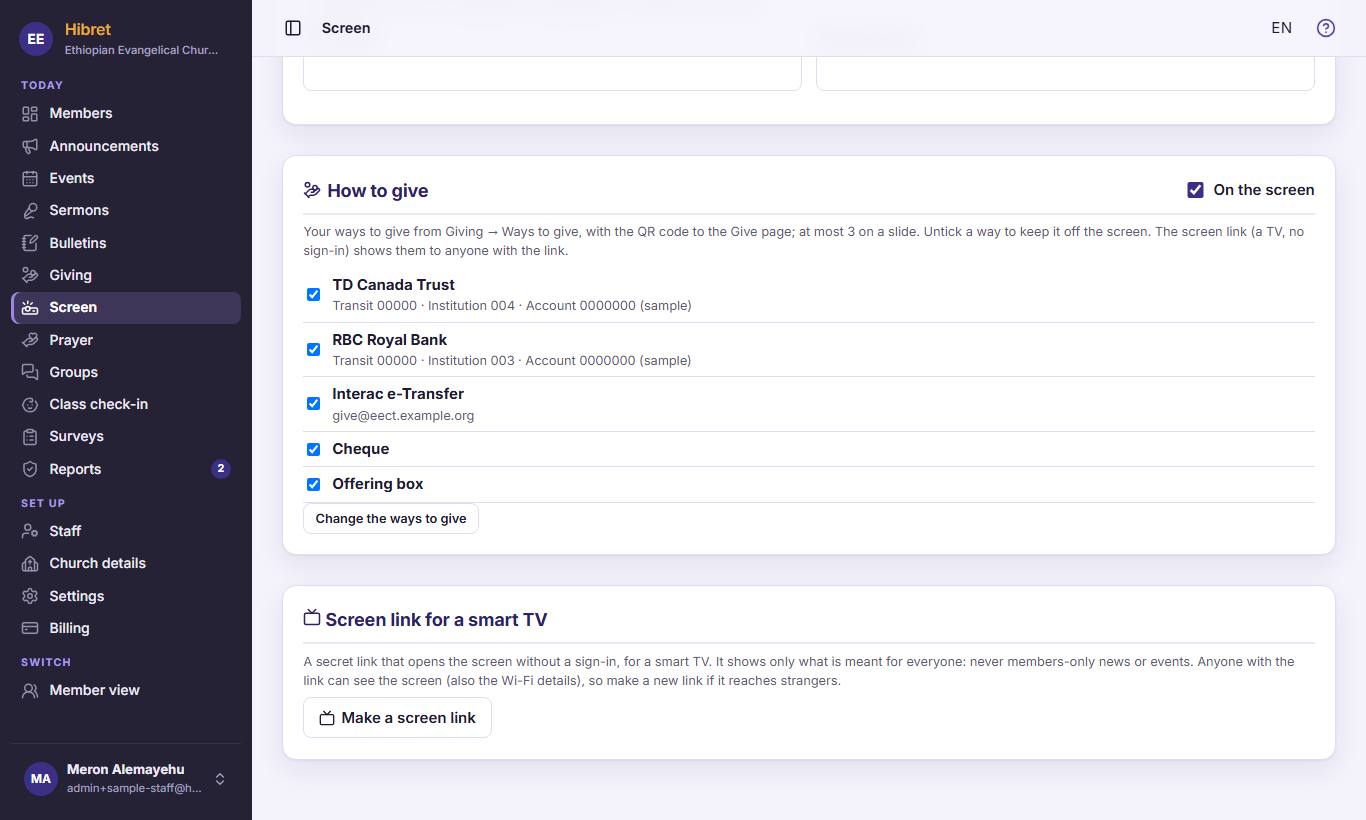
For a smart TV without a sign-in, press "Make a screen link" 1.
The link shows only what is meant for everyone. Make a new link if it reaches strangers.
Write the Sunday bulletin
The bulletin is the sermon outline. Members fill in the blanks during the sermon and keep their own notes.
1
1
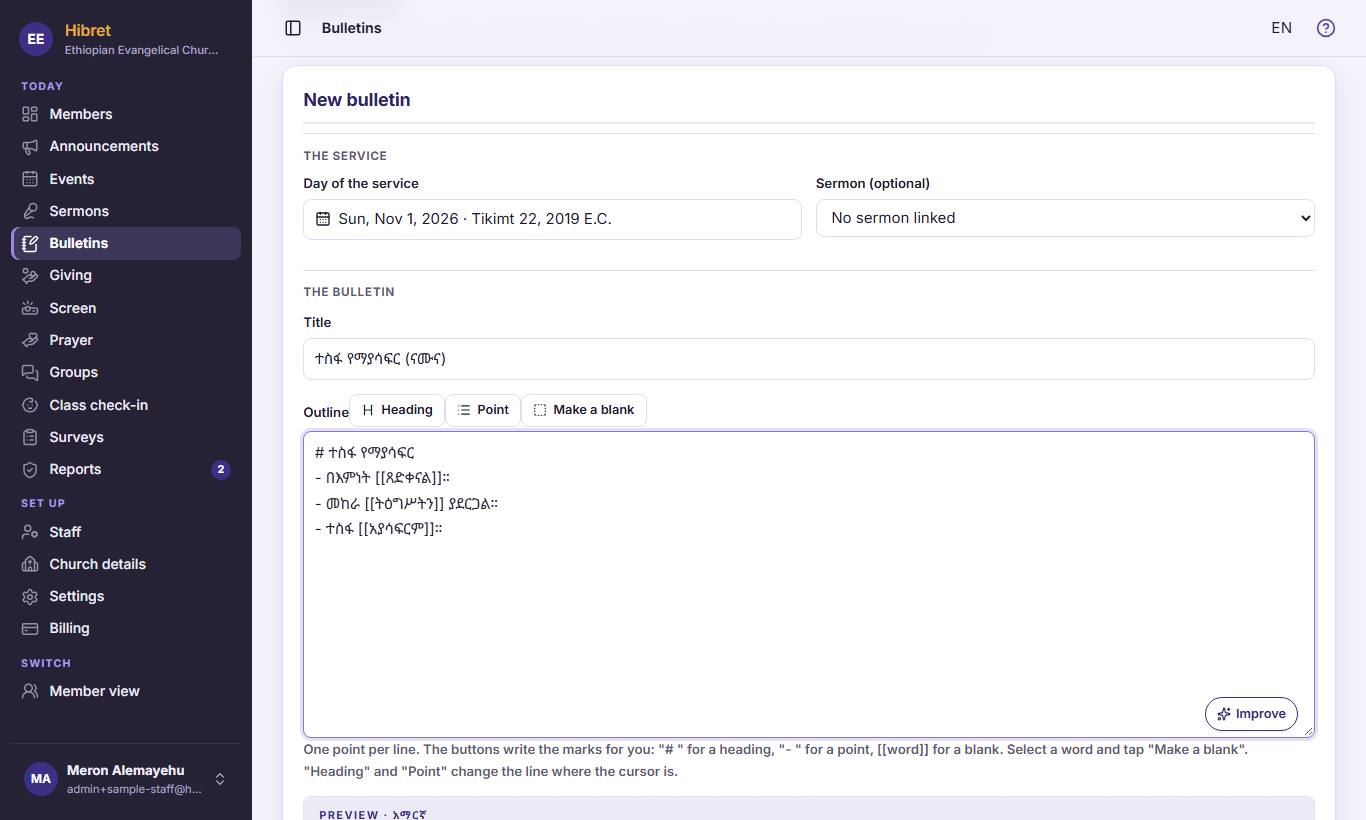
In "Bulletins", press "New bulletin" 1.
12345
2
Choose the day of the service 1 and the sermon 2. Write the title 3 and the outline 4: one point per line. Select a word and press "Make a blank" 5; members fill it in.
123
3
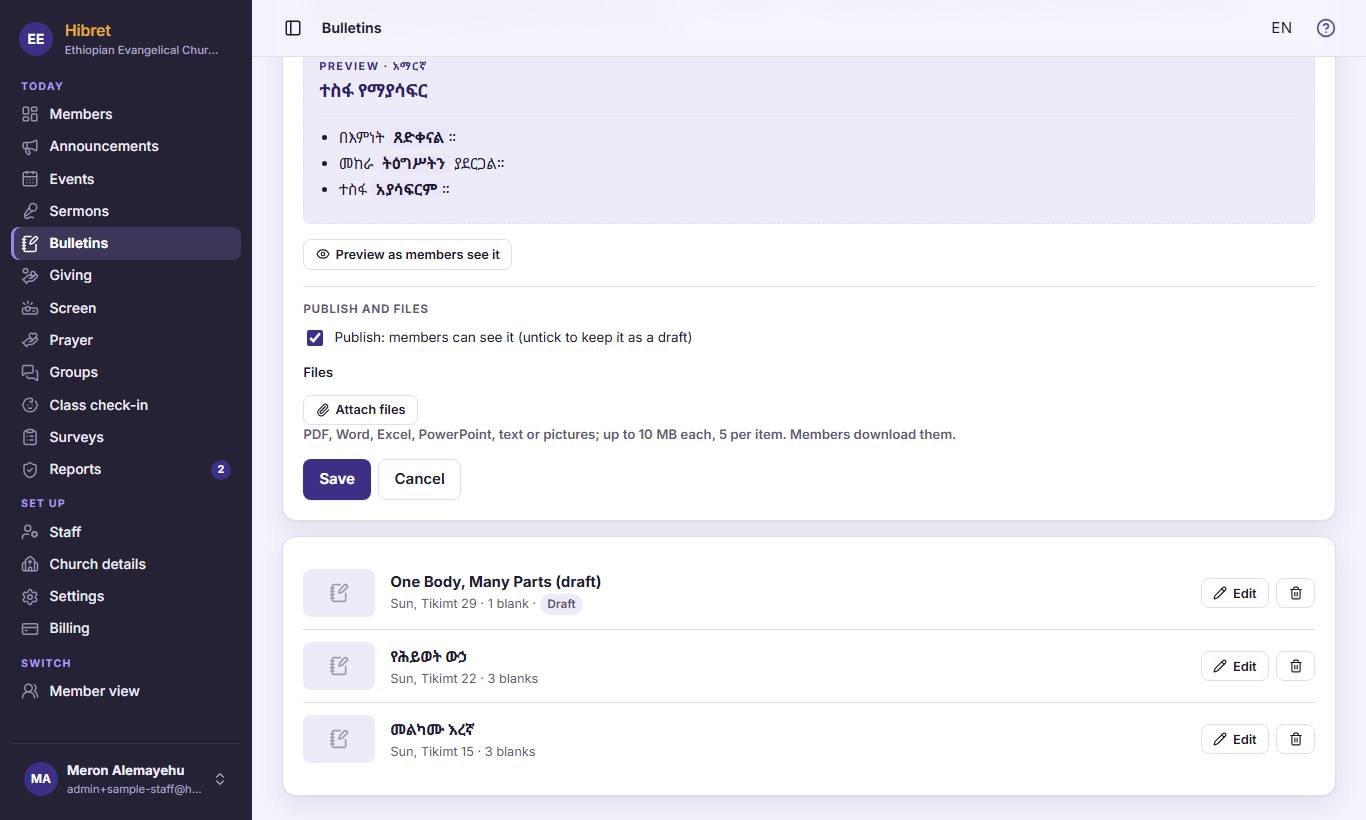
Press "Preview as members see it" 1 to see it as members do. Add files to download 2, like a song sheet. Press "Save" 3.
Members open the bulletin from Sunday's sermon.
Add files to download
News, events, sermons and bulletins can carry files: PDF, Word, Excel, PowerPoint or pictures. Members download them.
12
1
In the editor, press "Attach files" 1 and choose up to 5 files of 10 MB each. You can also add a survey 2 that members fill out from here.
The files show under the news. Members tap one to download it.
Create a group
Groups have their own chat and news: a choir, a home cell, the youth. Staff create them and choose the first leader.
1
1
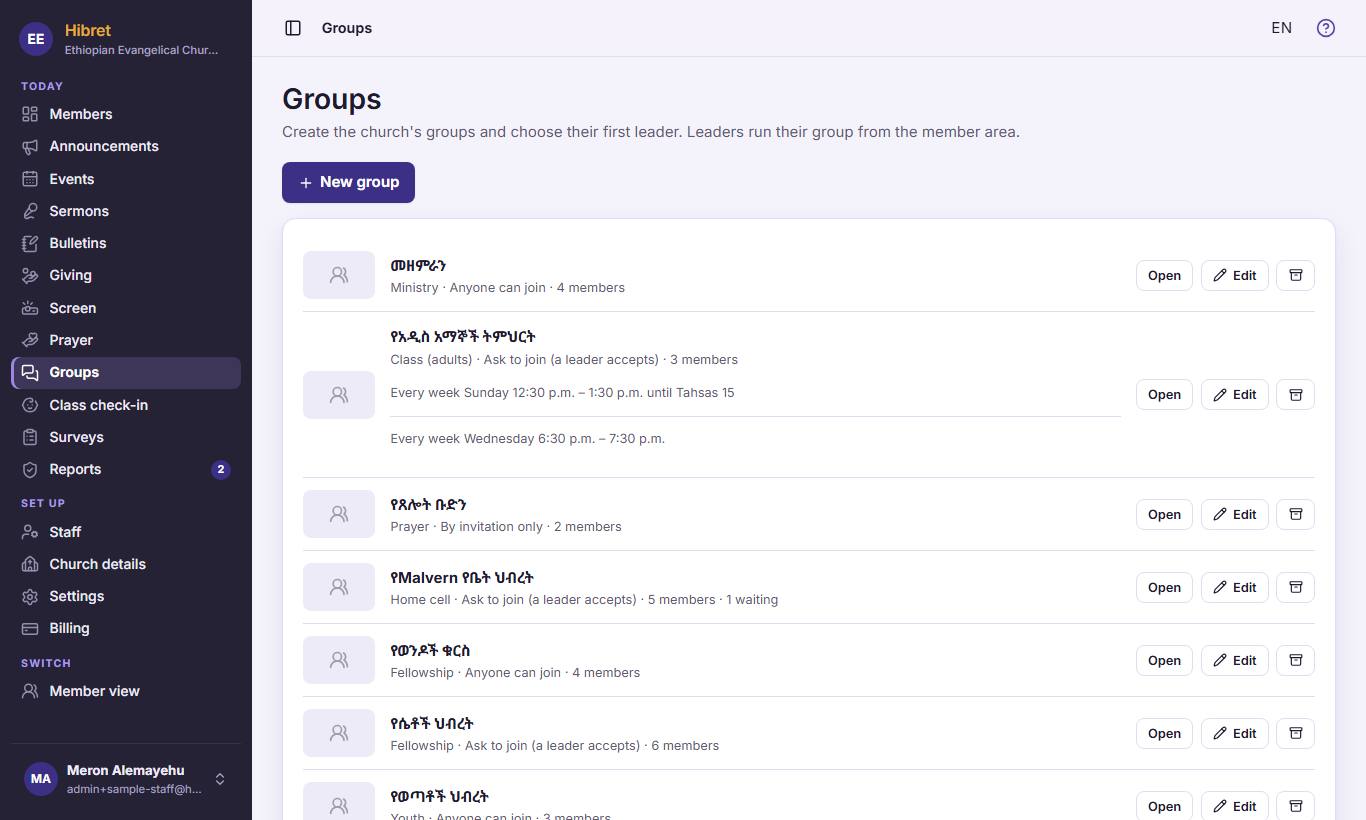
In "Groups", press "New group" 1.
12345
2
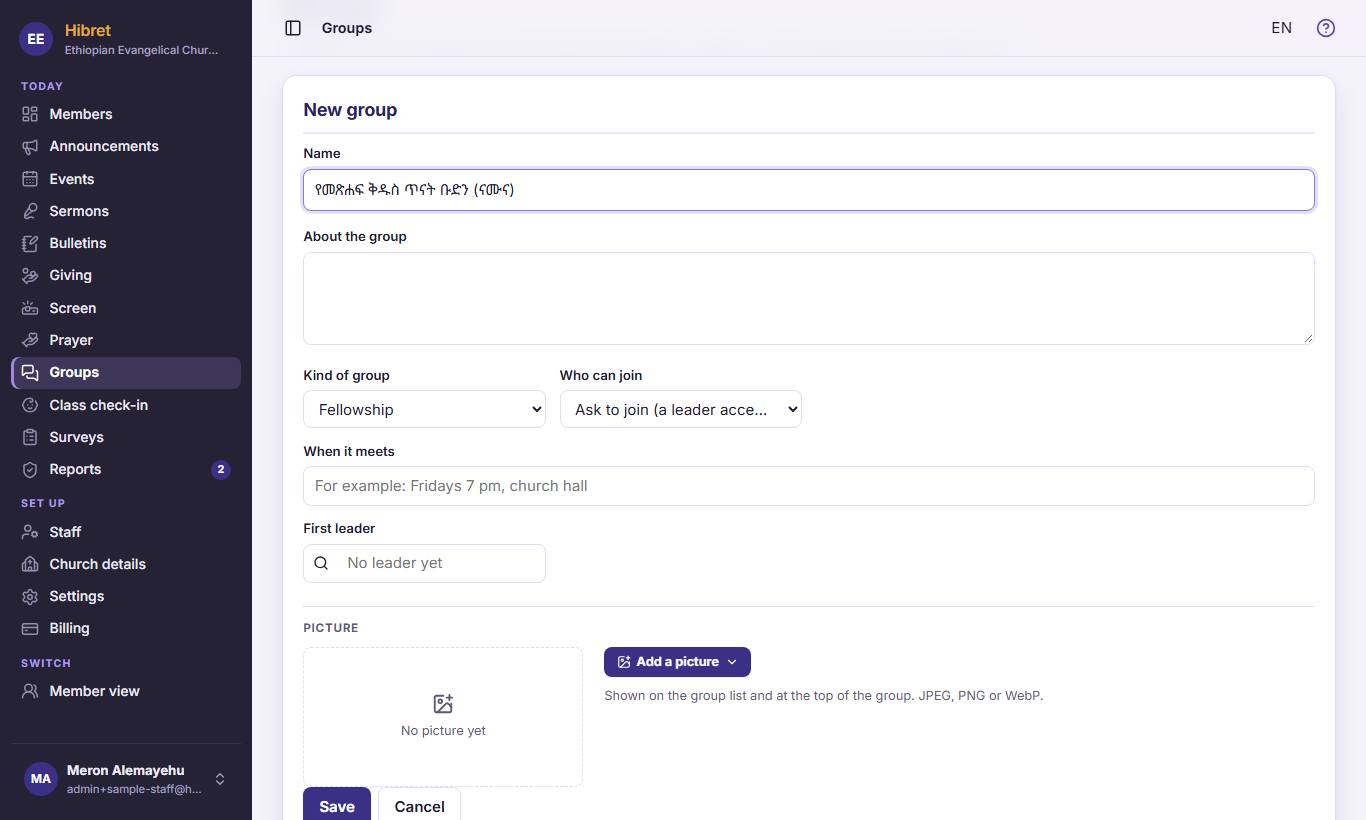
Write the name 1. Choose the "Kind of group" 2 and "Who can join" 3. Choose the "First leader" 4. Press "Save" 5.
The leader runs the group from the member area: members, chat and news.
Create a class with class times
A class is a group that meets at set times, like Sunday school. Its times go into the calendar, and children can be checked in.
1234
1
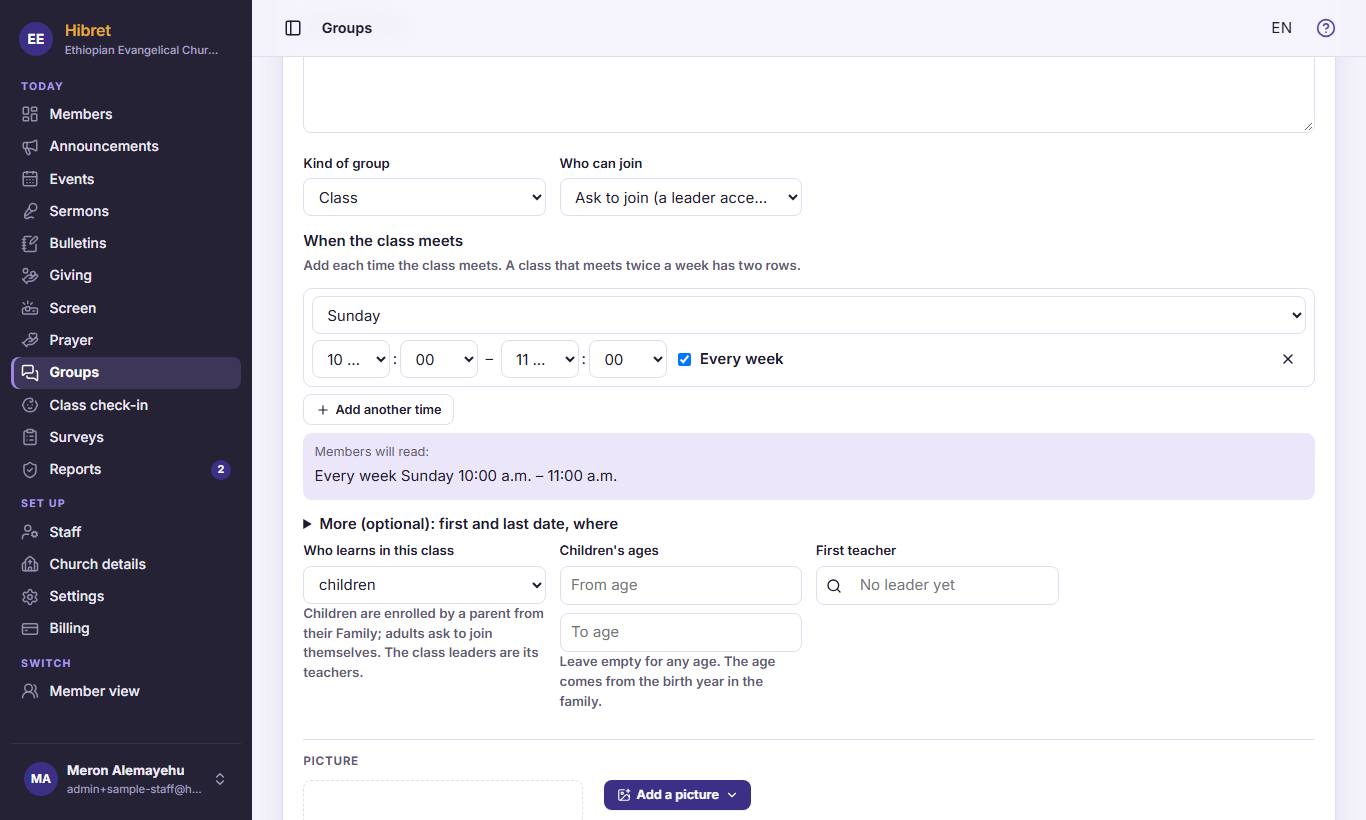
In "New group", choose "Class" as the kind 1. Press "Add a time", then choose the day 2 and the hours 3 the class meets. A class that meets twice a week has two rows: press "Add another time" 4.
12
2
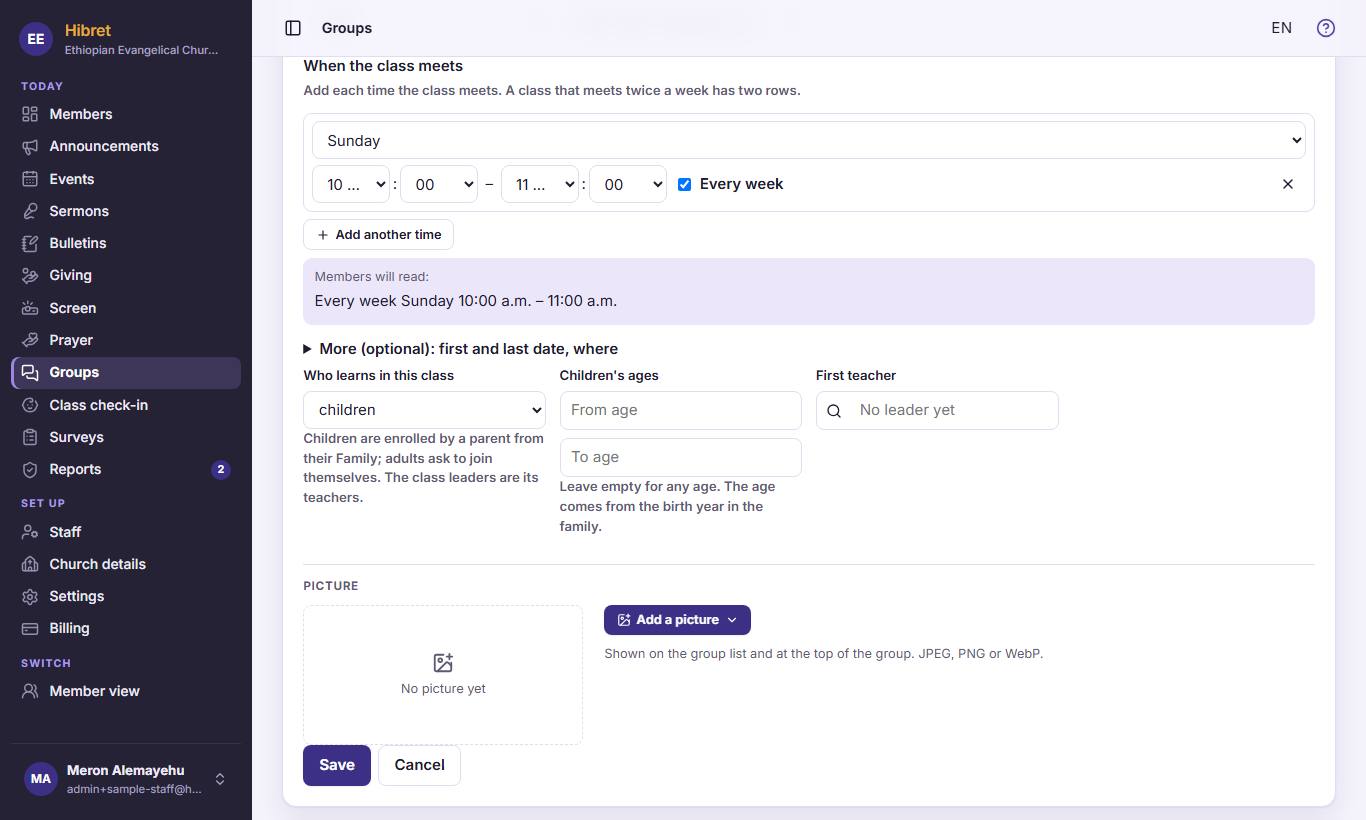
Choose "Who learns in this class" 1: children or adults. Press "Save" 2.
Parents enroll their children from their Family. The class leaders are its teachers.
Children's check-in: the overview
Class check-in shows today's classes, who is in class and who was picked up. Teachers and staff use it.
12345
1
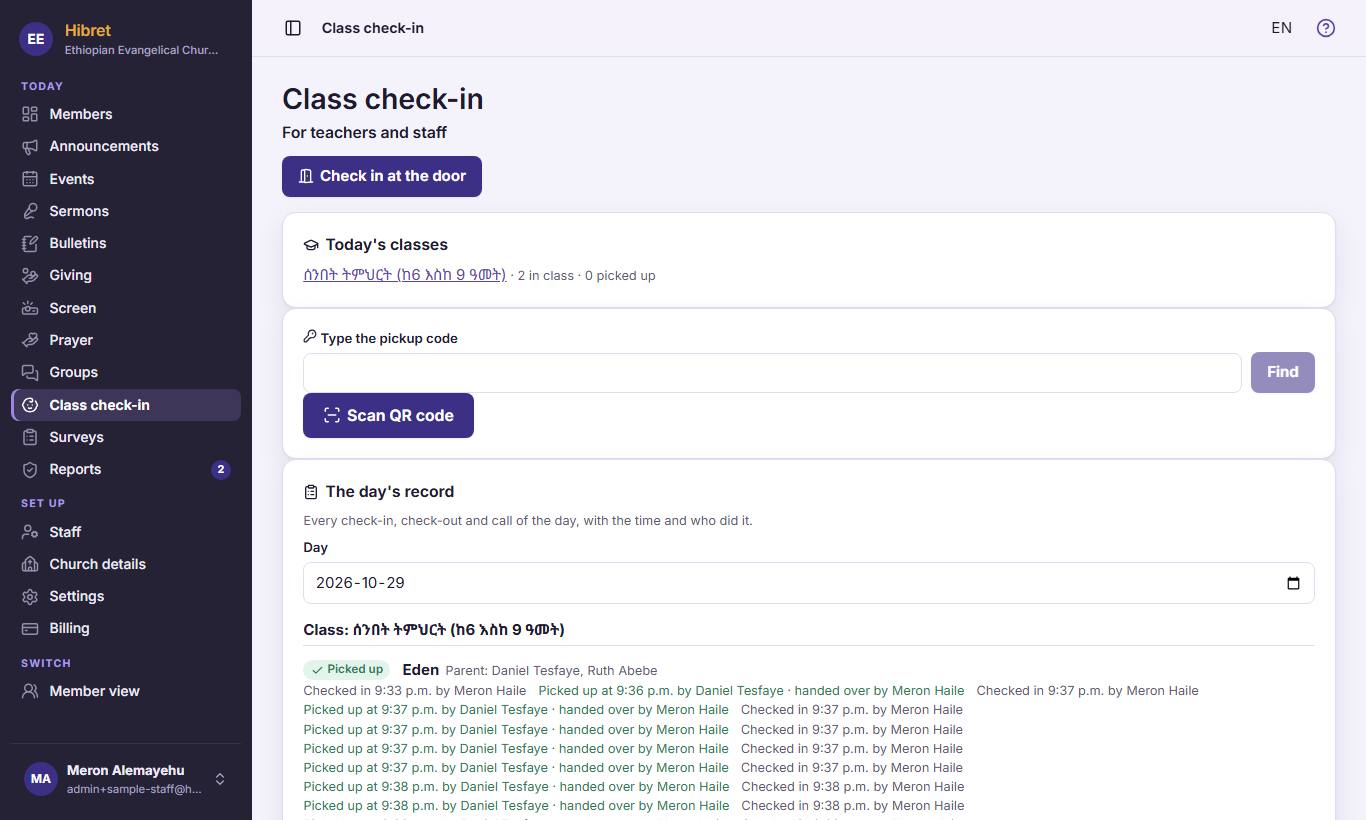
"Check in at the door" 1 checks children in when families arrive. "Today's classes" 2 lists each class with the number in class. For pickup, type the code 3 or press "Scan QR code" 4. "The day's record" 5 shows every check-in of a day.
12
2
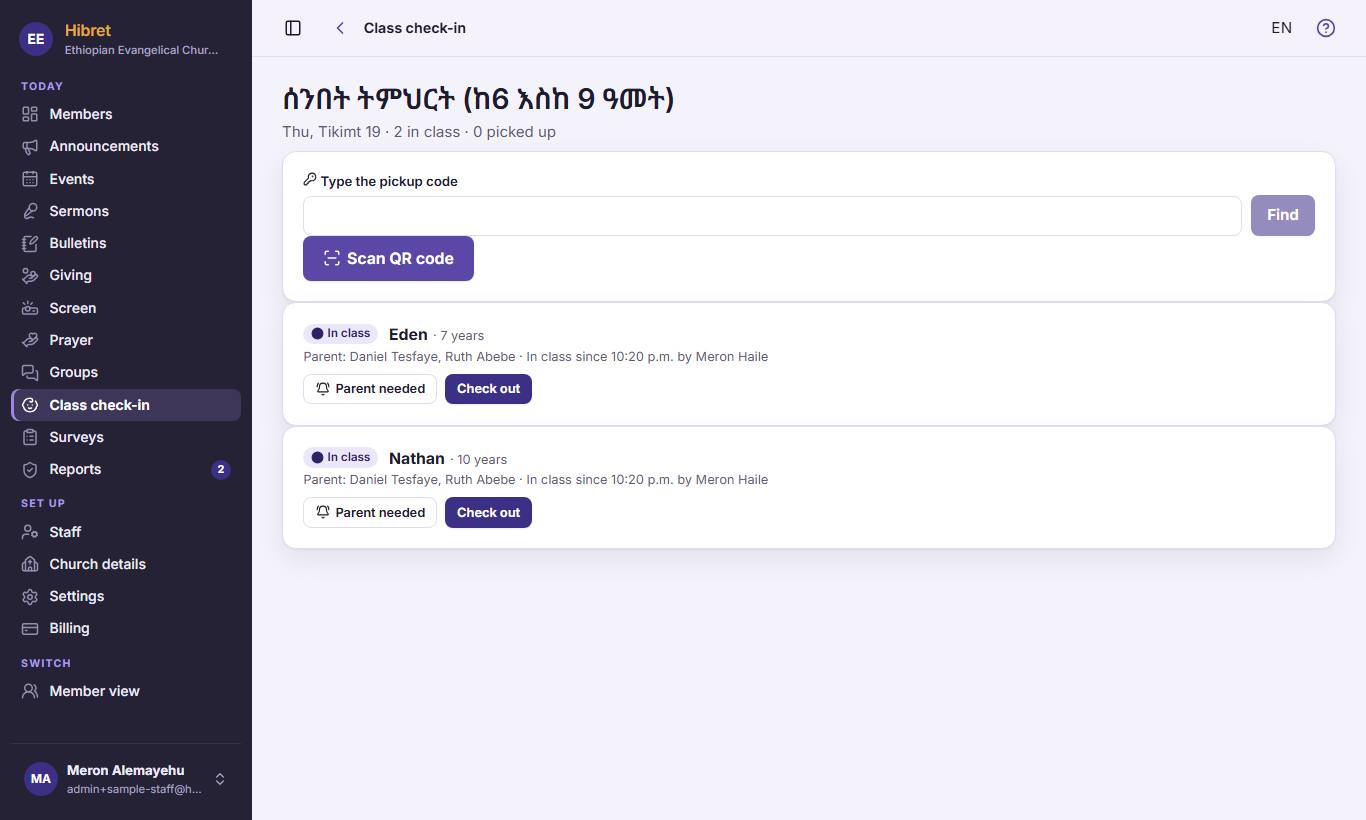
Open a class. Press "Parent needed" 1 to call a parent. Press "Check out" 2 when the child is picked up.
The parent gets a message at once.
Make a survey
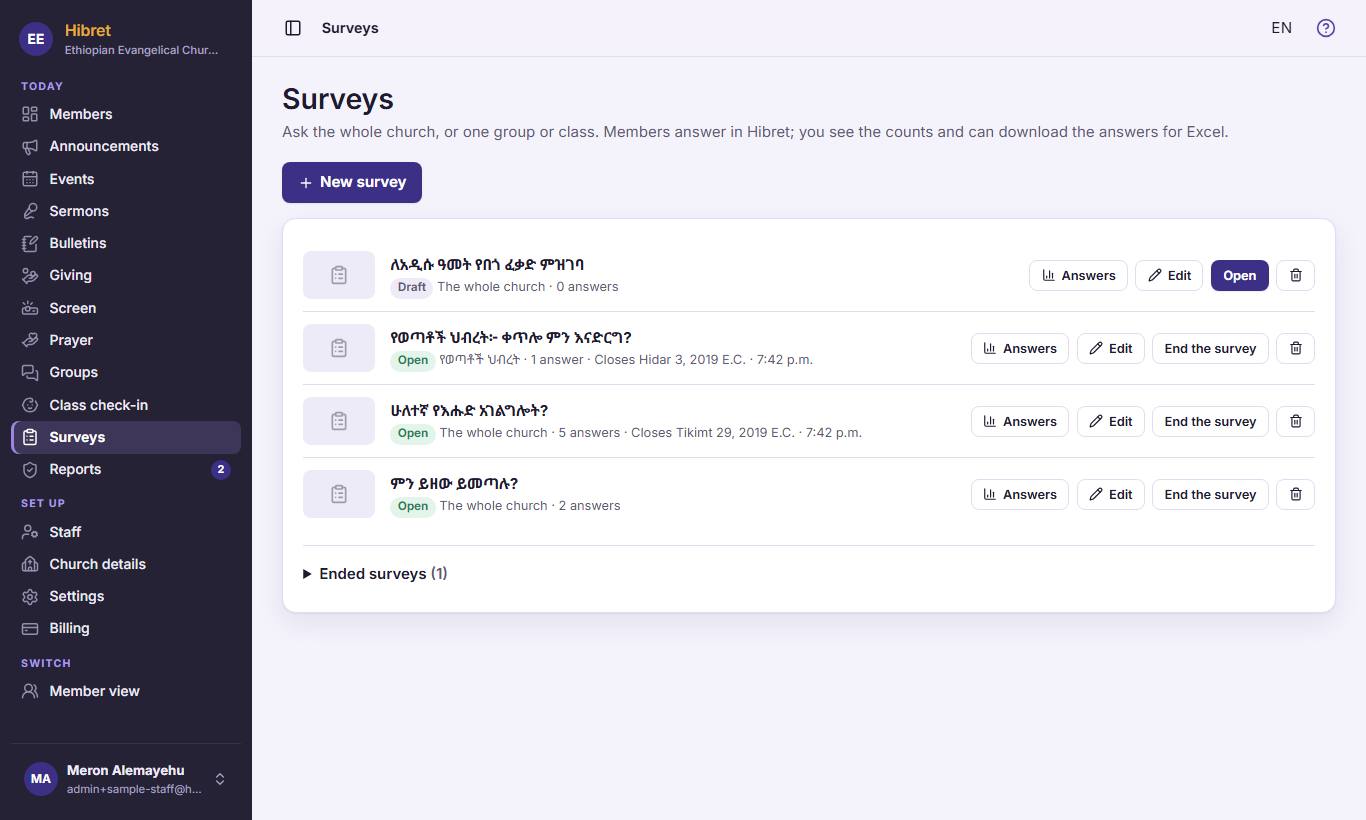
Ask the whole church, or one group or class. Members answer in Hibret.
1
1
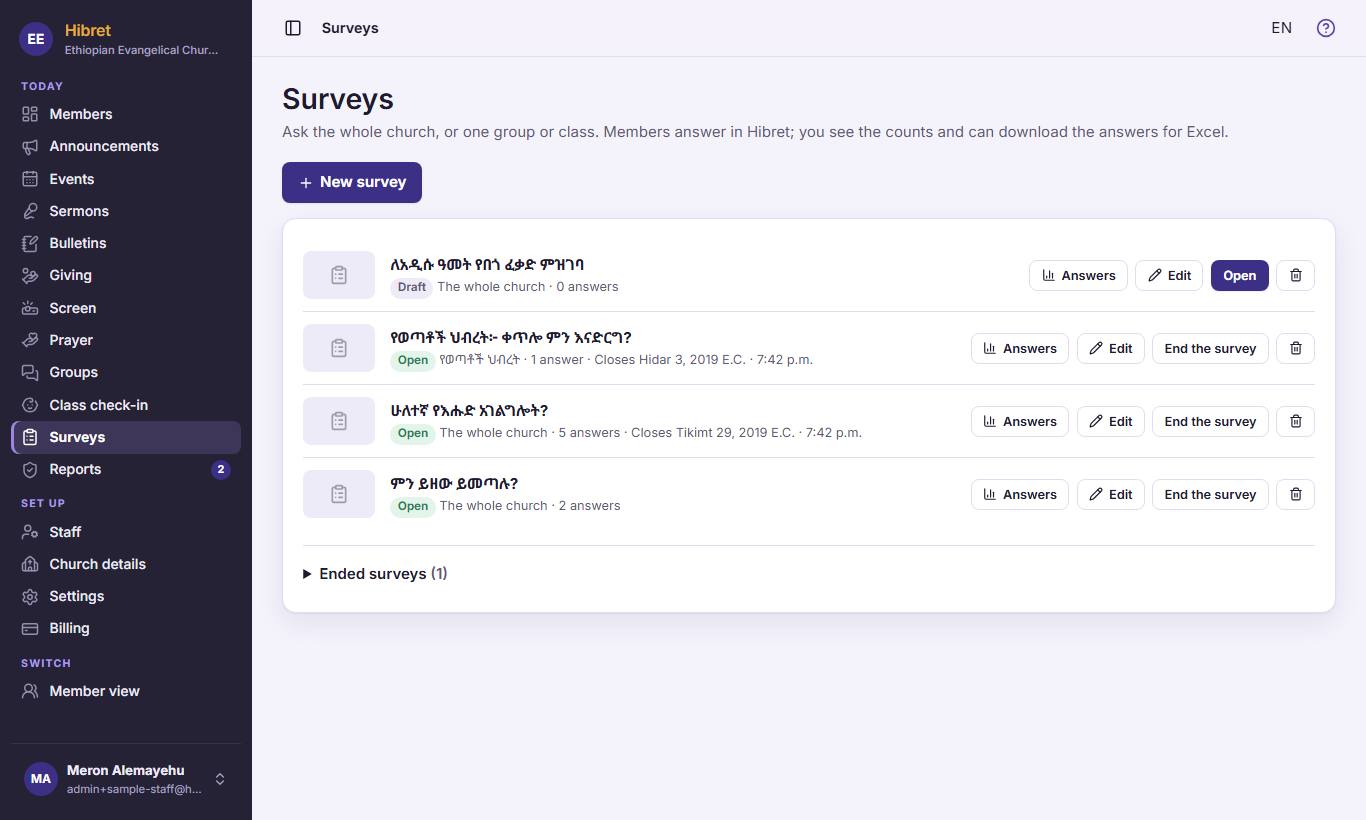
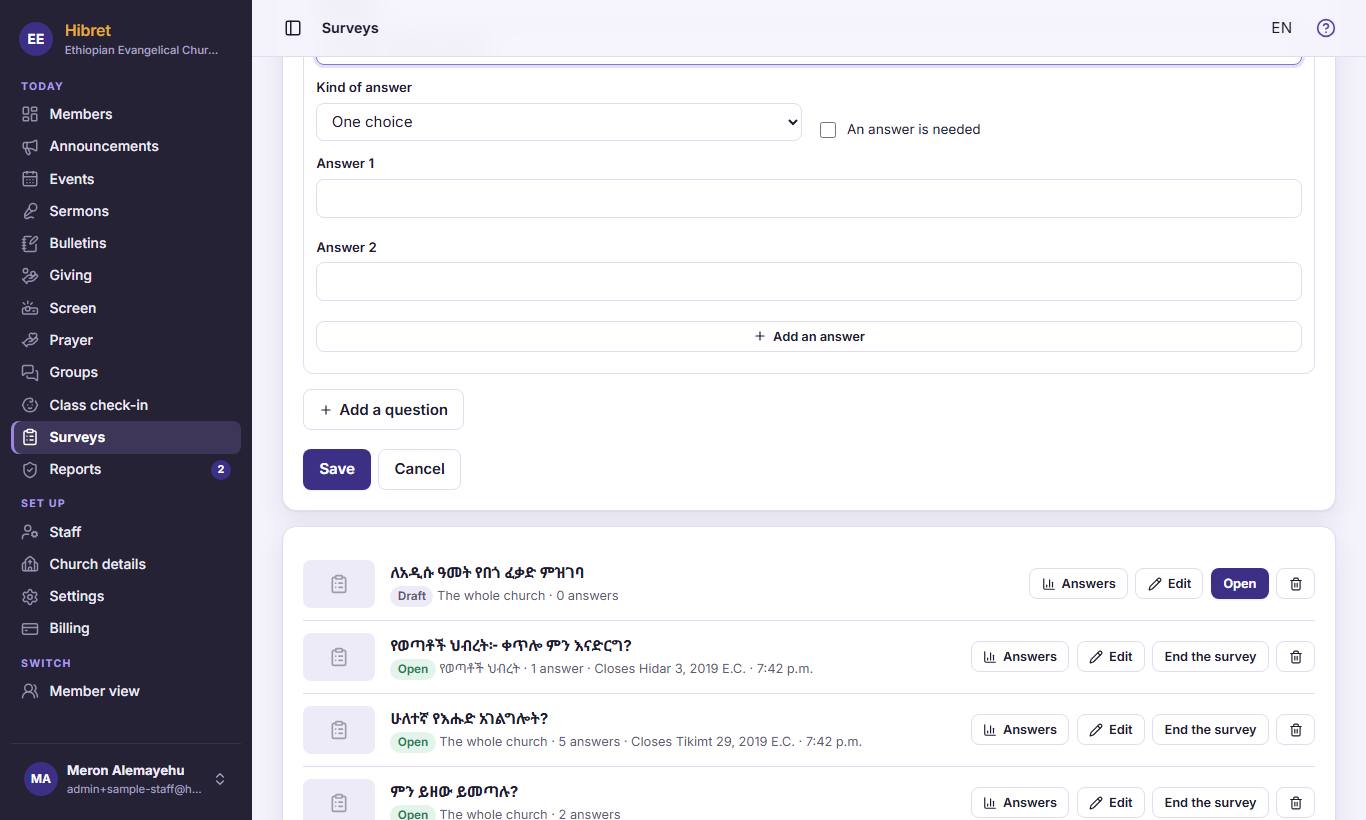
In "Surveys", press "New survey" 1.
12345
2
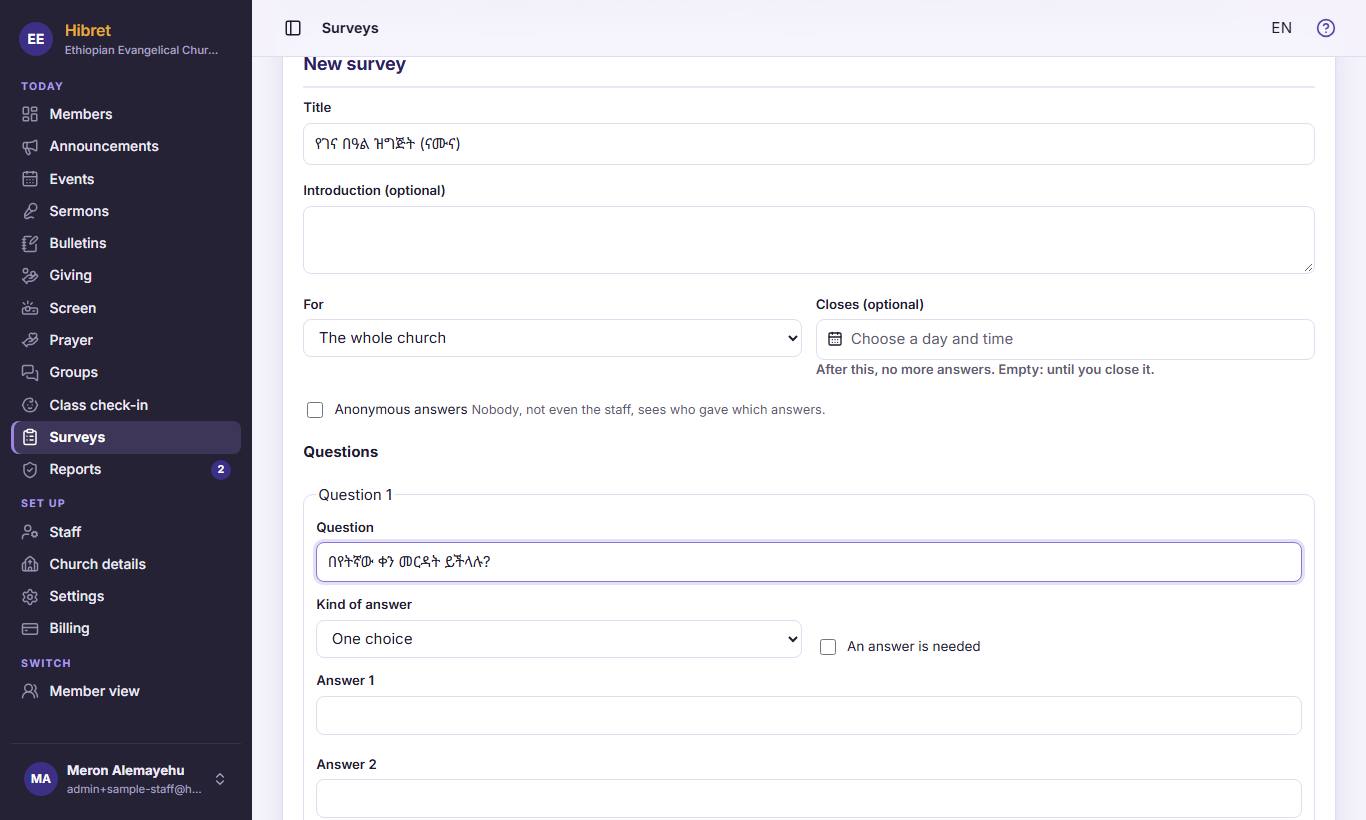
Write the title 1. Choose who it is "For" 2. Tick "Anonymous answers" 3 if nobody should see who answered what. Write the question 4 and choose the "Kind of answer" 5.
123
3
Press "Add an answer" 1 for more answers, and "Add a question" 2 for the next question. Press "Save" 3.
The survey is saved as a draft. Press "Open" in the list when members may answer.
See the answers of a survey
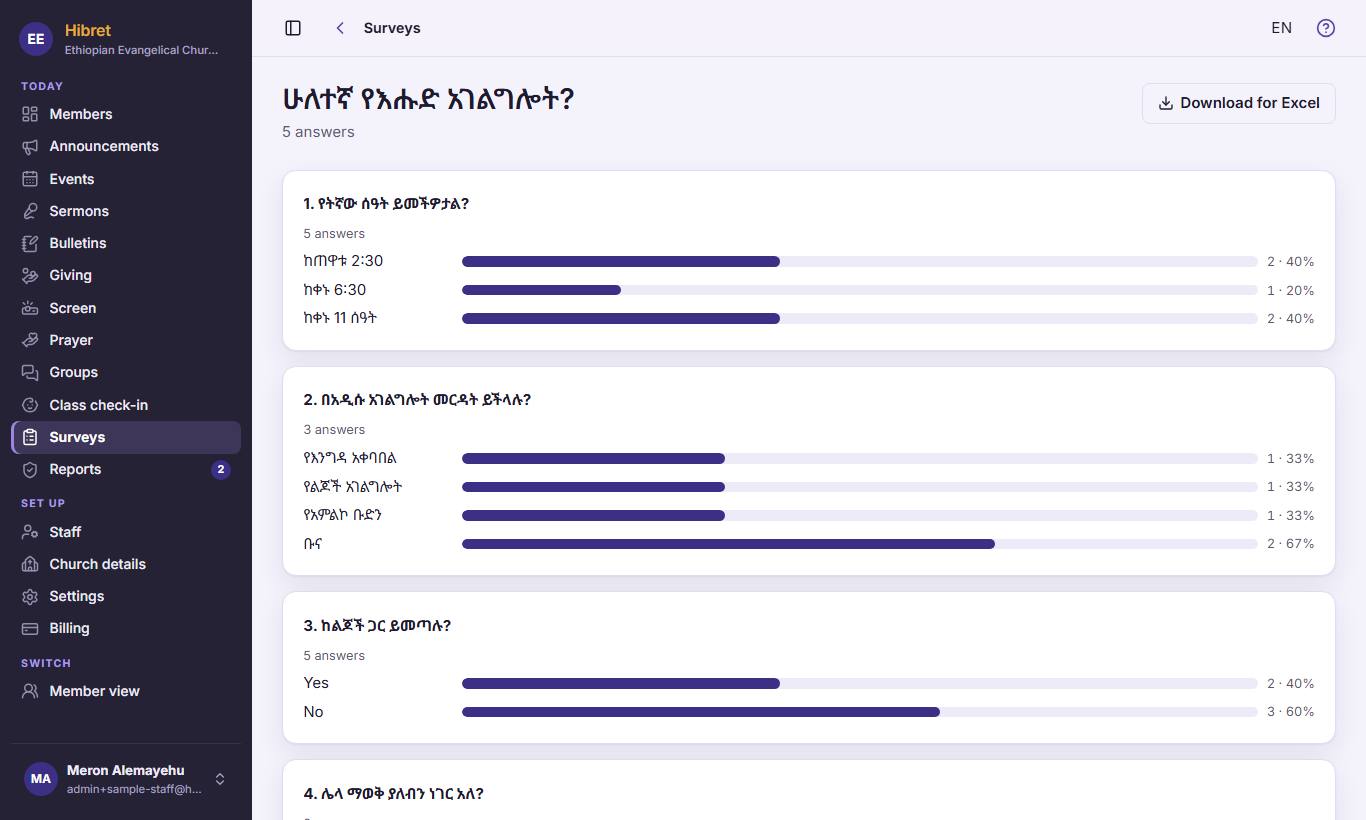
You see the counts for each question and can download all the answers for Excel.
1
1
In "Surveys", press "Answers" 1 next to the survey.
12
2
Each question shows the answers and how many chose each one 1. Press "Download for Excel" 2 for Excel.
At the bottom, "Who answered" lists the people (not for anonymous surveys).
Look after the prayer board
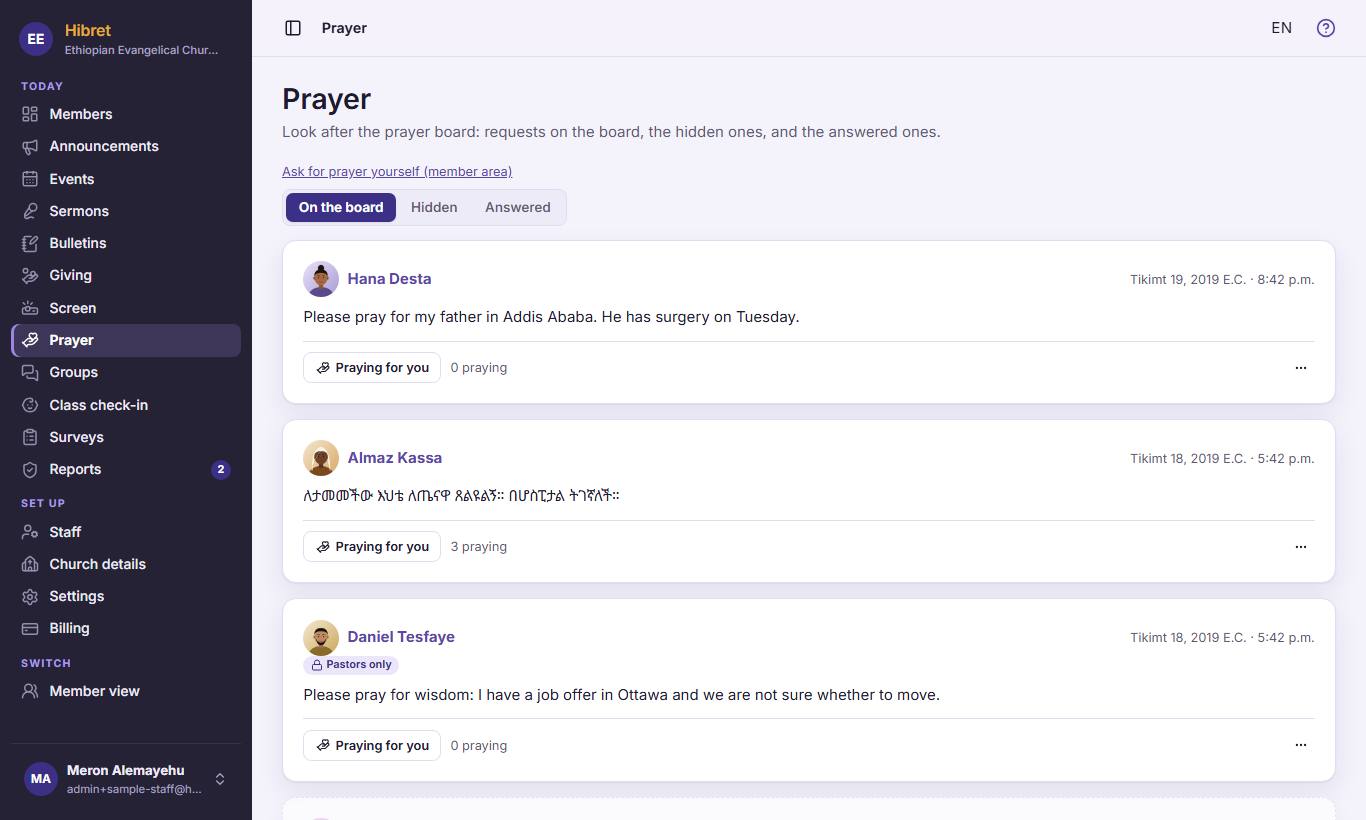
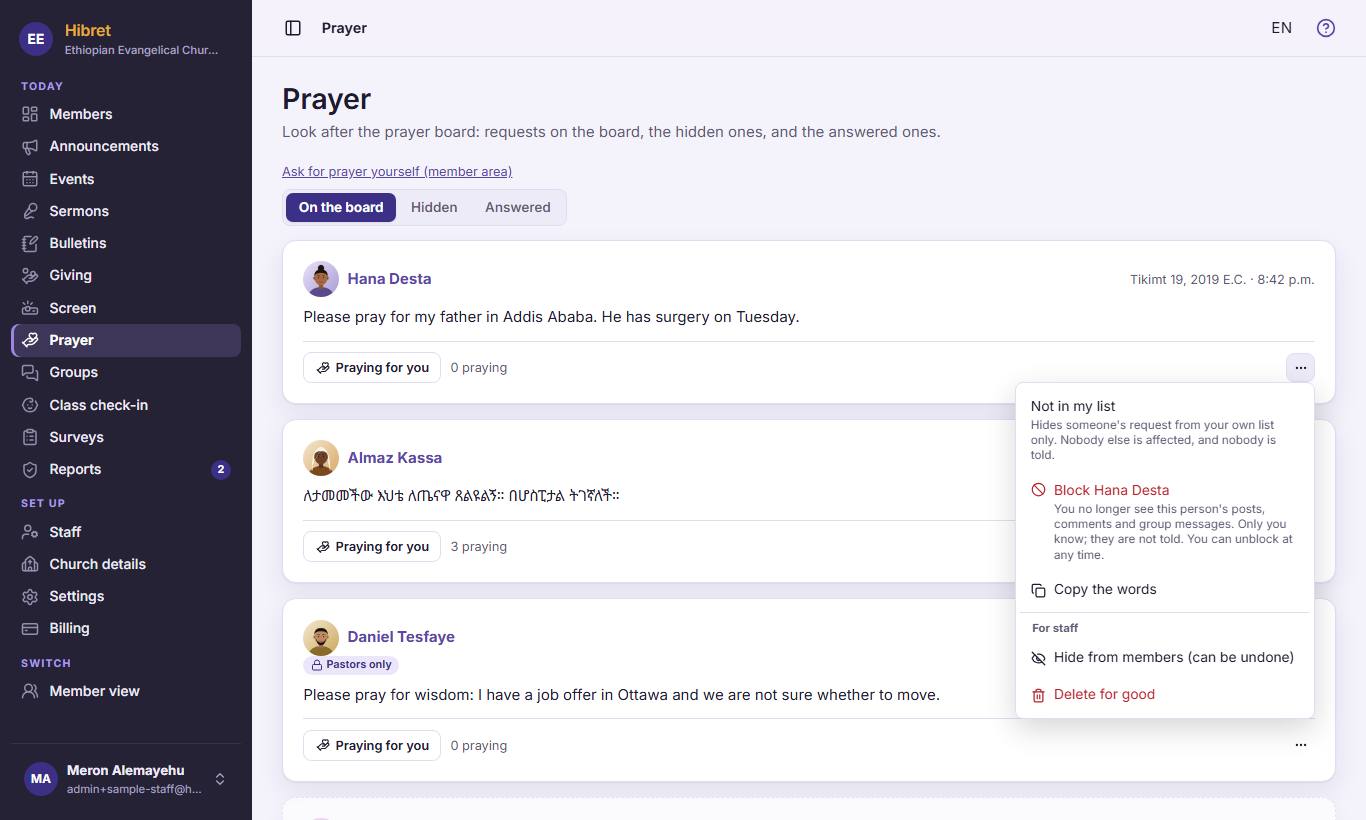
Staff see every prayer request, also the ones for pastors only. Hide a request that does not belong on the board.
1234
1
"On the board" 1 shows what members see now. "Hidden" 2 holds what staff hid, and "Answered" 3 the answered prayers. Requests for pastors only 4 are not shown to members.
12
2
Press ··· 1 on a request. "Hide from members (can be undone)" 2 takes it off the board; you can undo it.
"Delete for good" always asks first.
Answer what members reported
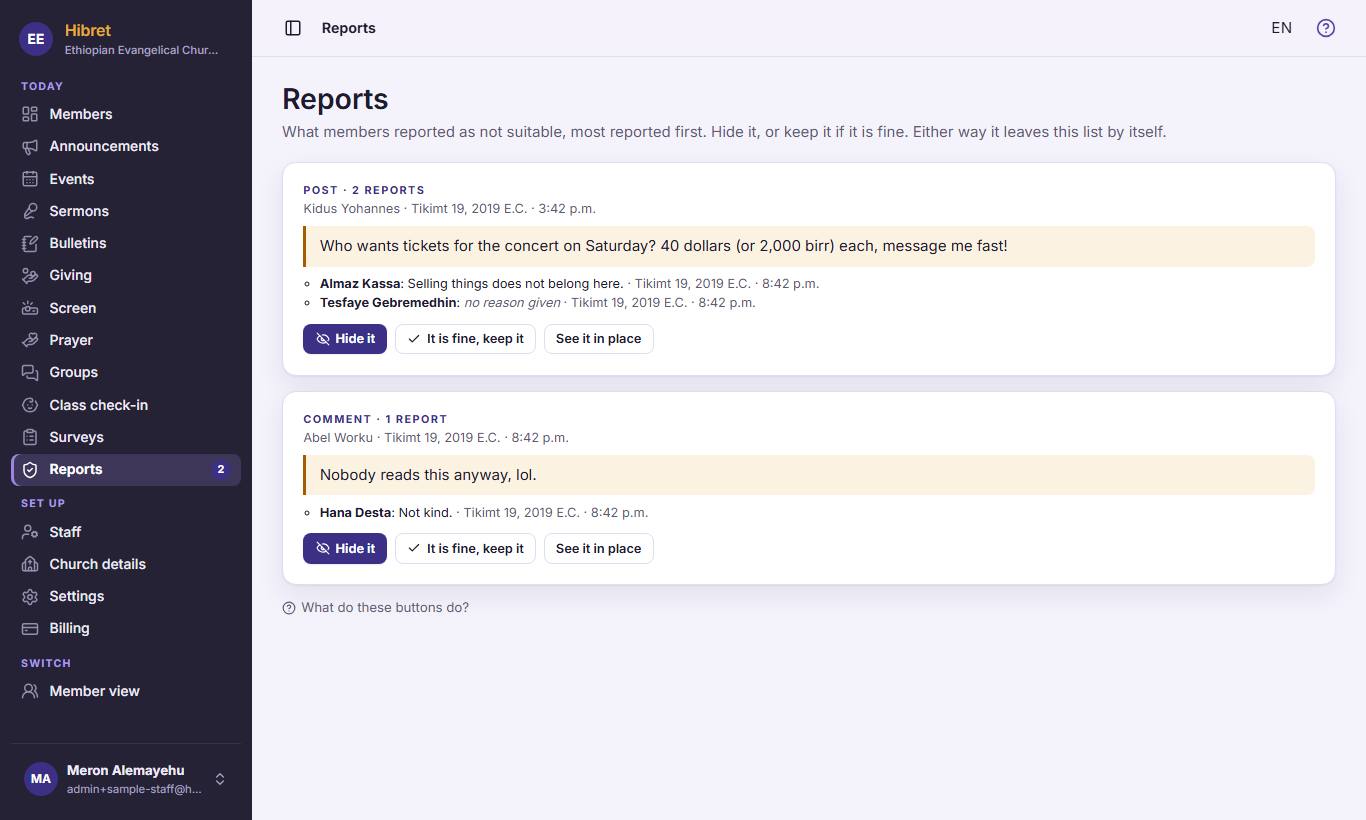
Members can report a post, a comment, a prayer or a burden that does not belong in Hibret. Staff decide.
12345
1
"Reports" 1 shows the reported items, most reported first. You see the words 2 and why members reported them 3. Press "Hide it" 4, or "It is fine, keep it" 5 if it is fine.
Either way it leaves this list. "See it in place" shows it where members see it.
Add a way to give
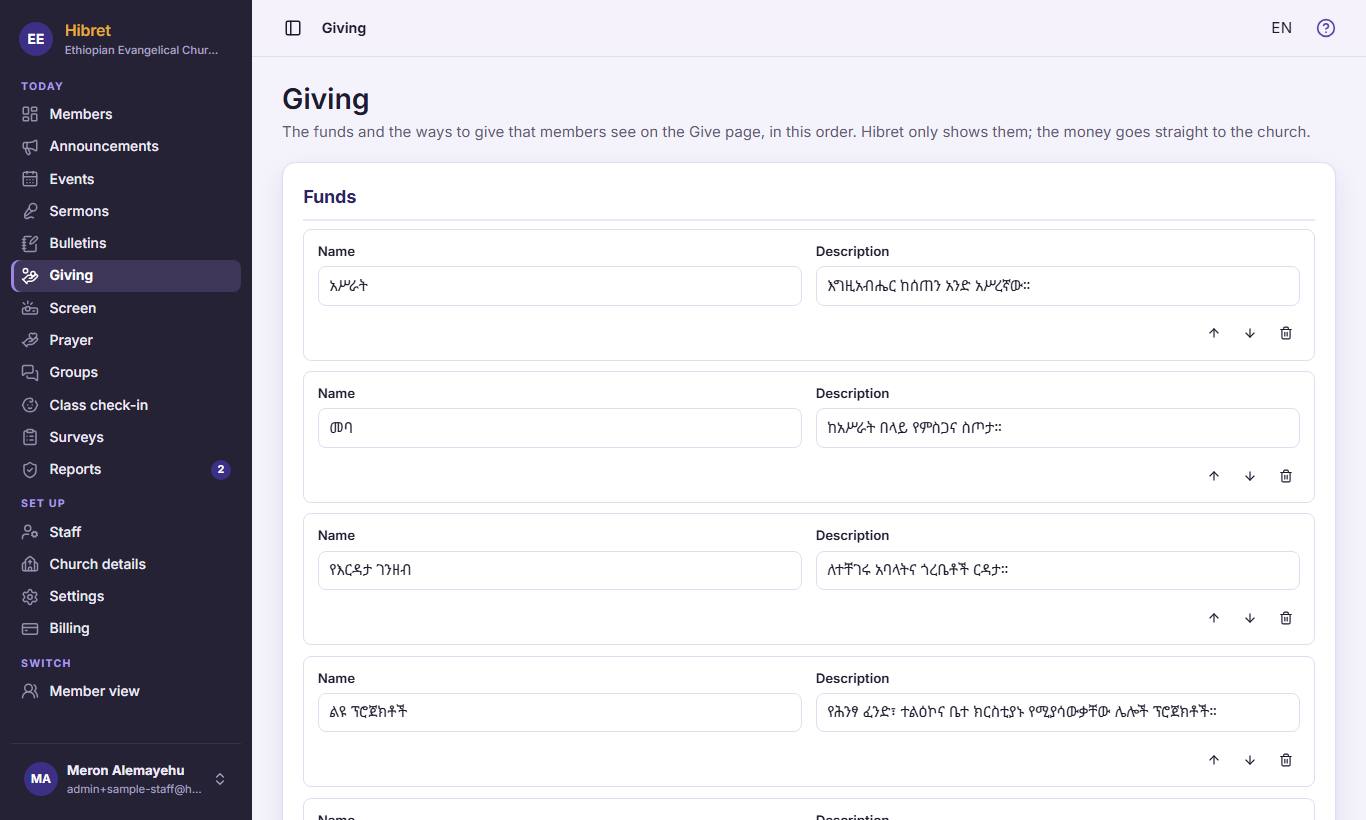
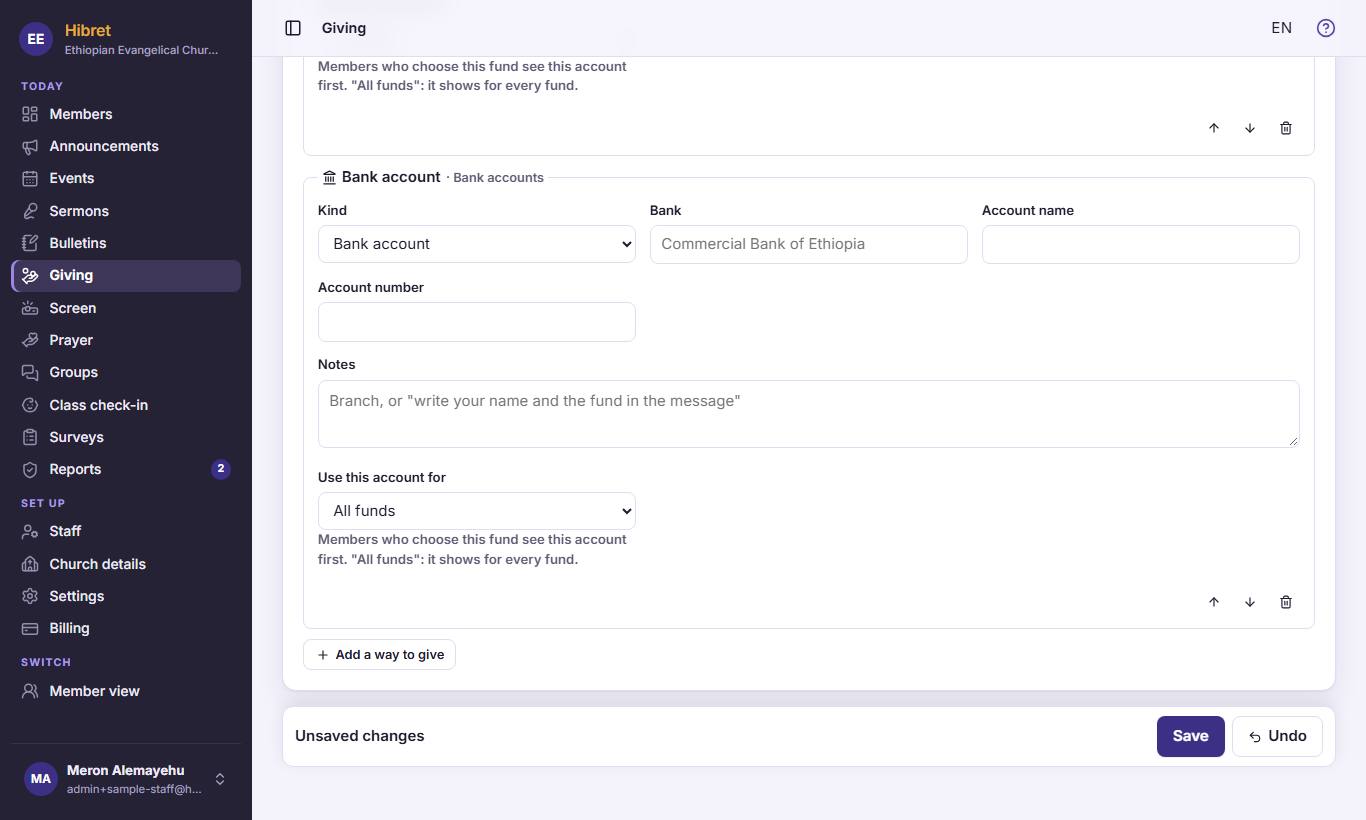
The Give page shows your funds and the ways to give: bank accounts, telebirr, e-Transfer and more. Hibret only shows them; the money goes straight to the church.
12
1
In "Giving", the "Funds" 1 are what members give for: tithe, offering, building. Press "Add a fund" 2 for another one.
123
2
Press "Add a way to give" 1. Choose the "Kind" 2: bank account, telebirr, e-Transfer, cheque… Fill in the account details. Press "Save" 3.
Members see the new way on the Give page and can copy the number or scan a QR code.
 Hibret ህብረት
 123451
 123452
 12343
12343