 Hibret ህብረት
The Sunday sermon every week
Set up the Sunday service once. Then every week Hibret prepares next Sunday's sermon: you fill it in before Sunday, choose or invite the preacher, and add the recording after the service.
-
 121
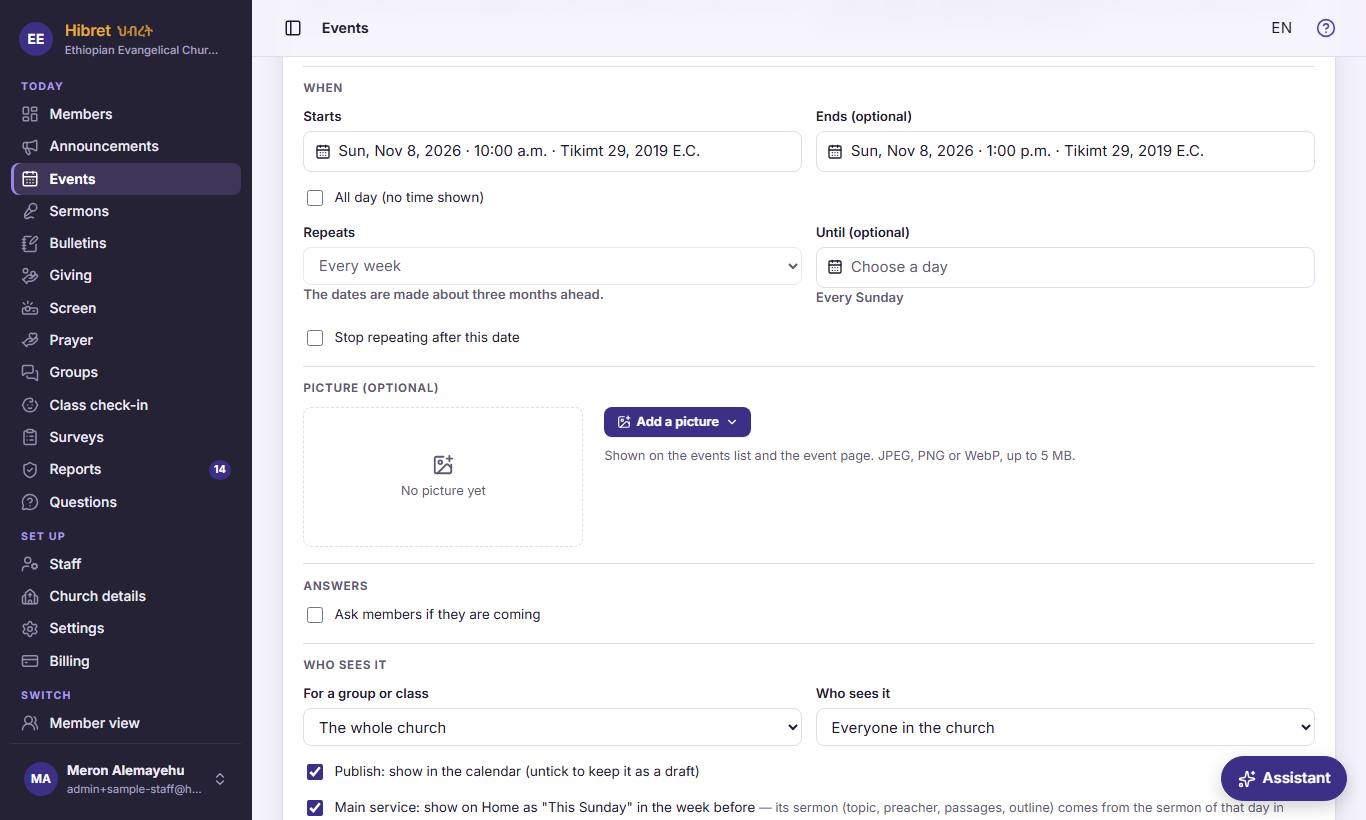
Once: in "Events", open your Sunday service with "Edit". It starts 1 at the service time and "Repeats" 2 every week.
- 1 The day and hour of the service. Hibret takes the sermon's day from it.
- 2 "Every week" makes one event for every Sunday; Hibret makes the dates about three months ahead. When you change it later, Hibret asks: "Only this date" or "This and all following".
-
 122
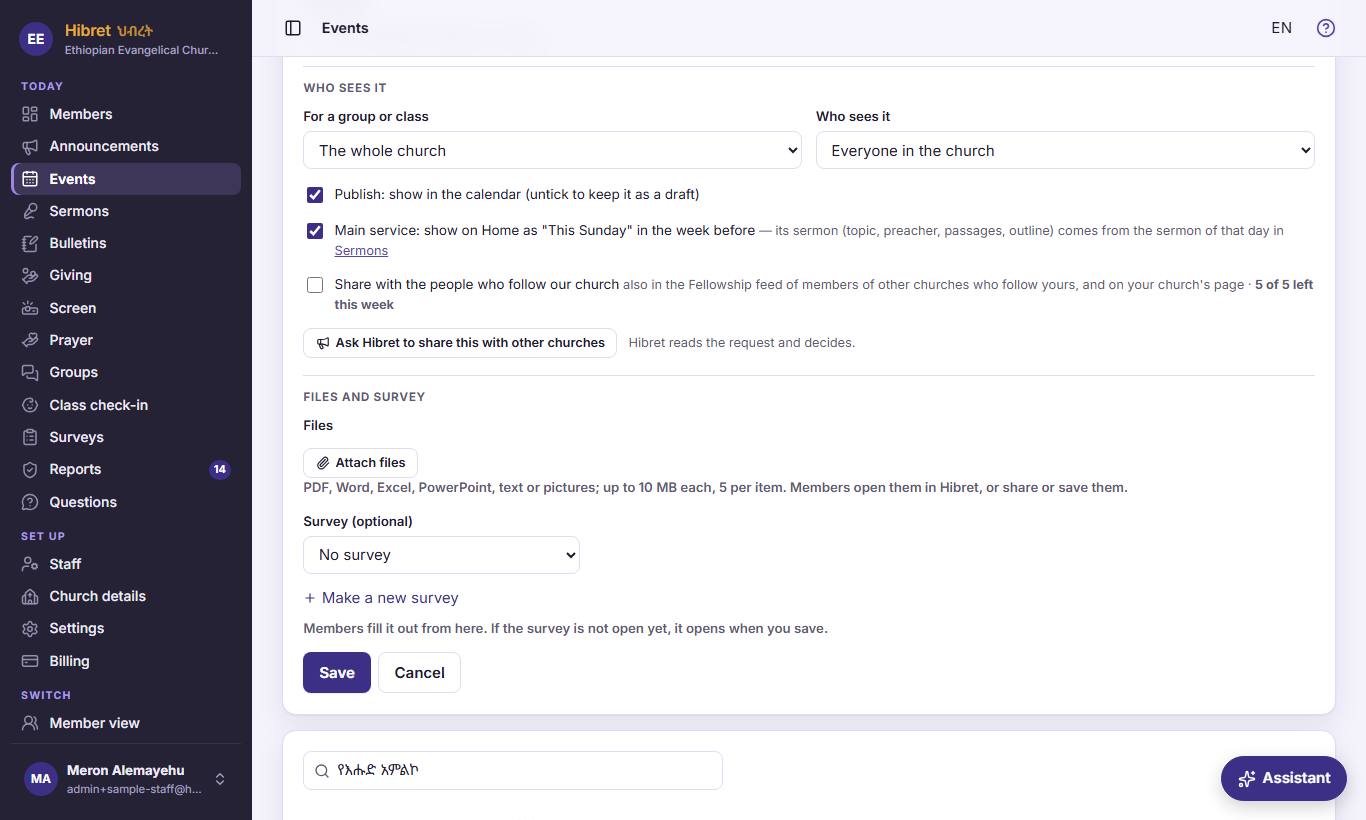
In "Who sees it": keep it published 1 and tick "Main service: show on Home as "This Sunday" in the week before" 2. Save.
- 1 Only a published service counts. A draft is hidden from members and makes no sermon.
- 2 This makes it the main service. Members see it on Home as "This Sunday" in the week before, and Hibret prepares next Sunday's sermon in "Sermons" every week.
-
 12343
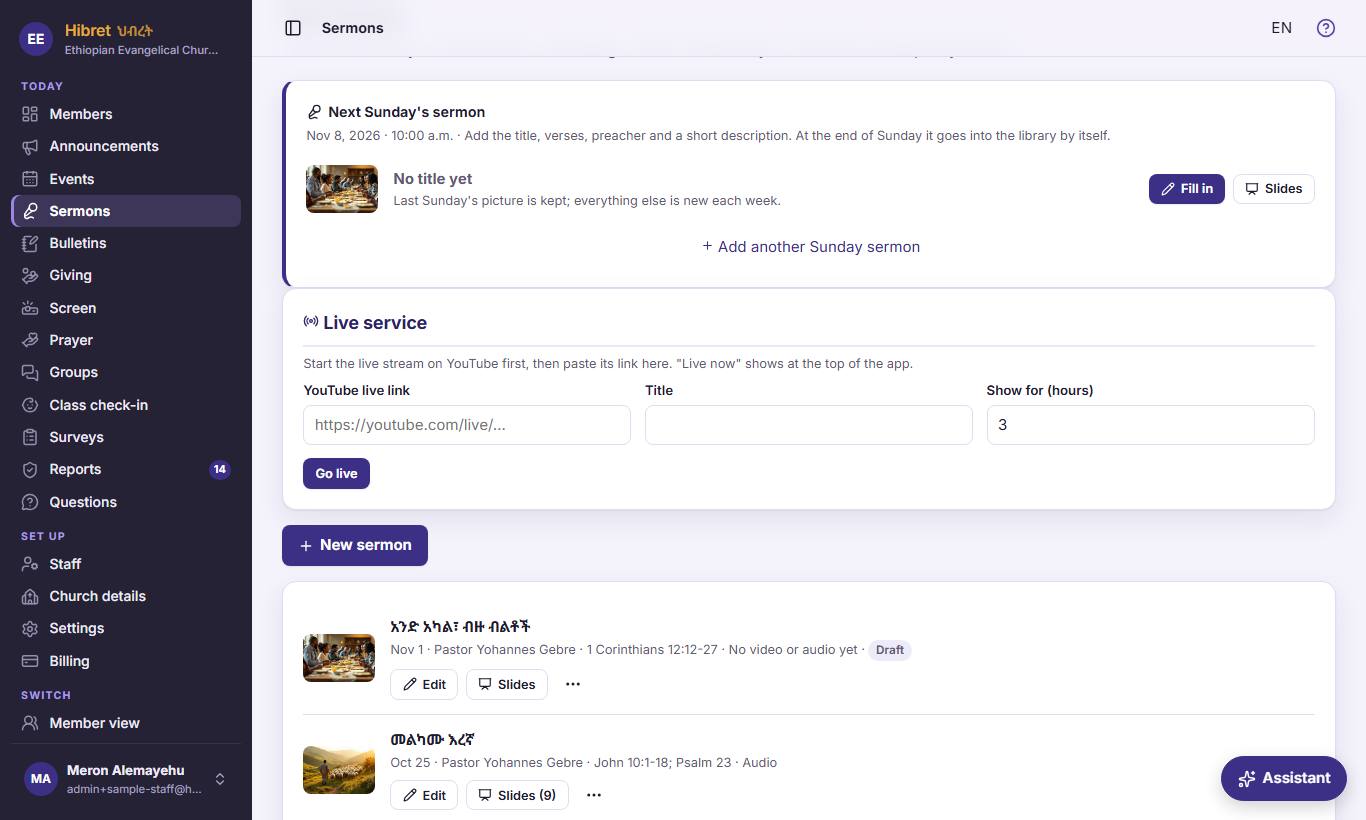
Every week: "Next Sunday's sermon" 1 is at the top of "Sermons". Press "Fill in" 2. "Slides" 3 and "Add another Sunday sermon" 4 are here too.
- 1 Hibret makes this sermon for the next main service, with last Sunday's picture. The title, verses, preacher and summary are new each week. If it still has no title on Thursday, the staff get a reminder.
- 2 "Fill in" opens the sermon form. Once it has a title, the button says "Edit": you can change it as often as you need before Sunday.
- 3 "Slides" opens this sermon's slides for the church screen. There you can also invite a guest preacher.
- 4 Only for a second sermon on the same day, for example a second service. It adds one more empty Sunday sermon.
After Sunday, a sermon with a title goes into the library by itself; an empty one is removed. Then "Last Sunday's sermon — add the recording" shows at the top: press "Add the recording" to add the audio or YouTube link.
-
 123454
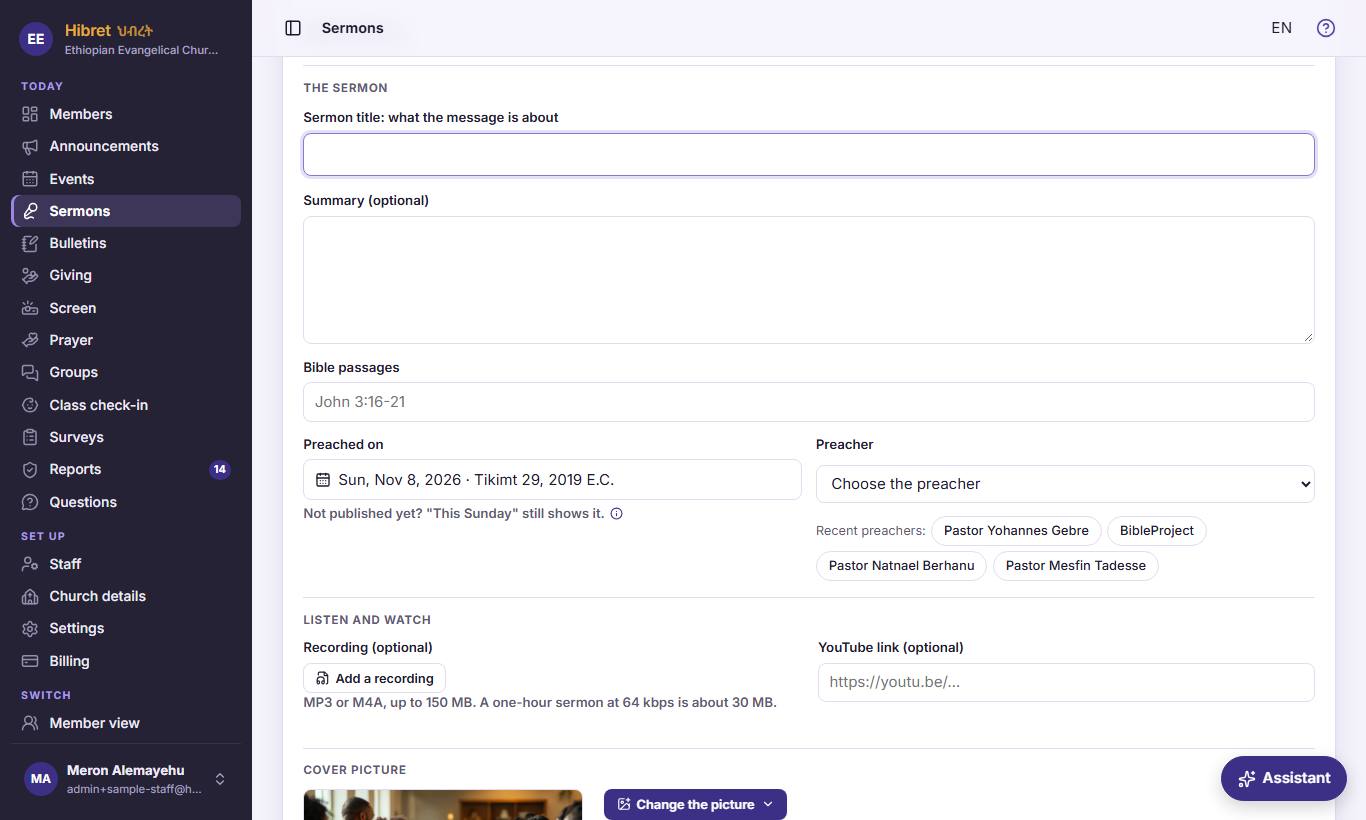
Write the title 1, a short summary 2 and the passages 3. The day is already next Sunday. Choose the "Preacher" 4, or one of the "Recent preachers:" 5.
- 1 The title of this Sunday's message. Members see it on Home under "This Sunday" before the service.
- 2 A few sentences about the message. "Improve" makes the words clearer.
- 3 The Bible passages, like John 10:1-18. Members can read them before Sunday.
- 4 Your pastors and leaders who preach, then saved guests marked ""guest"". For a new guest choose "A guest (type the name)" and type his name and title.
- 5 The preachers of the last sermons. One tap fills in the name. This list shows only while no preacher is chosen.
-
 12345
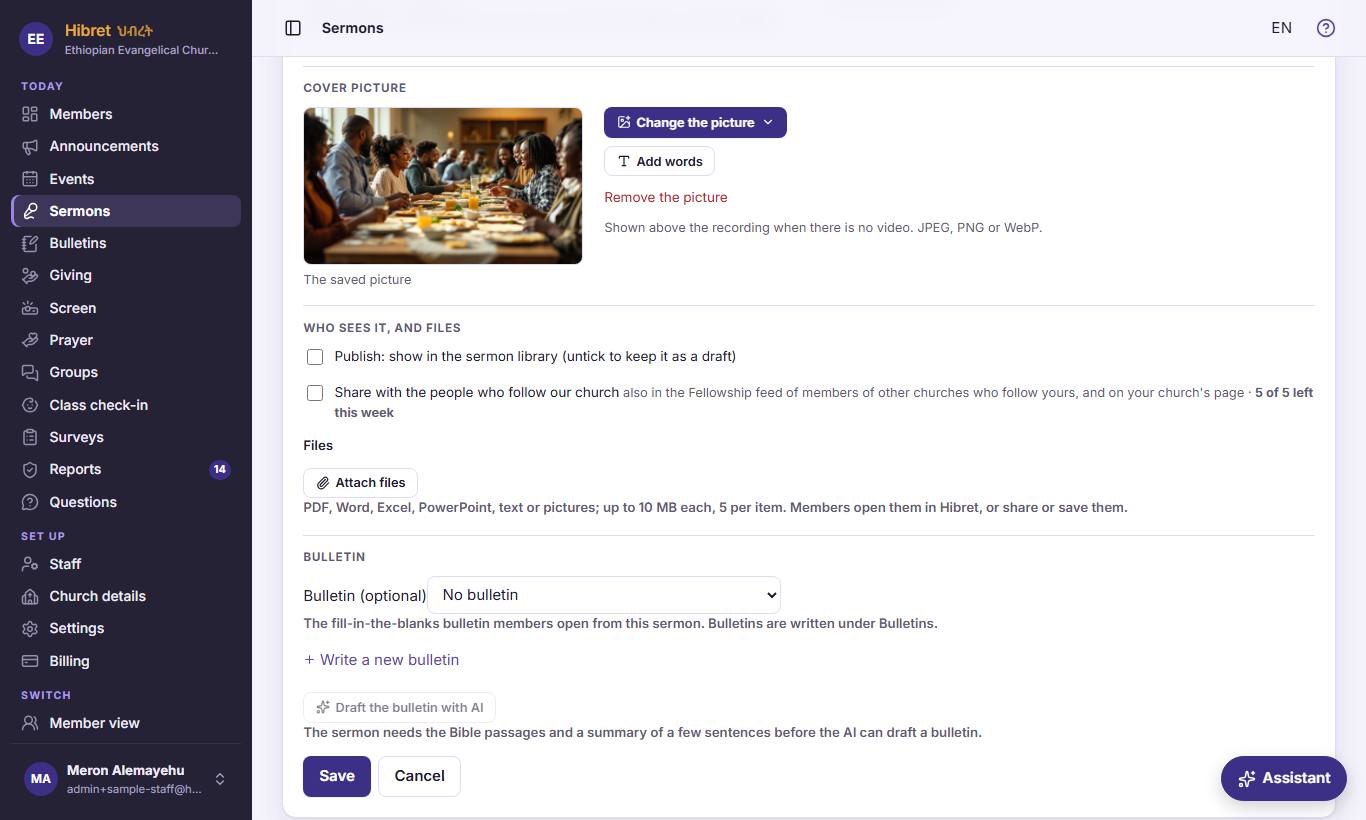
The picture 1 is last Sunday's; change it if you like. Leave publish 2 as it is. Choose the bulletin 3 and press "Save" 4.
- 1 "Upload a picture" takes a photo, "Draw with AI" paints a new one, and "Picture with preacher" puts the preacher's photo next to the title. A guest's photo works too when he is saved with a photo.
- 2 Next Sunday's sermon stays unpublished until the service. Members already see it on Home under "This Sunday". At the end of Sunday, Hibret puts it into the library by itself.
- 3 The fill-in-the-blanks outline for Sunday. Write it in "Bulletins", or save the sermon first and use "Draft the bulletin with AI".
- 4 "Save" keeps the sermon. You can come back with "Edit" any time before Sunday.
-
 126
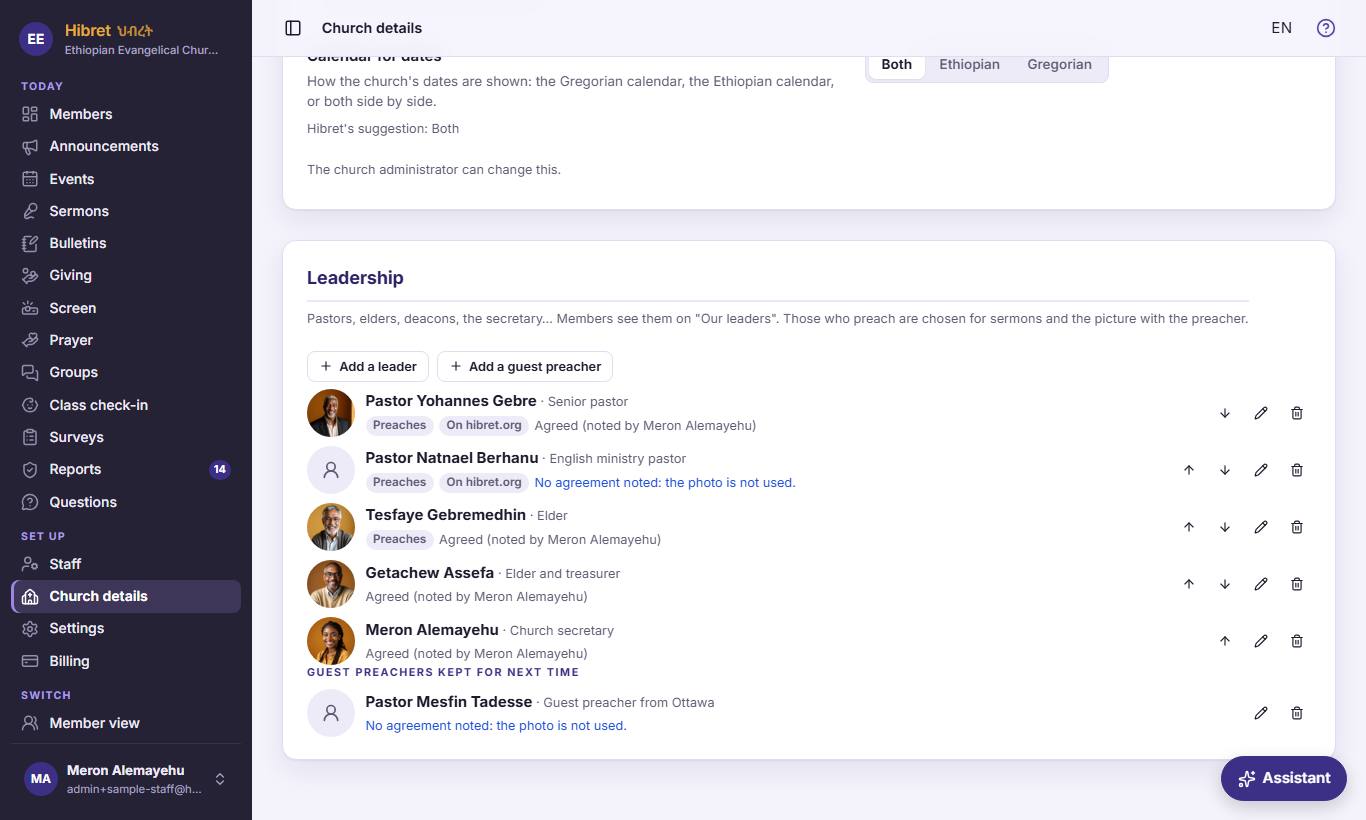
A guest who preaches often: in "Church details" → "Leadership", press "Add a guest preacher" 1. Saved guests are listed 2.
- 1 Write his name, his title and a photo, and tick that he agreed. He is kept for next time.
- 2 "Guest preachers kept for next time". You choose them in the sermon's "Preacher" list. They never show on "Our leaders".
-
 17
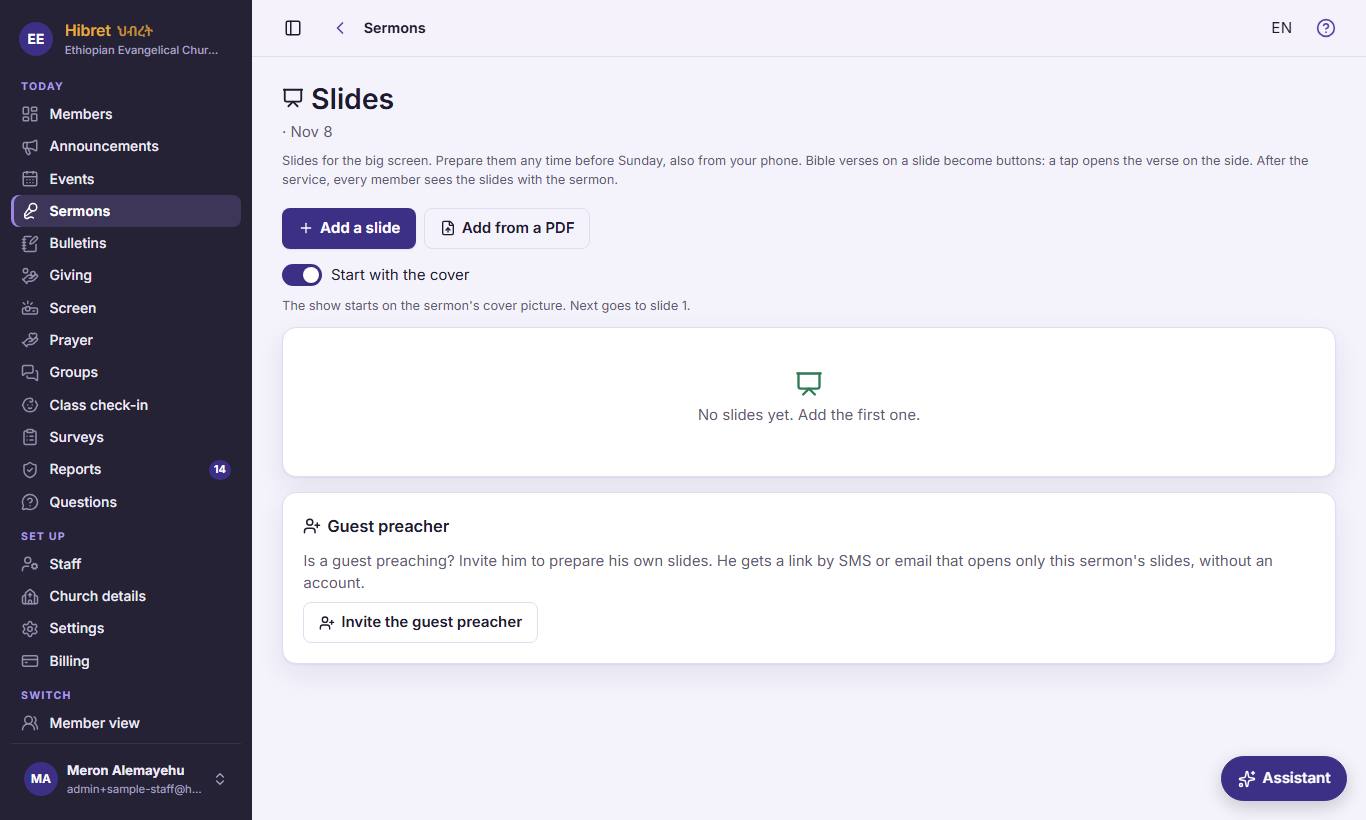
To invite the guest preacher: open "Slides" of next Sunday's sermon and press "Invite the guest preacher" 1.
- 1 He gets a link that opens only this sermon. Without an account, he writes the title and the passages and prepares his own slides. Staff are told when he changes them.
-
 1234568
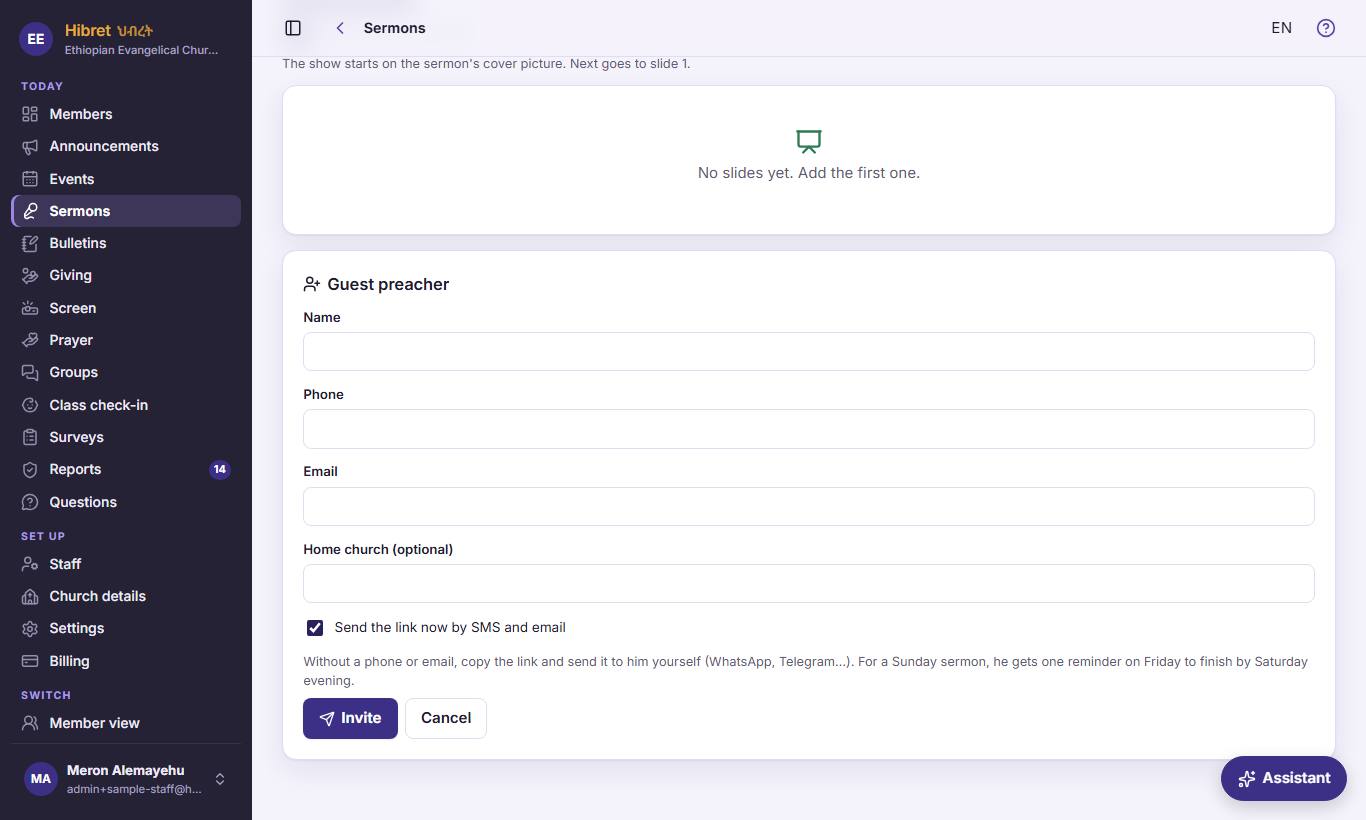
Write his name 1, phone 2, email 3 and home church 4. Keep "Send the link now by SMS and email" 5 and press "Invite" 6.
- 1 His name, as members should see it. If no preacher was chosen yet, it becomes the sermon's preacher.
- 2 His phone, for the link by SMS.
- 3 His email, for the link by email. Without a phone or email, copy the link after inviting and send it yourself on WhatsApp or Telegram.
- 4 Optional. It helps you find him next time.
- 5 Ticked: Hibret sends the link now. For a Sunday sermon he also gets one reminder on Friday to finish by Saturday evening.
- 6 "Invite" makes the link and saves him for next time. The link stops working a few days after the sermon, or when you press "Remove access".
Next time, choose him in "Choose a guest preacher from before". Before the service, "Lock the slides" stops his changes.