 Hibret ህብረት
A sermon from start to finish
Everything a sermon can have: the words, the recording or YouTube, a cover picture, files, the bulletin and the slides, and how members see it.
-
 121
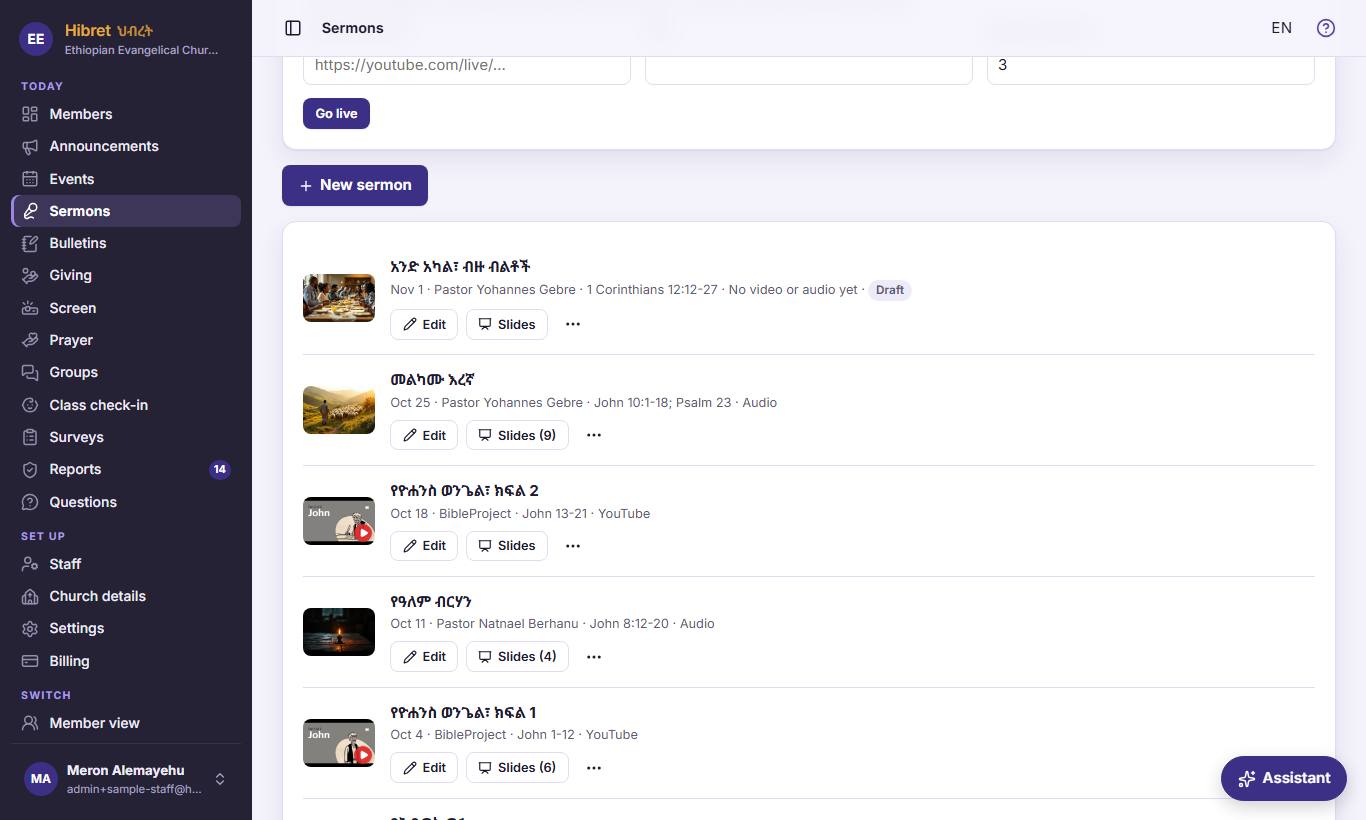
In "Sermons", press "New sermon" 1 for a new sermon. To change one, press "Edit" 2 on it.
- 1 "New sermon" opens an empty sermon form. Use it for a sermon that is not the weekly Sunday sermon, for example a conference or an old sermon you want to add to the library.
- 2 "Edit" opens a sermon that is already in the library, to add the recording, fix a word or change the picture.
-
 123452
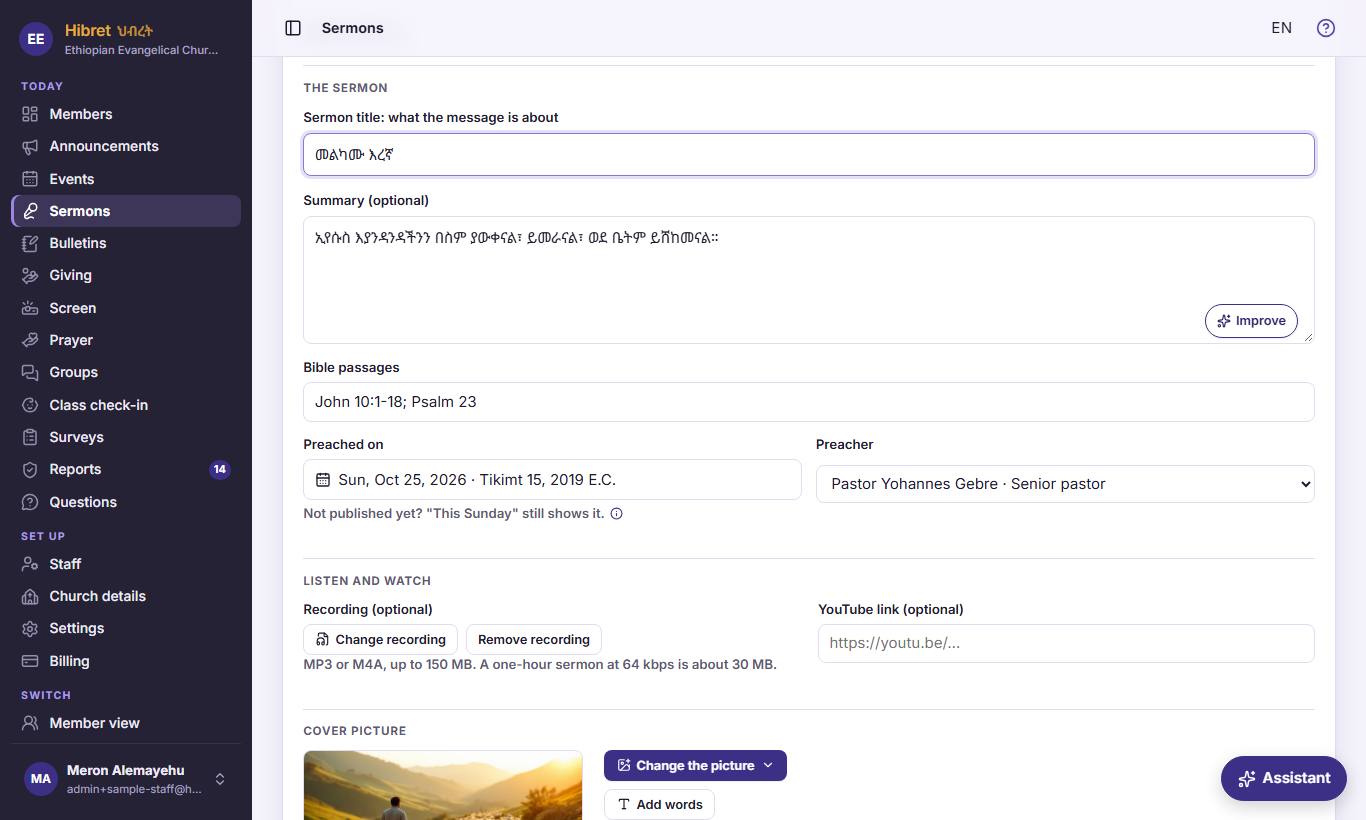
"The sermon": the title 1, a short summary 2, the Bible passages 3, the day 4 and the "Preacher" 5.
- 1 The title says what the message is about. Members see it first in the sermon list.
- 2 A few sentences about the message. "Improve" makes your words clearer; you see the new words first and choose. The AI needs this summary to draft a bulletin.
- 3 Write the passages like John 10:1-18. Members tap them to read the verses in the Bible.
- 4 The day the sermon was preached. A sermon for a coming day, not yet published, still shows on Home under "This Sunday".
- 5 Choose a pastor from your leaders (with their photo), a saved guest marked ""guest"", or "A guest (type the name)" to type a new name. Leaders and guests are added in "Church details".
-
 123
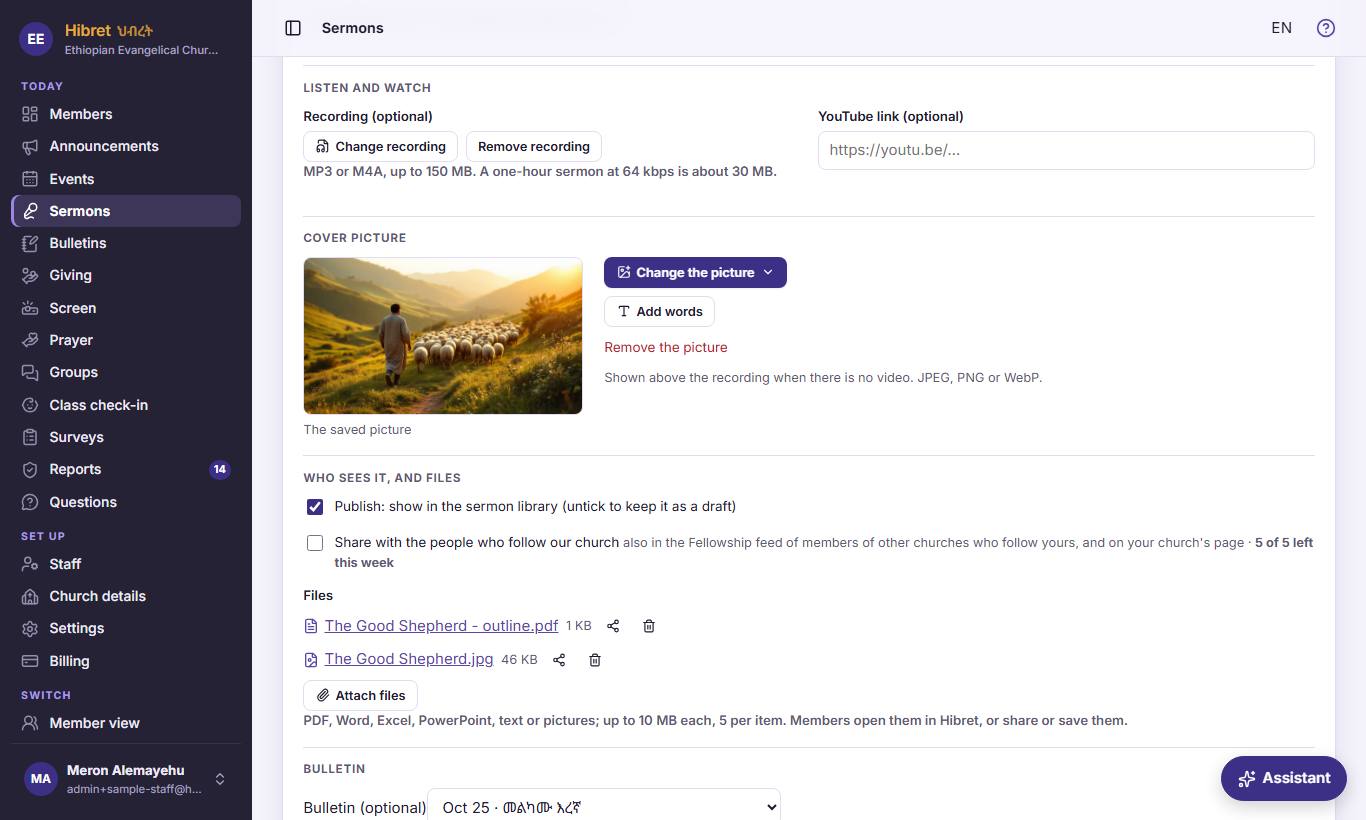
"Listen and watch": the recording 1 and the YouTube link 2. Members can listen, or watch, or both.
- 1 Choose the sound file of the sermon: MP3 or M4A, up to 150 MB. It uploads when you press "Save"; a big file can take a few minutes. "Remove recording" takes it away.
- 2 Paste the YouTube link when the service was filmed. The video stays on YouTube; members watch it inside Hibret.
-
 124
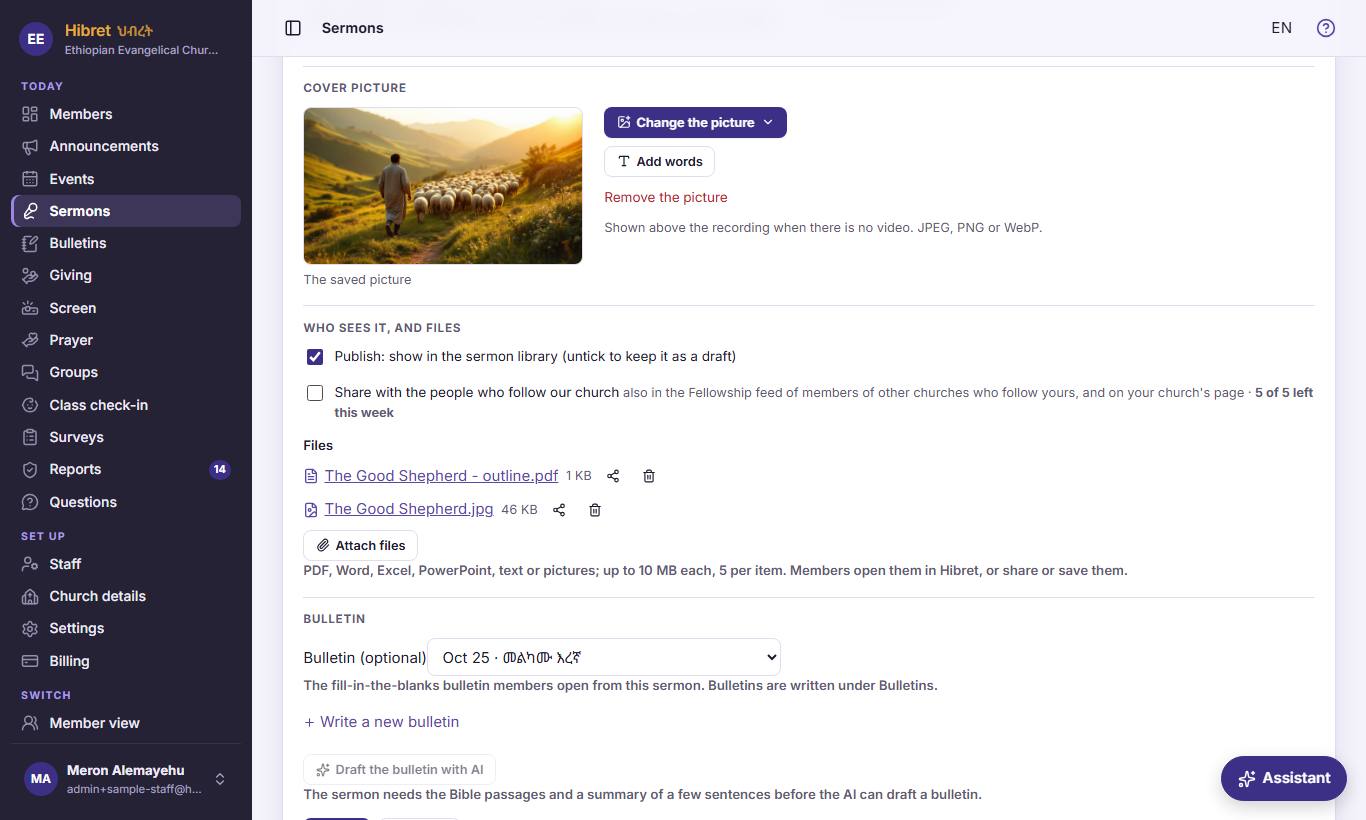
"Cover picture": the picture menu 1 and "Add words" 2.
- 1 Three choices: "Upload a picture" takes a photo from your computer; "Draw with AI" paints a picture from the sermon; "Picture with preacher" puts the preacher's photo next to the title. Members see the cover when there is no video.
- 2 "Add words" writes the title and the passages on the picture. Use it before you share the sermon as a picture.
-
 1235
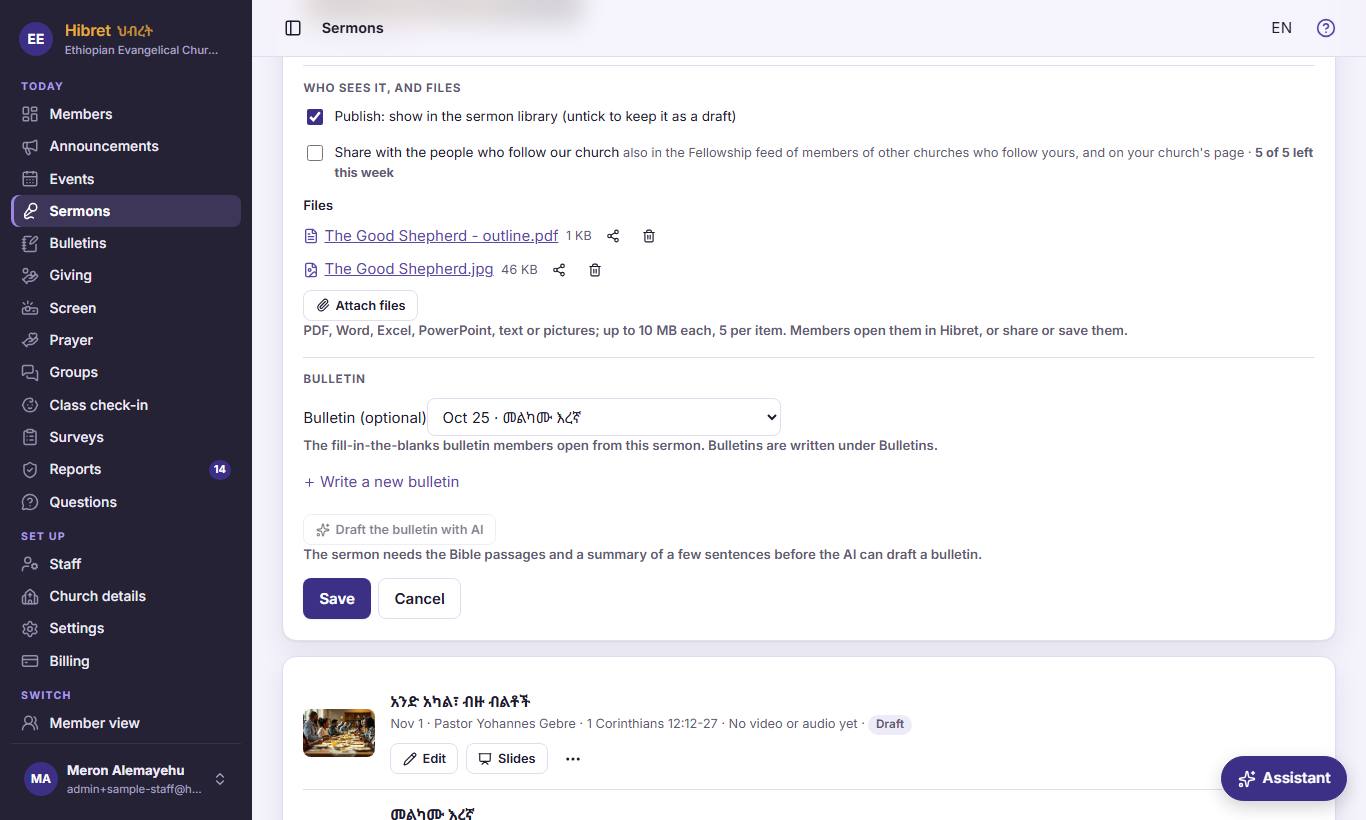
"Who sees it, and files": publish 1, share 2 and files 3.
- 1 Ticked: members find the sermon in the library. Untick it to keep the sermon as a draft that only staff see.
- 2 The sermon also shows to members of other churches who follow yours, and on your church's page. Your church can share five items a week.
- 3 "Attach files" adds up to five files of 10 MB each, like the outline as a PDF. Members open, share or save them.
-
 12346
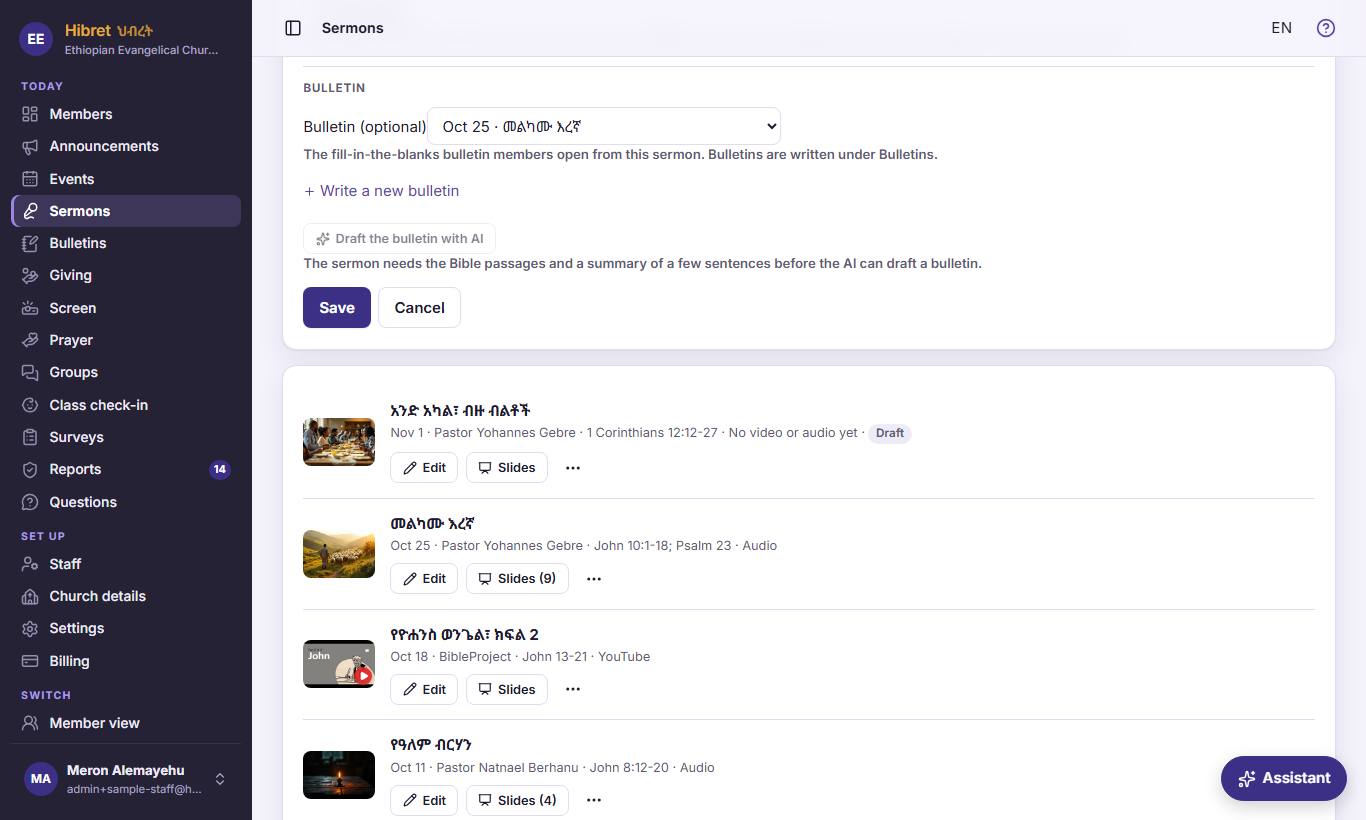
"Bulletin": choose the bulletin 1, or "Write a new bulletin" 2, or "Draft the bulletin with AI" 3. Then "Save" 4.
- 1 The list shows your bulletins by date. The one you choose opens from the sermon's "Outline" button, so members fill in the blanks. "No bulletin" means no outline.
- 2 "Write a new bulletin" opens "Bulletins" in a new tab. Write it there, then come back and choose it in the list.
- 3 The AI writes a bulletin from the saved sermon's title, summary and passages. It is saved as a draft for you to check. Three drafts per sermon, paid from the church's AI money.
- 4 "Save" keeps all your changes and uploads the recording and files. "Cancel" closes without saving.
-
 127
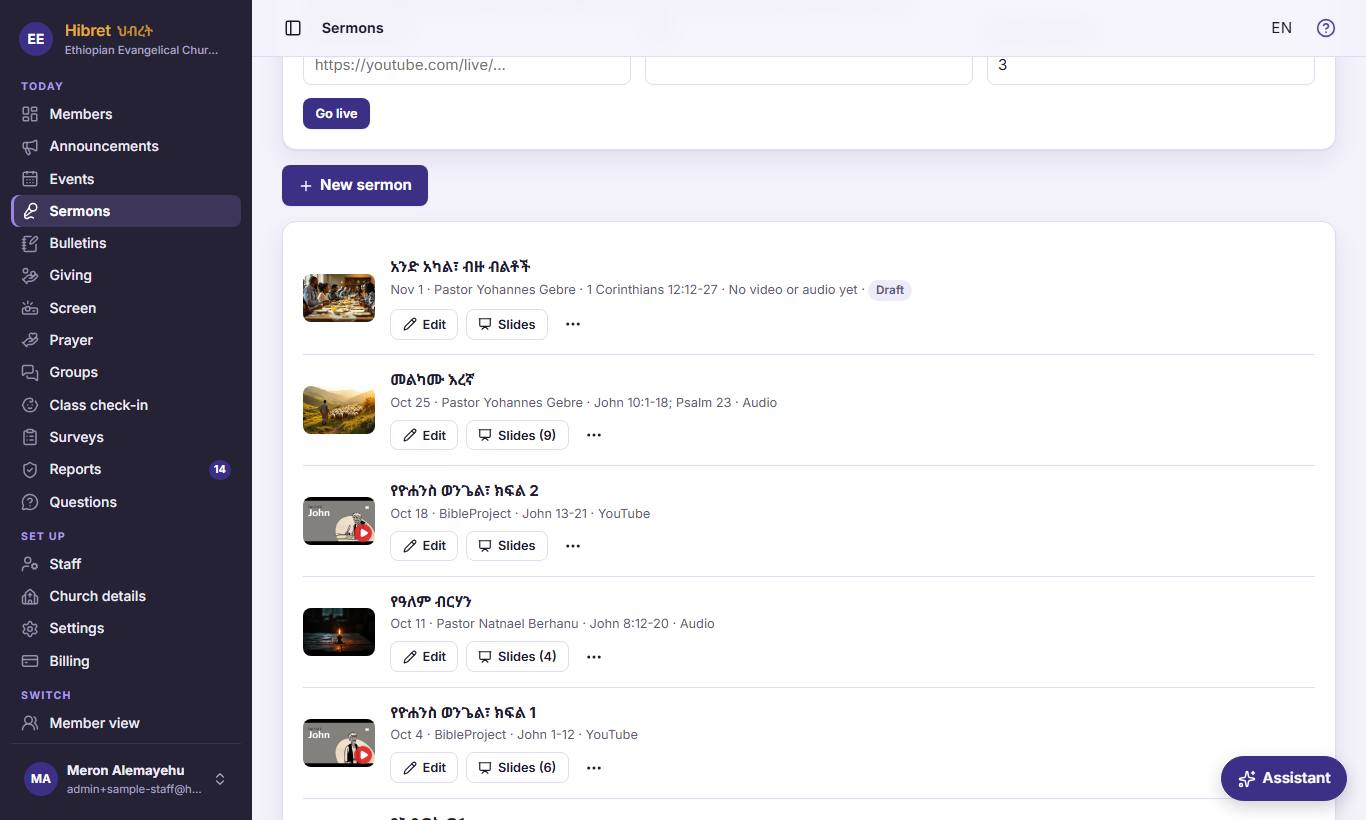
Back in the list: "Slides" 1 and the ⋯ menu 2.
- 1 "Slides" opens the slides of this sermon for the church screen: songs, verses, points and pictures. The number shows how many slides it has.
- 2 "Present here" shows the slides full screen on this device. "Show on church screen" starts the live show on the church screen, and this device becomes the remote. "Download for offline" keeps the slides on this device for when the internet drops. "Delete" removes the sermon; Hibret asks first.
-
 1234568
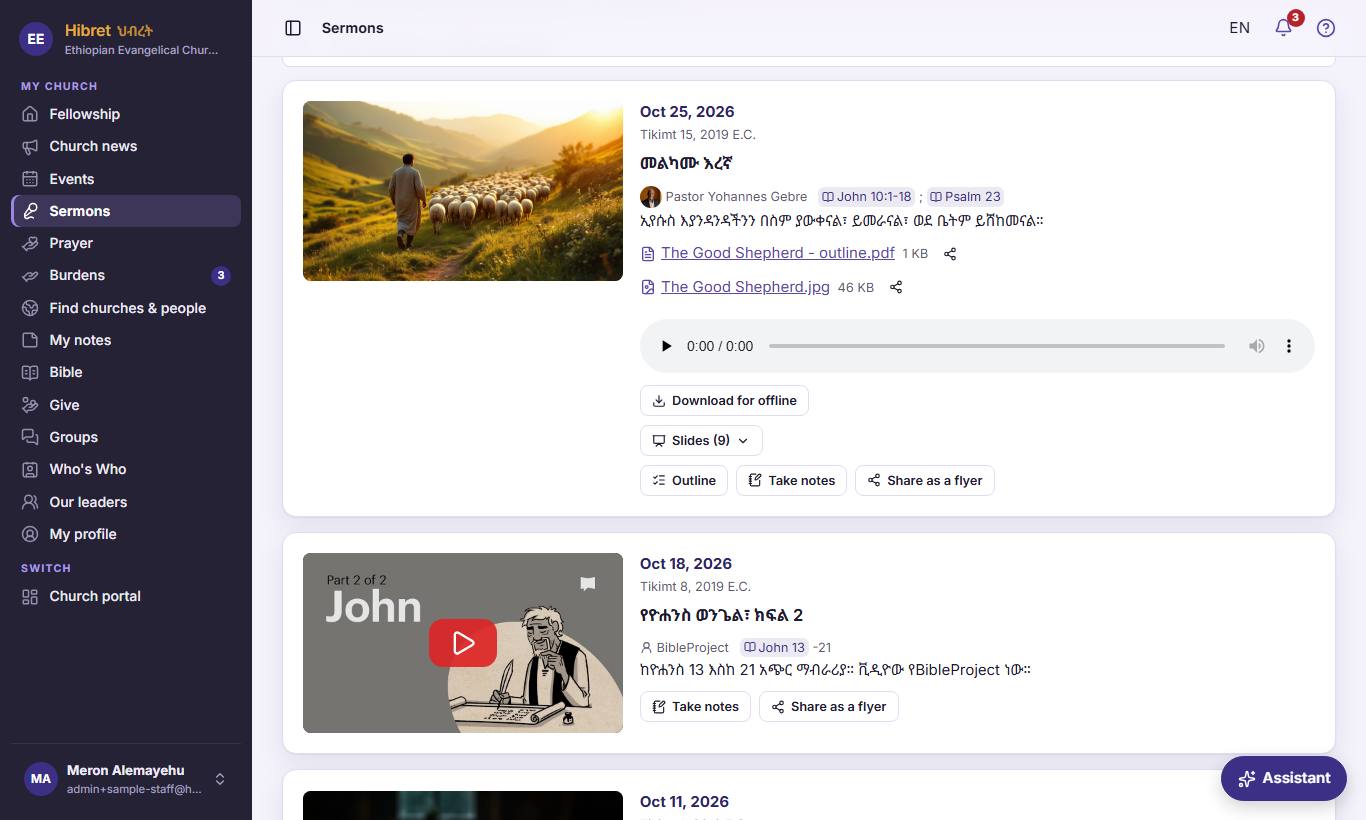
This is what members see: the files 1, the recording 2 and the buttons 3 to 6.
- 1 The files you attached. Members open them in Hibret, or share or save them.
- 2 The recording plays here. With a YouTube link, the video shows at the top instead of the cover.
- 3 "Download for offline" keeps the slides, pictures and verses on the member's device, for when the internet drops.
- 4 "Outline" opens the bulletin you chose, with the blanks to fill in.
- 5 "Take notes" starts the member's own note, with the title, preacher and passages already written. It is kept in "My notes".
- 6 "Share as a flyer" makes a picture of the sermon with your church's name, ready for WhatsApp, Telegram or email.
Members listen at home, take notes, follow the outline and share the sermon with friends.