 Hibret ህብረት
Giving from start to finish
Every part of the Giving page: the funds, each way to give and its fields, saving, and the Give page members see. Hibret only shows the details; the money goes straight to the church.
-
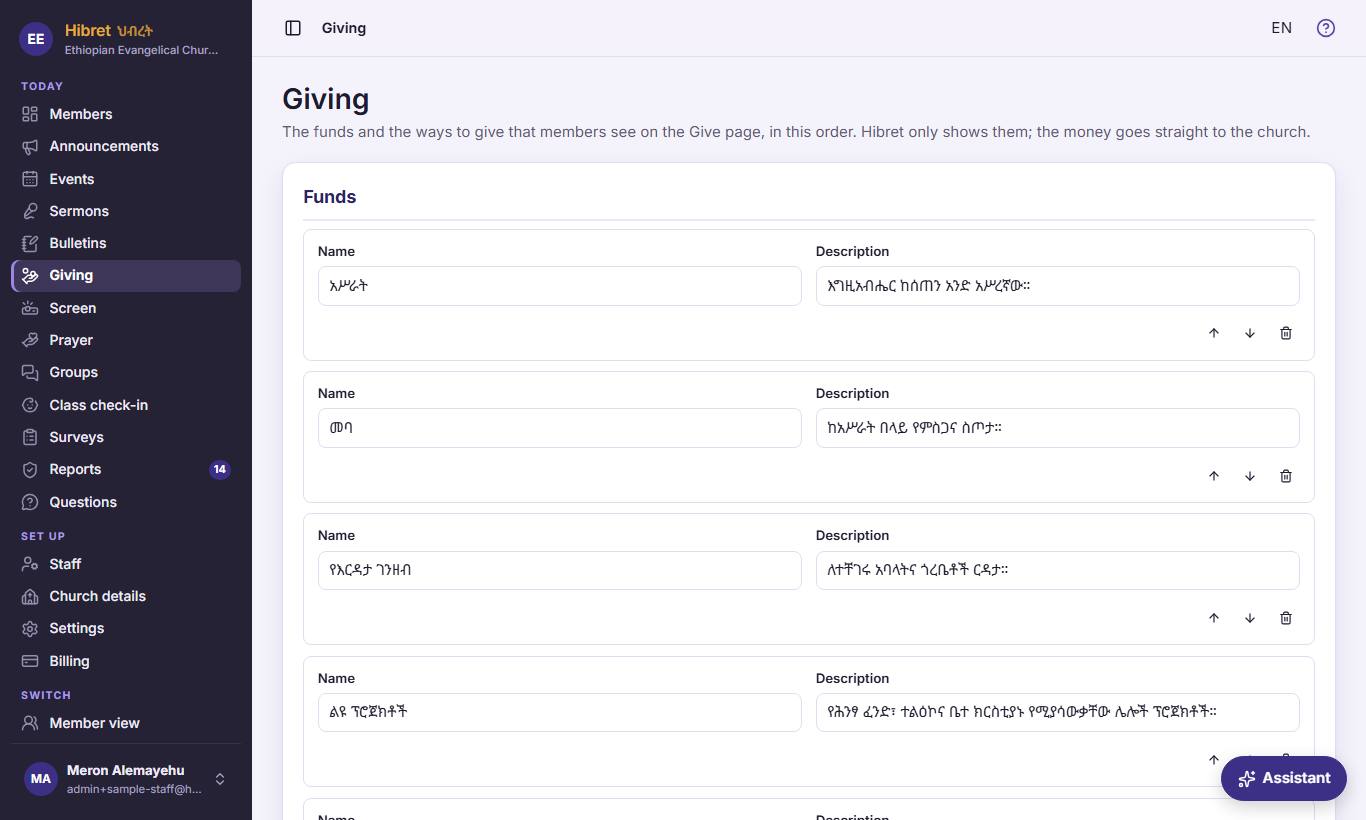 12341
In "Giving", "Funds": each fund has a name 1 and a description 2. The buttons 3 move or remove it. "Add a fund" 4 adds one.
- 1 A fund is what members give for: tithe, offering, the building, missions. Write the name as members say it, in the church's language.
- 2 One short sentence about the fund. Members see it next to the name on the Give page.
- 3 The arrows move the fund up or down: members see the funds in this order. The bin removes it; it goes only when you save, and "Undo" brings it back before that.
- 4 "Add a fund" adds an empty fund at the end, for example for a special collection. A church can have up to 12 funds.
-
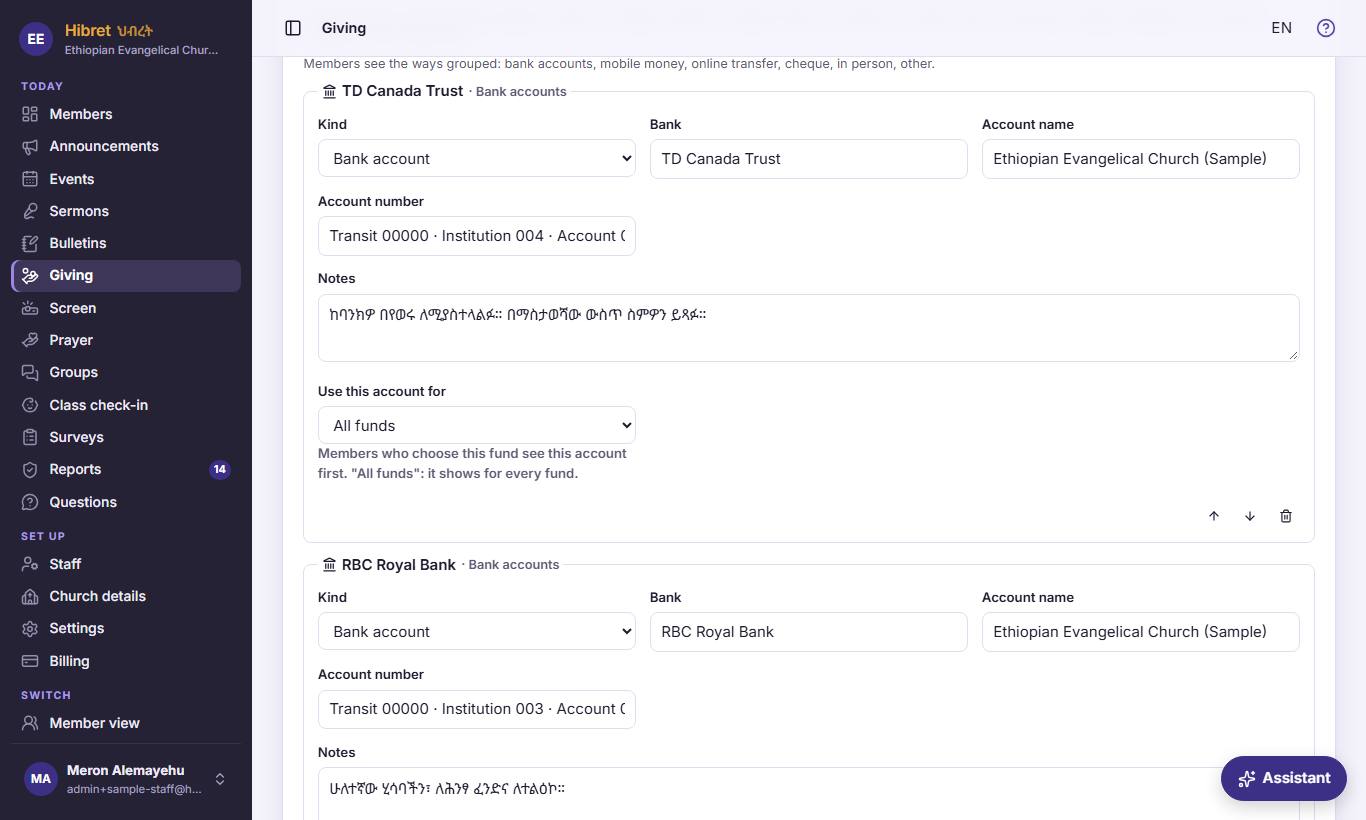 1234562
"Ways to give": a bank account. Choose the "Kind" 1, then the bank 2, the "Account name" 3, the "Account number" 4, "Notes" 5 and "Use this account for" 6.
- 1 "Kind": "Bank account", "Mobile money" (like telebirr or CBE Birr), "Interac e-Transfer", Zelle, Venmo or Cash App, "Cheque", "In person" (like the offering box), or "Other" (like a giving website). Each kind asks only for the fields it needs.
- 2 The bank's name, as members see it. When you type, Hibret offers the banks of Ethiopia; you can type any other bank too.
- 3 "Account name": the name the account is in, usually the church's legal name. Members check it before they send money.
- 4 "Account number": members copy it with one press, or scan it as a QR code with their banking app. Check every number carefully.
- 5 "Notes": a short help line, like the branch, or "write your name and the fund in the message".
- 6 "Use this account for": "All funds" shows this account for every fund. Choose one fund when this account is only for it, for example a building account. Members who choose that fund see this account first.
-
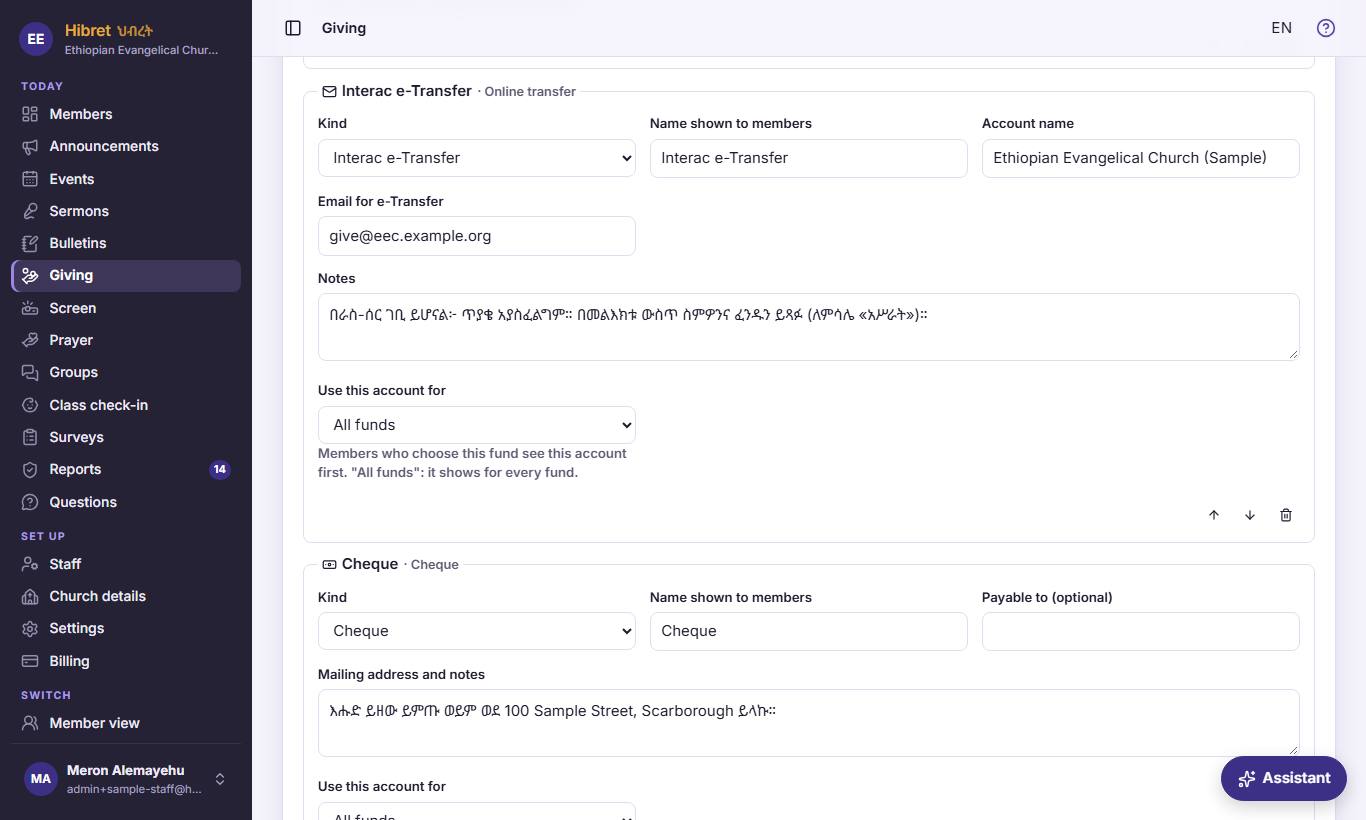 1233
Other kinds ask for other things: "Email for e-Transfer" 1, a cheque's "Payable to (optional)" 2 and "Mailing address and notes" 3.
- 1 "Interac e-Transfer": the church's email for e-Transfer. Members copy it into their bank app. Zelle asks for an email or phone, Venmo for an @name, and Cash App for a $cashtag.
- 2 "Cheque": the name to write on the cheque. When it is empty, members see the account name.
- 3 Where to mail the cheque, or "bring it on Sunday". For "In person", you write instead where members give, like "the offering box at the back of the hall".
-
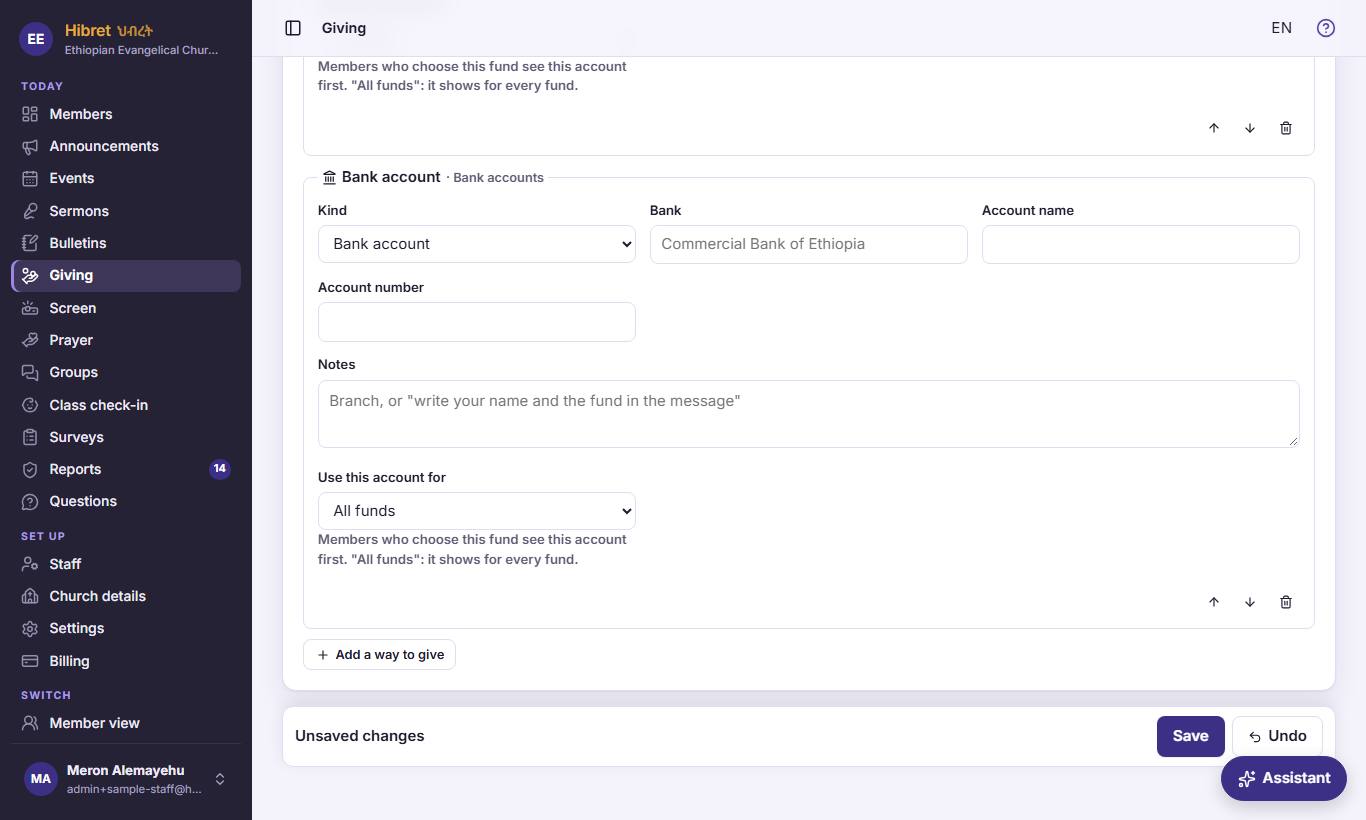 12344
"Add a way to give" 1 adds a new way. Each way has its own arrows and bin 2. Then press "Save" 3; "Undo" 4 goes back.
- 1 "Add a way to give" adds an empty bank account at the end; change the "Kind" for another kind. A church can have up to 15 ways.
- 2 The arrows set the order inside each group on the Give page. Members see the groups always in the same order: bank accounts, mobile money, online transfer, cheque, in person, other. The bin removes the way when you save.
- 3 This bar stays at the bottom of the screen and says "Unsaved changes" while something is not saved. "Save" saves the funds and all the ways together.
- 4 "Undo" forgets every change since the last save, also a removed fund or way.
Members see the changes on the Give page as soon as you save.
-
 1235
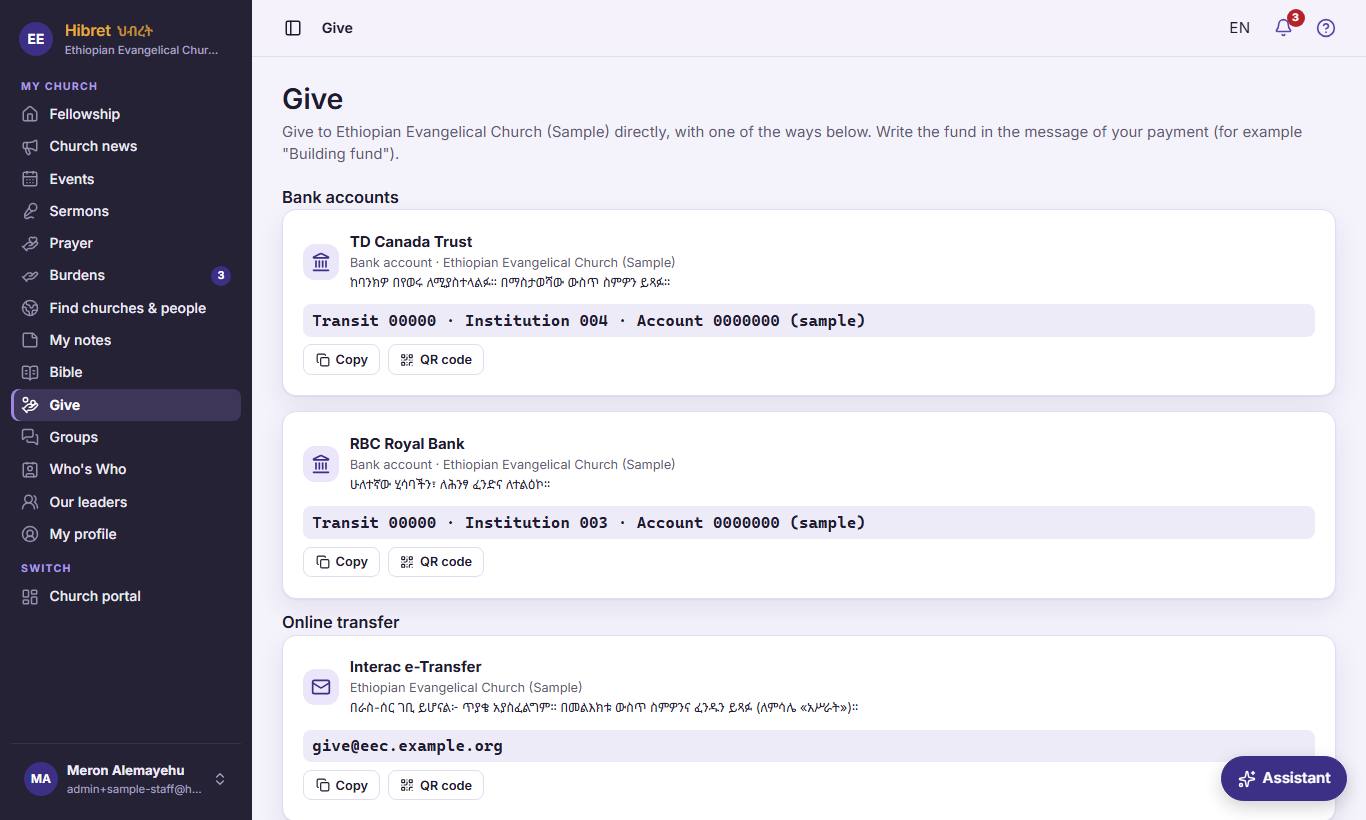
This is what members see on "Give": each way with its number 1, "Copy" 2 and "QR code" 3; the funds are listed below.
- 1 The ways are grouped under headings, in the fixed order. Each shows its name, the account name, the notes and the number.
- 2 "Copy" copies the number or the email, so members paste it in their bank app without mistakes.
- 3 "QR code" shows a QR code to scan with a banking or payment app. It shows for bank accounts, mobile money and online transfers, not for a cheque or the offering box.
Hibret never receives or sees the money: members give straight to the church and write the fund in the message of their payment.