 Hibret ህብረት
Children's check-in from start to finish
How to run children's check-in alone on a Sunday: set up a class for children, then check children in at the door, also a child who comes for the first time. Every button is explained.
-
 121
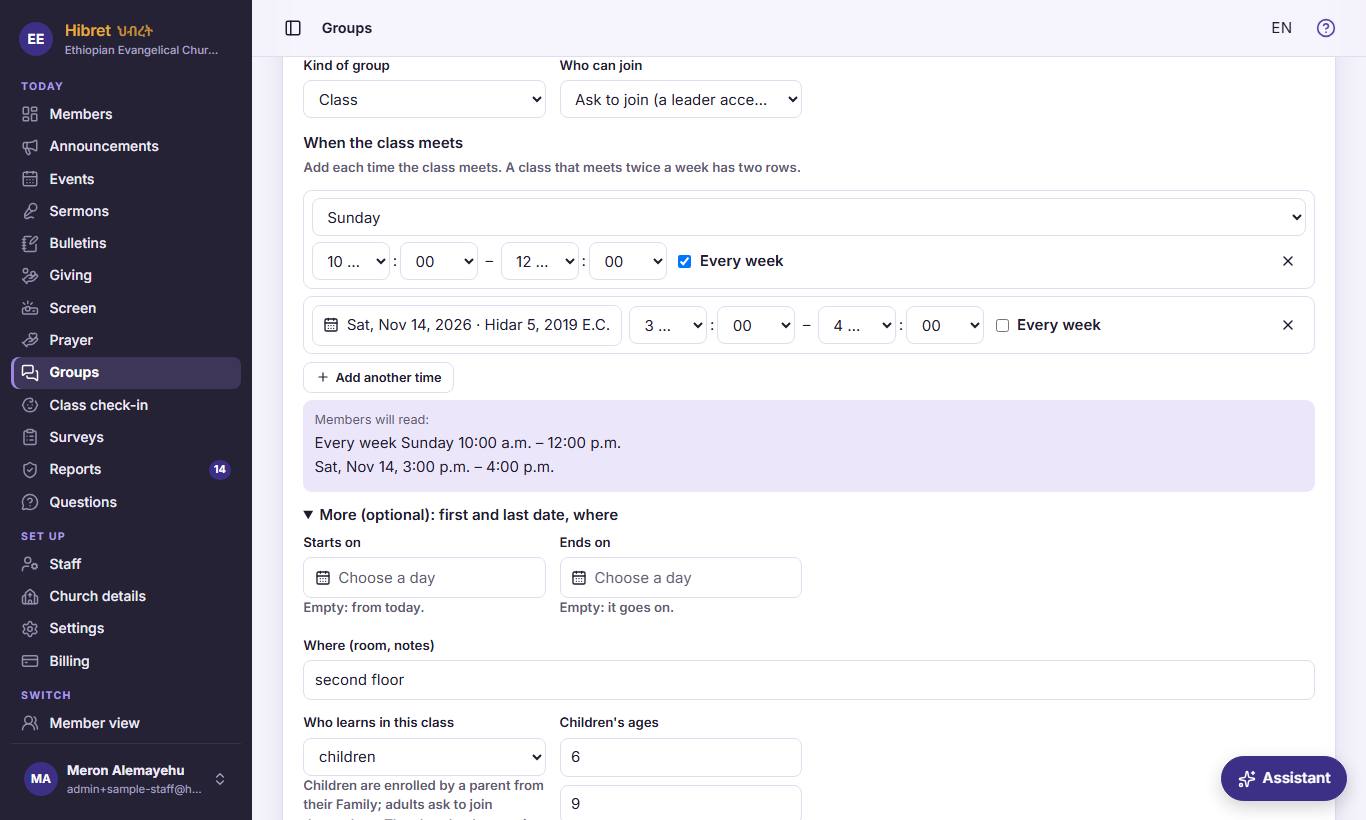
Check-in starts with a class. In "Groups", press "Edit" on the class (or "New group" for a new one). For check-in, the kind 1 and the class times 2 matter.
- 1 "Kind of group": choose "Class". Only a class has check-in. The other kinds, like a choir or a home cell, have a chat and news, but no check-in.
- 2 "When the class meets": the day and the hours of the class. On a day the class meets, parents see a check-in card on their home page. Check-in itself works on any day.
-
 122
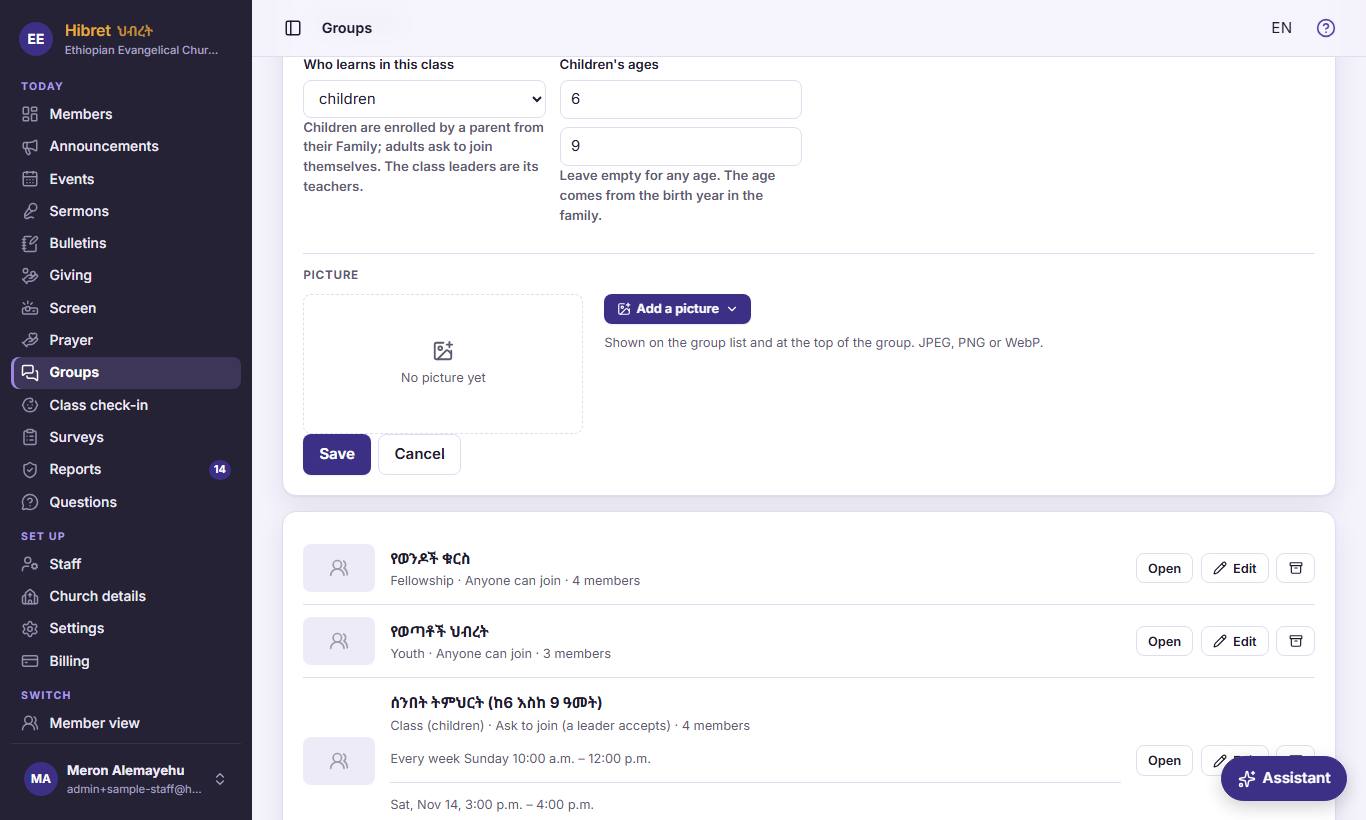
Lower in the same form: who learns 1 and the children's ages 2. Then press "Save".
- 1 "Who learns in this class": choose "children", or "children and adults". Then the class shows in check-in. A class for "adults" has no check-in.
- 2 "Children's ages": from what age to what age. A child on the class list always goes to that class. For other children, Hibret suggests the class that fits their age. The age comes from the birth year in the family. Leave it empty for any age.
The class's leaders are its teachers: they can check children in at the door, see the class list and check children out. Parents add their children in "My profile" → "My family", with allergies and the adults "Allowed to pick up". The guide "A group or class from start to finish" explains the rest of this form.
-
 123453
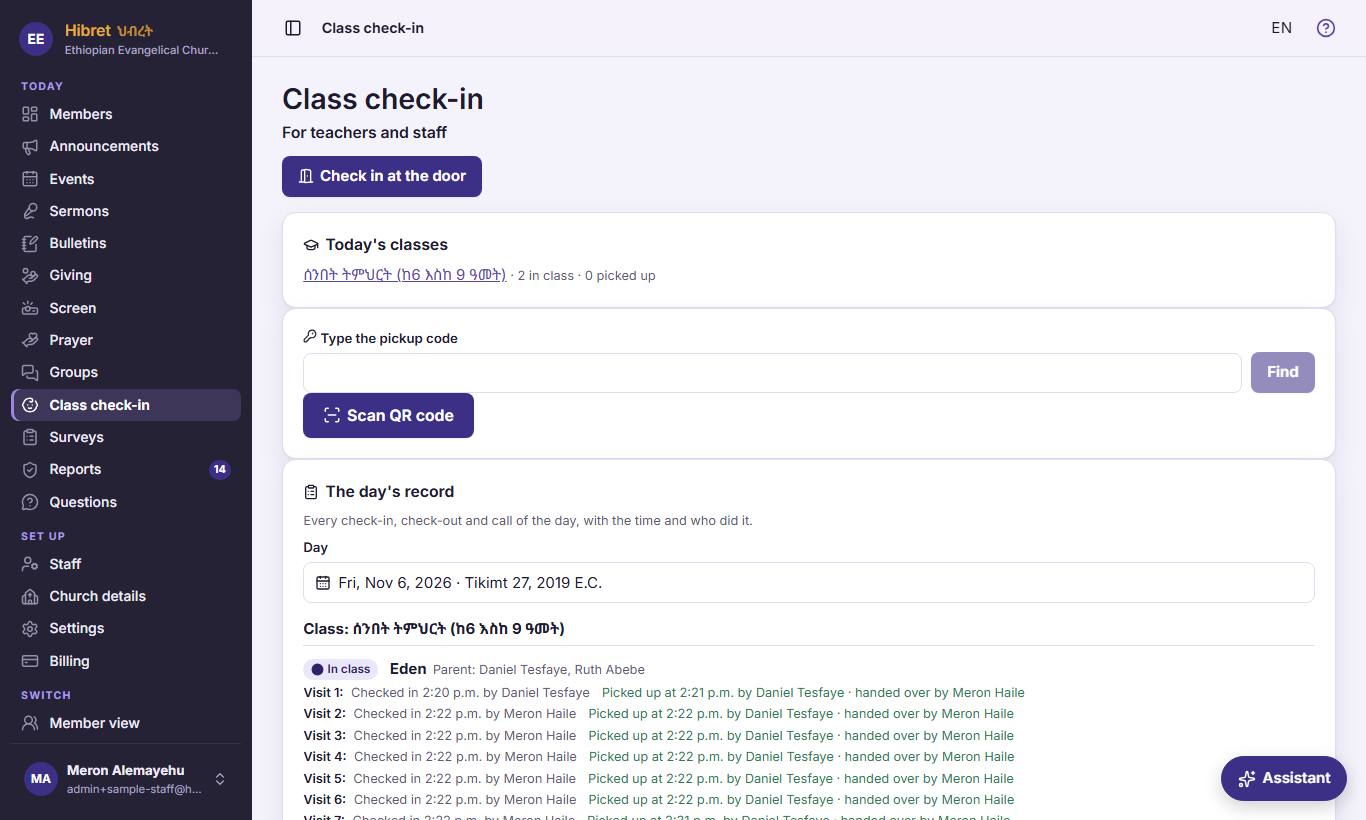
On Sunday, open "Class check-in". Here are the door 1, today's classes 2, the pickup code 3, the camera 4 and the day's record 5.
- 1 "Check in at the door": for families who did not check in on their phone. You find the family and check the children in. The staff and the class teachers can use it.
- 2 "Today's classes": each class for children, with how many are in class and how many were picked up. Press a class to open its list. The numbers change by themselves.
- 3 "Type the pickup code": when a parent comes to take the children, type the code from the parent's phone. It shows the family's children. The guide on check-out explains it step by step.
- 4 "Scan QR code": opens the camera. Hold the parent's QR code in front of it. It does the same as typing the code.
- 5 "The day's record": every check-in, check-out and call of a day, with the time and who did it. Only the staff see it.
Parents can also check in their children themselves, in the app ("Church" → "Sunday school check-in"). They get the same pickup code.
-
 1234
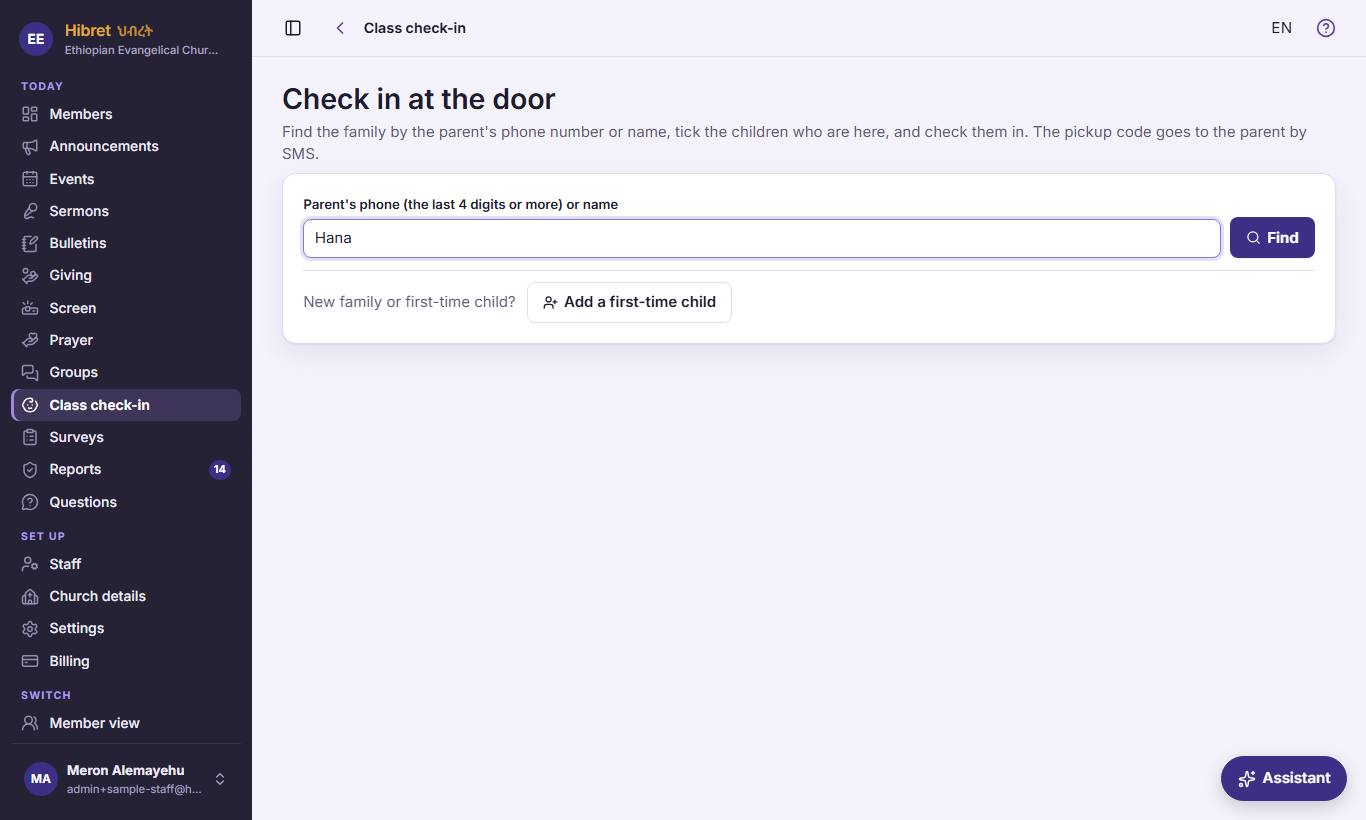
At the door: type the parent's name or phone 1, press "Find" 2. For a child who is not in Hibret yet, press "Add a first-time child" 3.
- 1 Type at least two letters of a parent's name, or the last four digits of the phone number.
- 2 "Find" shows the families that match, up to ten.
- 3 "Add a first-time child" opens a short form for a visiting child, or a child whose parents are not in Hibret yet.
-
 12345
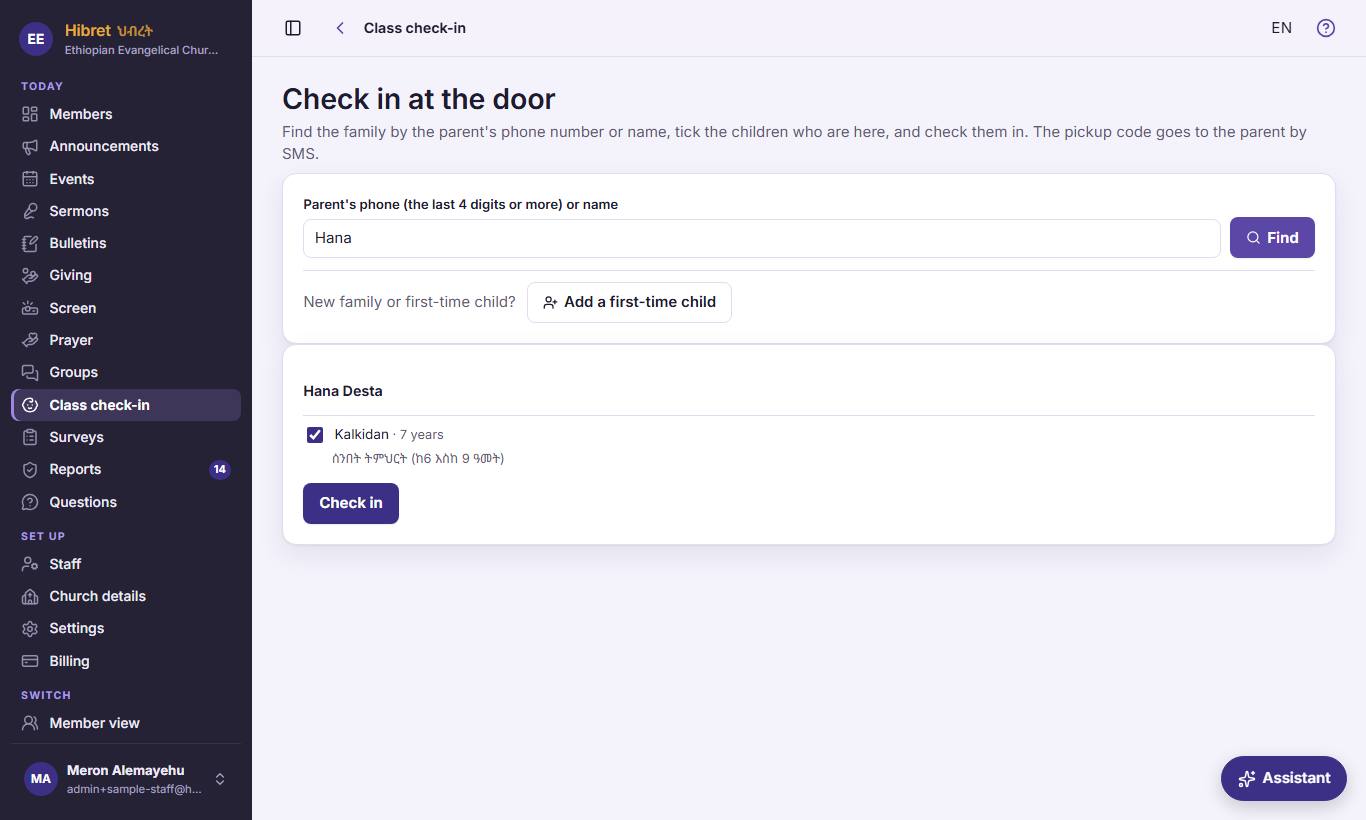
Check the family 1. Tick the children who are here 2, see the class 3, and press "Check in" 4.
- 1 The parents' names and, when Hibret knows it, the last three digits of the phone. Ask the parent, to be sure it is the right family.
- 2 At first every child is ticked. Untick a child who did not come today. A child who is in class already shows "already checked in".
- 3 The class the child goes to. When a child can go to more than one class, a list shows here: choose one.
- 4 "Check in" puts the children in class. The family gets one pickup code for the whole day. The code goes to the parent by SMS once a day, and the parents' phones get a notification. The child is also marked present in the class attendance.
The page shows the family's pickup code in big letters and says if an SMS was sent. No SMS? Tell the parent the code.
-
 1234566
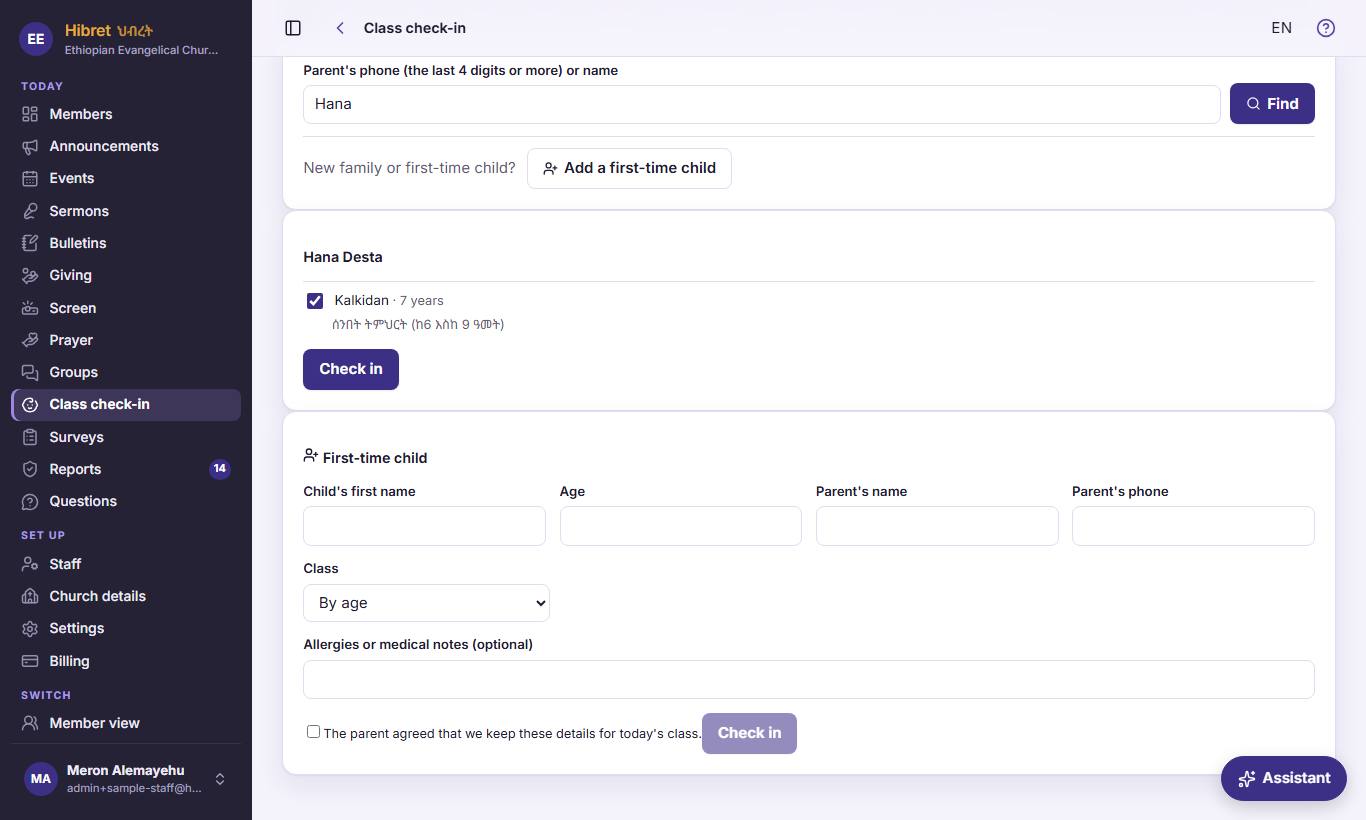
"First-time child": the child's name and age 1, the parent's phone 2, the class 3, allergies 4, the parent's yes 5, then "Check in" 6.
- 1 Write the child's first name, the age (0 to 18) and the parent's name. All three must be filled in.
- 2 "Parent's phone": the pickup code goes to this phone by SMS. Check the number with the parent.
- 3 "Class": "By age" lets Hibret choose the class that fits the age. If Hibret cannot find one class for the age, it asks you to choose the class yourself.
- 4 "Allergies or medical notes (optional)": ask the parent about allergies or health needs. The teacher sees them in red on the class list.
- 5 Ask the parent if the church may keep these details for today's class, then tick it. Without this tick you cannot check the child in.
- 6 "Check in" puts the child in class, like at the door. The code goes to the parent's phone by SMS; the page says if no SMS could be sent.
On the class list the child shows "first time". Brothers and sisters with the same parent's phone share one code that day.