 Hibret ህብረት
Children's check-out from start to finish
The class list on Sunday, calling a parent, and giving each child only to the right adult: with the pickup code or from the list. Then the day's record.
-
 1231
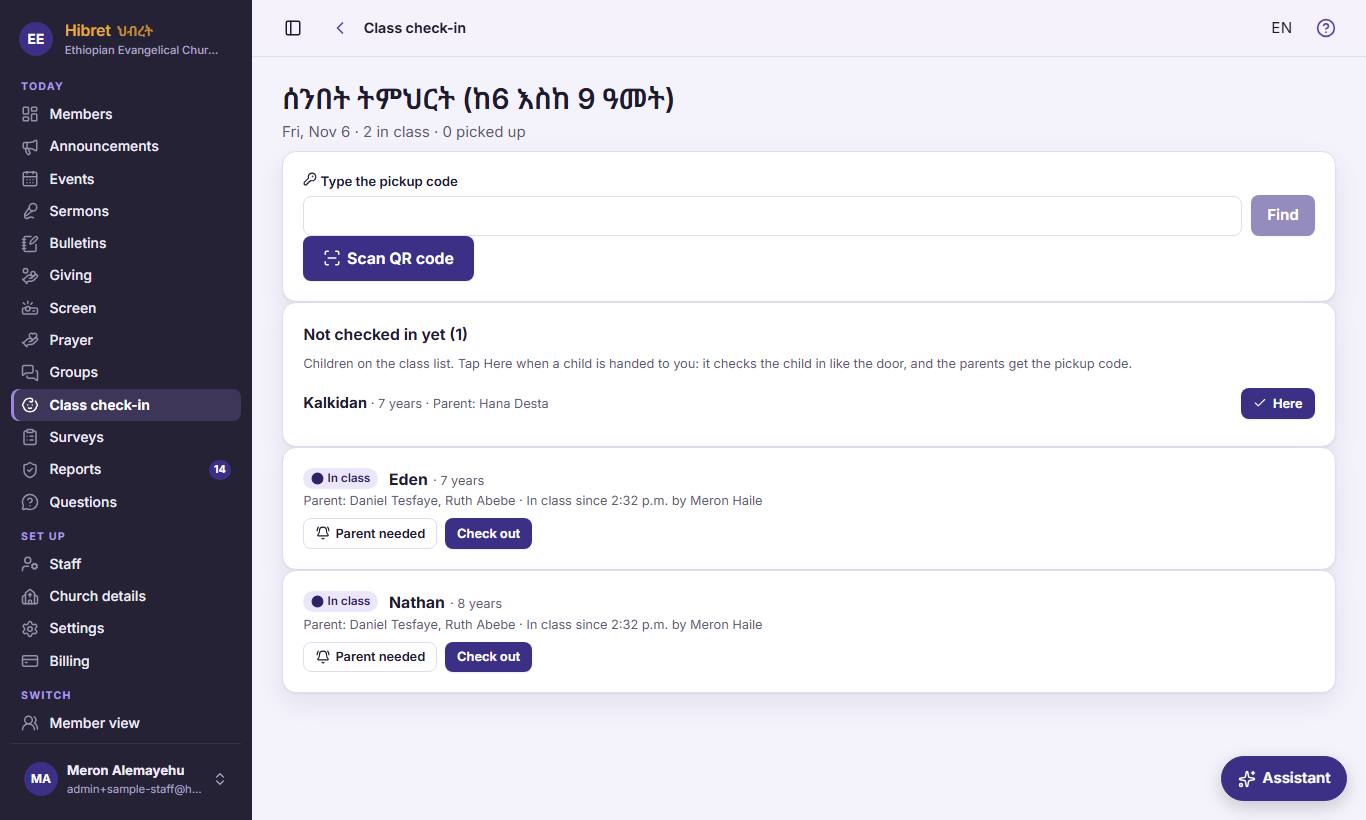
In "Class check-in", under "Today's classes", press the class. At the top: the day and the numbers 1. Below: the children not checked in yet 2 and "Here" 3.
- 1 Today's date, how many children are in class and how many were picked up. The list changes by itself when someone checks a child in or out.
- 2 Children on the class list who are not checked in today. Use it as a roll call.
- 3 "Here": press it when a parent hands you the child without checking in. It checks the child in, as at the door: the parents get the pickup code, and the record shows that you did it.
-
 1232
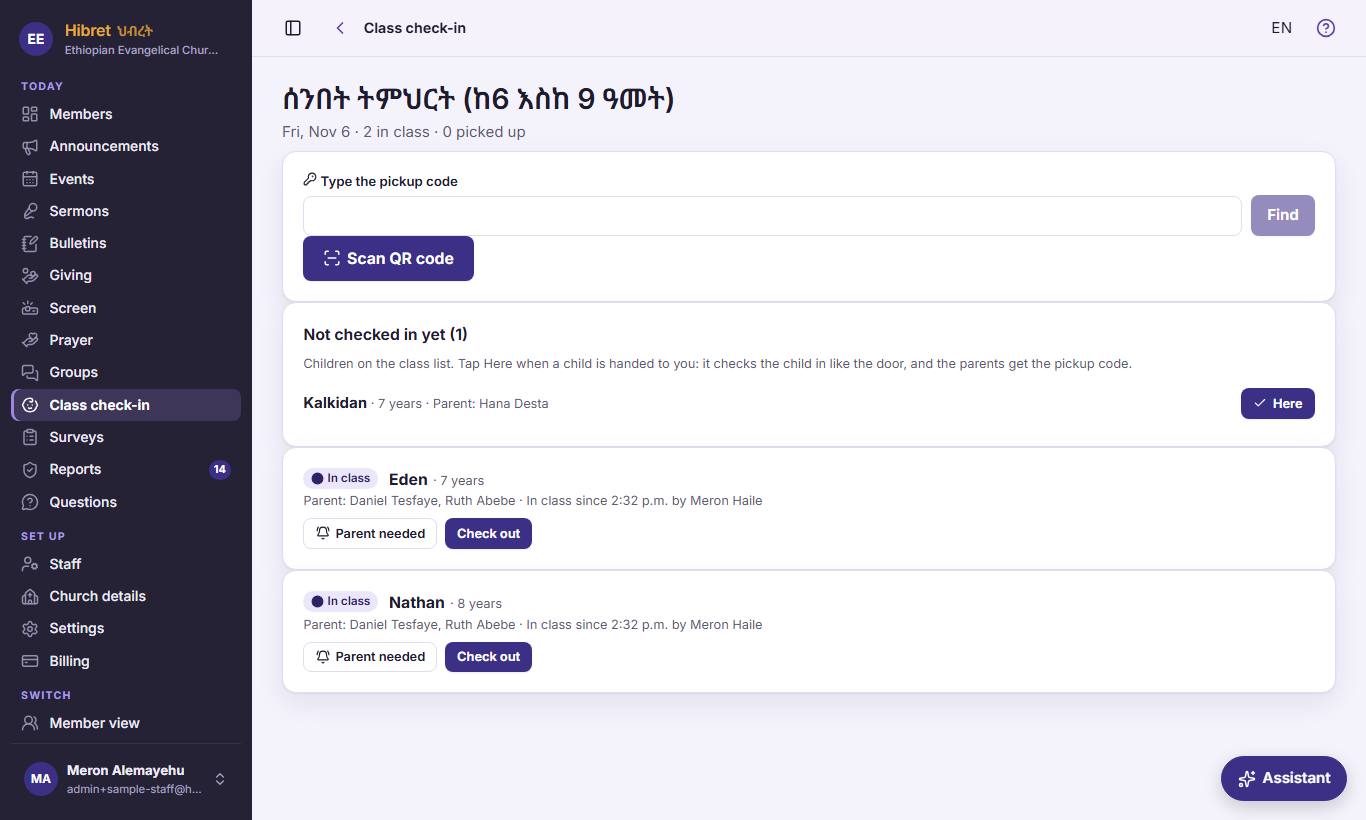
Each child in class has a label 1, "Parent needed" 2 and "Check out" 3.
- 1 Where the child is now: "In class", "Parent called", or "Picked up". Children in class are at the top. If the parents wrote an allergy, it shows in red under the name.
- 2 "Parent needed": use it when a child is sick, hurt or cannot calm down. The parents get a notification on their phones, and an SMS when the church can send SMS. You can call again after two minutes.
- 3 "Check out" opens the check-out for this child. Nothing is saved yet.
-
 1233
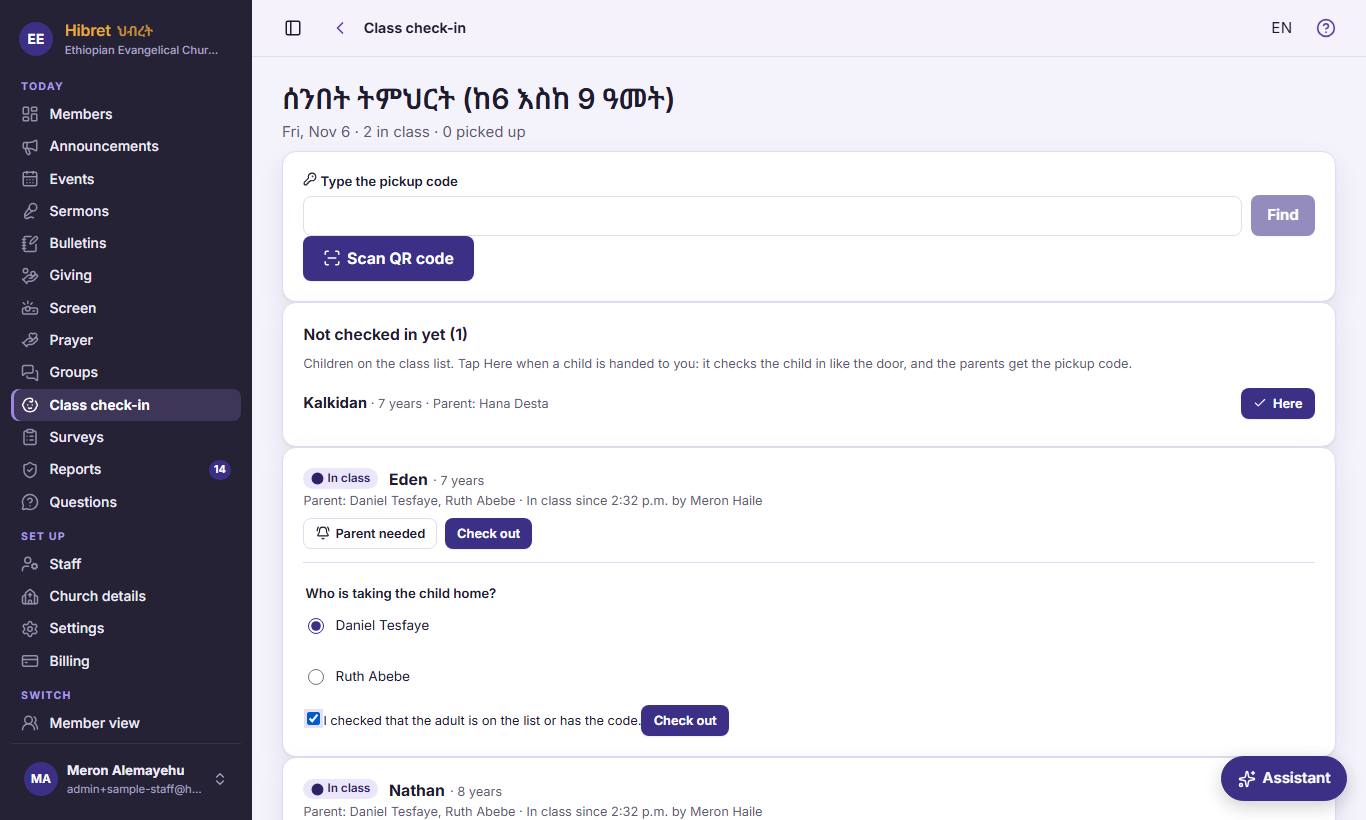
Choose who takes the child home 1, tick that you checked the adult 2, then press "Check out" 3.
- 1 "Who is taking the child home?" The list has the parents and the adults the parents allowed in their family. You can choose only these people. Someone else? Do not give the child: call the parent.
- 2 Tick it only after you checked that the adult is on the list or has the family's code. The button works only with this tick.
- 3 "Check out" saves the time, who took the child home, and who handed the child over.
The label shows "Picked up", with the time and who took the child. The parents get a notification.
-
 1234
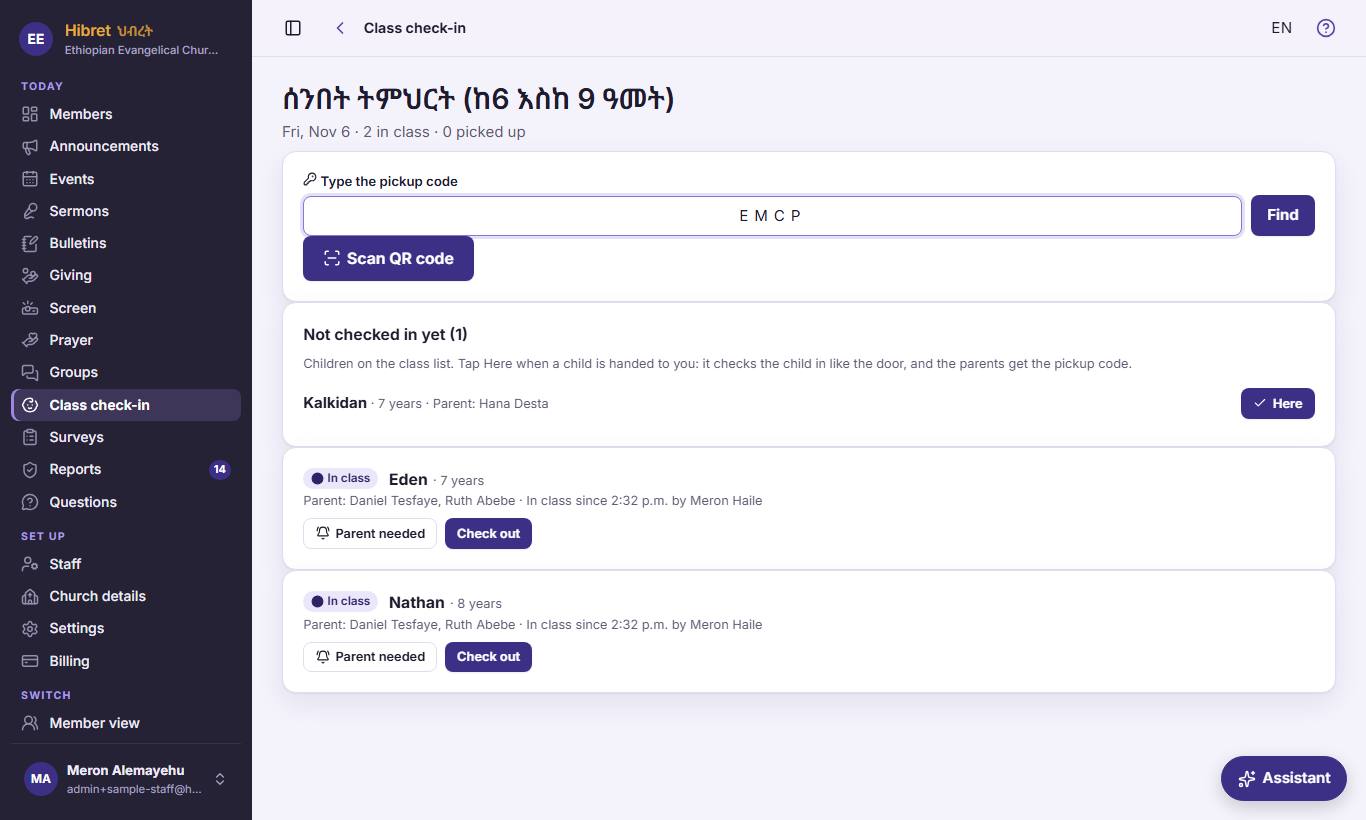
With the pickup code: type the code from the parent's phone 1 and press "Find" 2. Or press "Scan QR code" 3.
- 1 The code has four letters and numbers. The parent sees it in the app, and often also got it by SMS. It works only today. Letters that look the same, like O and 0, are never used.
- 2 "Find" shows the family and the children. A wrong or old code shows no names.
- 3 "Scan QR code": the camera reads the QR code on the parent's phone. If the browser asks, allow the camera.
-
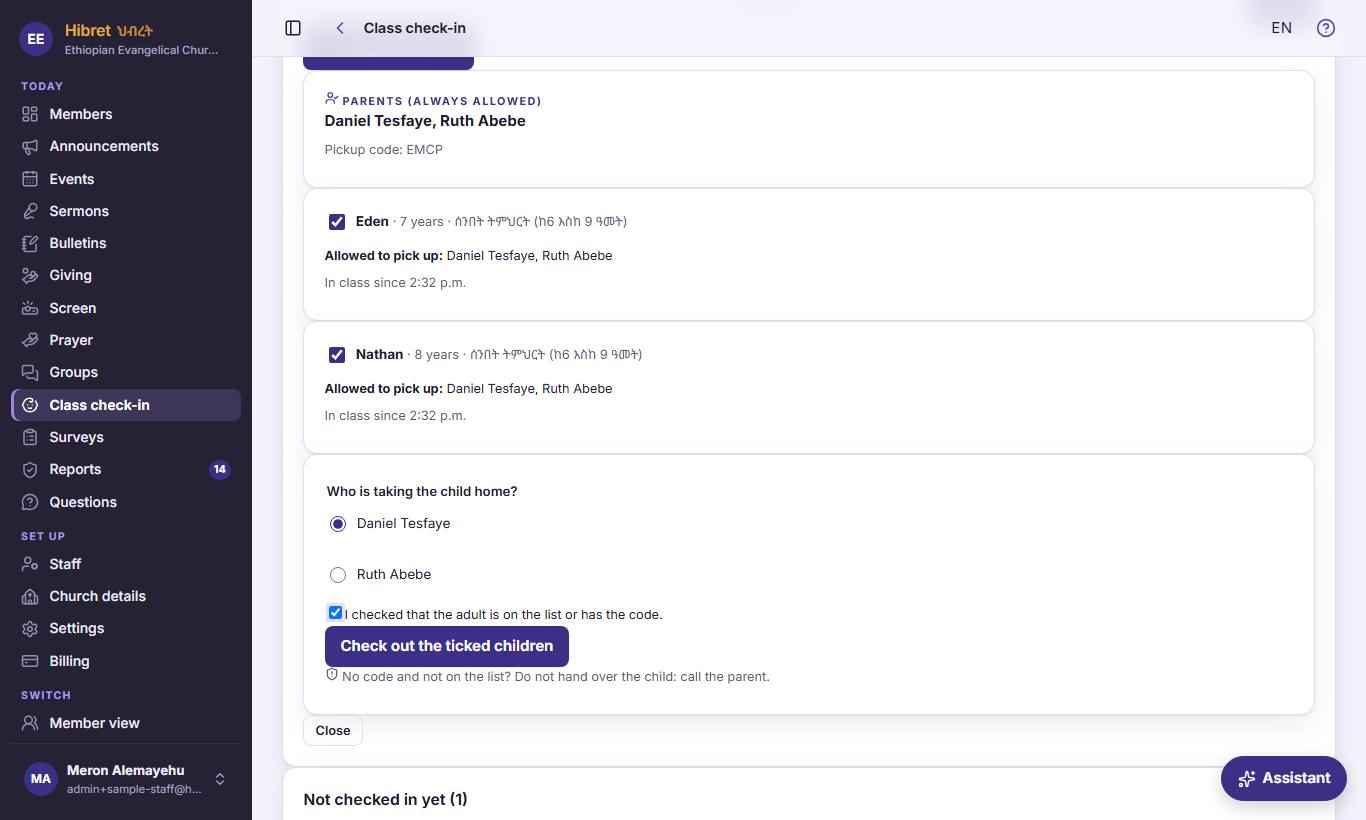 123455
Check the parents 1 and each child 2. Choose who takes them home 3, tick 4 and press "Check out the ticked children" 5.
- 1 "Parents (always allowed)": the parents may always take the children. Compare the name with the person in front of you.
- 2 Each child with the class, any allergy, and "Allowed to pick up". Untick a child who stays. A teacher can check out only the children of their own class; the staff can check out all.
- 3 "Who is taking the child home?" Only the parents and the adults allowed for every ticked child are in this list.
- 4 Tick it after you checked the adult. The button works only with this tick.
- 5 "Check out the ticked children" checks out all the ticked children at once. The parents get a notification.
"No code and not on the list? Do not hand over the child: call the parent."
-
 1236
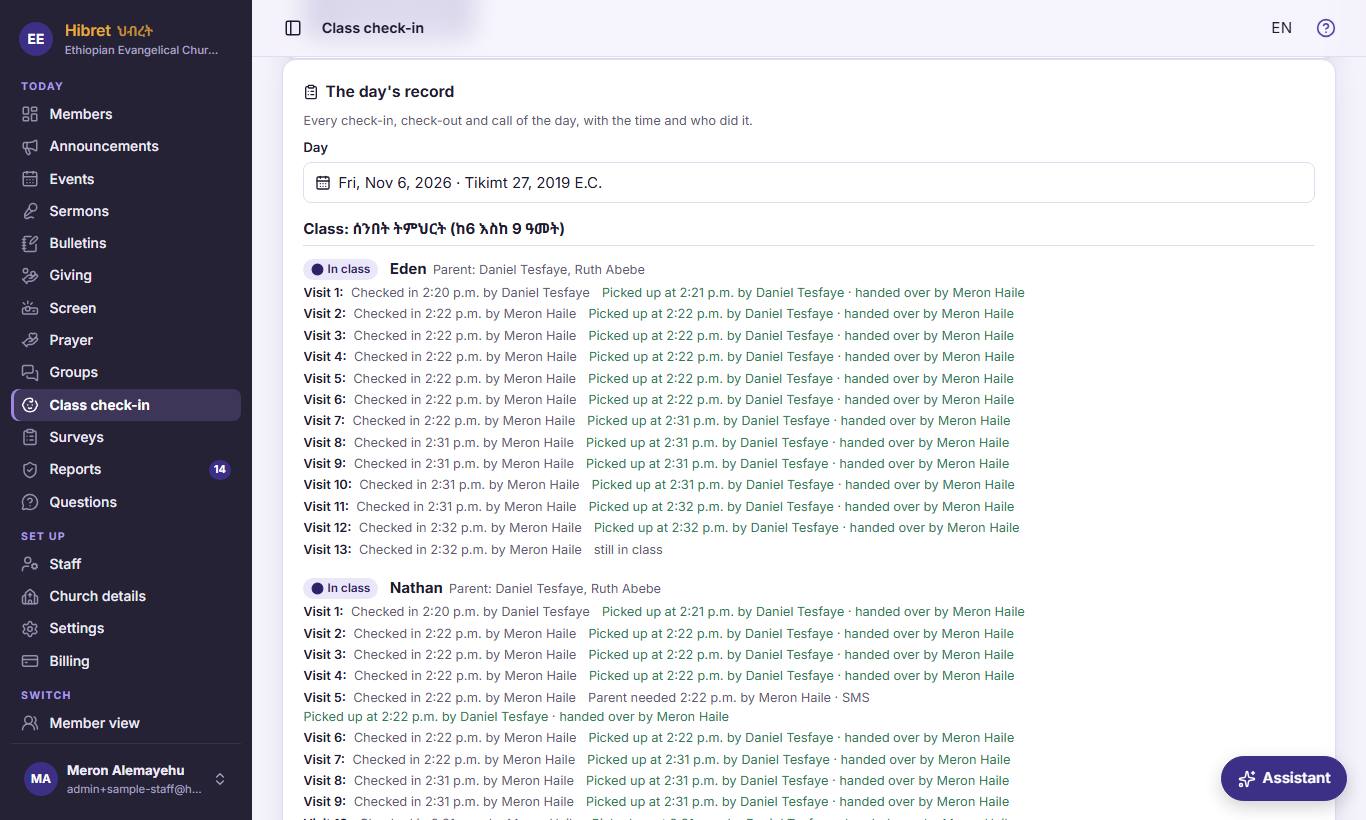
Back in "Class check-in": "The day's record" 1 for a day 2, each child with every step 3.
- 1 "The day's record": every check-in, check-out and call, grouped by class. Use it when a parent or a leader asks what happened.
- 2 "Day": today at first. Choose an earlier day to look back.
- 3 Each child: where the child is now, the parent, and each step with the time and who did it: checked in, parent called, picked up, and who took the child home. "SMS" shows when an SMS went. A child checked in again the same day has one line for each time.