 Hibret ህብረት
An event from start to finish
Everything an event can have: the place, the time and repeats, a picture, who it is for, the "Will you come?" question with places, files, and how members answer.
-
 12341
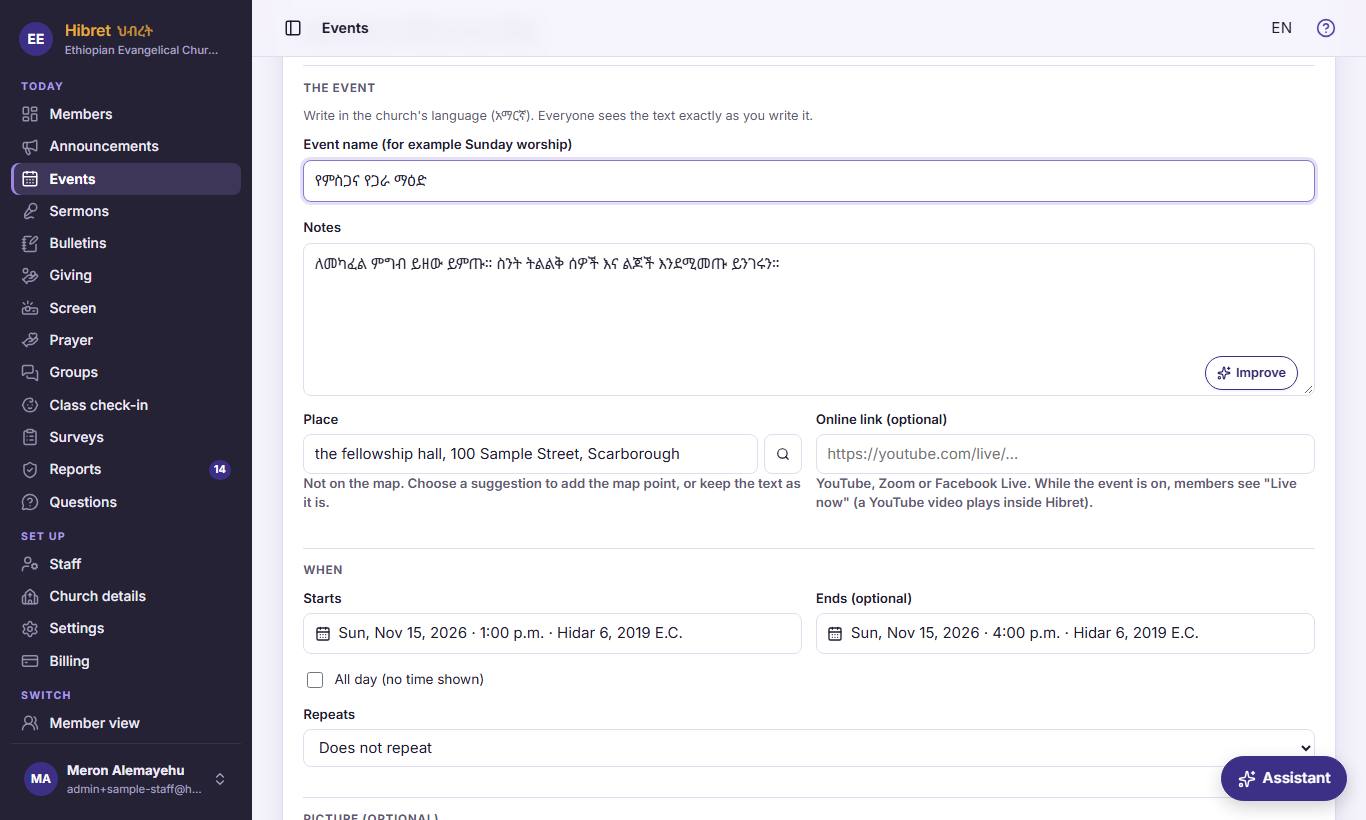
In "Events", press "New event", or "Edit" on an event. "The event": the name 1, the notes 2, the place 3 and "Online link (optional)" 4.
- 1 The name members see in the calendar. Write it in the church's language, as members should read it.
- 2 What to know: what to bring, who it is for, the program. "Improve" makes the words clearer.
- 3 An address or a room. Choose a suggestion from the list to add the map point, or keep your own words, like "Fellowship hall". Members tap the place to open it in their phone's map app, and Directions starts the route.
- 4 For an event online or streamed: a YouTube, Zoom or Facebook Live link. While the event is on, members see "Live now".
-
 12342
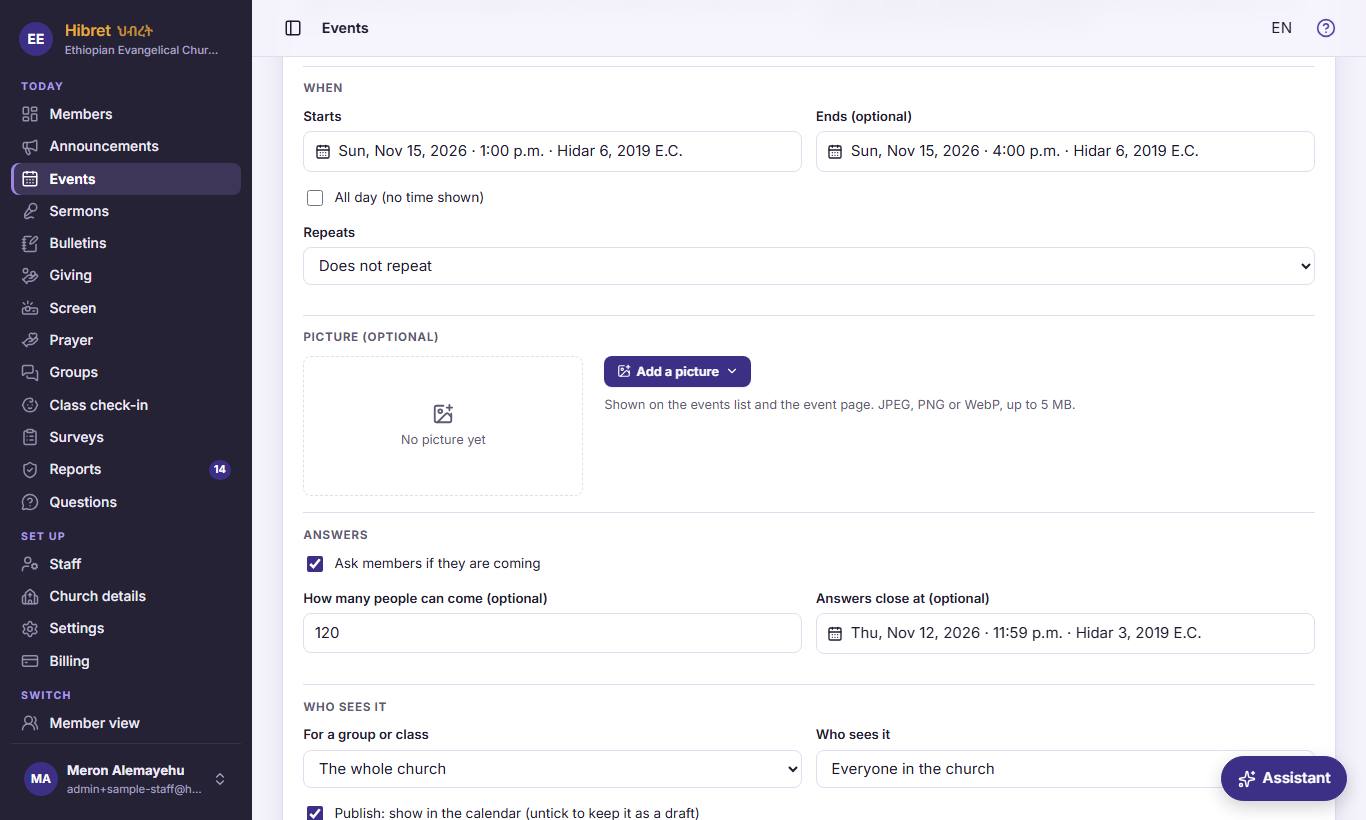
"When": the start 1, the end 2, "All day (no time shown)" 3 and "Repeats" 4.
- 1 The day and hour it starts. The calendar lists events in this order.
- 2 Optional: when it ends. Members then see "from – to".
- 3 For a whole day, like a retreat: no hour is shown.
- 4 "Does not repeat", "Every week", "Every two weeks" or "Every month (same weekday)". A repeating event can stop on a date ("Until (optional)"). Later, Save asks: "Only this date" or "This and all following".
-
 13
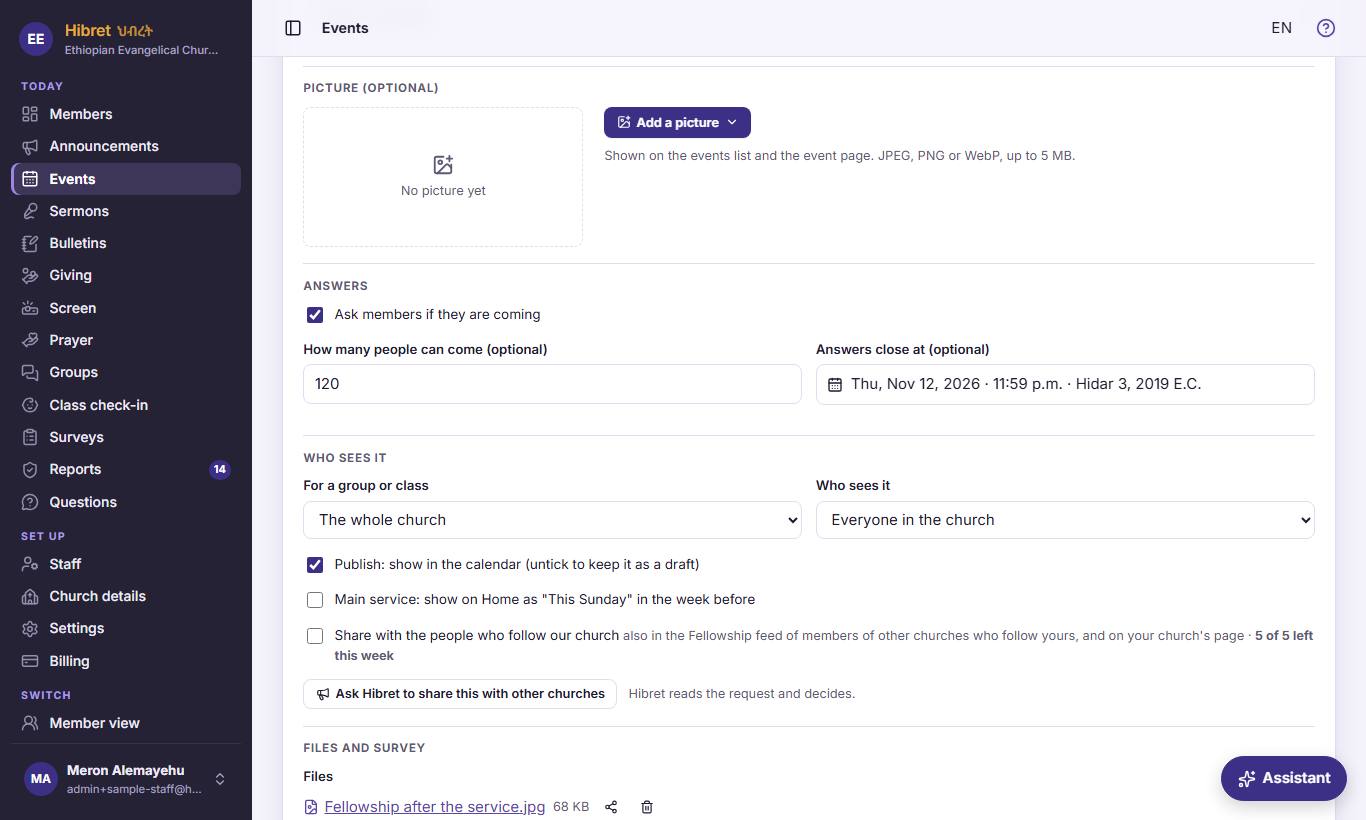
"Picture (optional)": the picture menu 1.
- 1 "Upload a picture" takes a photo or a poster, up to 5 MB. "Draw with AI" paints one from the event's name and notes. "Picture with preacher" puts a preacher's photo with the words. The picture shows on the events list and the event page.
-
 1234
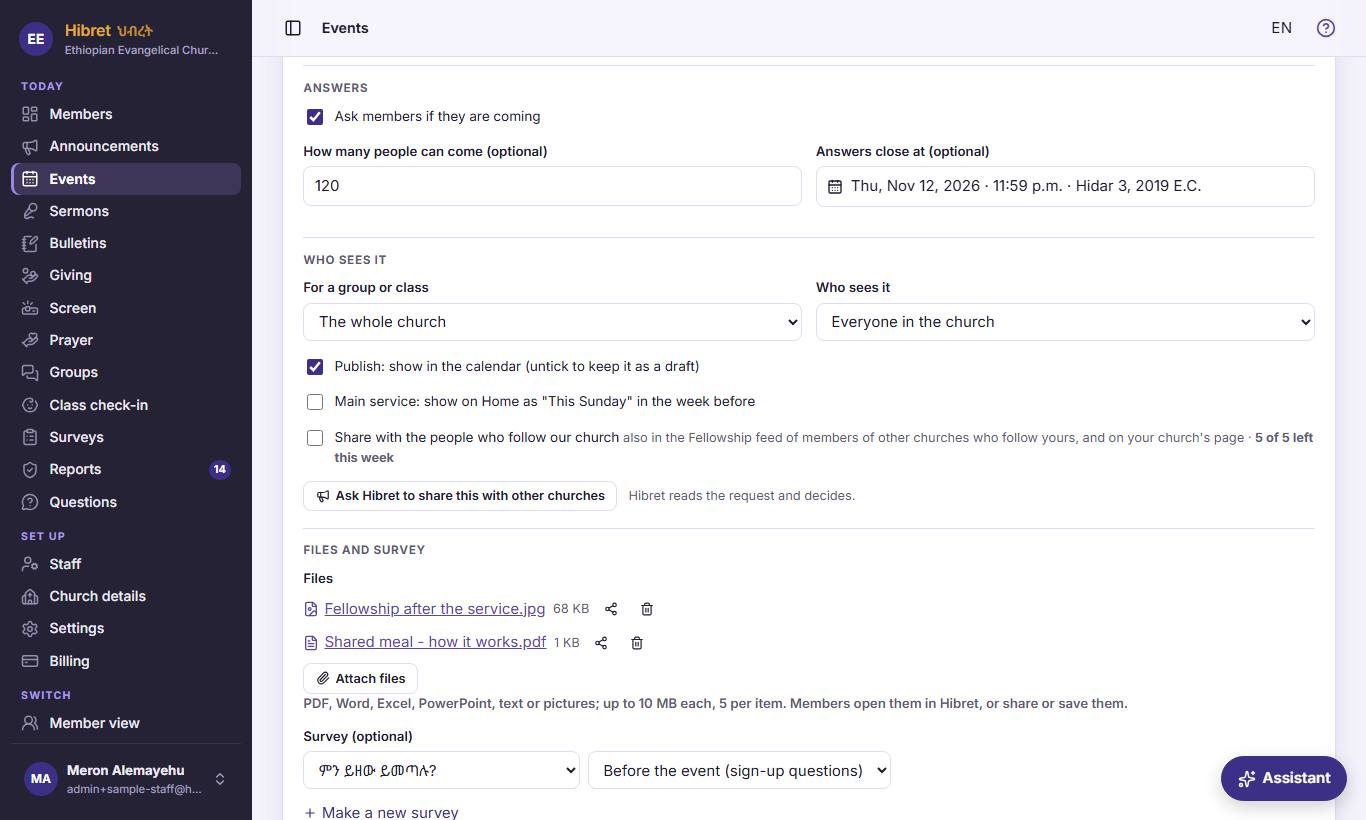
"Answers": tick "Ask members if they are coming" 1. Write "How many people can come (optional)" 2 and when answers close 3.
- 1 Members answer "Going", "Maybe" or "Not going", with how many adults and children. Use it for a meal or a trip, so you know how many will come.
- 2 Optional. Adults and children who answer "Going" count. When it is full, nobody more can answer "Going".
- 3 Optional. After this time members cannot answer or change their answer.
-
 1234565
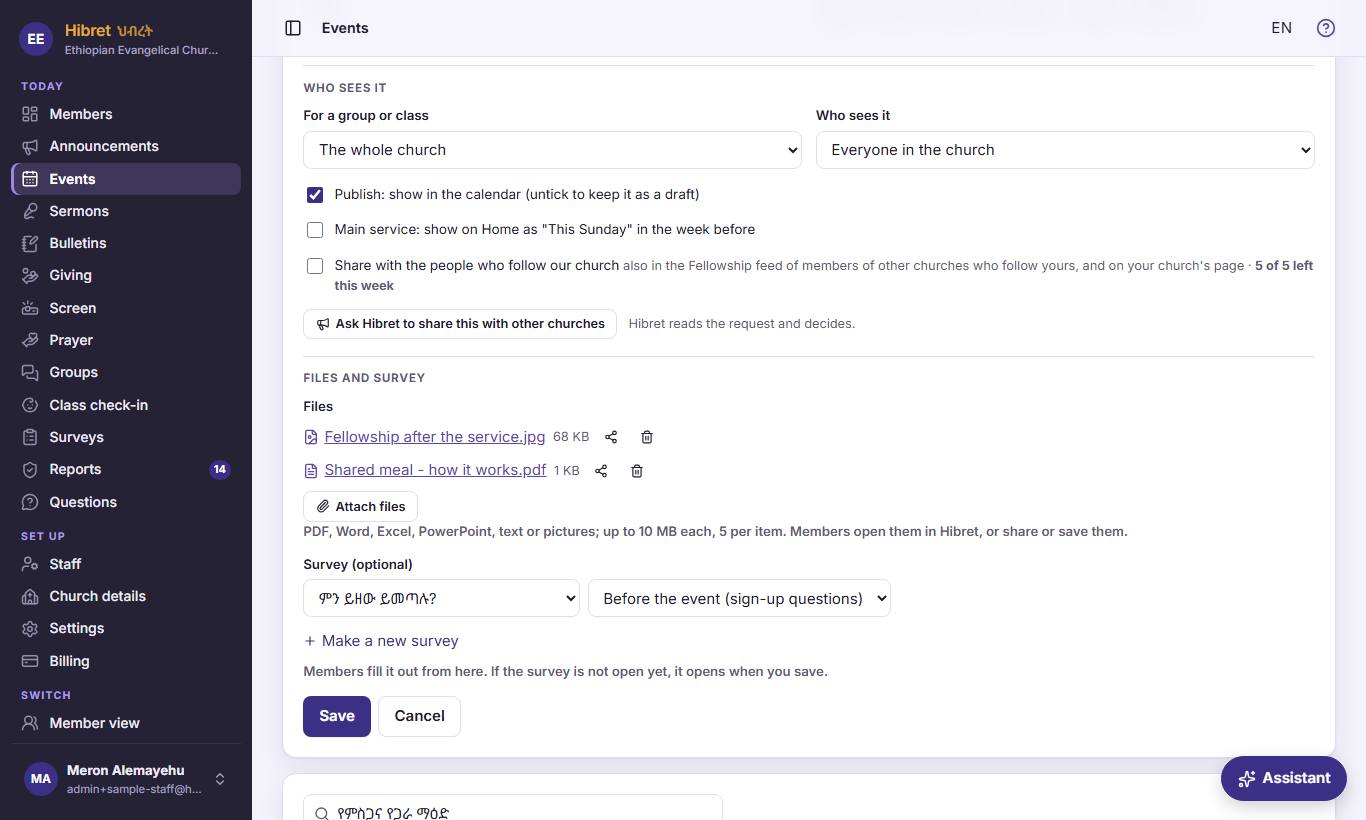
"Who sees it": the group 1, who 2, publish 3, the main service 4, sharing 5 and "Ask Hibret to share this with other churches" 6.
- 1 "The whole church", or one group or class. For a group, only its members and the staff see it, and only they are told when it starts.
- 2 "Everyone in the church" also includes people who signed up and wait for approval. "Approved members only" hides it from them.
- 3 Ticked: the event is in the members' calendar. Untick it to keep a draft only staff see.
- 4 Only for the main Sunday service: members see it on Home as "This Sunday", and Hibret prepares next Sunday's sermon each week.
- 5 The event also shows to members of other churches who follow yours, and on your church's page. Five shares a week.
- 6 For a big event open to all churches: you ask Hibret to show it to other churches too. Hibret reads the request and decides; you get an email at each step.
-
 123456
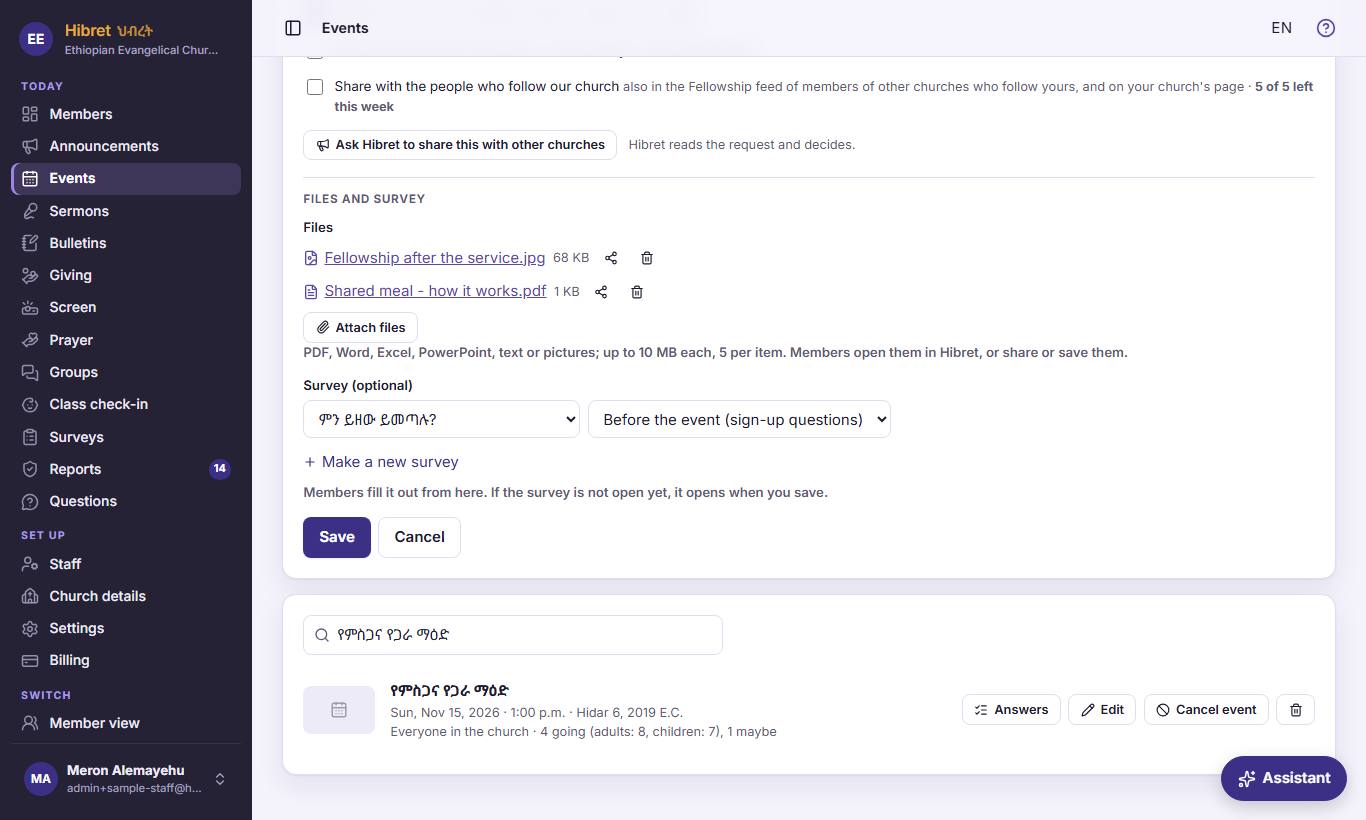
"Files and survey": files 1, a survey 2 and when it is asked 3, or a new survey 4. Then "Save" 5.
- 1 "Attach files" adds up to five files of 10 MB each, like a flyer or the program.
- 2 Choose one of your church's surveys to attach. Members fill it out right on the event.
- 3 "Before the event (sign-up questions)": shown until the event ends. "After the event (feedback)": shown once it has ended.
- 4 "Make a new survey" opens a window to write the questions. When you save it there, it is chosen here.
- 5 "Save" keeps everything. For a repeating event, Hibret asks: "Only this date" or "This and all following".
-
 12347
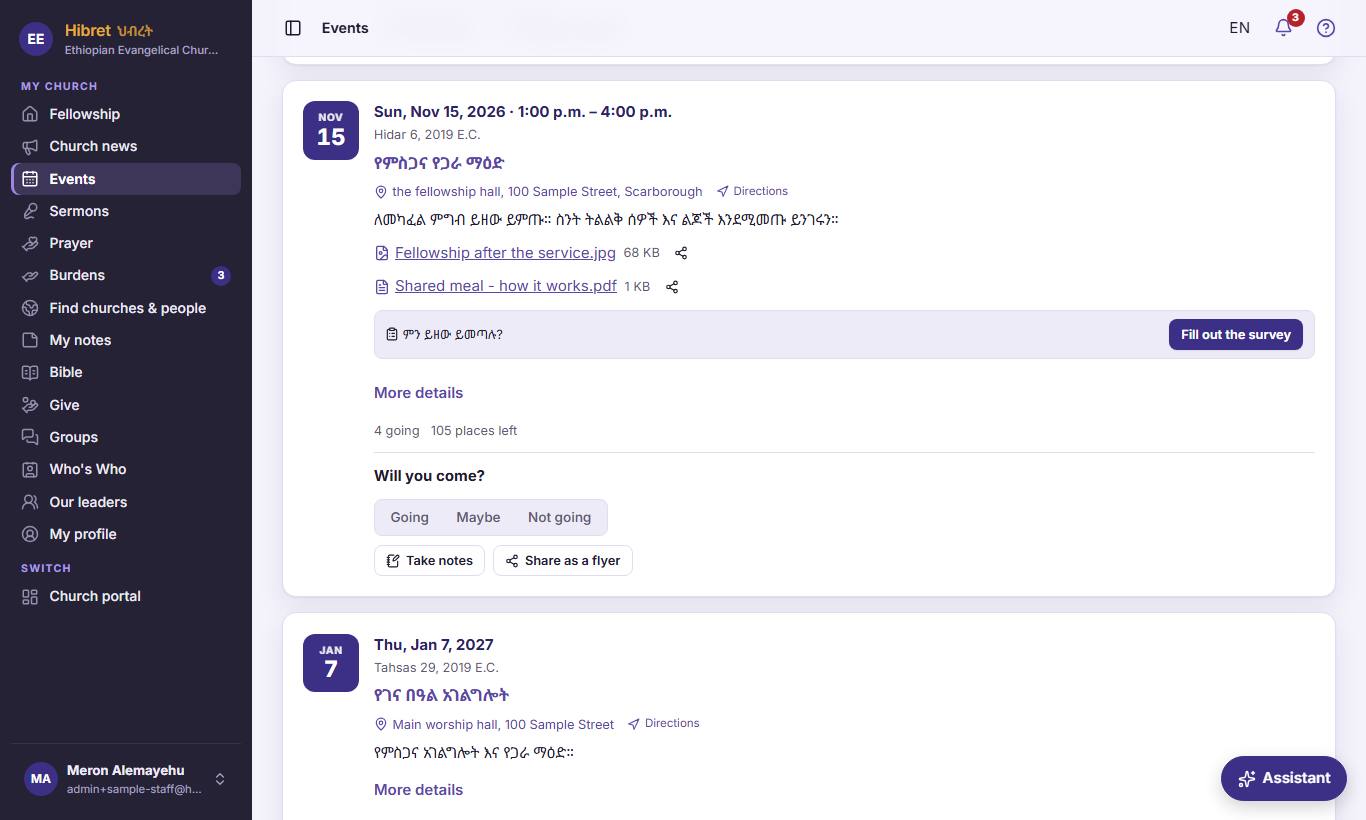
Members see the event with "Will you come?" 1 and the places left 2. "More details" 3 shows everything; "Share as a flyer" 4 invites friends.
- 1 One tap answers. For "Going" or "Maybe", the member also writes how many adults and children come.
- 2 How many answered "Going", and the places left when you wrote a number.
- 3 "More details" opens the event on its own page, with all its notes.
- 4 "Share as a flyer" makes a picture of the event with the date and place, ready for WhatsApp or Telegram.
You see the answers under the event in the portal: "Answers".