 Hibret ህብረት
Church news from start to finish
Every part of church news, what it does and when to use it: the words, the picture, when it shows and when it goes, pinning, who sees it, notifications, sharing, files and a survey.
-
 1231
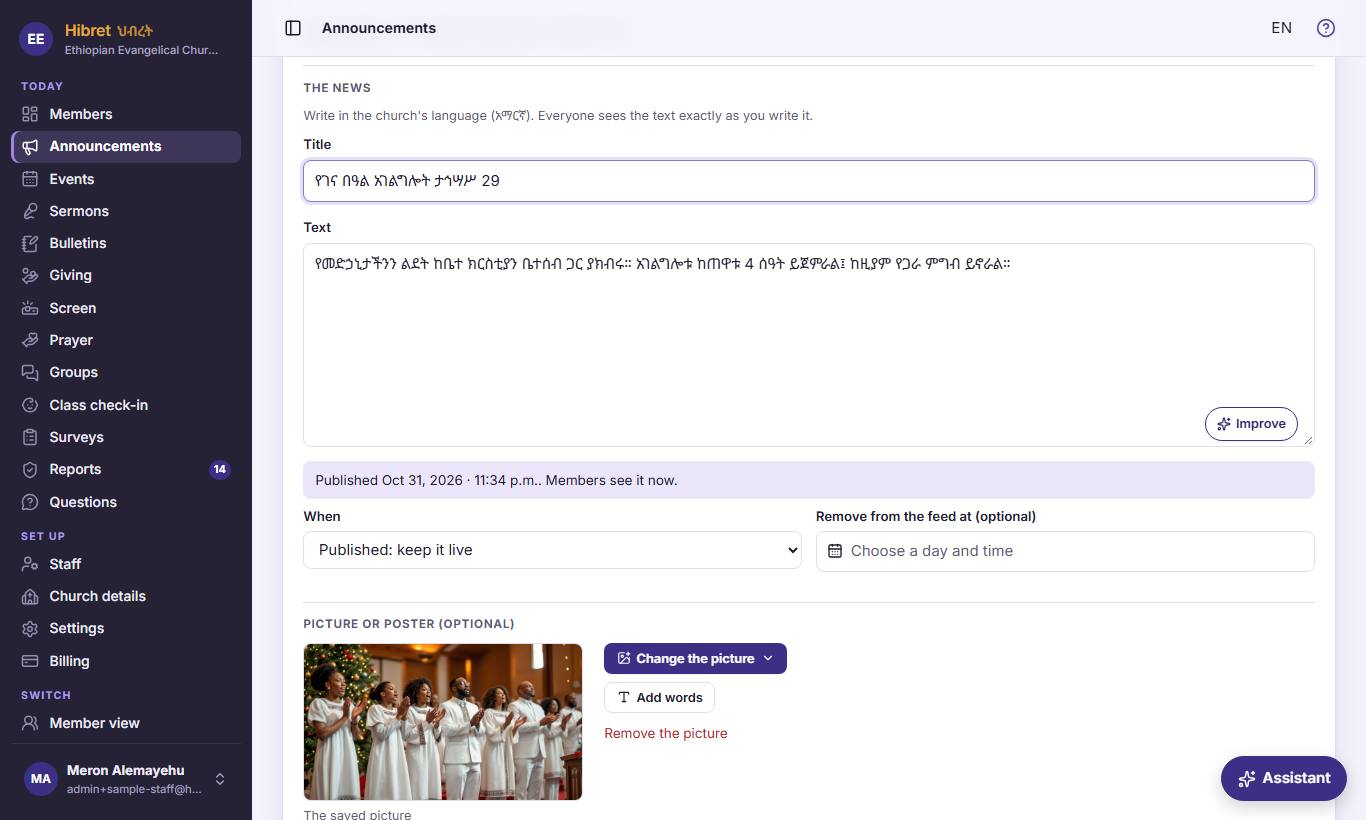
In "Announcements", press "New announcement", or "Edit" on news. "The news": the title 1, the words 2 and "Improve" 3.
- 1 The title is the first thing members read in the feed. Keep it short and clear.
- 2 The words of the news. Write them in the church's language: members see them exactly as you write them.
- 3 "Improve" asks Hibret's AI to make your words clearer and correct the spelling. You see the new words first, and you choose to use them or keep yours.
-
 122
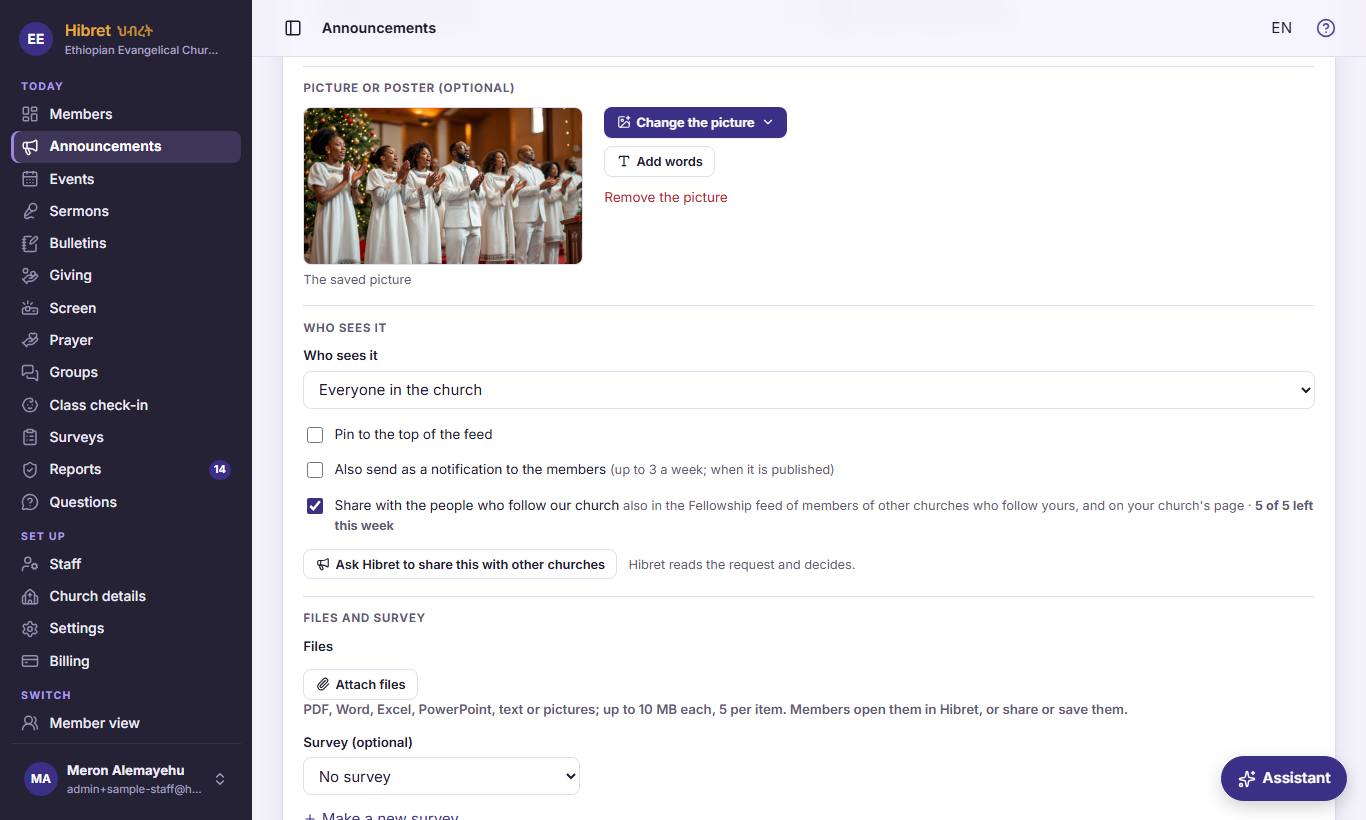
"Picture or poster (optional)": the picture menu 1 and "Add words" 2.
- 1 This menu has two choices: "Upload a picture" takes a photo or a poster from your computer or phone; "Draw with AI" lets you describe a picture, and Hibret's AI paints it. A picture makes news easy to see in the feed.
- 2 "Add words" writes the title on the picture, like a poster. Use it when you want to share the news as a picture on WhatsApp or Telegram.
-
 1234563
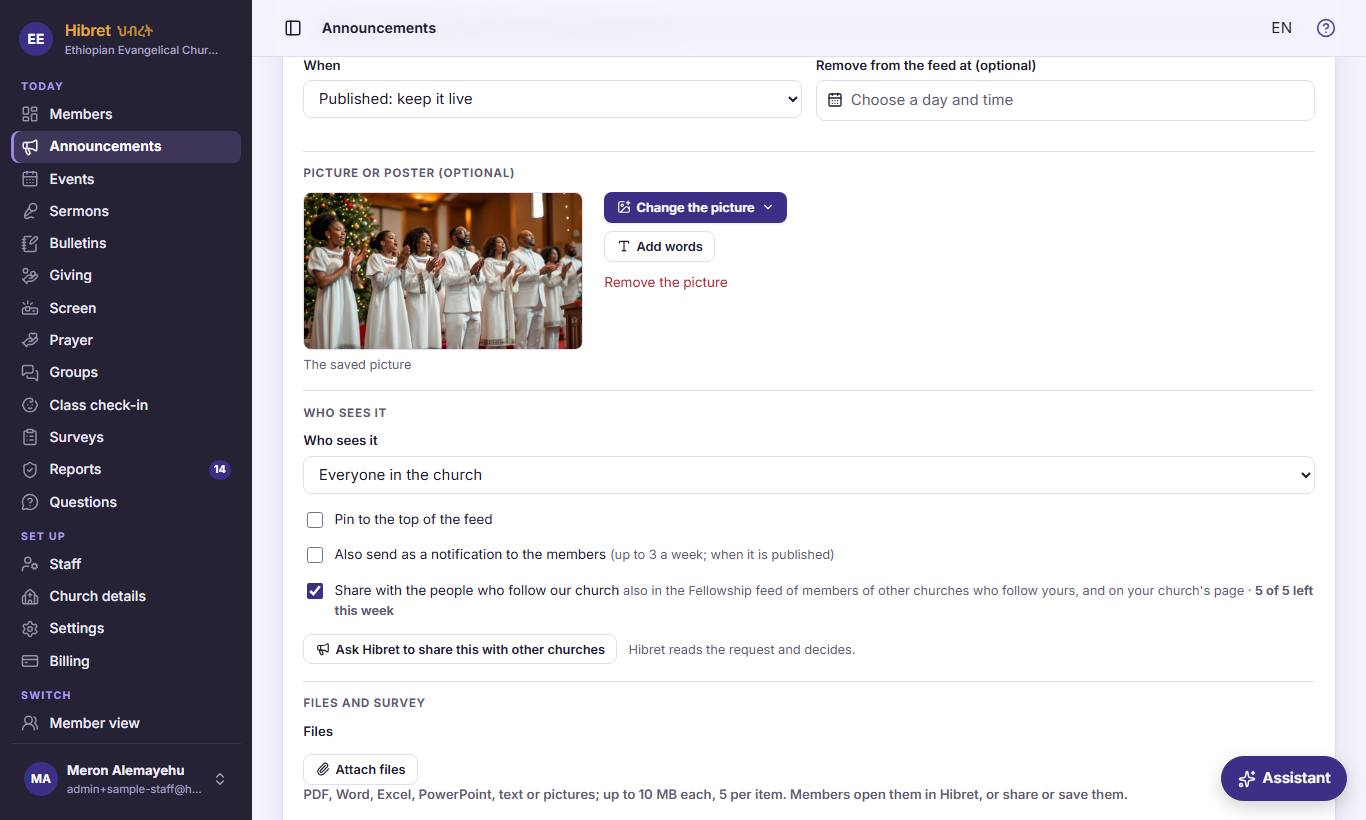
When it shows 1 and when it goes 2, pinning 3, who sees it 4, a notification 5 and sharing 6.
- 1 "When": "Publish now" shows it at once. "Publish at a set time" lets you choose a day and hour, and Hibret publishes it then by itself. "Keep as a draft" keeps it hidden from members until you are ready. On news that is already live you see "Published: keep it live", which changes nothing, or "Unpublish (back to draft)", which hides it again.
- 2 "Remove from the feed at (optional)": the news leaves the feed by itself at this time, for example the day after the event. Leave it empty to keep it.
- 3 "Pin to the top of the feed" keeps this news above everything else in the feed. Then choose how long: always, one day, two days, a week, or until a date. Use it for the most important news of the week.
- 4 "Who sees it": "Everyone in the church" also includes people who signed up and still wait for approval. "Approved members only" hides it from them: use it for news only for members.
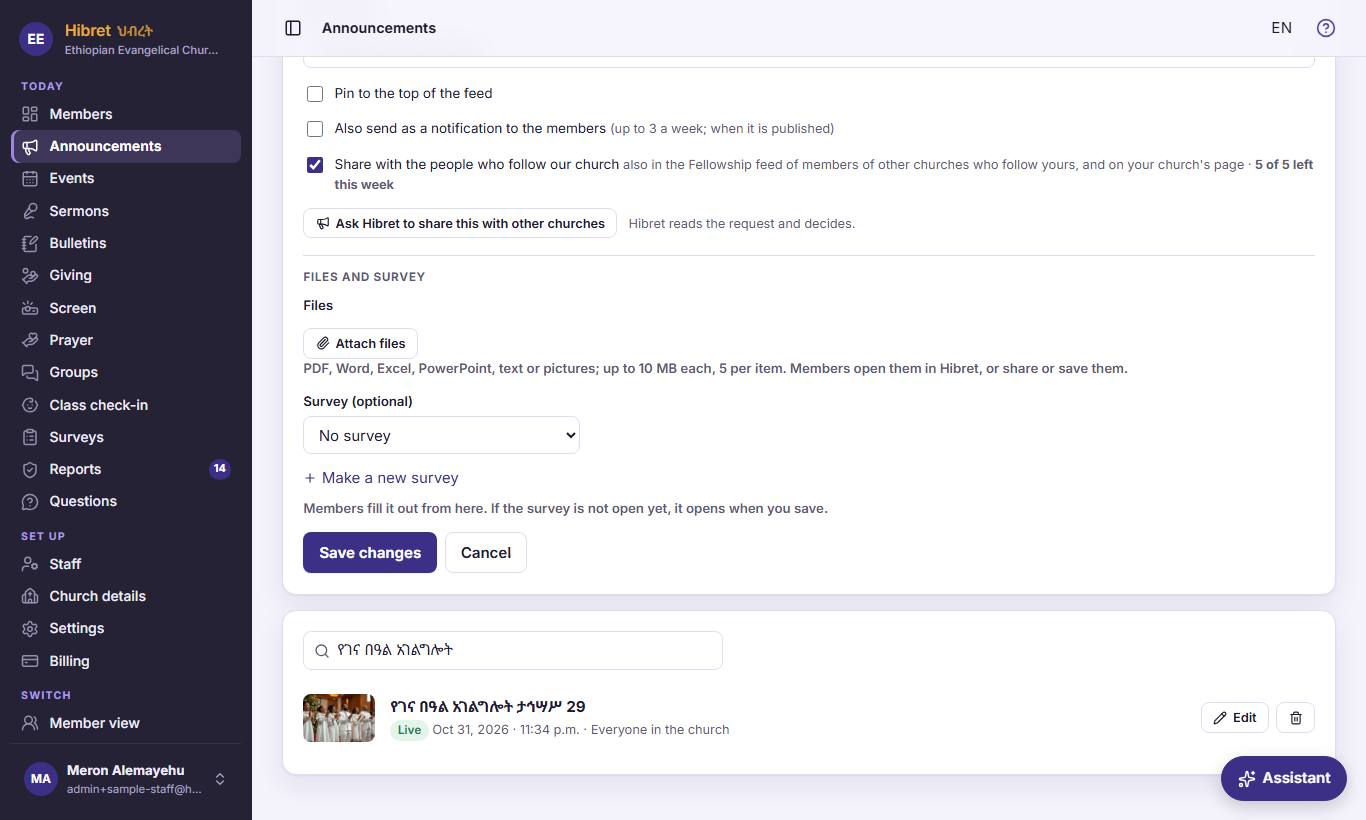
- 5 "Also send as a notification to the members": members get a message on their phone when the news is published. Hibret allows up to three a week, so members are not disturbed too often.
- 6 "Share with the people who follow our church": the news also shows to members of other churches who follow yours. Use it for events open to everyone; your church can share five a week.
-
 12344
"Files and survey": files 1, a survey 2 or a new survey 3, then save 4.
- 1 "Attach files" adds up to five files of 10 MB each, like a program, a PDF or a song sheet. Members open them in Hibret, or share or save them.
- 2 "Survey (optional)": choose one of your church's surveys from this list to attach it to the news. Members fill it out right under the news. If the survey is not open yet, it opens when you save.
- 3 "Make a new survey" opens a window right here, where you write the survey and its questions. When you save it, it is chosen for this news by itself.
- 4 This button saves everything. It says "Save and publish" for new news, "Save draft" for a draft, and "Save changes" when you change news. "Cancel" closes without saving.
-
 125
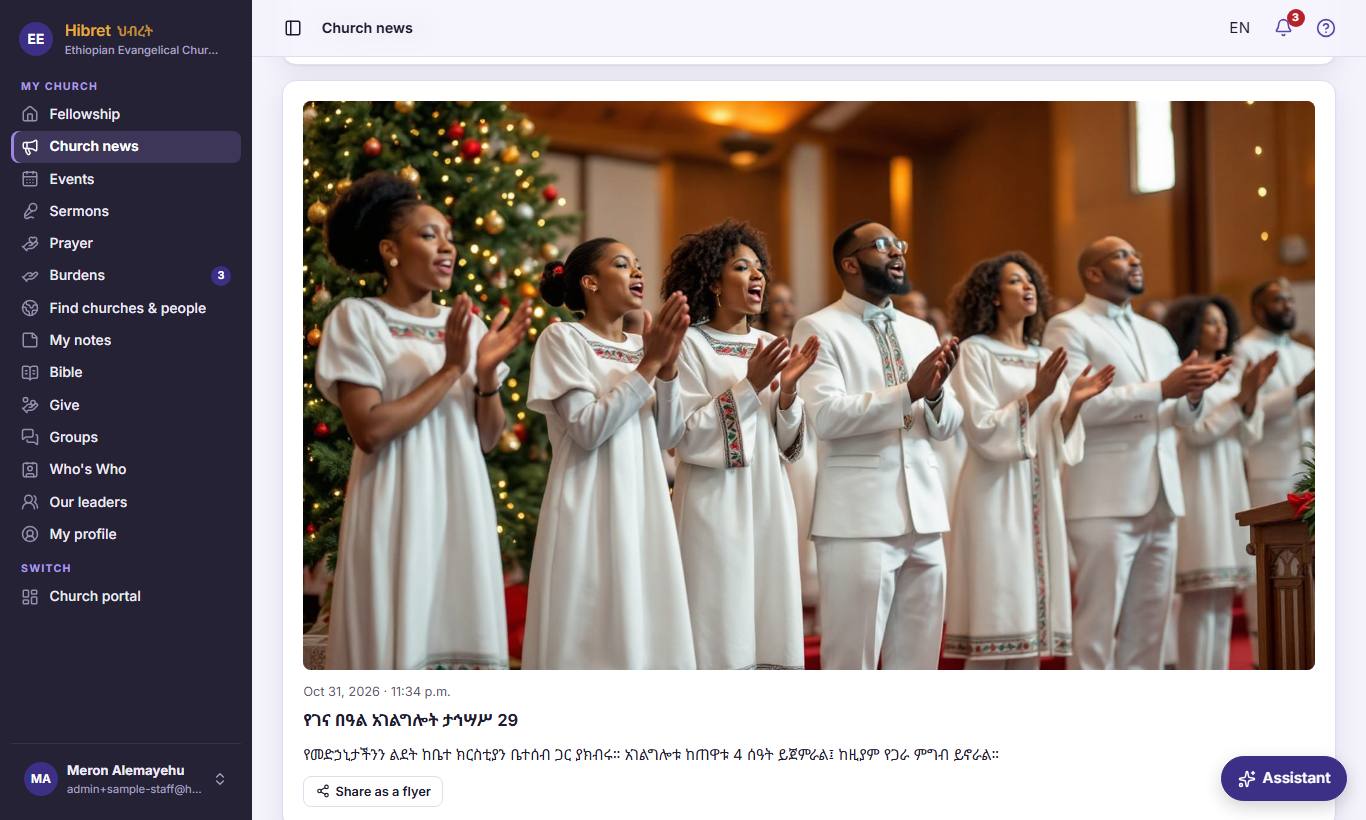
This is what members see: the news with its picture 1 and "Share as a flyer" 2.
- 1 Members see the news in "Announcements" and in the feed on their home page, in the app and on the web.
- 2 "Share as a flyer" makes a picture of the news with your church's name, ready to send on WhatsApp, Telegram or by email. Members use it to invite family and friends.