 Hibret ህብረት
Sermon slides from start to finish
Every part of the slides page, what it does and when to use it: the five kinds of slides, the order, a PDF from PowerPoint, the cover, the speaker notes, the slide times for the video and a guest preacher.
-
 11
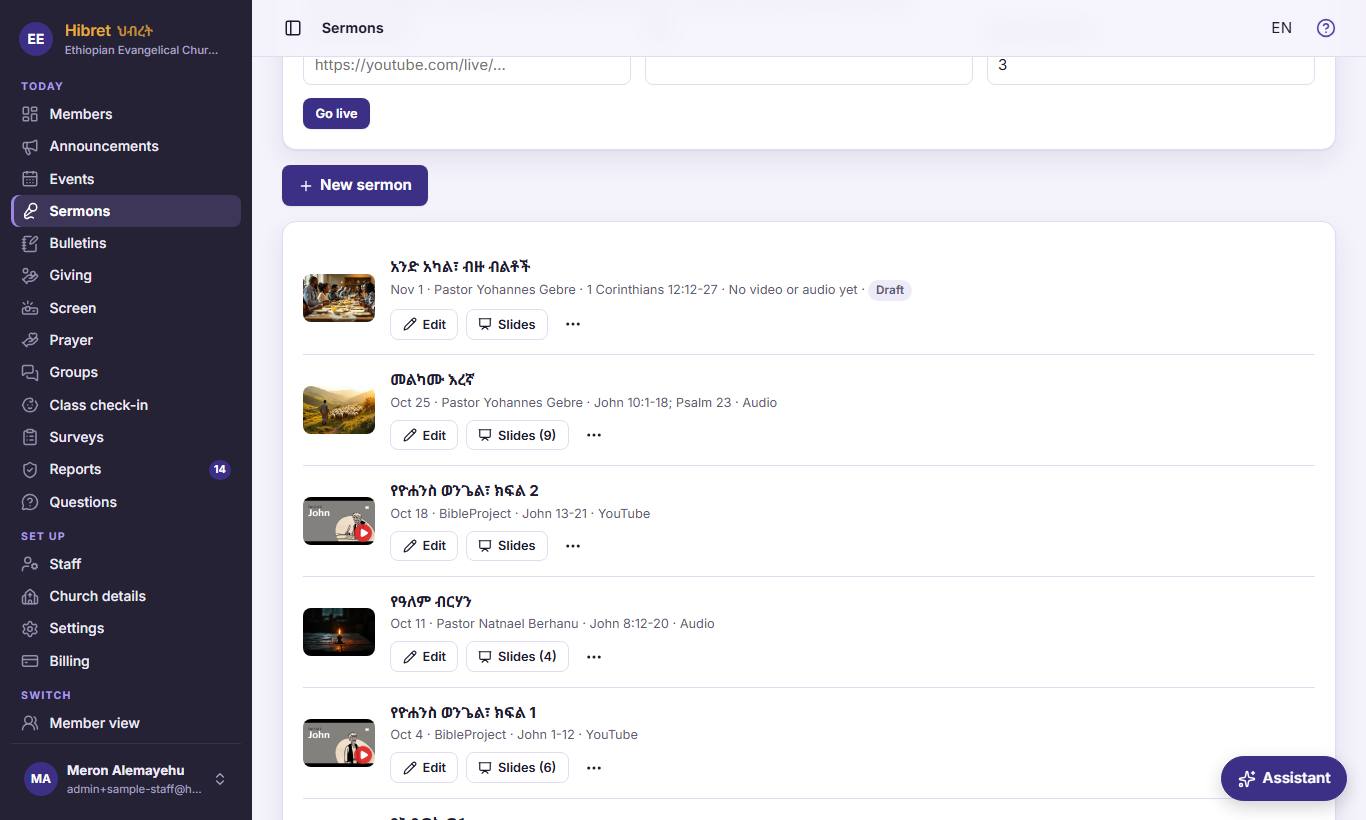
In "Sermons", find the sermon and press "Slides" 1.
- 1 Opens the slides of this sermon. The number says how many slides it has. Prepare them any time before Sunday, also from your phone.
-
 1232
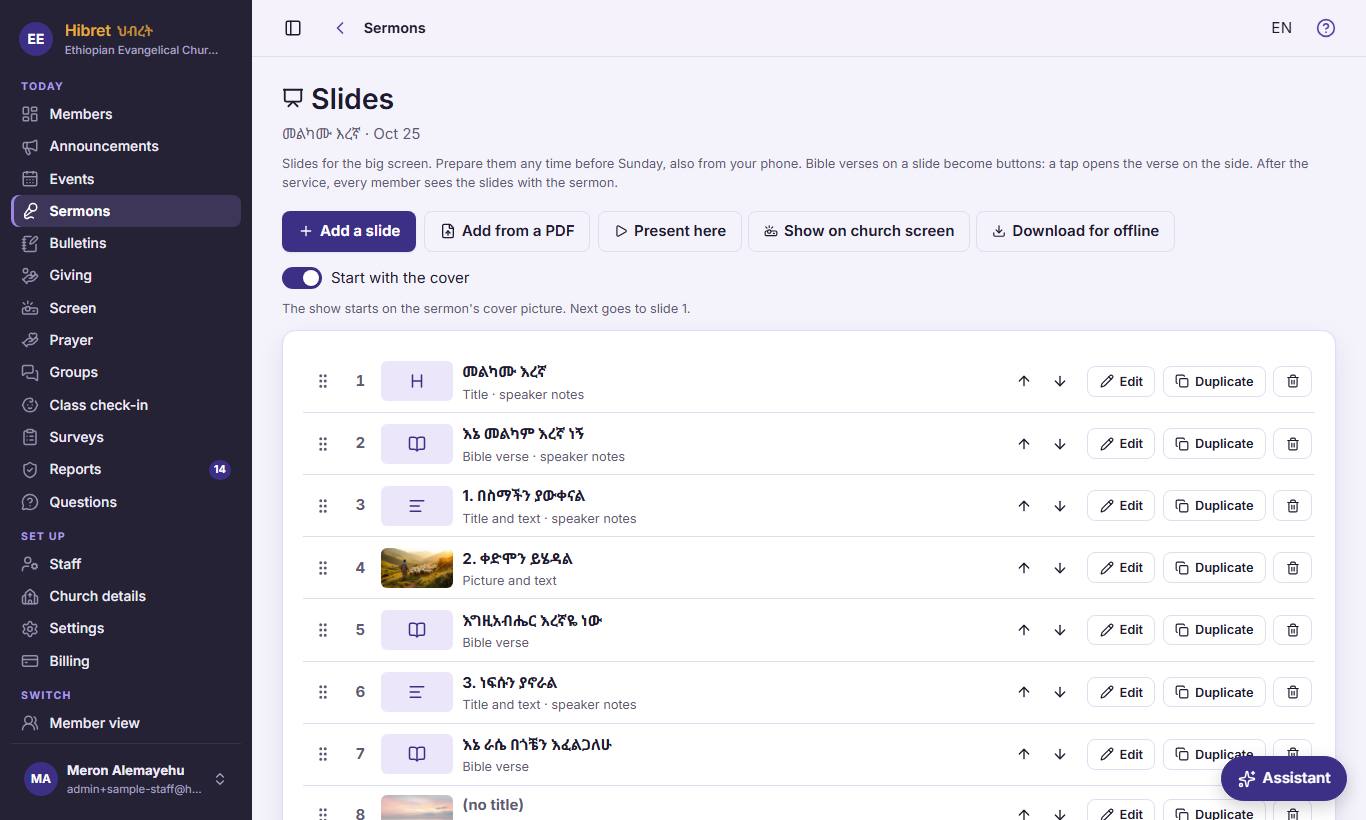
At the top: "Add a slide" 1, "Add from a PDF" 2 and "Start with the cover" 3.
- 1 Opens an empty slide in the editor. The new slide comes at the end of the list.
- 2 Made the slides in PowerPoint, Keynote or Google Slides? Save them as a PDF and choose it here: each page becomes one picture slide.
- 3 When it is on, the show starts on a cover page before slide 1: the sermon's cover picture, or a card with the title and the preacher. It is saved at once.
-
 123453
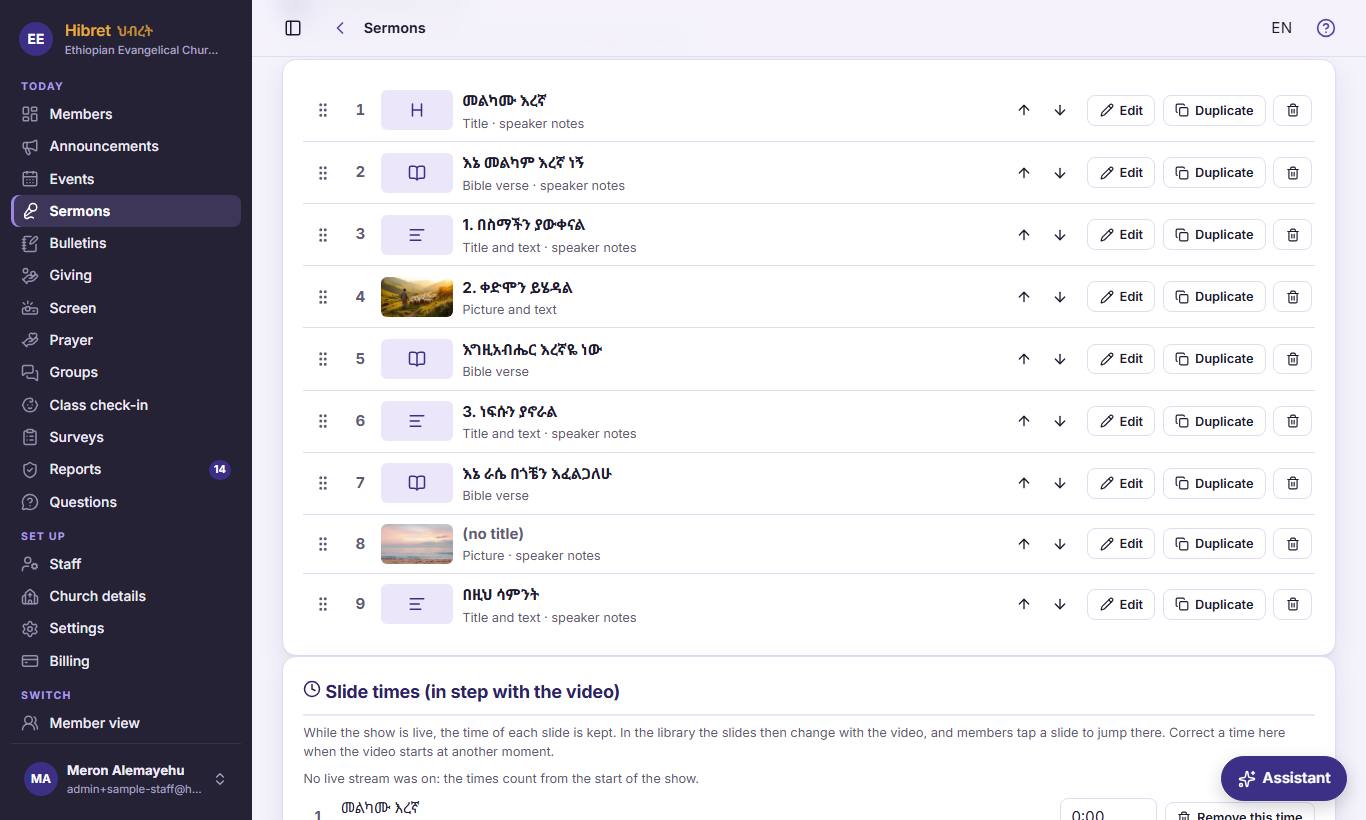
Each row is one slide, in the order of the show: drag it 1, or use the arrows 2. "Edit" 3 changes it, "Duplicate" 4 copies it and "Remove" 5 takes it away.
- 1 Hold this handle and drag the slide to its new place, with the mouse or a finger. The order is kept at once.
- 2 The arrows move the slide one place up or down. This is easier on a phone.
- 3 Opens the slide in the editor, with a preview.
- 4 Makes a copy right after this slide. Use it when the next slide looks almost the same.
- 5 Removes the slide. Hibret asks you first.
-
 12344
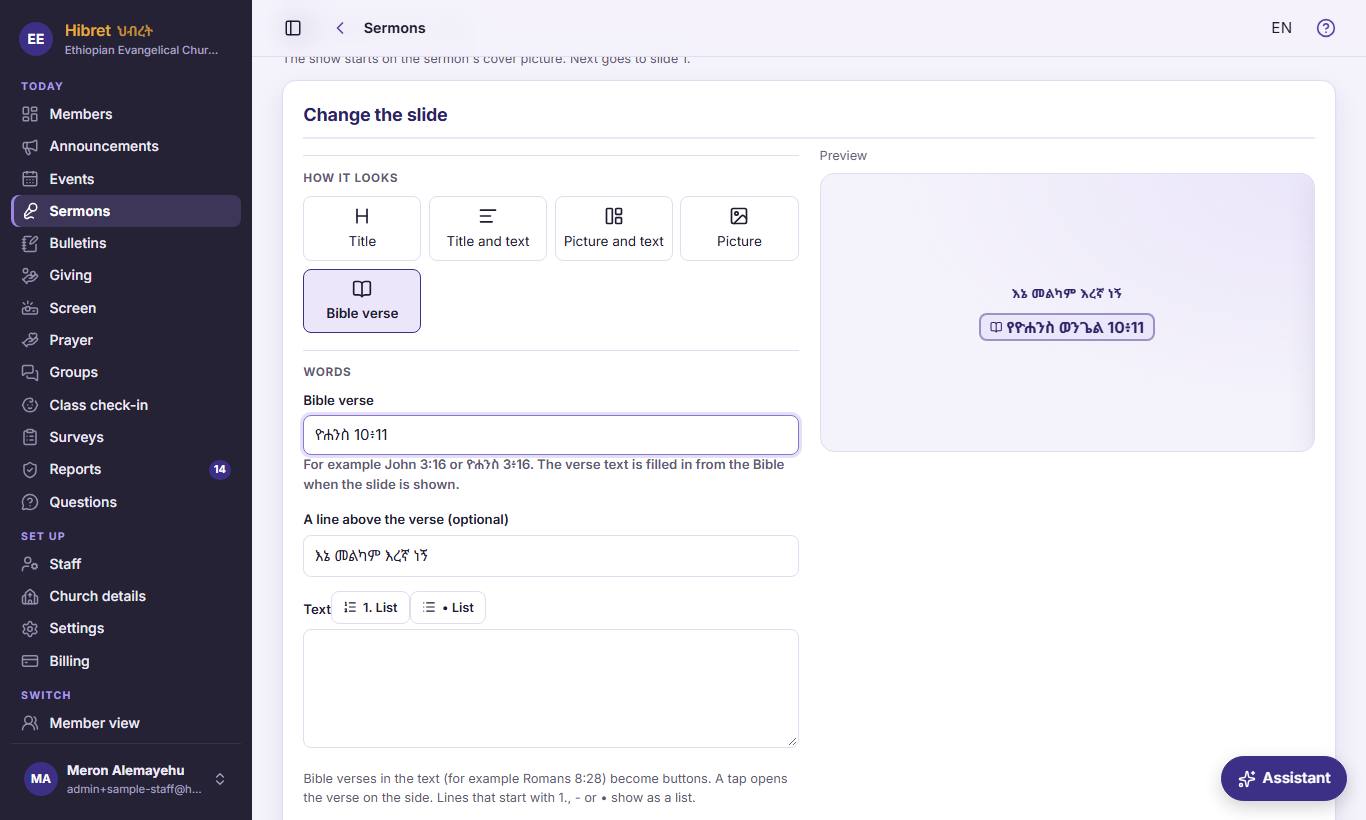
The editor of a Bible verse slide: "How it looks" 1, the verse 2 and a line above it 3. The preview 4 shows the slide as the screen shows it.
- 1 The kind of slide. "Title": big words alone, for the sermon title or a new part. "Title and text": a title with your points. "Picture and text": a picture beside the words. "Picture": one picture on the whole screen. "Bible verse": a Bible verse that Hibret fills in.
- 2 Write only where the verse is, for example ዮሐንስ 3፥16. Hibret shows the verse from the church's Bible. If the name is not right, Hibret asks "Did you mean …?".
- 3 A short line above the verse. You can leave it empty.
- 4 The preview changes while you type: this is how the church will see the slide.
-
 1235
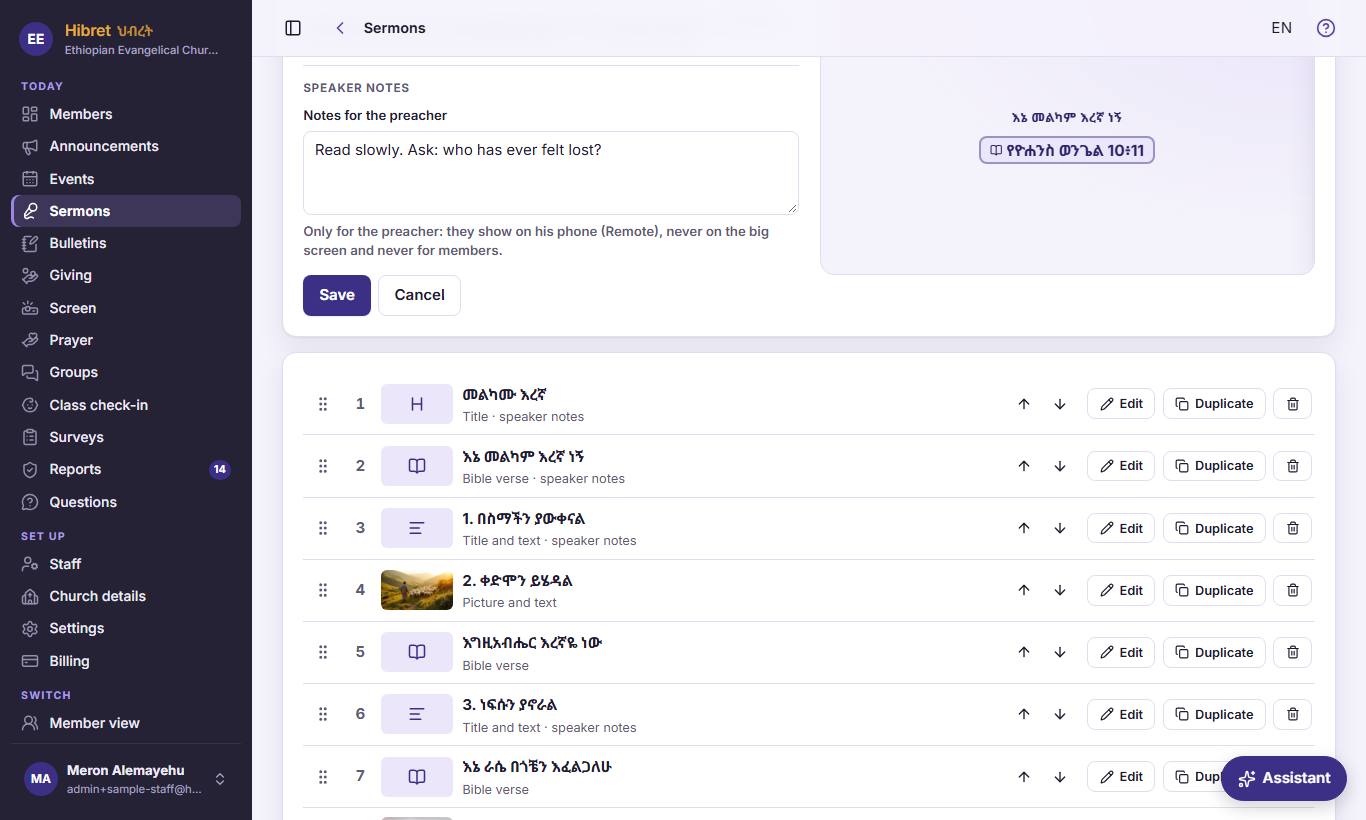
"Speaker notes" 1 are only for the preacher. Press "Save" 2 to keep the slide, or "Cancel" 3.
- 1 What the preacher wants to remember for this slide. Only he sees it, on his remote. It never shows on the big screen or to members.
- 2 Keeps the slide and closes the editor.
- 3 Closes the editor without saving.
-
 12346
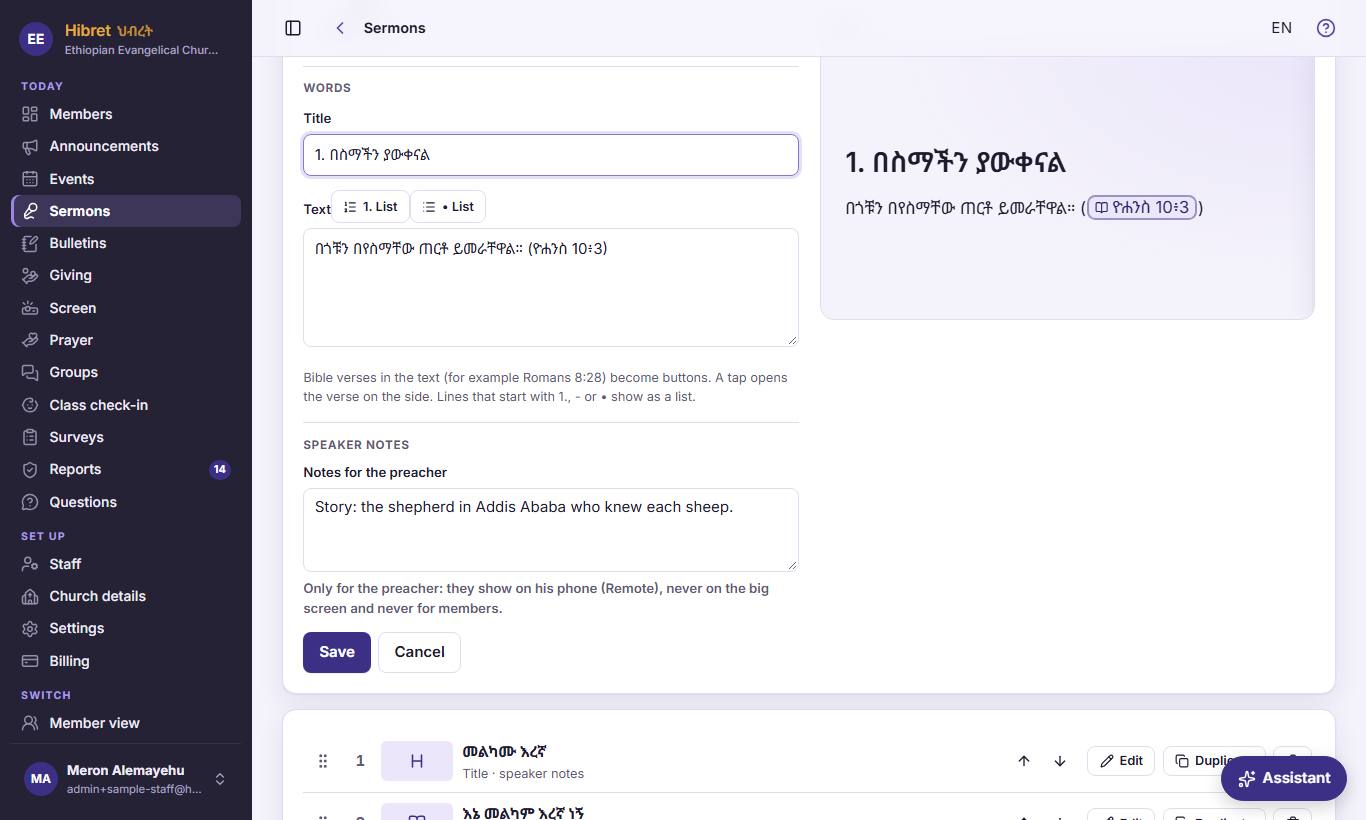
A slide with "Title and text": the "Title" 1, the "Text" 2, and the buttons "1. List" 3 and "• List" 4.
- 1 The title, in big letters at the top. Write it in the church's language.
- 2 Your points, one on each line. A Bible verse here, like ሮሜ 8፥28, becomes a button: a tap opens the verse on the side.
- 3 Choose some lines, then press it: they get 1., 2., 3. in front and show as a numbered list.
- 4 The same with a dot •. Lines that start with 1., - or • always show as a list.
-
 127
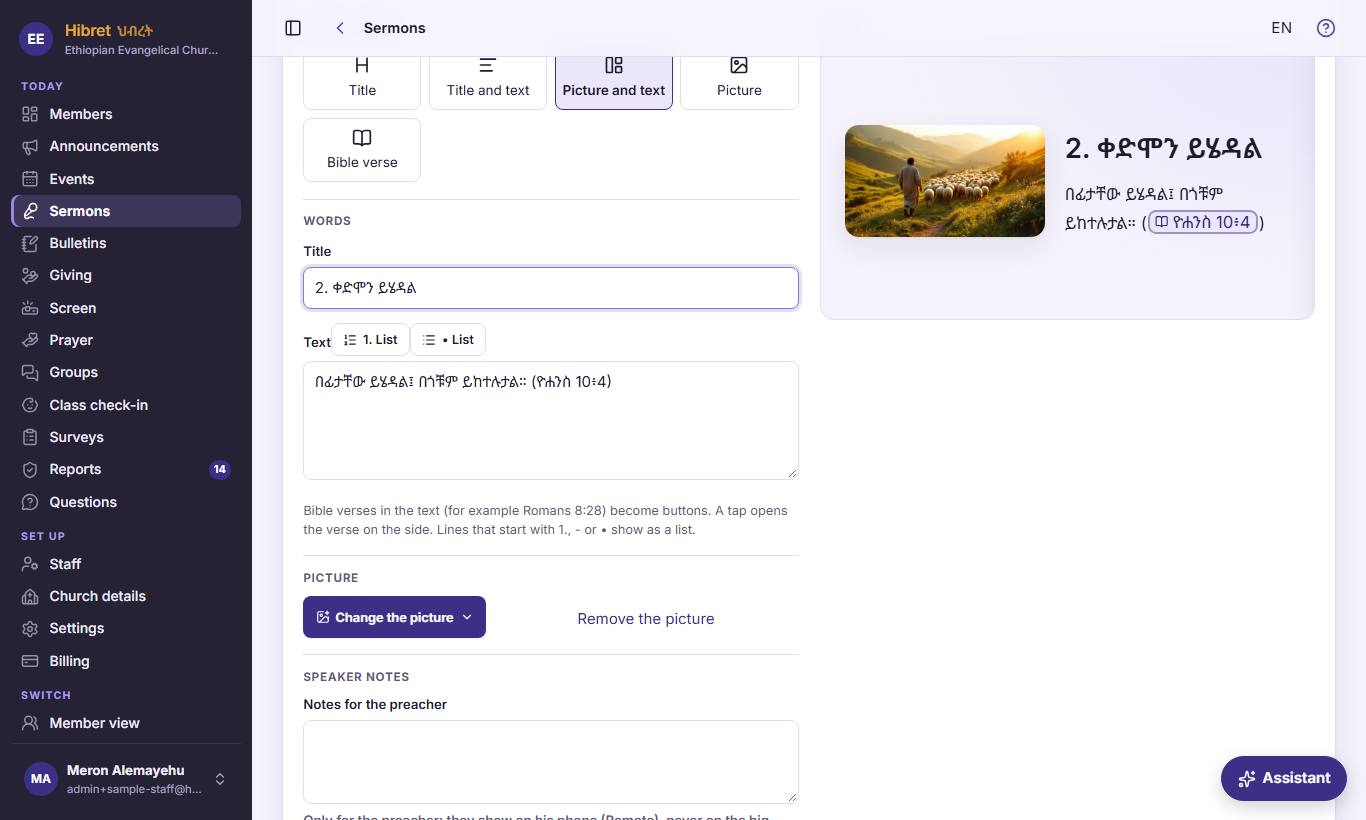
A slide with a picture: the picture menu 1 and "Remove the picture" 2.
- 1 Two choices: "Upload a picture" takes a photo from your computer or phone. "Draw with AI" lets Hibret's AI paint a picture from your words.
- 2 Takes the picture off this slide when you save.
-
 1234568
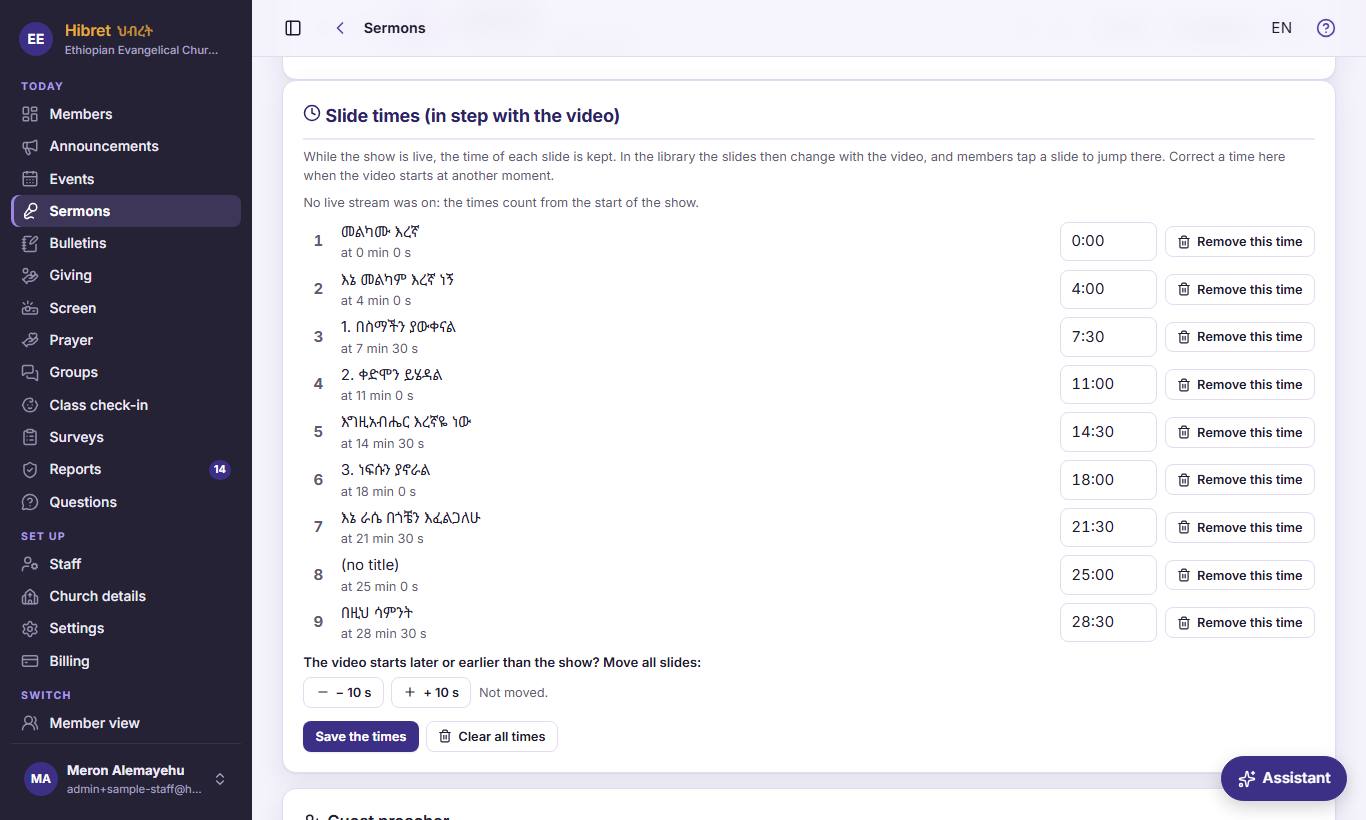
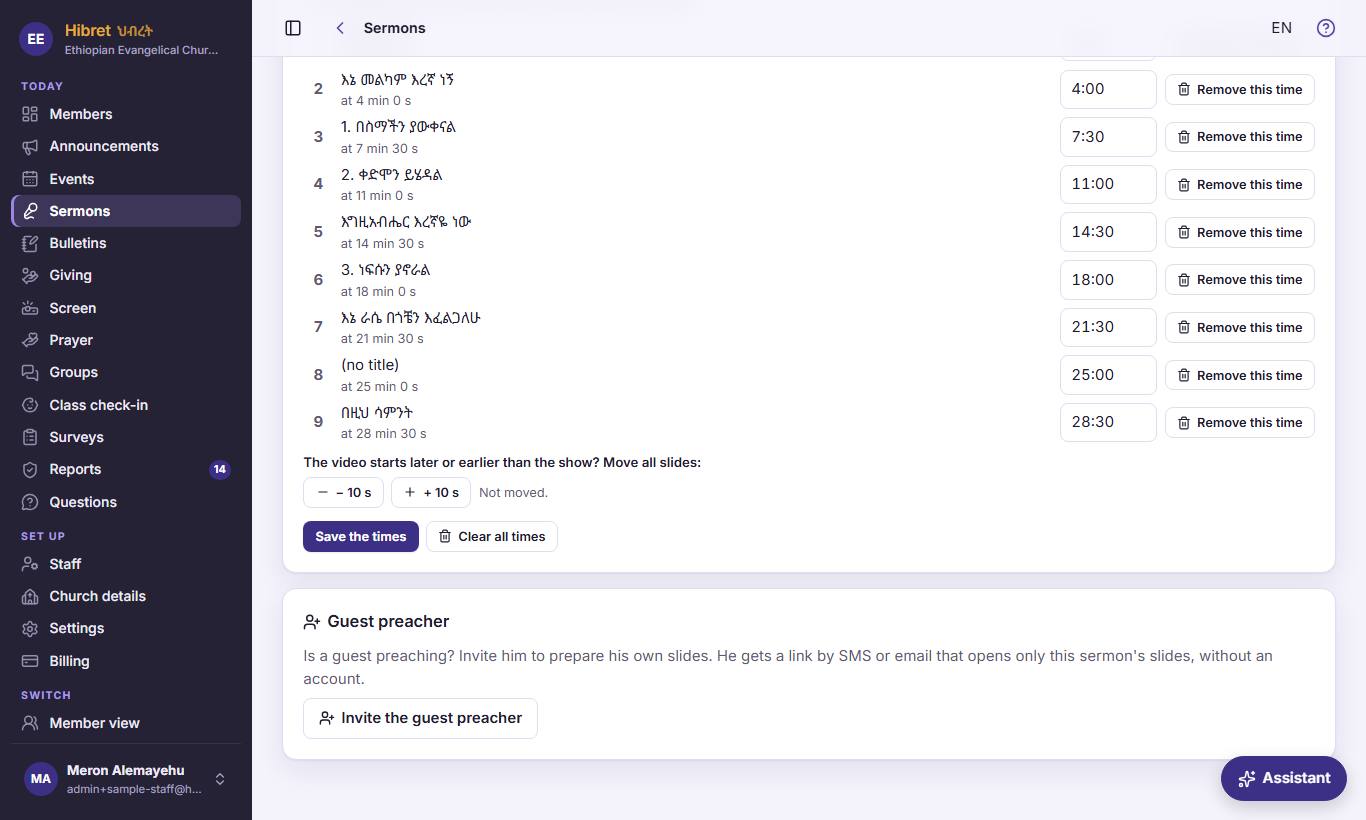
"Slide times (in step with the video)": the time of each slide 1, "Remove this time" 2, move all slides earlier 3 or later 4, then "Save the times" 5. "Clear all times" 6 removes them all.
- 1 While the show is on the church screen, Hibret keeps the time each slide came on. In the sermon library the slides then change with the video. Correct a time here, like 4:05.
- 2 Removes one wrong time.
- 3 Moves all slides 10 seconds earlier, when they change too late in the video.
- 4 Moves all slides 10 seconds later.
- 5 Keeps your changes. Nothing changes before you press it.
- 6 Removes all times, after a question. This cannot be undone.
-
 19
A guest is preaching? "Invite the guest preacher" 1 lets him prepare his own slides.
- 1 He gets a link by SMS or email that opens only this sermon's slides, without an account. For a Sunday sermon he gets one reminder on Friday. Then "Lock the slides" stops his changes, for example on Saturday night.
The church screen, the remote and the members see his slides like any other slides.