 Hibret ህብረት
Presenting the sermon on Sunday
How to show the sermon slides in church: on this computer, on the church screen or a smart TV, moved from a phone or tablet, without internet, and with a YouTube live stream.
-
 11
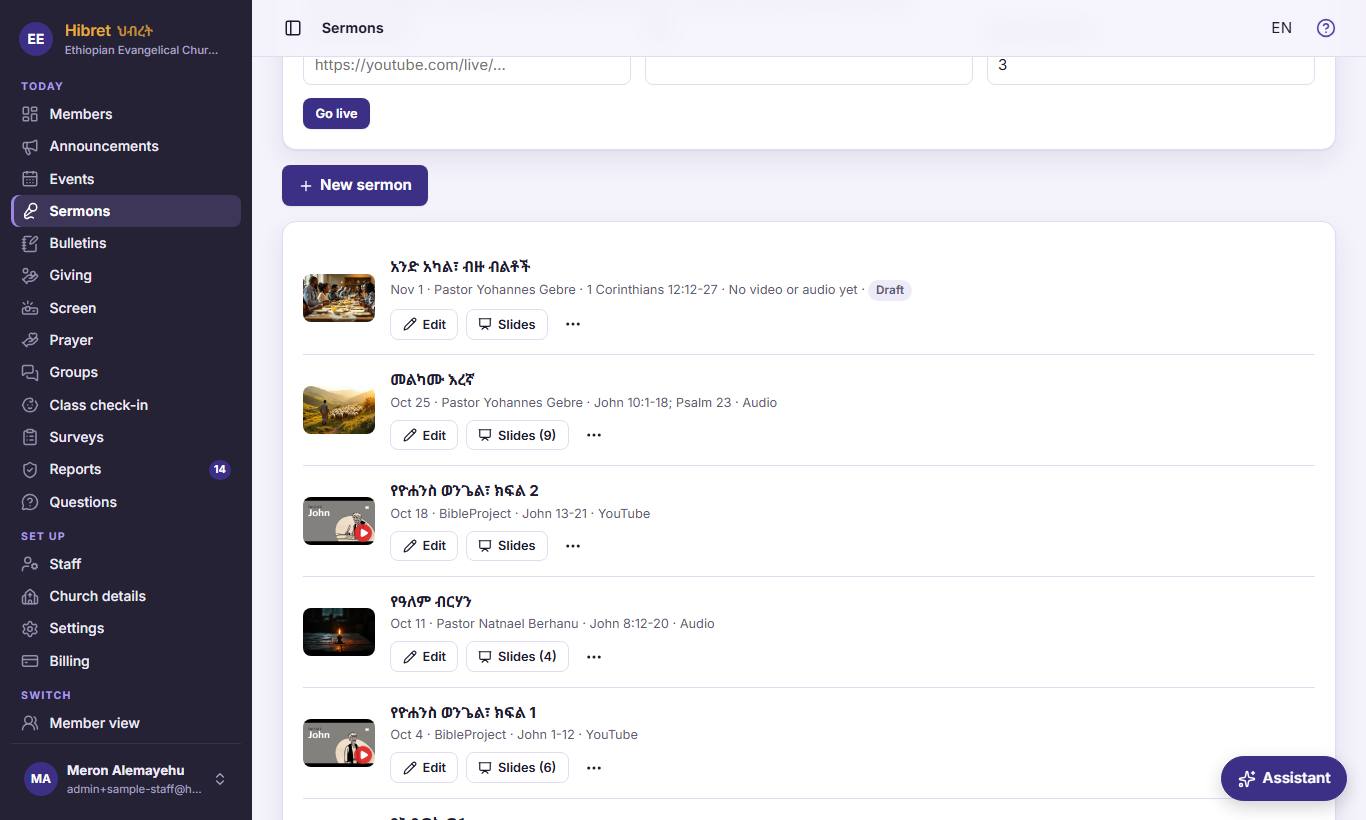
In "Sermons", the ⋯ button 1 of a sermon has the ways to show its slides.
- 1 "Present here" shows the slides on this device. "Show on church screen" shows them on every church screen. "Download for offline" is for a church without internet. "Delete" removes the sermon. The same buttons are on the slides page.
-
 1232
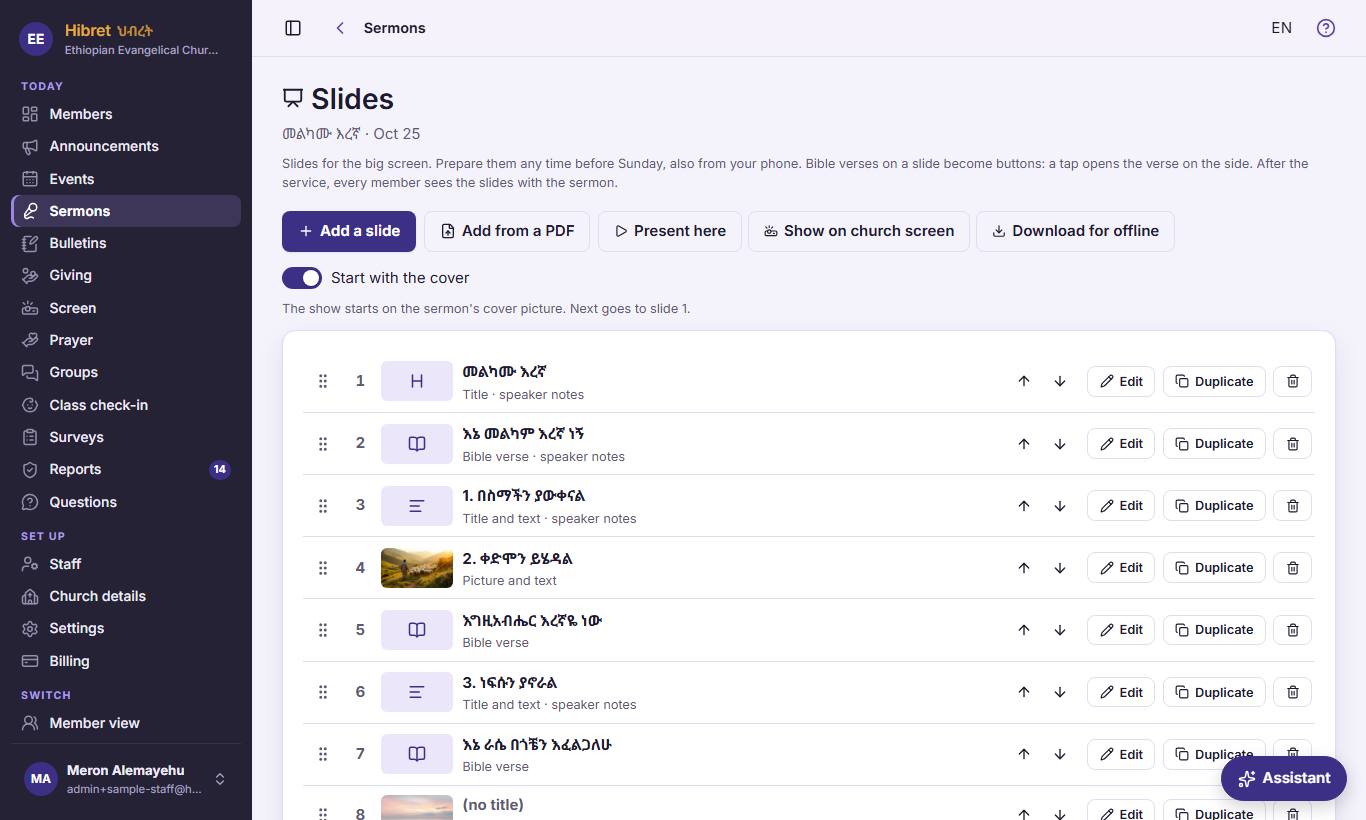
On the slides page: "Present here" 1, "Show on church screen" 2 and "Download for offline" 3.
- 1 Use it on the computer that is connected to the projector: the slides fill the screen. It keeps working if the internet drops.
- 2 Starts the live show: every open church screen and TV shows these slides at once, members can follow on their phones, and this device becomes the remote. It needs the internet. Then "End show" shows here.
- 3 No internet in the church? Before Sunday, press it on the church computer. Then "Present here" works without internet. After you change the slides, press "Update".
-
 123453
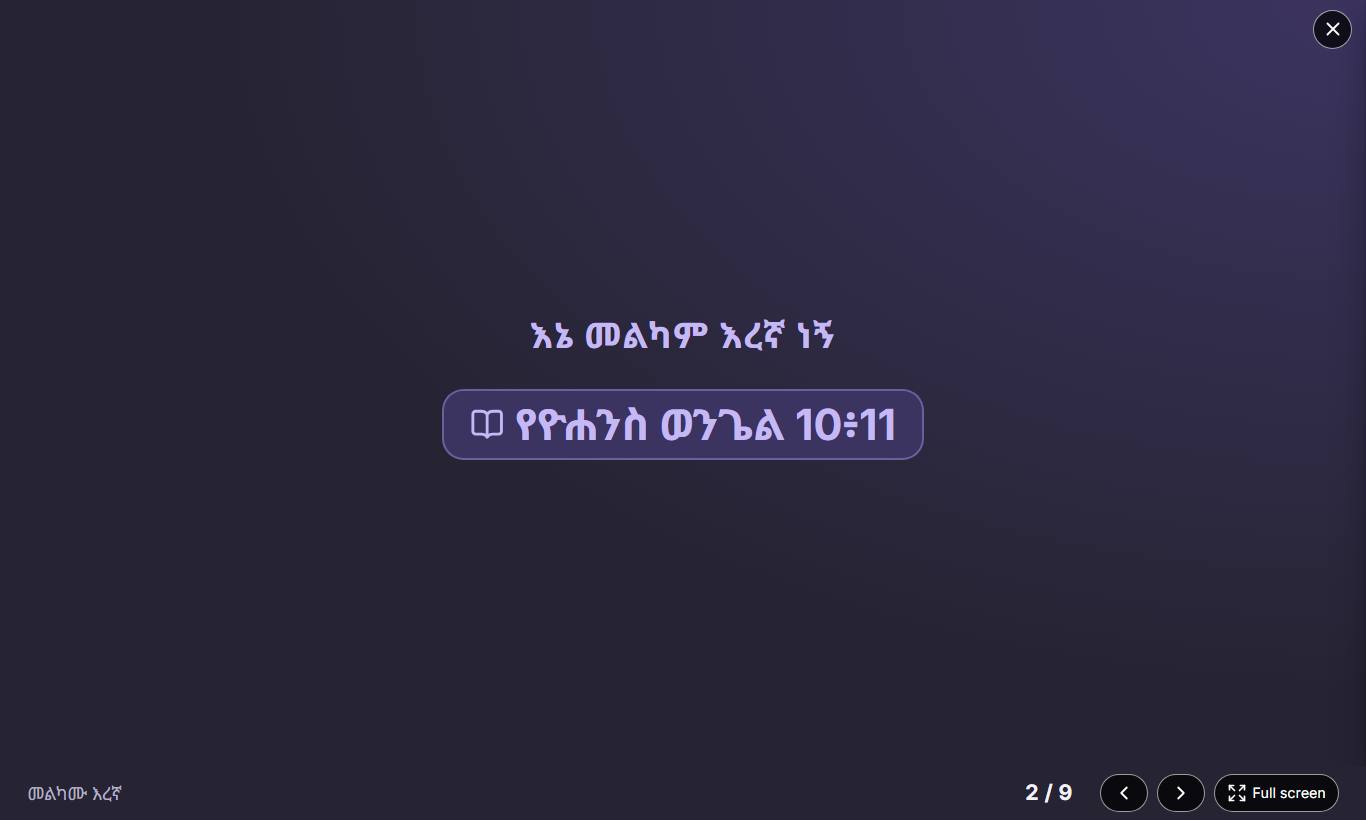
"Present here": the counter 1, the previous slide 2 and the next slide 3, "Full screen" 4, and ✕ 5 to close.
- 1 Which slide is on, and how many there are. A cover page is number 0.
- 2 Back one slide. Also the left arrow key, Page Up on a presenter clicker, or a tap on the left half.
- 3 The next slide. Also the right arrow key, the space bar, Page Down, a tap on the right half, or a swipe.
- 4 Hides the browser, so only the slide shows. The F key does the same.
- 5 Ends the presentation. While the live show is on, your moves here also move the church screens.
The buttons hide when the mouse does not move. A tap on a verse button opens the verse on the side; Esc closes it.
-
 124
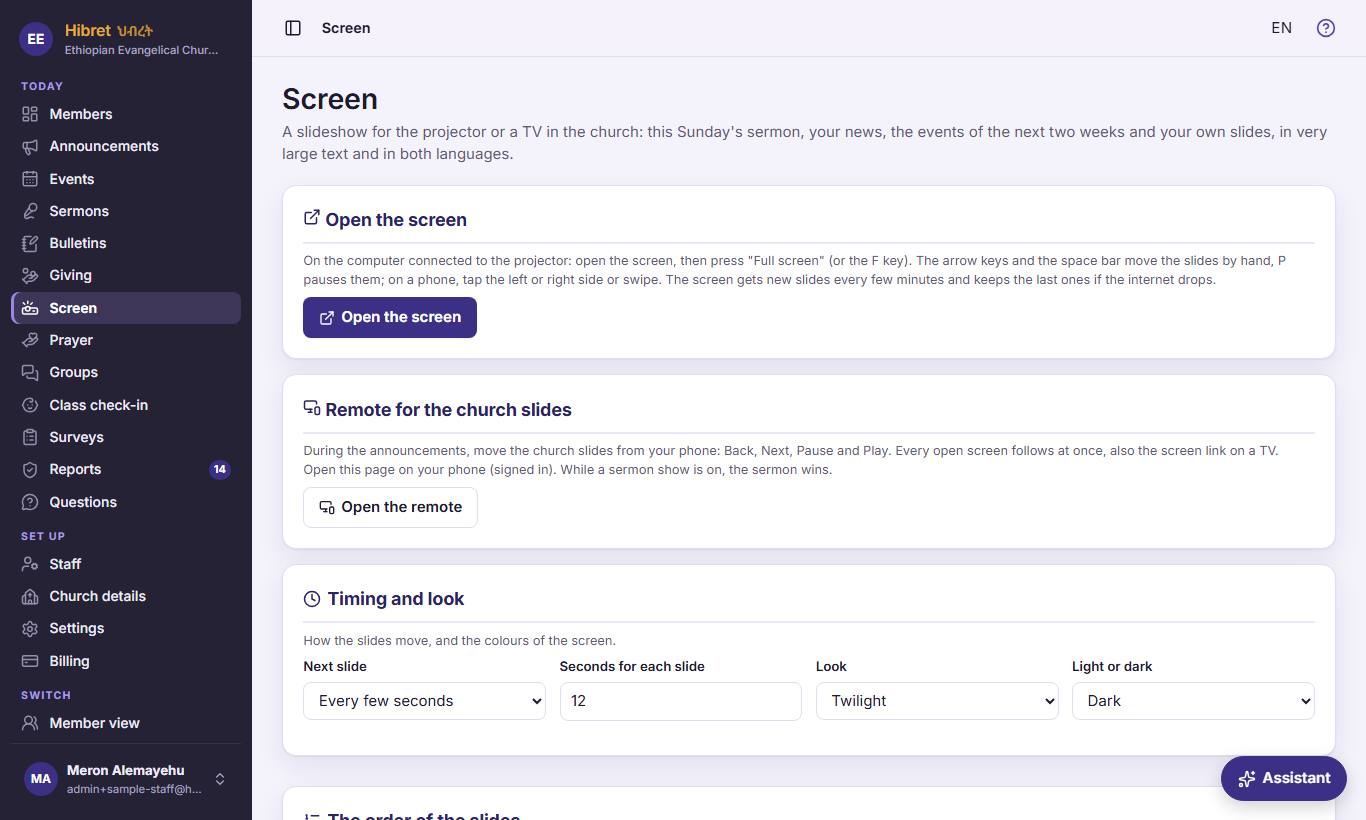
The church screen: in "Screen", press "Open the screen" 1 on the computer of the projector or the TV. "Open the remote" 2 is for the church slides at announcement time.
- 1 Opens the church screen in its own tab; then press "Full screen". It shows your news and events, and changes to the sermon slides by itself when a show starts.
- 2 This remote moves the church slides at announcement time. It is not the sermon remote: while a sermon show is on, the sermon wins.
-
 125
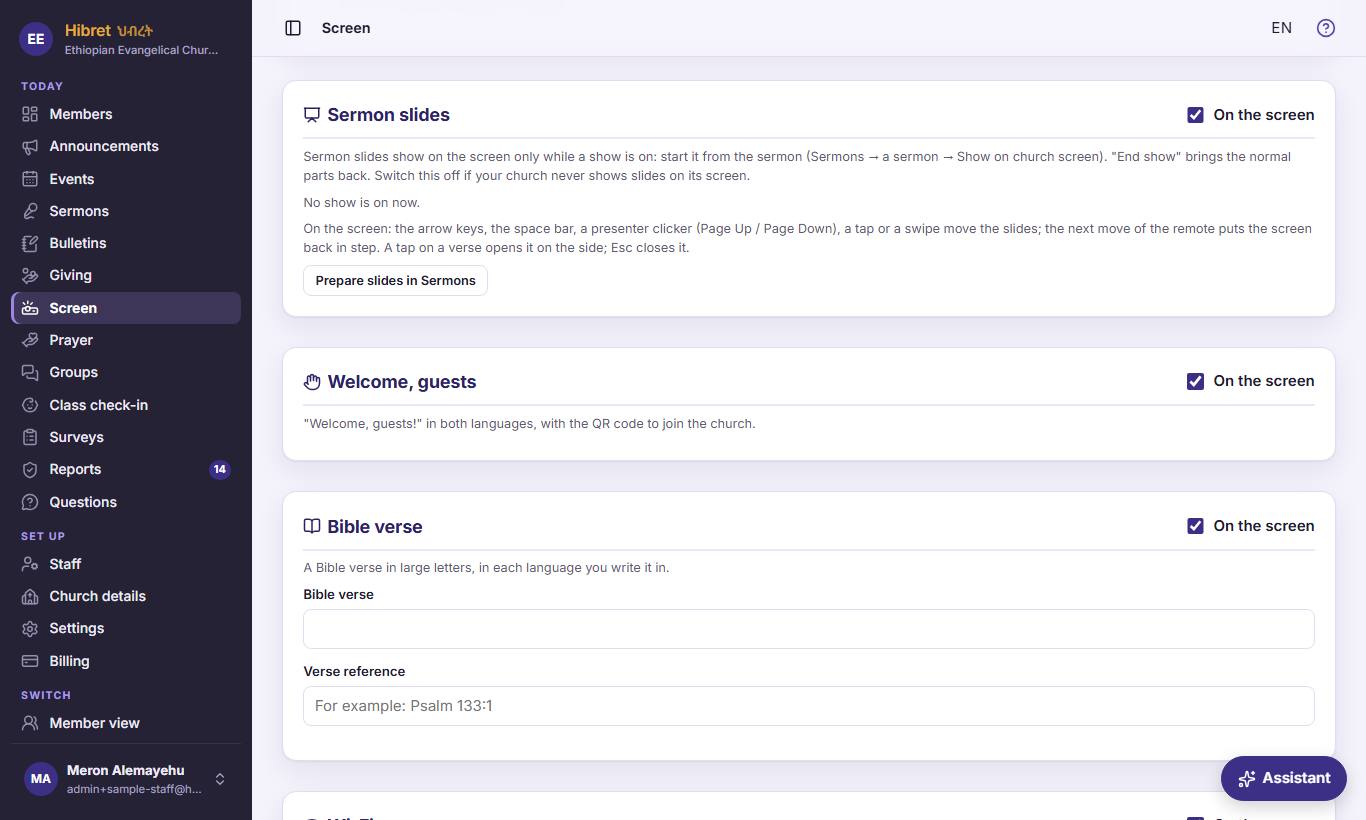
The part "Sermon slides": its switch 1 and "Prepare slides in Sermons" 2.
- 1 Keep it on "On the screen", so the screen shows the sermon slides during a show. Switch it off only if your church never shows slides here; then press "Save".
- 2 The screen never chooses a sermon: you start the show from the sermon, in "Sermons".
-
 16
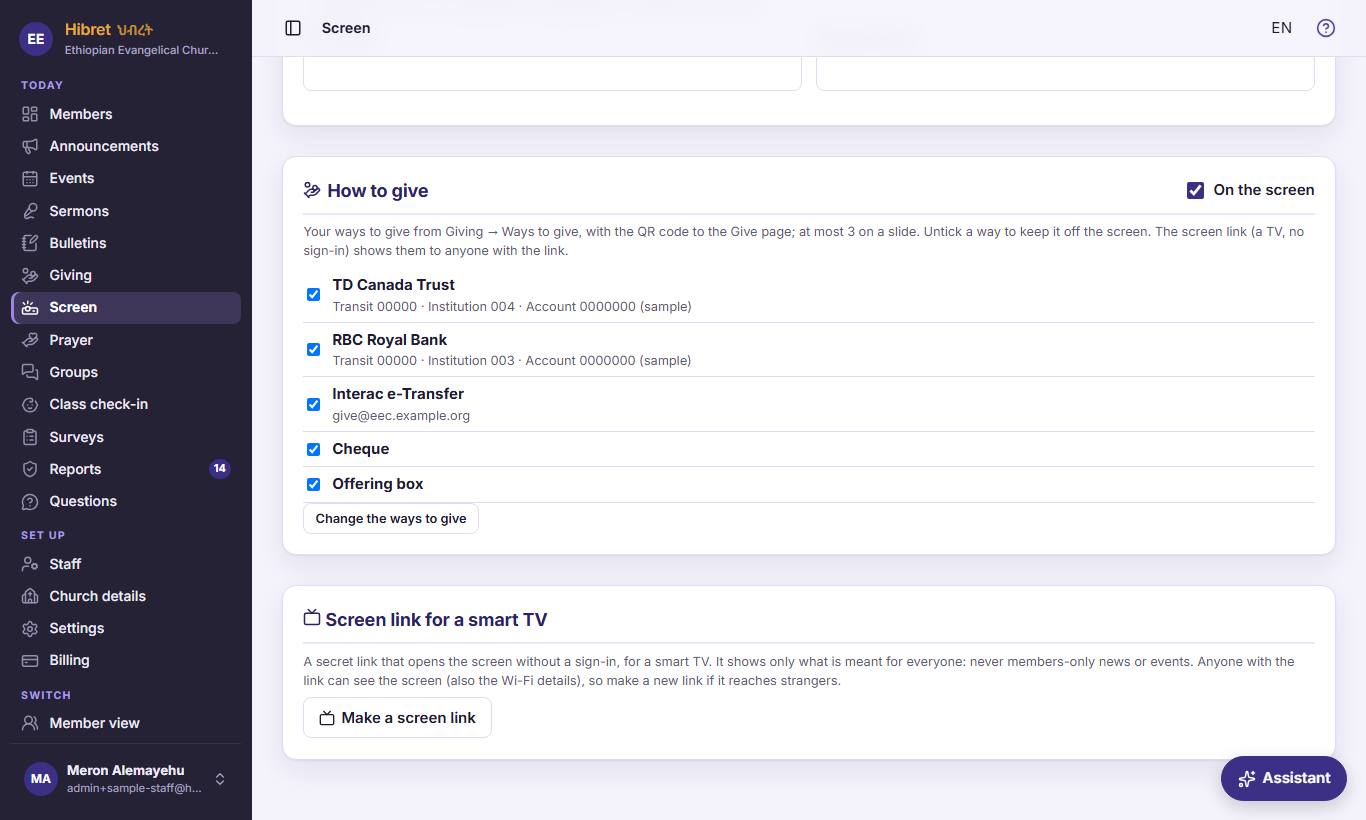
"Screen link for a smart TV" 1: for a TV that cannot sign in.
- 1 "Make a screen link" makes a secret link. On the TV it opens the screen without a sign-in, and it follows the sermon show too. It never shows news only for members. If strangers get it, press "Make a new link".
-
 127
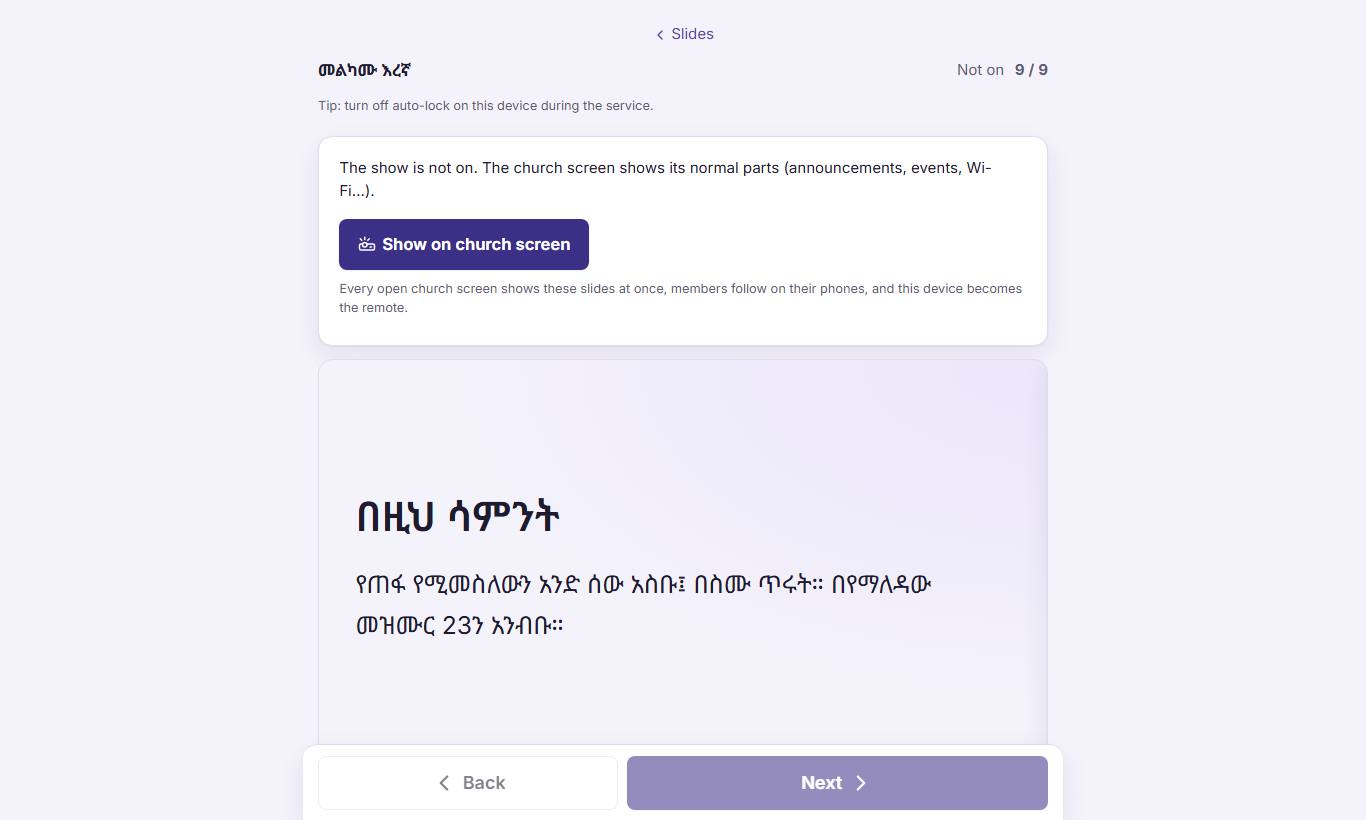
The remote, on a phone or a tablet signed in as staff: "Show on church screen" 1 and the slide on the screen now 2.
- 1 Press it when the sermon starts. Within 3 hours after the last show, it goes on where that show stopped.
- 2 The slide on the church screen now. A verse button on it opens the verse on the big screen; a second tap closes it.
-
 12348
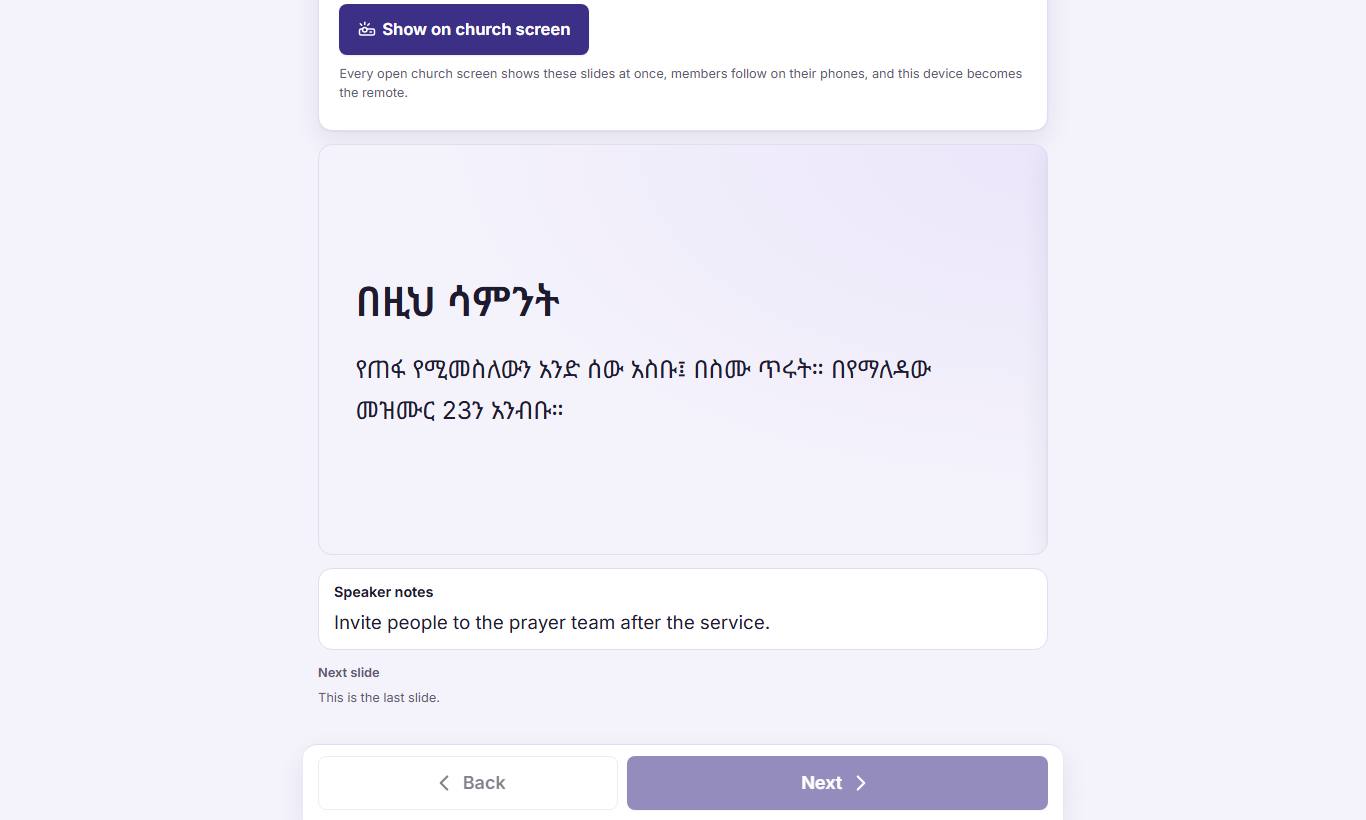
Below: "Speaker notes" 1, "Next slide" 2, and the big buttons "Back" 3 and "Next" 4.
- 1 The preacher's notes for the slide on the screen now. Only he sees them.
- 2 The slide that comes next.
- 3 The slide before. These buttons work only while the show is on.
- 4 The next slide. Every church screen follows at once. If two people move the slides, the last one wins, and the other device shows "Take over".
At the end, press "End show". Choose "Keep the cover on the screen" (until you send it back, another show starts, or the day ends) or "Back to the church slides".
-
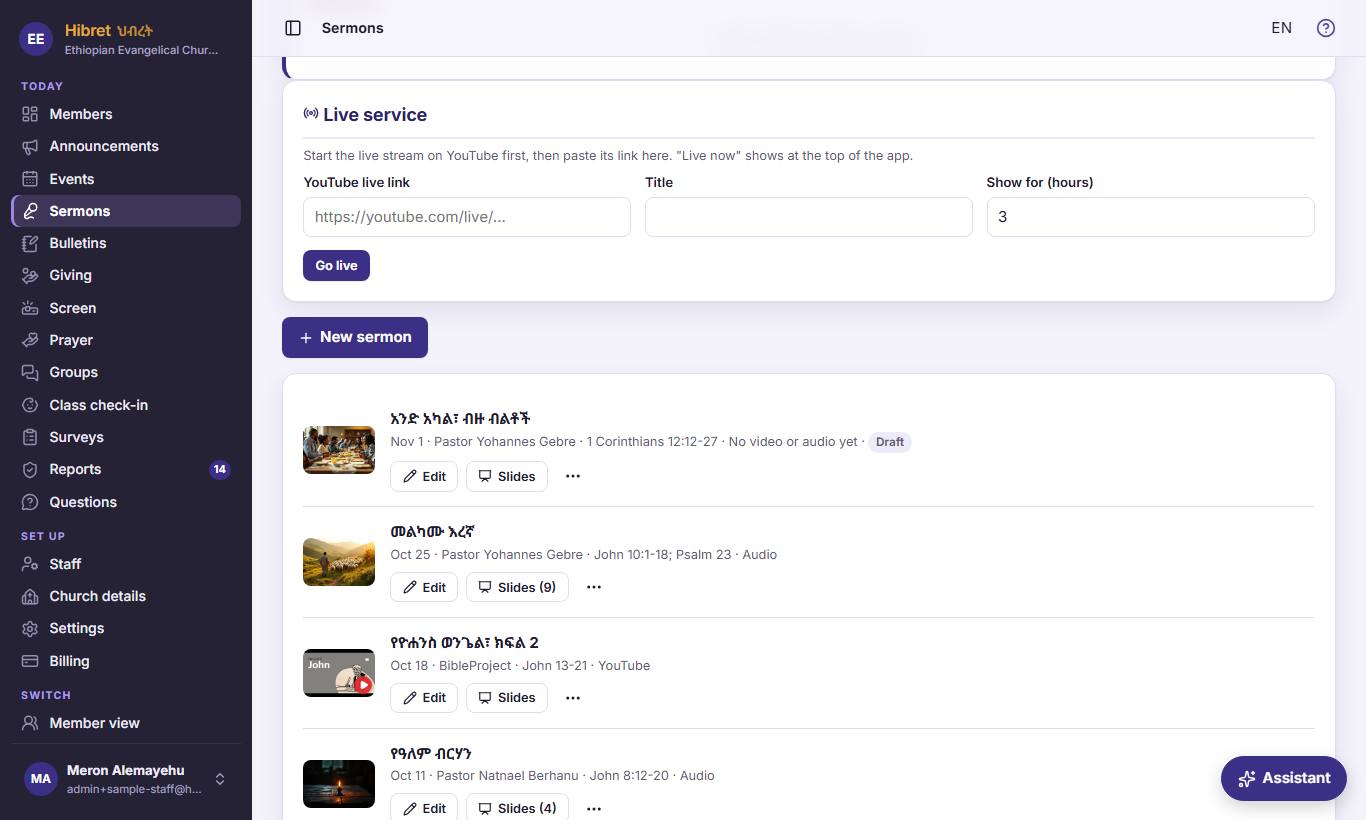 12349
"Live service": paste the "YouTube live link" 1, write a "Title" 2, choose "Show for (hours)" 3 and press "Go live" 4.
- 1 First start the live stream on YouTube. Then paste its link here.
- 2 Members see it under ""Live now"". Empty, they see ""Live service"".
- 3 How long ""Live now"" stays at the top of the app: 1 to 12 hours.
- 4 Shows ""Live now"" at the top of the app, so members at home can watch. The slide times then count from this moment. "End now" stops it early.