 Hibret ህብረት
A survey from start to finish
Every part of a survey: who it is for, anonymous answers, the kinds of questions, opening and ending it, putting it in news or an event, and seeing and downloading the answers.
-
 1234561
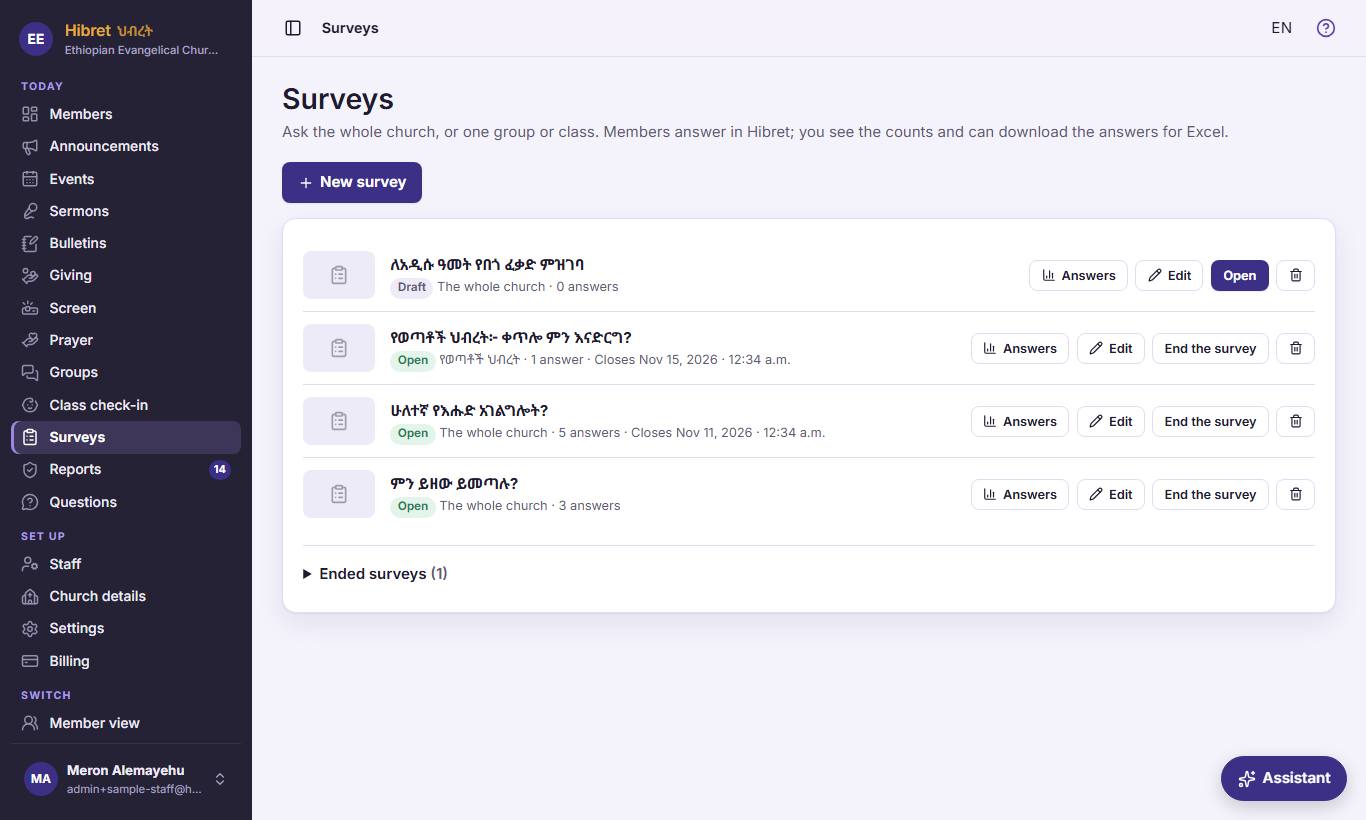
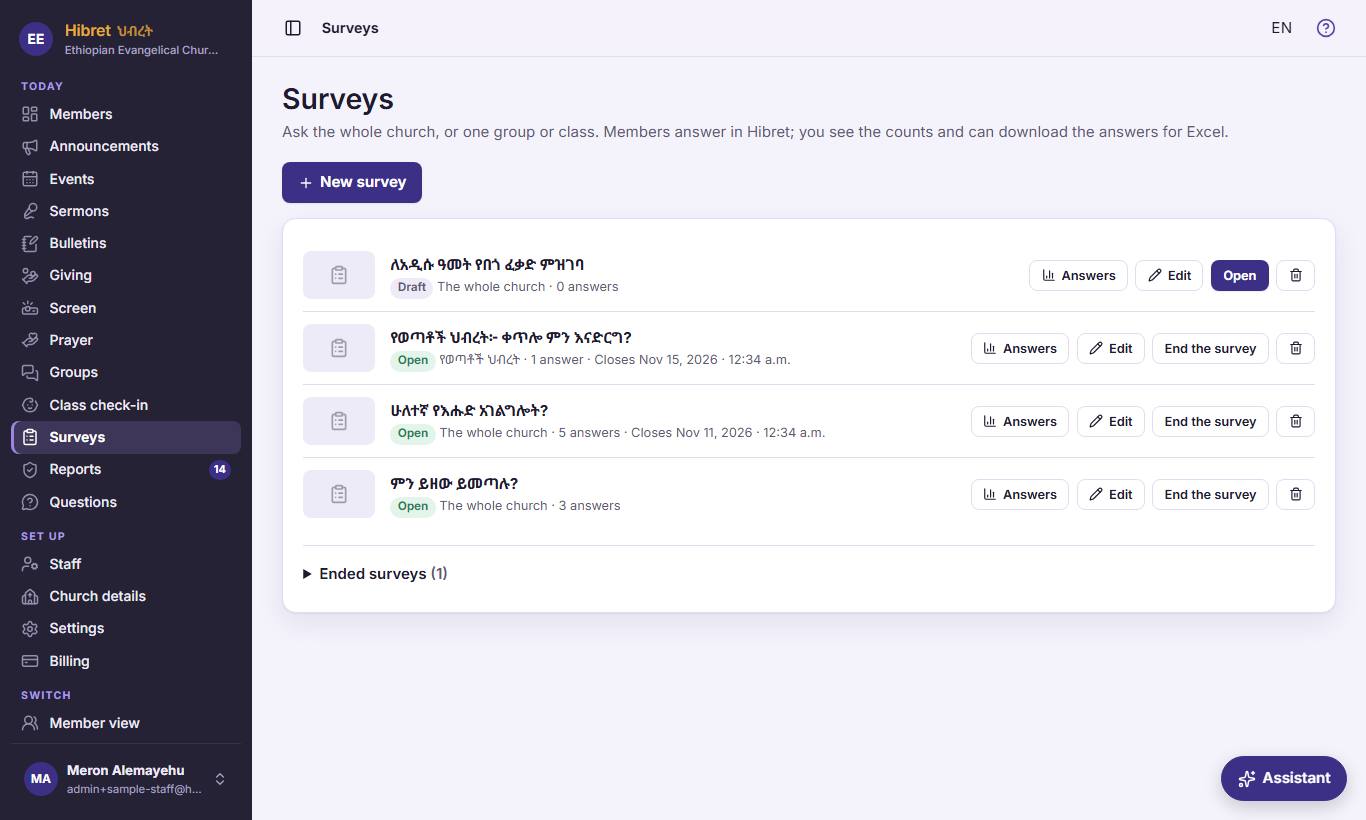
In "Surveys": "New survey" 1. Each survey shows its state 2, then "Answers" 3, "Edit" 4, "End the survey" 5 and the bin 6.
- 1 "New survey" opens an empty survey. A new survey is saved as a draft: members do not see it until you open it.
- 2 "Draft", "Open" or "Closed"; who it is for; how many answered; and when it closes. Ended surveys are folded under "Ended surveys" at the end of the list.
- 3 "Answers" shows the counts for each question and lets you download every answer for Excel.
- 4 "Edit" opens the survey. When people answered already, you can correct the words, but not add, remove or change questions.
- 5 "End the survey": members can no longer answer. Hibret asks first. A closed survey has "Open again", and a draft has "Open" in this place.
- 6 The bin deletes the survey and all its answers for good. Hibret asks first. To keep the answers, end the survey instead.
-
 123452
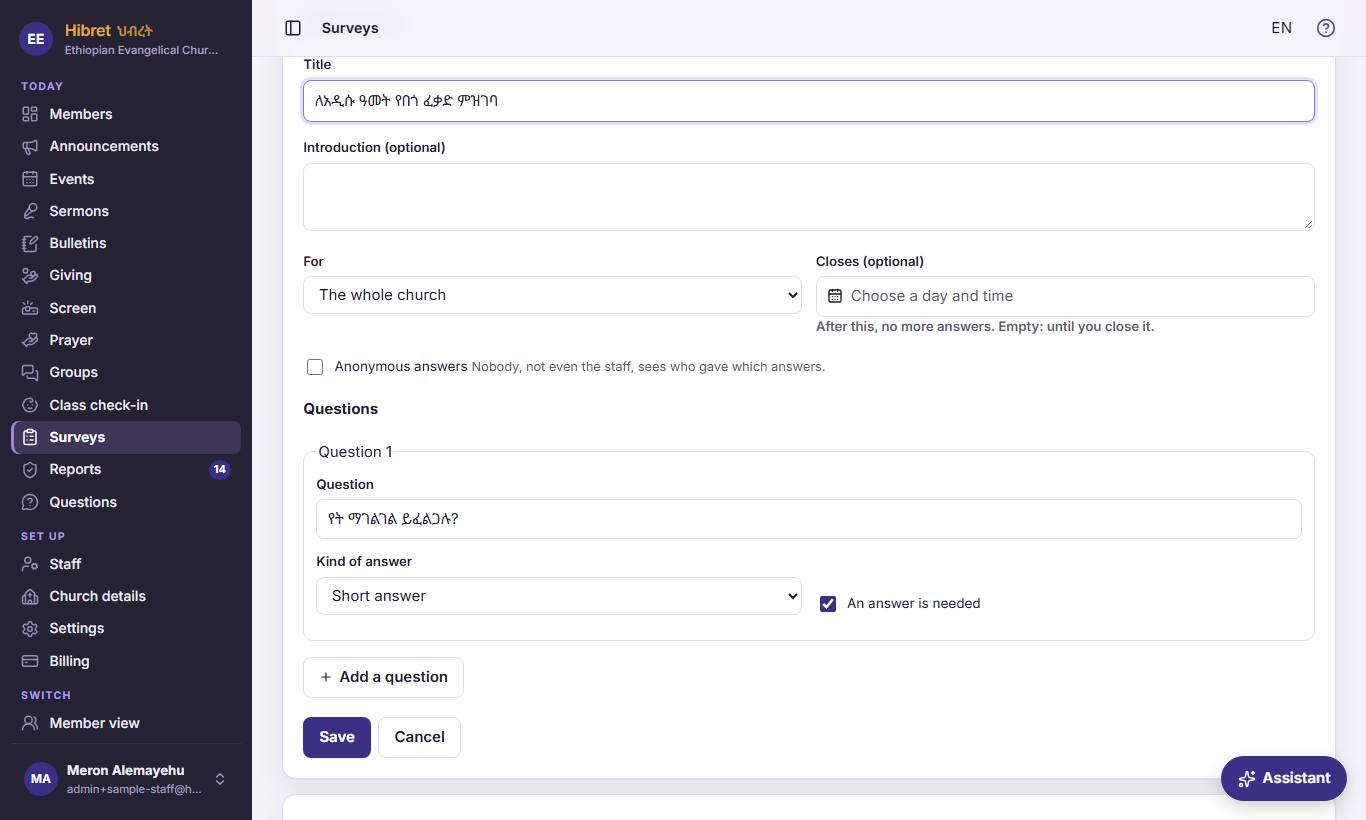
The survey: "Title" 1, "Introduction (optional)" 2, "For" 3, "Closes (optional)" 4 and "Anonymous answers" 5.
- 1 The title members see in the list and at the top of the survey. A short question works well.
- 2 A few words on why you ask and what the church will do with the answers. People answer more when they know why.
- 3 "For": "The whole church" asks every approved member. Choose a group or class to ask only its members; the survey then shows on the group's page.
- 4 "Closes (optional)": after this day and hour, no more answers. Leave it empty to keep it open until you end it.
- 5 "Anonymous answers": nobody, not even the staff, sees who gave which answer. Each person can answer only once and cannot change it. Use it for honest feedback.
-
 1233
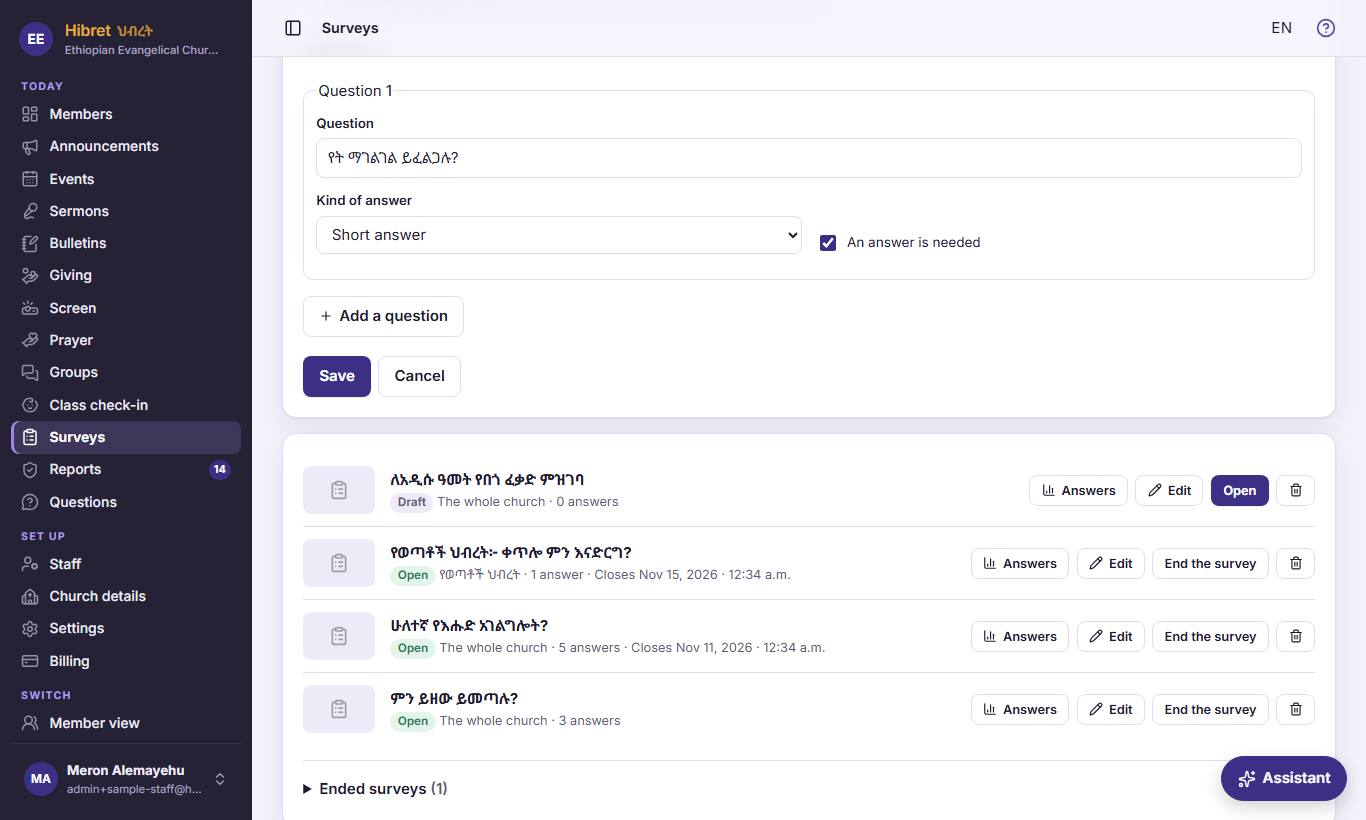
Each question: the "Question" 1, the "Kind of answer" 2 and "An answer is needed" 3.
- 1 The question itself, short and clear, in the church's language.
- 2 "Kind of answer": "One choice" and "Several choices" give answers you write. "Yes or no". "Rating 1 to 5" for how much they liked something. "Short answer" for a few words, "Long answer" for more. "A date" lets them choose a day.
- 3 "An answer is needed": the member cannot send the survey without answering this question. Leave it off for questions people may skip.
-
 123454
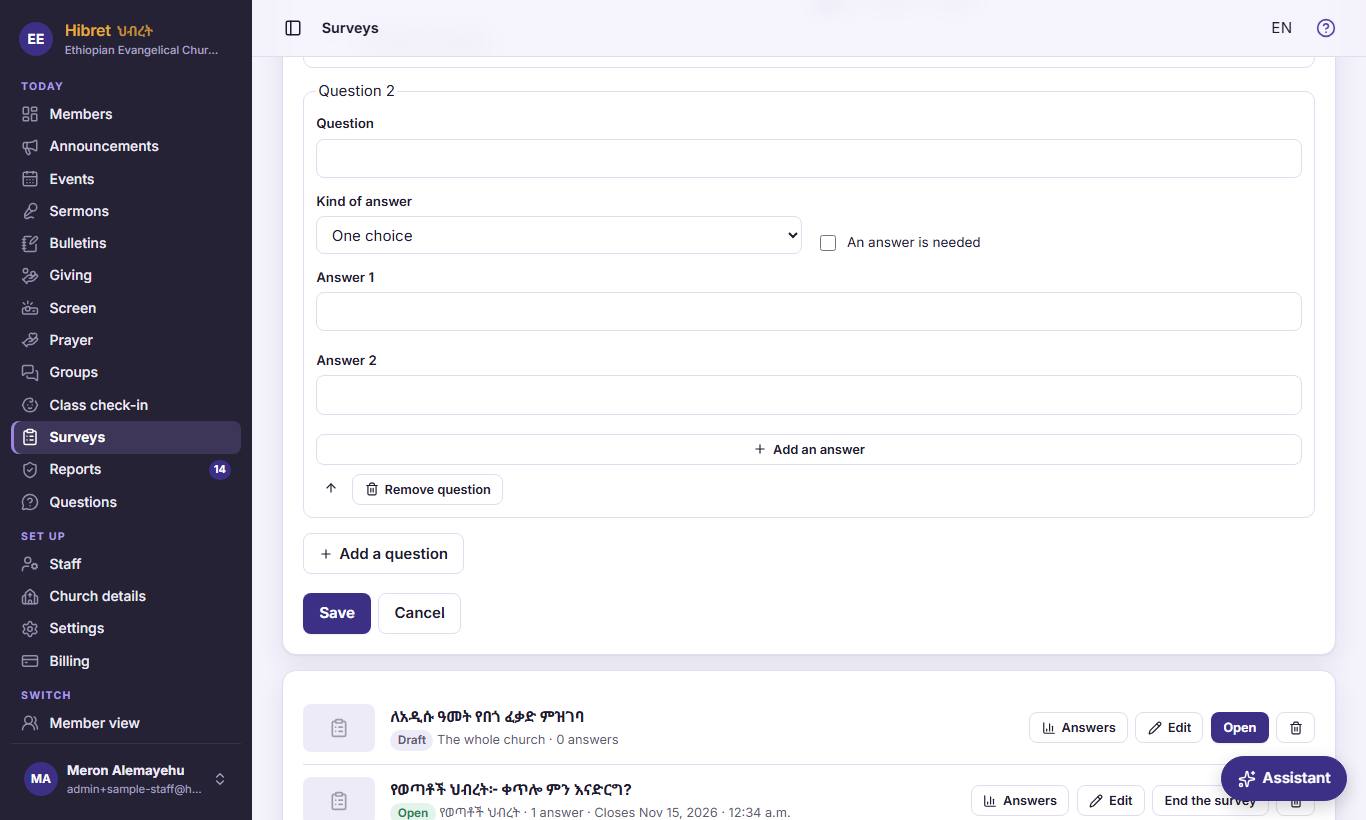
A choice question has its answers 1; "Add an answer" 2 adds one. The buttons 3 move or remove the question. "Add a question" 4 adds the next. Press "Save" 5.
- 1 Write each answer members can choose. A choice question needs at least two answers and can have up to 20.
- 2 "Add an answer" adds one more answer. The X next to an answer removes it, when there are more than two.
- 3 The arrows move the question up or down. "Remove question" takes it out of the survey.
- 4 "Add a question" adds a new question at the end. A survey can have up to 30 questions, but a short survey gets more answers.
- 5 "Save" saves the survey. "Cancel" closes it without saving.
The survey is saved as a draft until you open it.
-
 15
When the draft is ready, press "Open" 1 on it.
- 1 "Open" lets members answer. Hibret asks: "Also send a notification to the members it is for?" Press OK to send a message to their phones (only the first time it opens), or Cancel to open it quietly.
Members find an open survey on their home page with "Answer now", and in the news, event or group it belongs to.
-
 1236
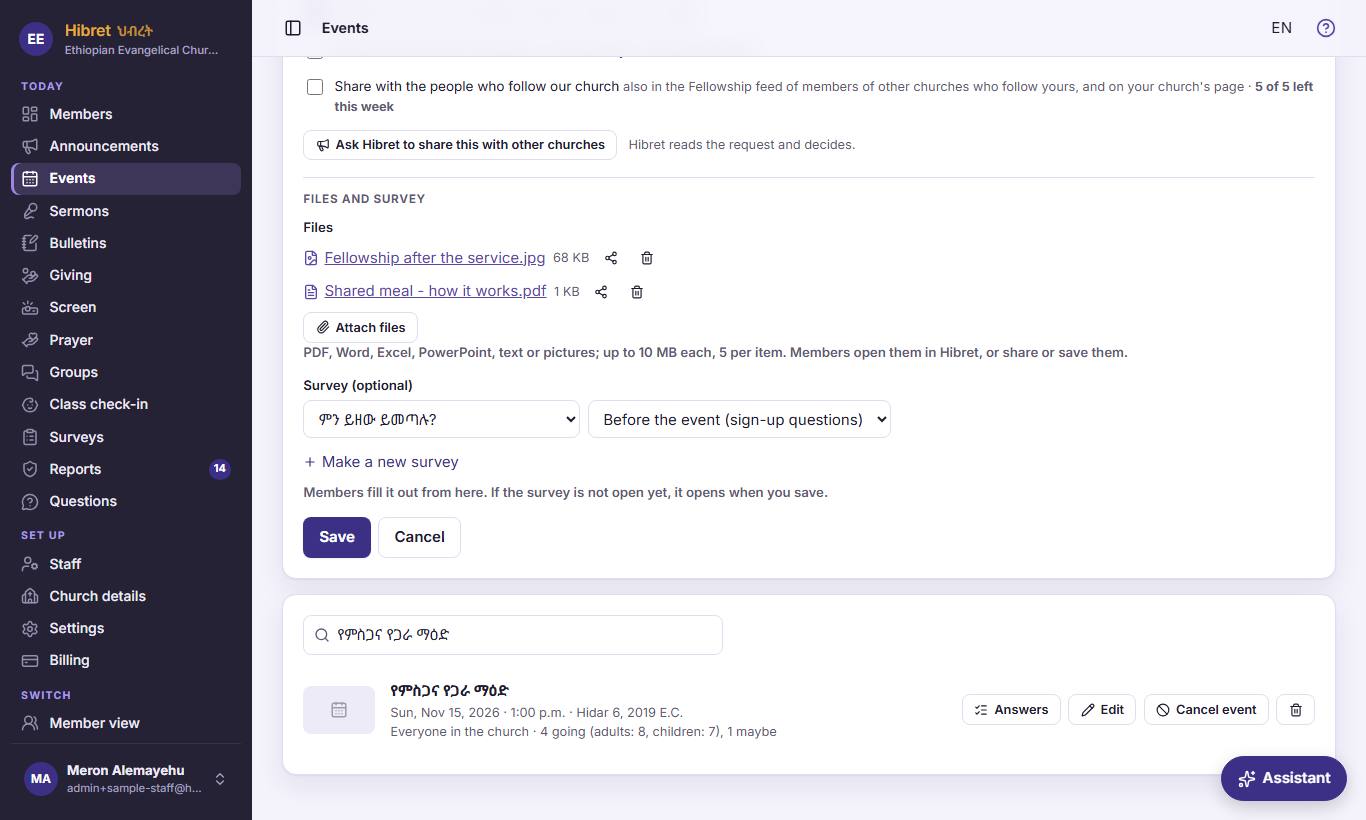
A survey in an event or news: in its editor, choose it in "Survey (optional)" 1. For an event, choose "When" 2. "Make a new survey" 3 writes one there.
- 1 The list has the church's surveys for the whole church that are not closed and not in other news or events. Members fill it out right under the item. If it is still a draft, it opens when you save the item.
- 2 "Before the event (sign-up questions)" shows the survey until the event ends, for example "What will you bring?". "After the event (feedback)" shows it only after the event, to ask how it was.
- 3 "Make a new survey" opens the survey form in a window, so the event you are writing is not lost. After you save the survey, it is chosen in the list.
-
 1237
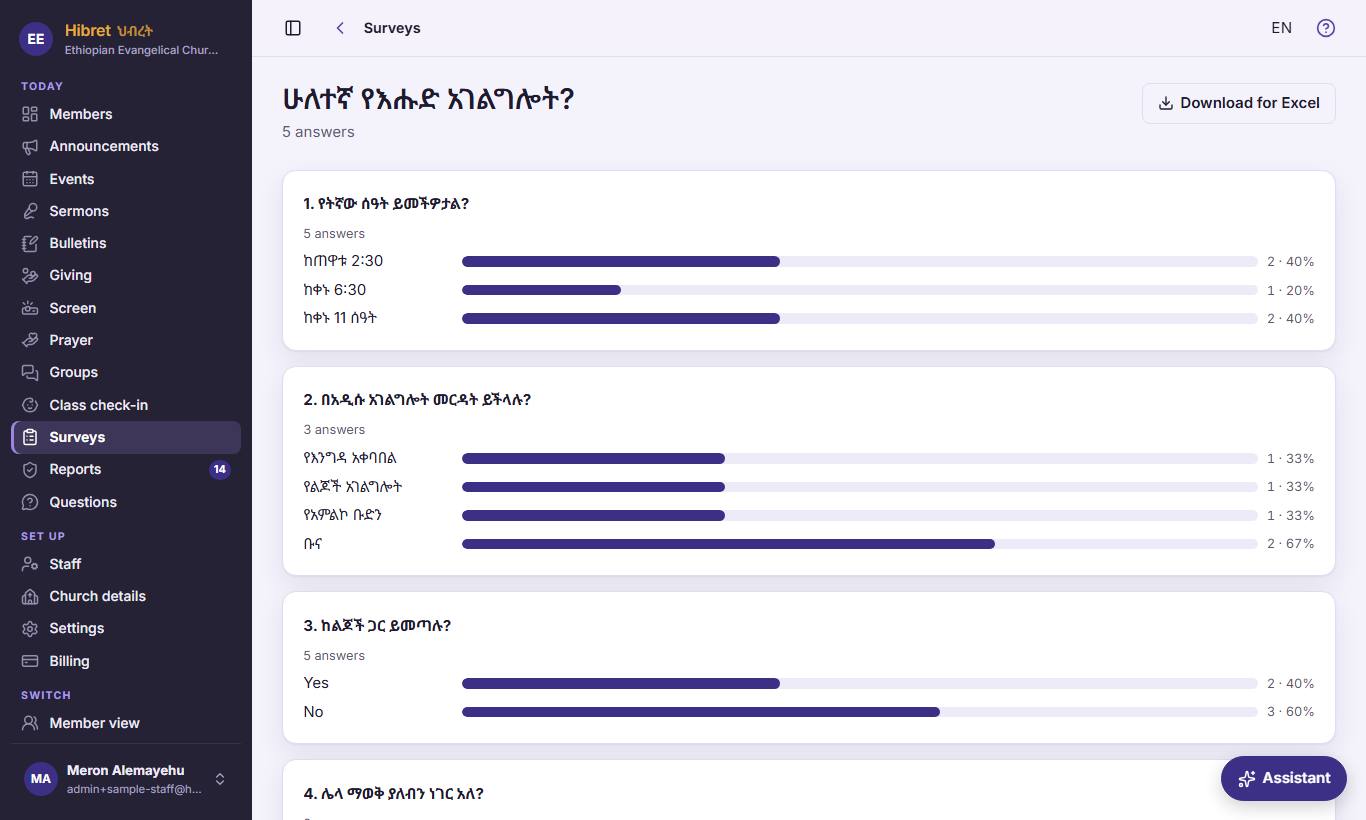
"Answers": how many answered 1, each question with its counts 2, and "Download for Excel" 3.
- 1 The number of people who answered. It grows while the survey is open.
- 2 For choices, yes or no and ratings: a bar for each answer, with the number and the percent; ratings also show the average. Written answers are listed one by one, with the name when the survey is not anonymous.
- 3 "Download for Excel" saves a file that opens in Excel: one line for each person, with the time, the name (not for anonymous surveys) and every answer.
Under the questions, "Who answered" lists the names (not for anonymous surveys).